

Ever felt like you’re learning a new language just to launch a website? Terms like ‘domain,’ ‘hosting,’ and ‘HTTPS’ get thrown around, and it’s easy to feel lost in the technical jargon. You know you need a web address for your site to exist online, but you might not be sure what is a URL or how it actually works. Understanding this fundamental piece of the internet is the first step toward building a strong online presence, yet it’s often the most confusing part for beginners.
This guide is here to change that. We’ll break down a web address-your website’s unique street address on the internet-into simple, easy-to-understand parts. We’ll explain everything from the protocol (that ‘https’ part) to your domain name and the specific page path. By the end, you’ll not only have a clear answer but also feel confident creating user-friendly, secure links for your own blog or business. Let’s demystify web addresses together and give your new website a solid foundation.
Key Takeaways
- Understanding what is a URL is the first step to building a website; think of it as a unique postal address for every single page on the internet.
- A clean, descriptive URL structure is critical for helping both search engines and human visitors understand and trust your content at a glance.
- Learn to identify the core parts of any web address, from the protocol (https) to the domain name, to better grasp how your website is organized.
- Discover how to easily customize your URLs (or “permalinks”) in platforms like WordPress to make them more memorable and effective for SEO.
What is a URL? The Simple Answer for Beginners
Simply put, a URL is the unique address for any given resource on the internet. The easiest way to understand it is to think of a URL like a postal address for a house-it provides the exact, unique location so a web browser can find what you’re looking for. Without these addresses, the web would be an unnavigable sea of documents with no way to find or link to them.
If you’re wondering what is a URL in more technical terms, the acronym stands for Uniform Resource Locator (URL). Its primary job is to tell your browser precisely where to find a specific resource online. That resource could be a webpage you want to read, an image, a video, or even a PDF file you need to download. Every single thing you access online has its own URL.
The ‘Postal Address’ Analogy Explained
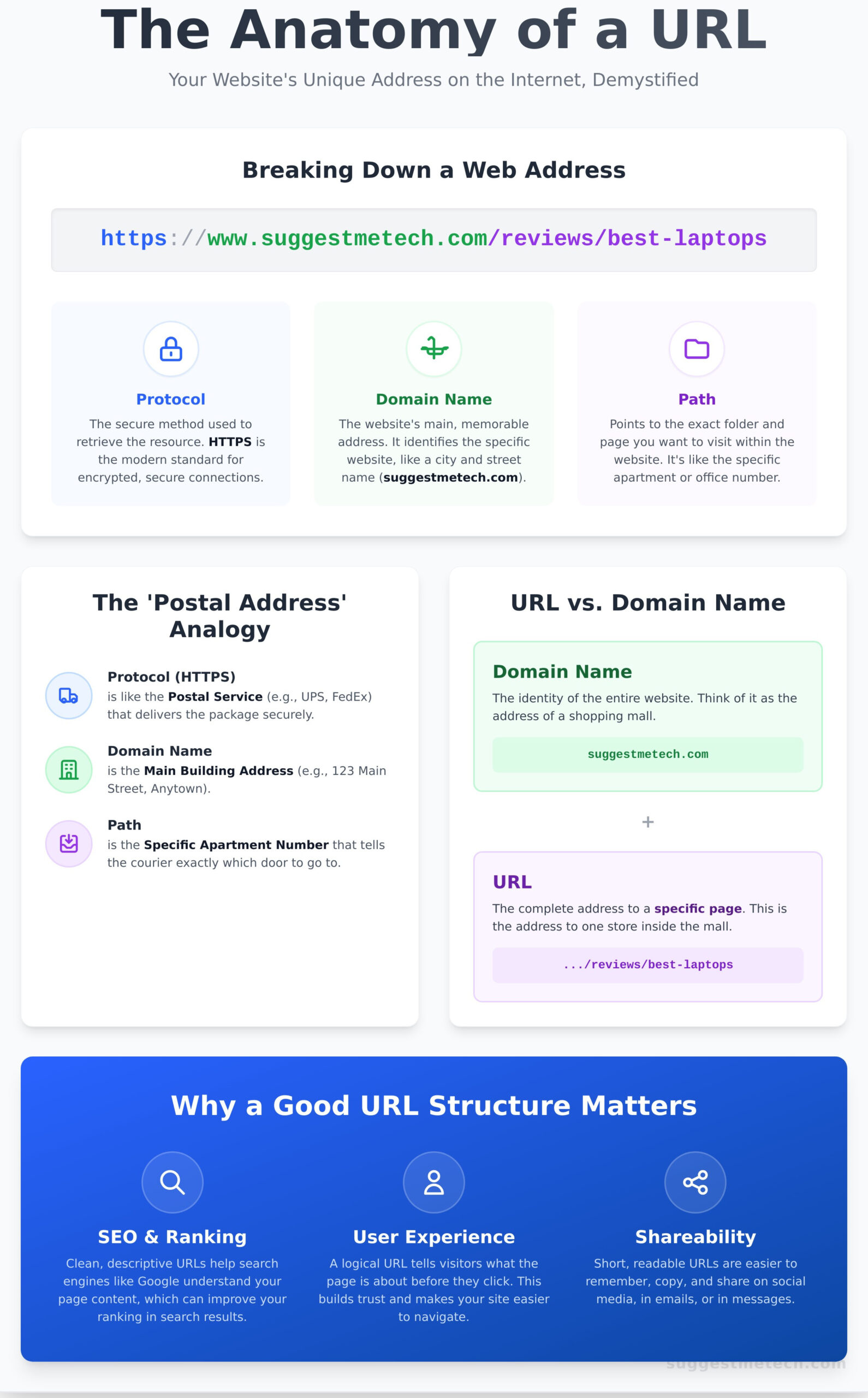
Breaking down a URL using the postal address analogy makes the concept instantly clear. Each part of the web address corresponds to a part of a physical address, guiding your browser on its delivery route to fetch the correct information.
- The Protocol (
https://): This is like the postal service you use (e.g., UPS, FedEx). It’s the method used to retrieve the resource. HTTPS is the modern standard for secure communication. - The Domain Name (
suggestmetech.com): This is the main part of the address, like the city and street (e.g., 123 Main Street, Anytown). It identifies the specific website. - The Path (
/reviews/laptops): This is the specific apartment or office number. It points to the exact folder and page within the website you want to visit.
URL Breakdown:
https://suggestmetech.com/reviews/best-laptops
■ Protocol: The delivery method
■ Domain Name: The website’s address
■ Path: The specific page
URL vs. Domain Name: What’s the Difference?
It’s common to hear “URL” and “domain name” used interchangeably, but they aren’t the same thing. The distinction is simple: a domain name is just one part of a URL.
A domain name is the memorable, user-friendly name for a website, like suggestmetech.com. It’s the main “address” of the entire site. A URL, on the other hand, is the complete, specific address that takes you to a particular page on that site. Think of the domain as the address to a shopping mall, while the URL is the address to a specific store inside that mall.
Breaking Down a URL: The Anatomy of a Web Address
At first glance, a URL might look like a random string of characters, but every part has a specific job. Think of it as a detailed postal address for the internet, guiding your browser to the exact information you need. To better understand what is a URL, let’s dissect a sample web address piece by piece.
We’ll use this example: https://www.suggestmetech.com/reviews/best-hosting
https://www.suggestmetech.com/reviews/best-hosting
- Protocol: The connection method.
- Domain Name: The website’s address.
- Path: The specific page.
Part 1: The Protocol (or Scheme)
The very beginning of the URL (https://) is the protocol. It tells your browser how to connect to the website’s server. You’ll almost always see HTTPS, which stands for Hypertext Transfer Protocol Secure. That “S” is crucial-it means any data you send, like passwords or payment details, is encrypted and kept private. Thankfully, most modern web hosting providers handle this security step for you automatically.
Part 2: The Domain Name
The domain name is the most recognizable part of a URL-it’s the website’s unique, brandable address. In our example, it’s www.suggestmetech.com. This itself has three smaller pieces:
- Subdomain: The
wwwis a common subdomain, but others exist, likeblog.suggestmetech.com, which might point to a site’s blog. - Second-Level Domain: This is the core of your brand, like
suggestmetech. - Top-Level Domain (TLD): The extension at the end, such as
.com,.org, or.gov.
These parts work together to form the main address. For those who want to dig deeper, the MDN Web Docs offers a comprehensive Anatomy of a URL that breaks down every technical component.
Part 3: The Path
Everything that comes after the domain name is the path. Here, that’s /reviews/best-hosting. The path directs the browser to a specific page, article, or file on the website. If the domain name is the building’s street address, the path is the specific apartment number or office suite. It creates a clear, folder-like structure that helps organize a site’s content and tells users exactly where they are on your site.
Why Your URL Structure Matters for SEO and Visitors
Now that you have the technical answer to what is a url, let’s explore why you should care about how they are structured. A URL is much more than a simple web address; it’s a fundamental piece of your website that communicates value to both search engines and human visitors. A well-crafted URL can improve your search rankings and user trust, while a poorly structured one can create confusion.
Think of it this way: which link would you rather click?
yourwebsite.com/blog/best-laptops-for-students/yourwebsite.com/index.php?p=451&cat=9
The first one is clear, descriptive, and trustworthy. The second is a meaningless string of characters. This is the difference between a clean, semantic URL and a messy one, and getting it right is a simple and effective way to improve your website.
Creating User-Friendly (Semantic) URLs
A semantic URL is one that clearly and logically describes its page’s content using easy-to-understand words. The goal is to make the address instantly understandable to a human. To create user-friendly URLs, follow these key principles:
- Use descriptive keywords: Include words that reflect the page’s topic (e.g.,
/how-to-build-a-pc/). - Keep it short and simple: Avoid unnecessary words or deep, complex folder structures.
- Use hyphens to separate words: Google recommends using hyphens (
-) instead of underscores (_) to separate words in URLs.
Clean URLs are also easier for visitors to remember, share, and trust, which encourages more clicks and engagement.
How URLs Impact Your SEO Rankings
While the keywords in your URL are a minor ranking signal, their indirect impact is significant. A clear URL helps search engines like Google quickly understand your page’s topic, which aids in proper indexing. In fact, Google’s own documentation on URL structure best practices emphasizes that a simple, logical structure helps their systems. More importantly, a descriptive URL often appears in search results. When a user sees a URL that matches their search query, they are more likely to click on it, boosting your click-through rate (CTR). A logical site structure, reflected in your URLs (e.g., /laptops/reviews/dell-xps-15), also helps search engine crawlers discover all your content efficiently.
Building Trust with Secure URLs (HTTPS)
Finally, the protocol part of your URL-HTTP vs. HTTPS-is crucial for building trust. HTTPS encrypts the data between a user’s browser and your server, protecting sensitive information. Today, it’s a non-negotiable standard. Modern browsers like Chrome and Firefox actively flag sites still using HTTP as “Not Secure,” which can scare visitors away. Beyond user trust, Google has confirmed that having HTTPS is a light, but official, ranking signal. Ensuring your site is secure is an easy win for both your visitors and your SEO.
Most modern hosts make this simple. See our guide to the best web hosting providers that include free SSL certificates to get started.
How to Create and Manage URLs for Your New Website
Understanding what is a url is the first step; crafting effective ones for your own website is the next. Getting your URL structure right from the beginning is one of the most important technical decisions you’ll make. It impacts user experience and search engine optimization (SEO), and changing it later can be a major headache without proper redirects.
Here’s a practical guide to setting up your URLs correctly, with a focus on WordPress, the world’s most popular Content Management System (CMS).
Choosing the Right Domain Name
Your domain name is the foundation of every single URL on your site. It’s your digital address and a core part of your brand identity. When choosing one, aim for a name that is:
- Memorable and Brandable: It should be unique and easy to recall. Think SuggestMeTech.com, not thebesttechsuggestionsandreviews.com.
- Short and Simple: Shorter domains are easier to type and share. Avoid hyphens and numbers if possible, as they can cause confusion.
- Trustworthy: While many top-level domains (TLDs) exist, .com is still the most recognized and trusted. If it’s available for your brand, it’s usually the best choice.
Setting Up Your Permalink Structure in WordPress
In WordPress, the structure of your URL paths is controlled by a setting called “Permalinks.” You can find this under Settings > Permalinks in your dashboard. This one-time setup determines the default URL format for all your future pages and posts.
For the best results, we strongly recommend choosing the Post name option. This creates clean, descriptive, and keyword-rich URLs like yourwebsite.com/your-page-title/ instead of cluttered alternatives like yourwebsite.com/?p=123.
Best Practices for Individual Page URLs
Once your permalink structure is set, you still have control over the final part of the URL-the “slug”-for each page and post you create. When you add a new page title, WordPress automatically generates a slug. Always take a moment to edit it.
- Keep it concise: Remove unnecessary “stop words” like ‘a’, ‘the’, ‘in’, and ‘of’. For example, a post titled “A Guide to the Best Laptops for College” should have a URL slug of
/best-laptops-for-college. - Be descriptive: Ensure the URL accurately reflects the page’s content. This helps both users and search engines understand what the page is about at a glance.
- Proofread carefully: Double-check for typos before you hit publish. A mistake in a URL is permanent unless you create a redirect.
Advanced URL Concepts Explained Simply
You now have a solid grasp of the basics. But as you spend more time online, you’ll notice URLs with extra characters like question marks (?) or hash symbols (#). These aren’t random; they add special instructions to the web address. Understanding these concepts will complete your knowledge of what is a url and how the web works. Think of this as extra credit-good to know for the future, but not essential for day-to-day browsing.
URL Parameters: The Question Mark in a URL
Ever click a link from an email newsletter and see a long, complex URL? You’ve likely encountered URL parameters. These are small bits of information added to the end of a URL after a question mark (?). They are most often used to track data or to filter and sort the content you see on a page. For example, an e-commerce site might use a parameter to show you only blue shirts.
Here are a couple of common examples:
https://www.examplestore.com/shirts?color=blue(Filters for a specific color)https://www.exampleblog.com/post?source=newsletter(Tracks where the visitor came from)
As a user, you can safely ignore these. If you’re building a website, your marketing or analytics tools often add them automatically.
URL Anchors: Jumping to a Section
An anchor link, also called a “fragment,” is a URL that directs you to a specific part of a webpage, not just the top. It’s identified by a hash symbol (#). This is extremely useful for long articles with a table of contents-clicking a link in the table instantly scrolls you down to the relevant section without needing to load a new page.
Here’s an example that would jump you to a section with the ID “specifications”:
https://www.suggestmetech.com/reviews/new-phone#specifications
It’s a simple but powerful way to improve the user experience on a content-heavy page.
Absolute vs. Relative URLs
This last concept is especially relevant if you ever build your own website. While they look different, they both tell the browser where to go.
- Absolute URL: This is the full web address, including the protocol (
https://), domain, and path. It can be accessed from anywhere on the web.
Example:https://www.suggestmetech.com/about-us - Relative URL: This is a shorthand path used to link to another page on the same website. It assumes the protocol and domain are the same, so it only includes the path.
Example:/about-us
Content Management Systems (CMS) like WordPress or Squarespace typically manage this for you, so you rarely need to worry about which one to use. But now you know why some internal links look shorter than others!
Your Next Step: Mastering URLs and Beyond
Understanding the URL is a cornerstone of building an effective online presence. You started by asking, what is a URL, and now you know it’s much more than a simple web address. It’s a critical tool that guides your visitors and helps search engines understand your content. By crafting clear, logical URLs, you create a better user experience and lay a strong foundation for your website’s SEO success. This knowledge is your first step toward building a site that is both user-friendly and highly visible.
Feeling empowered to take that next step? That’s what we’re here for. We provide practical tech advice for beginners through our expert-led guides and community-driven suggestions. Ready to start your own website? Explore our expert tech guides at SuggestMeTech.
Building a successful website starts with mastering the fundamentals, and you’re already well on your way. Keep learning and keep building!
Frequently Asked Questions
What is the difference between a URL and an IP address?
Think of a URL as a website’s street name and an IP address as its GPS coordinates. A URL (e.g., suggestmetech.com) is a human-friendly address that’s easy to remember. An IP address (e.g., 192.0.2.1) is a series of numbers that computers use to locate the exact server on the internet. Your browser uses a system called DNS (Domain Name System) to translate the memorable URL into the numerical IP address to find and load the website.
Are URLs case-sensitive?
It depends on which part of the URL you mean. The domain name itself (e.g., SuggestMeTech.com) is not case-sensitive. However, everything after the domain, including the path and page name (e.g., /reviews/Best-Laptops/), can be case-sensitive depending on the server’s configuration. To avoid broken links and SEO issues, it is always best practice to use and link to lowercase URLs consistently across your site.
Can I change a URL after I publish a page?
Yes, you can change a URL after a page is live, but it must be done carefully. Simply changing it will break all existing links, leading to 404 “not found” errors for users and search engines. To prevent this and preserve your search ranking, you must set up a permanent (301) redirect. This automatically sends anyone visiting the old URL to the new one, ensuring a seamless transition and passing along any link authority.
What is a ‘slug’ in the context of a URL?
A ‘slug’ is the part of the URL that comes after the domain name and identifies a specific page in a human-readable way. For example, in the URL `suggestmetech.com/reviews/best-laptops-2024`, the slug is `best-laptops-2024`. Slugs are typically generated from the page title and use lowercase letters with hyphens instead of spaces. A clear, descriptive slug helps both users and search engines understand what the page is about at a glance.
How do I find the URL of a specific website or page?
The easiest way to find a page’s URL is by looking at the address bar at the very top of your web browser window. This bar always displays the full web address of the page you are currently viewing. You can click once inside the bar to highlight the entire URL, then right-click (or long-press on mobile) to copy it. This method works on all major browsers, including Chrome, Safari, and Firefox, on any device.
What makes a URL ‘bad’ or poorly structured?
A poorly structured URL is typically long, confusing, and difficult for humans to read. Instead of clear, descriptive words, it might contain random numbers or codes, like `site.com/cat?id=129_ab`. Understanding what is a URL and its purpose helps you spot these ‘bad’ structures. They fail to tell users or search engines what the page is about, which can hurt user trust and search rankings. A good URL should always be simple, descriptive, and concise.
Do I need the ‘www’ in my URL?
No, the ‘www’ is no longer technically necessary for a website to function. Whether you use the ‘www’ version (e.g., `www.suggestmetech.com`) or the non-‘www’ version (e.g., `suggestmetech.com`) is a matter of preference. The most important thing is to choose one version to be your primary address and permanently redirect the other one to it. This consistency is crucial for search engines to prevent them from seeing two versions of your site as duplicate content.