

If you’ve ever tried to upload a large file to your website or make a direct change, you’ve likely come across the term FTP. For many, this acronym is the start of a confusing journey filled with intimidating words like ‘protocol’ and ‘client’. You might wonder why you can’t just handle everything through your browser or where to even begin. The good news is that understanding and using FTP is much simpler than it sounds, and it’s a powerful tool for managing your website.
For those who manage websites as part of a broader software development role, continuing to build on foundational knowledge is key. Technical blogs like Tech Syntax provide in-depth articles and resources for developers looking to expand their skills.
In this beginner’s guide, we’ll demystify File Transfer Protocol completely. We’ll explain what it is in simple terms, show you clear examples of when you’ll need it, and provide easy-to-follow steps to connect to your server for the first time. By the end, you’ll know exactly how to find your login details and have the confidence to manage your website’s files directly and securely.
Key Takeaways
- Grasp the core concept of FTP as a simple tool for moving files between your computer and your website’s server.
- Identify the practical situations where you’ll need to use ftp to manage your website, like uploading themes or running diagnostics.
- Follow a straightforward guide to connect to your server and begin transferring files in just a few minutes.
- Learn the critical security differences between FTP and its secure alternatives (SFTP/FTPS) to keep your data safe.
What is FTP in Simple Terms? Your Digital Moving Van
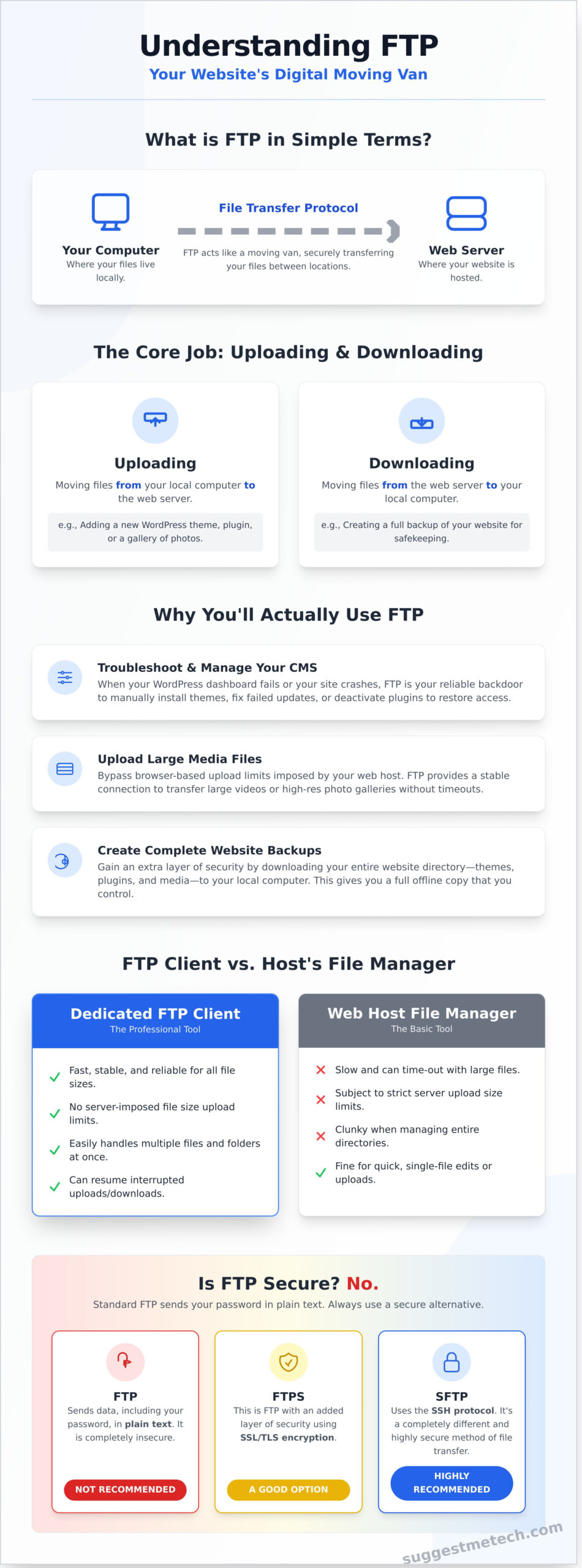
If you’re building or managing a website, you’ll quickly discover that you need a way to move files-like images, themes, and plugins-between your computer and your web server. While this might sound technical, the concept is as simple as moving boxes from your house to a storage unit. In this analogy, your computer is the house, the web server is the storage unit, and FTP is your specialized digital moving van.
At its core, the File Transfer Protocol (FTP) is a standard method for transferring files between two computers on a network. It’s the behind-the-scenes workhorse designed specifically for the heavy lifting of file management. This makes it fundamentally different from HTTP, the protocol your browser uses to simply view the files on a website. HTTP is for looking, while FTP is for moving.
The Core Job of FTP: Uploading and Downloading
The primary purpose of any ftp connection is to transfer files, which generally falls into two categories. These actions are the foundation of managing any website’s backend files:
- Uploading: This is the process of moving files from your local computer to the web server. You’ll do this when you’re adding a new theme, uploading a batch of photos for a gallery, or installing a custom plugin.
- Downloading: This involves moving files from the web server back to your local computer. It’s an essential step for creating backups of your website or for editing a file on your computer before re-uploading it.
Beyond these core tasks, FTP also allows you to perform other crucial file management actions like creating new directories, renaming files, and deleting old content directly on your server.
FTP vs. Your Web Host’s File Manager
Most web hosting providers include a browser-based File Manager in their control panel. For uploading a single image or making a quick edit, this tool is perfectly fine. However, it often becomes slow and unreliable when handling multiple folders or large files, sometimes timing out mid-transfer. This is where a dedicated FTP client shines. It’s the professional-grade tool for the job, offering far greater speed and stability. Key features like transfer queues and the ability to automatically resume an interrupted upload make it the superior choice for any serious file management task.
Why You’ll Actually Use FTP for Your Website
While modern website dashboards are powerful, managing your site effectively involves more than just writing posts and changing settings. Sooner or later, you’ll need to work directly with your website’s files. This is where File Transfer Protocol, or ftp, becomes an essential tool. It gives you direct access to your web server’s file structure, much like browsing folders on your own computer, allowing you to perform critical tasks that are impossible through a standard web browser.
Manual WordPress Installations and Updates
Sometimes, the automated tools in your WordPress dashboard can fail. An FTP client provides a reliable backdoor for managing your core files, themes, and plugins. Common scenarios include:
- Manual Installation: If a one-click installer isn’t available, you can upload the core WordPress files directly to your server to begin the setup process.
- Failed Updates: When a theme or plugin update fails through the dashboard, you can upload the new version manually to fix the issue.
- Troubleshooting: If your site crashes, a common first step is to use FTP to access your
/wp-content/folder and rename the/plugins/folder. This deactivates all plugins, often restoring access to your site.
Uploading Large Media Files
Have you ever tried to upload a large video or high-resolution image gallery, only to be blocked by a server error? Most web hosts impose upload limits through the browser interface. FTP is the solution for bypassing these restrictions. It provides a stable, direct connection to your server, making it far more reliable for transferring large files without timeouts or interruptions.
Creating Backups of Your Website
While backup plugins are convenient, having a manual backup provides an invaluable extra layer of security. Using an FTP client, you can connect to your server and download your entire website’s file directory-including your themes, plugins, and media uploads-directly to your local computer. This gives you a complete, offline copy of your site that you control, ensuring you can restore it even if you lose access to your dashboard.
How FTP Works: The Key Components Explained
At its core, FTP operates on a client-server model. Think of it as a structured conversation between two pieces of software: one on your computer (the client) and one on your web host’s computer (the server). To make a file transfer happen, your client sends requests, and the server responds by granting access or sending the requested files.
This communication happens over two separate channels. The first is a command channel, used for sending instructions like “log me in” or “list the files.” The second is a data channel, which is opened only when files are actually being uploaded or downloaded. This efficient system ensures commands and data don’t get mixed up, leading to a reliable transfer.
The FTP Client: Your Control Panel
An FTP client is an application you install on your local computer. It acts as your dashboard for managing files on a remote server. Most clients feature a simple two-pane interface: one side shows the files on your computer, and the other shows the files on the server. This makes moving files as easy as dragging and dropping. Popular, free options include FileZilla, Cyberduck, and WinSCP.
The FTP Server: Your Website’s Home
The FTP server is software running on your web hosting provider’s machine. You don’t need to install or manage it-your host handles everything. Its primary job is to constantly listen for connection requests from clients. Once you connect, the server authenticates your credentials and manages your access, ensuring you can only see and modify the files you have permission for. It’s the gatekeeper for your website’s files.
Your Login Credentials (Host, Username, Password, Port)
To establish a connection, you’ll need four key pieces of information, which are typically provided by your web hosting company:
- Host: This is the address of the server you want to connect to. It’s often your domain name, sometimes prefixed with “ftp.” (e.g., ftp.yourwebsite.com or just yourwebsite.com).
- Username & Password: These are your specific login details for the server. Note that these are often different from the username and password you use to log into your hosting account’s main dashboard.
- Port: This is the designated “door” on the server for the connection. For standard, unencrypted ftp, the default port is almost always 21. More secure versions like SFTP use a different port, typically 22.
How to Use FTP: A 3-Step Guide for Beginners
Theory is great, but the best way to understand FTP is to use it. This practical walkthrough will guide you through connecting to your server in just a few minutes. We’ll use FileZilla, a popular and free client, for our examples. Don’t worry-for now, we’re just going to look around, not change anything critical.
Step 1: Find Your FTP Account Details
Before you can connect, you need your login credentials. These are almost always provided by your web hosting provider. Check the “welcome” email you received when you first signed up. If you can’t find it, log into your hosting control panel (like cPanel or Plesk) and look for a section called “FTP Accounts.” In this area, you can find existing accounts or create a new one. You will need four key pieces of information:
- Host: Often your domain name (e.g., yourwebsite.com) or an IP address.
<li><strong>Username:</strong> Your specific FTP username.</li>

<li><strong>Password:</strong> The password associated with that username.</li>

<li><strong>Port:</strong> Usually 21 for standard FTP, but your host will confirm this.</li>
Step 2: Download and Install an FTP Client
An FTP client is the software on your computer that connects to the server. We recommend FileZilla because it’s free, reliable, and works on Windows, macOS, and Linux. You can download it directly from the official source to avoid any unwanted extras.
Download here: Official FileZilla Website
During installation, pay close attention to each step. Some installers may offer to bundle extra software-you can safely decline these offers.
Step 3: Connect and Transfer Your First File
With FileZilla open, you’ll see a “Quickconnect” bar at the top. Enter the Host, Username, Password, and Port details you found in Step 1 and click “Quickconnect.”
Once connected, the interface is split into two main sides. The left side shows your local files (your computer), and the right side shows the remote files (your web server). This two-sided view is the core of managing files with an ftp client.
To transfer a file, simply drag it from one side to the other. To download a file from your server to your computer, find it on the right and drag it to a folder on the left. To upload, do the reverse. Start by downloading a non-essential file, like a log file, just to see how it works!
Is FTP Secure? Understanding FTP vs. SFTP vs. FTPS
While FTP is a foundational protocol of the internet, its original design dates back to a time when digital security was not the critical concern it is today. The single most important thing to understand about standard ftp is that it is not secure. It transmits all data, including your username, password, and files, in plain text. This means anyone snooping on the network could potentially intercept and read your sensitive information.
Fortunately, this security gap was closed long ago with the development of modern, encrypted alternatives. For any practical use today, you should always use one of these secure protocols.
SFTP: The Secure Standard
SFTP stands for SSH File Transfer Protocol. Despite the similar name, it’s a completely different protocol that runs over a secure SSH connection. It encrypts both your login credentials and the data being transferred, making it the go-to choice for most developers and system administrators. SFTP typically operates over a single port, Port 22, which simplifies firewall configuration.
FTPS: FTP with a Security Layer
FTPS, or File Transfer Protocol over SSL/TLS, is exactly what it sounds like: the original FTP protocol with a layer of modern SSL/TLS encryption added on top (the same technology that secures websites with HTTPS). It is also highly secure, but it works differently from SFTP and often requires multiple port numbers to be opened (such as Port 990 for the control connection), which can sometimes be more complex to configure.
The Bottom Line: Always Use SFTP or FTPS
When you configure your FTP client, you will almost always see an option to connect using SFTP or FTPS. You should always choose one of these secure options. The best part? The user experience is identical-you still drag and drop files the same way you would with standard FTP, but with the peace of mind that your data is fully encrypted and protected.
Of course, file transfer security starts with your server. Choosing a secure web host is the first step. See our top picks!
Putting Your FTP Knowledge into Practice
You’ve now seen that File Transfer Protocol isn’t just a technical acronym-it’s your digital moving van for website files. Understanding how to connect with a client and the importance of using secure options like SFTP gives you direct control over your site’s backend. This is a core tool for managing any self-hosted website, empowering you to troubleshoot common WordPress issues and manage your content with confidence.
Now that you understand the fundamentals of ftp, you’re ready to take the next big step in your web journey. Join the thousands of new website owners who trust our practical, in-depth guides every month to get started on the right foot.
Ready to build your website? Find the perfect host with our guide to the Best Web Hosting Providers.
You’re now equipped with a crucial skill for web management. Go build something amazing!
Frequently Asked Questions About FTP
What is an FTP client and do I need one?
An FTP client is a software application that gives you a user-friendly interface to connect to an FTP server and manage your files. Think of it as a bridge between your computer and your web server. While advanced users can use command-line tools, a dedicated client like FileZilla or Cyberduck is highly recommended. For most people, especially beginners, using a client is the most practical and efficient way to handle file transfers.
Is FTP a secure way to transfer my website files?
Standard FTP is not secure. It sends your username, password, and file data in plain text, which means it can be easily intercepted. For this reason, we strongly recommend using a secure alternative like SFTP (SSH File Transfer Protocol) or FTPS (FTP over SSL/TLS). These protocols encrypt your entire session, protecting your credentials and ensuring your data remains private and safe from eavesdroppers during transfer.
Can I use FTP without installing any software?
Yes, it’s often possible through a web-based interface. Most web hosting control panels, such as cPanel or Plesk, include a “File Manager” tool that lets you upload, download, and edit files directly in your browser. While convenient for quick edits, these tools are less efficient for transferring large numbers of files. For bulk uploads or frequent management, a dedicated desktop FTP client offers superior speed, reliability, and features.
What is the default port number for FTP and SFTP?
Knowing the correct port is essential for a successful connection. The default port for standard, non-encrypted FTP is port 21. For the much more secure SFTP (SSH File Transfer Protocol), the standard is port 22. If your host provides FTPS (FTP over SSL/TLS), it typically uses port 990. Always confirm the correct port number with your hosting provider, as they can sometimes use custom configurations for security.
How is using FTP different from using Dropbox or Google Drive?
While they all move files, their core functions are different. Services like Dropbox and Google Drive are designed for cloud storage, file synchronization across your devices, and easy sharing with others. In contrast, FTP is a direct protocol for transferring files from your computer to a remote server, such as a web host. It’s the primary tool for publishing and updating the files that make up your website, not for personal storage or collaboration.
My FTP connection failed. What are the most common reasons?
Connection errors are usually caused by simple mistakes. The most common culprit is incorrect login credentials-double-check your hostname (server address), username, and password for typos. Another frequent issue is a firewall on your computer or network blocking the connection. Finally, ensure you are using the correct port number (e.g., 21 for FTP or 22 for SFTP), as using the wrong one will prevent the connection from being established.