

If you’ve ever thought about building a website, you’ve almost certainly heard the name ‘WordPress.’ But for many, that’s where the clarity ends. Is it free? Is it complicated? And what’s the deal with the two different versions everyone talks about? It’s a common source of confusion that leaves potential creators feeling stuck before they even start. If you’re worried that building a website is too technical or costly, we’re here to put those fears to rest.
This guide is your friendly, straightforward introduction to the world’s most popular website builder. We’ll provide a simple, clear definition of what WordPress is and demystify the crucial difference between WordPress.org and WordPress.com. You’ll learn exactly what you need to get started and see why millions of people-from personal bloggers to major corporations-choose this powerful platform. By the end, you’ll have the confidence and clarity to take the next step on your website-building journey.
What is WordPress in Simple Terms?
Imagine your website is a house. WordPress is the powerful, flexible foundation and framework that everything is built upon. In more technical terms, it’s a Content Management System (CMS)-a tool designed to help you create, edit, and manage a professional website without needing to be a web developer. It handles all the complex coding behind the scenes, so you can focus on what matters: your content. This approach is so effective that it powers over 43% of the entire internet, from personal blogs to major news sites. At its heart, it is completely free, open-source software, a concept detailed in the comprehensive WordPress Wikipedia article.
The Core Idea: Managing Content Without Code
The easiest way to grasp how it works is to compare it to software you already use, like Microsoft Word or Google Docs. Instead of staring at a blank screen of code, you log into a user-friendly dashboard. From this control panel, you can:
- Write and publish new blog posts or pages using a simple text editor.
- Upload and manage images, videos, and other media files.
- Organize your content with categories and tags.
This system brilliantly separates your content (the words and pictures) from your site’s design (the layout and colors). That means you can change your entire website’s look and feel by installing a new ‘theme’ without ever losing a single blog post or page.
What Does ‘Open-Source’ Mean for You?
When we say WordPress is ‘open-source,’ it means the original source code is made freely available and may be redistributed and modified. It isn’t owned by a single corporation; rather, it’s maintained by a massive global community of contributors. For you, the user, this translates into two key advantages. First, the core software is completely free to download, install, and use for any project, personal or commercial. Second, this freedom has fueled a vast and vibrant ecosystem. Thousands of developers have created themes (for design) and plugins (for functionality), allowing you to extend your site with features like contact forms, online stores, and photo galleries with just a few clicks.
The Two Flavors of WordPress: .org vs. .com
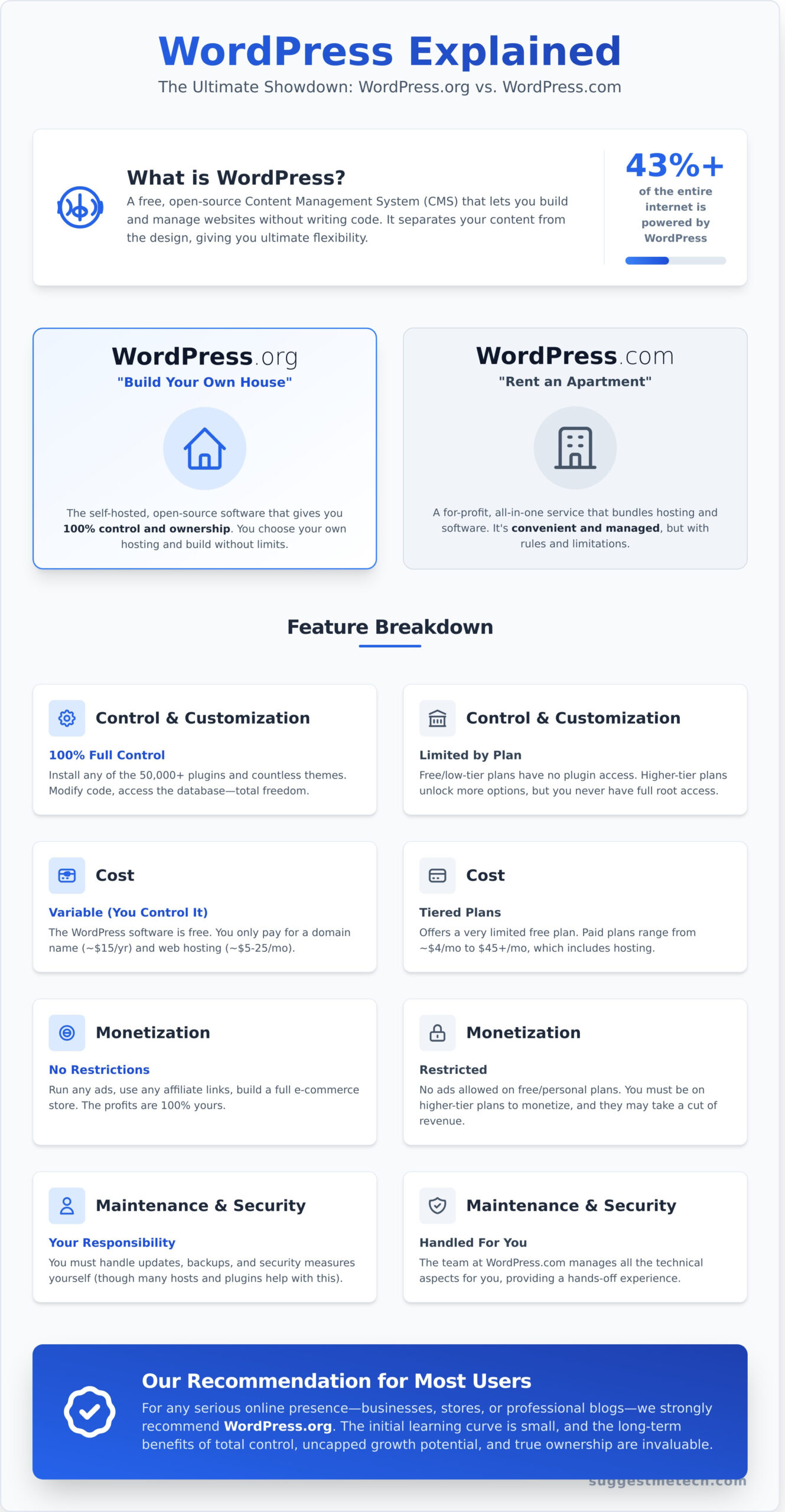
One of the first hurdles for any beginner is the difference between WordPress.org and WordPress.com. It’s the single biggest point of confusion, but it’s simple when you think of it like this: WordPress.org is like building your own house, while WordPress.com is like renting an apartment.
Renting an apartment (WordPress.com) is convenient. The landlord handles maintenance, and everything you need is included. However, you have to follow the landlord’s rules-no painting the walls or running a business out of your living room without permission. Building a house (WordPress.org) means you buy the land (hosting) and build whatever you want. You have total freedom, but you’re also responsible for all the upkeep.
Here’s a quick comparison to help you decide:
| Feature | WordPress.org (Build a House) | WordPress.com (Rent an Apartment) |
|---|---|---|
| Cost | Software is free; you pay for hosting and a domain name. | Offers a free (limited) plan and paid tiers with hosting included. |
| Control | 100% control over everything. Full customization. | Limited control. Customization depends on your plan. |
| Monetization | No restrictions. Run any ads, sell any products. | Restricted, especially on lower-tier plans. |
| Maintenance | You are responsible for updates, backups, and security. | Handled for you by the service. |
WordPress.org: The Self-Hosted Powerhouse
This is the free, open-source software that powers millions of websites. You download it from the official WordPress website and install it on a web hosting account that you purchase separately. This approach gives you complete authority over your site’s design, functionality, and data.
- Pros: Full control to install any theme or plugin, complete freedom to monetize your site, and you truly own your website data.
- Cons:s You are responsible for buying a domain/hosting, performing software updates, and managing your own security.
- Best for: Businesses, serious bloggers, online stores, and anyone who wants total creative and financial control over their website.
WordPress.com: The All-in-One Service
WordPress.com is a for-profit company that offers an all-in-one website building and hosting service. It uses the core WordPress software but packages it into a simplified, managed experience. You sign up, choose a plan, and can start building immediately without worrying about the technical backend.
- Pros: Extremely easy setup, hosting and security are included, and maintenance is handled for you.
- Cons: Limited plugin and theme access on cheaper plans, less overall control, and can become more expensive than self-hosting as you scale.
- Best for: Hobby bloggers, simple portfolio sites, and users who want a hands-off, zero-maintenance solution.
Our Recommendation for Most Users
While both versions have their merits, we recommend WordPress.org for nearly everyone building a serious online presence. The ultimate flexibility and long-term growth potential are unmatched. Don’t be intimidated by “self-hosting”-most modern web hosts offer simple, one-click installations. By choosing .org, you are investing in a digital asset that you truly own and control, setting your project up for future success.
What Kinds of Websites Can You Build with WordPress?
One of the biggest misconceptions about WordPress is that it’s just for blogging. While it started there, today it’s a powerful and flexible platform capable of building almost any type of website you can imagine. The key to this versatility lies in two core components: themes control your site’s design and layout, while plugins add new features and functionality.
Blogs and Personal Websites
WordPress hasn’t forgotten its roots. It remains the best platform for blogging, with a user-friendly editor and robust tools for organizing content like categories and tags. This makes it the perfect choice for writers, hobbyists, or anyone looking to build a personal brand and engage with an audience through comments.
Business and Corporate Websites
From local service providers to global corporations, businesses of all sizes rely on WordPress. You can easily create essential pages for services, team member bios, and customer testimonials. Its scalability and robust security features are why major organizations trust it; even IBM’s guide to WordPress highlights its enterprise-level capabilities. High-profile examples include the official websites for Sony Music and The White House.
eCommerce Stores
Want to sell online? The free WooCommerce plugin transforms your site into a full-featured eCommerce store. It’s the world’s most popular eCommerce solution, powering millions of online shops. You can sell anything from physical products and digital downloads to subscriptions and services, giving you complete control over your business.
Portfolios, Membership Sites, and More
The possibilities don’t stop there. Thanks to its massive ecosystem of plugins, you can build highly specialized sites, including:
- Online portfolios for artists and photographers
- Membership sites for exclusive content or online courses
- Community forums and social networks
- Booking systems for appointments and reservations
Ultimately, the platform’s true power is its adaptability. If you need a specific feature for your website, there is a very good chance a plugin already exists to make it happen.
Why is WordPress So Popular? The 4 Key Advantages
It’s a staggering statistic: WordPress powers over 43% of all websites on the internet. This immense popularity isn’t just a trend; it’s a testament to a powerful, flexible, and accessible platform. For a beginner, this widespread adoption is the ultimate reassurance-you’re choosing a tool that is tested, trusted, and built to last. Its success is built on four key pillars that directly benefit you, the user.
1. Limitless Customization with Themes and Plugins
Imagine you could change your website’s entire design with a single click. That’s the power of themes. A theme controls the complete visual presentation of your site-the layout, colors, and fonts. Beyond the visuals, plugins add specific features. Need a contact form, an online store, or an event calendar? There’s a plugin for that. With thousands of free and premium options, you can build a site that looks and functions exactly how you want.
2. It’s Beginner-Friendly and Easy to Learn
You don’t need to be a developer to create a professional website. The dashboard is an intuitive control center for your entire site, and creating content is as simple as using a word processor thanks to the modern block editor. You simply add blocks for text, images, videos, and columns, arranging them to build your page. This visual, drag-and-drop approach removes the technical barriers, letting you focus on your content.
3. You Have Full Ownership and Control
When you build a site with the self-hosted version of WordPress, you own it. Completely. Unlike posting on social media or using certain website builders where you are essentially “renting” space, your website and all its data belong to you. This digital ownership gives you the ultimate freedom. You can move your site to a new web host, customize the underlying code, and operate without fear of a platform suddenly changing its rules or deleting your content.
4. A Massive Community for Support
One of the biggest advantages of its popularity is the massive global community. If you ever get stuck, help is always easy to find. You have access to a virtually endless supply of resources: official support forums, detailed tutorials on blogs, and step-by-step video guides on YouTube for nearly any task you can imagine. And if you need professional help, there’s a huge ecosystem of skilled developers and designers you can hire for custom projects.
How to Get Started with WordPress (The Easy Way)
Feeling inspired? The great news is that launching your own website is more accessible than ever. While the software itself is free, building a self-hosted wordpress site requires three essential ingredients. Think of it like building a house: you need an address, a plot of land, and the house itself. Let’s break down this simple, three-step roadmap to get you online.
Step 1: Choose a Domain Name
Your domain name is your website’s unique address on the internet-it’s what people type into their browser to find you (like suggestmetech.com). A good domain is memorable, easy to spell, and relevant to your brand or topic. You don’t need to buy this separately; most people register their domain name at the same time they purchase their hosting plan, often for free for the first year.
Step 2: Select a Web Hosting Provider
If your domain is the address, web hosting is the plot of land where your website’s files live. It’s a service that stores your site’s data and makes it accessible to visitors around the world. For beginners, the best feature to look for is “one-click” WordPress installation. This tool automates the entire technical setup, letting you launch your site in minutes without touching a single line of code. Not sure where to start? Check our guide to the Best Web Hosting Providers.
Step 3: Install WordPress and Start Building
Once you’ve chosen a host, you’ll use their one-click installer to get the software up and running. After the quick installation process, you’ll receive a link to your new login page and a password. Logging in for the first time takes you to the WordPress dashboard-your mission control center. From here, the creative part begins! You can choose a design (a “theme”), add your first pages, and start publishing your content for the world to see.
Your WordPress Journey Starts Now
You’ve now gone from a complete beginner to understanding exactly what makes WordPress the world’s most popular website builder. Remember these key points: it’s a powerful and flexible platform for any type of website, and choosing the self-hosted option (WordPress.org) gives you total creative freedom. This unique combination of ease and power is why millions have built their site on this trusted foundation.
The first step to bringing your vision to life is choosing the right home for your site. Our expert-vetted tech guides and unbiased reviews are here to help you select the perfect hosting provider without the guesswork. Ready to build? Find the perfect foundation with our list of the Best WordPress Hosting Providers.
It’s time to stop wondering and start building. Your new website is just a few clicks away!
Frequently Asked Questions About WordPress
Is WordPress completely free to use?
The WordPress.org software itself is 100% free and open-source. However, to make your website live, you must pay for a domain name (your site’s address) and web hosting (the server where your site’s files live). Think of it as free software that requires a paid service to run. WordPress.com is a separate, hosted service that does offer a free plan with limitations, but its paid plans bundle everything together for a monthly fee.
Do I need to know how to code to use WordPress?
Absolutely not. One of the biggest strengths of WordPress is that you can create and manage a professional website without writing any code. The user-friendly block editor, combined with thousands of pre-made themes for design and plugins for new features, allows for easy customization. While knowing code is a bonus for highly specific modifications, it is not a requirement for the vast majority of users to build a beautiful and functional site.
Is WordPress secure for my website?
Yes, the core WordPress software is very secure and is maintained by a global team of developers who regularly release security patches. However, your site’s security also depends on you. To keep your website safe, you should always use strong passwords, keep your themes and plugins updated, and only download them from reputable sources. Installing a well-regarded security plugin is also a practical step for adding an extra layer of protection to your site.
How is WordPress different from website builders like Wix or Squarespace?
The key difference is control versus all-in-one simplicity. Builders like Wix and Squarespace are closed platforms that are extremely easy to use but limit your customization and control. In contrast, WordPress is open-source, giving you complete ownership and endless flexibility. Its massive ecosystem of themes and plugins allows you to build virtually any type of website, making it a more powerful and scalable solution for long-term growth and unique functionality.
Can I switch from WordPress.com to WordPress.org later?
Yes, you can, and this is a very common migration path for users who want more control as their website grows. The process involves exporting your content (posts, pages, images) from your WordPress.com account and then importing it into a new, self-hosted WordPress.org installation. While it involves a few technical steps, many web hosts offer migration assistance, and there are plenty of detailed guides available to walk you through the process.
What’s the difference between a theme and a plugin?
The easiest way to understand this is with an analogy. A theme is your website’s overall design and layout-it’s like the architectural blueprint and interior design of your house. It controls the look, colors, and fonts. A plugin, on the other hand, is like adding a new appliance or feature to that house. It adds specific functionality that isn’t there by default, such as a contact form, an online store, or an SEO toolkit for your WordPress site.