

That familiar ache in your wrists after an eight-hour stretch. The frustrating backspace dance to correct typos on a flimsy, unresponsive set of keys. If you spend your workday typing, you know these pains all too well. But what if the problem isn’t your stamina, but the tool at your fingertips? The right keyboard can transform your workday from an endurance test into a comfortable, productive flow, protecting you from long-term strain and fatigue.
Navigating the world of ergonomic designs and mechanical switches can feel overwhelming. That’s why we’ve done the research for you. In this guide, we cut through the technical jargon to compare the top models for comfort, speed, and durability. We’ll help you discover the ultimate keyboards designed for all-day productivity in 2026. Get ready to say goodbye to wrist pain and typos and find the perfect partner for your desk-a confident investment in your daily work and well-being.
Key Takeaways
- Learn how core components like key switches and build quality-not just marketing hype-define a great typing experience.
- Discover why mechanical keyboards are often a superior choice for all-day productivity, not just for gaming.
- Protect your wrists by learning which ergonomic keyboard features genuinely prevent strain and improve long-term comfort.
- Fine-tune your choice by considering essential extras like connectivity and software that can make or break your daily workflow.
What Makes a Keyboard Great for Typing? Key Features Explained
Finding the right keyboard for all-day typing goes beyond flashy RGB lighting and marketing buzzwords. A great typing experience is built on a foundation of quality components that directly impact your comfort, speed, and accuracy. To truly understand what sets a premium typing tool apart, it’s essential to look at the evolution of computer keyboard technology and focus on three core pillars: the switches under the keys, the keycaps your fingers touch, and the overall build quality and layout.
The Heart of the Keyboard: Key Switches Explained
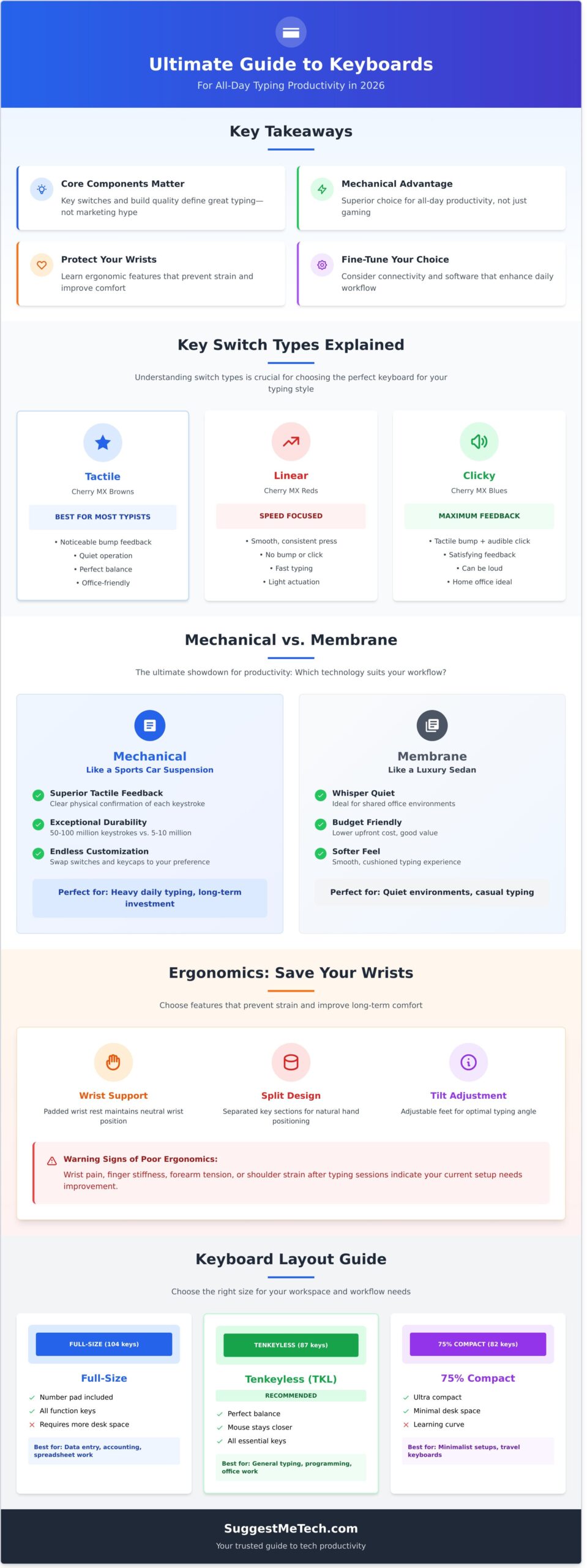
Mechanical key switches are the mechanisms beneath each key that register a keystroke. They are the single most important factor in how a keyboard feels. The three main types are:
- Tactile: These provide a small, noticeable bump when the key is pressed, confirming actuation without a loud click.
- Linear: These offer a smooth, consistent press from top to bottom with no bump or click.
- Clicky: These provide both a tactile bump and an audible, sharp “click” sound with each keystroke.
For most typists, Tactile switches (like Cherry MX Browns) are the ideal starting point. The bump provides excellent feedback for touch typing without creating excessive noise. Linear switches (Reds) are often preferred for their speed, while Clicky switches (Blues) offer maximum auditory feedback, which some typists find satisfying but can be disruptive in an office setting. The actuation force (how hard you need to press) and travel distance also fine-tune the feel, but starting with the right switch type is key.
The Point of Contact: Keycaps and Materials
Keycaps are the plastic tops you physically touch. Higher-quality keycaps are typically made from PBT (polybutylene terephthalate) plastic, which is more durable and resistant to the shine that develops from finger oils over time than standard ABS (acrylonitrile butadiene styrene) plastic. The shape, or “profile,” of the keycaps (e.g., Cherry, OEM) also affects the typing feel, with sculpted profiles designed to be more ergonomic. Finally, look for clear, long-lasting legends (the letters and symbols) that won’t fade after a few months of heavy use.
Built to Last: Why Build Quality and Layout Matter
A solid frame, often made of aluminum instead of plastic, prevents “deck flex”-a noticeable bending or creaking while typing that cheapens the experience. The layout is just as important. While a Full-Size keyboard includes a number pad, a Tenkeyless (TKL) layout removes it to save desk space. Even more compact 75% layouts push the keys closer together. Your choice depends on your workflow: if you frequently enter numerical data, a numpad is essential. If not, a smaller layout provides better ergonomics by keeping your mouse closer.
Mechanical vs. Membrane: The Ultimate Showdown for Productivity
One of the biggest decisions you’ll face when choosing a keyboard for all-day typing is the technology under the keys: mechanical or membrane? While long-loved by gamers, the idea that mechanical keyboards are just for play is a myth. For professionals, this choice is less about gaming and more about performance and comfort.
Think of it like a car’s suspension. A mechanical keyboard is like a sports car’s suspension-each key press provides distinct, precise feedback, giving you more control. A high-quality membrane keyboard is like a luxury sedan’s-it offers a softer, quieter ride that smooths out the experience. Neither is inherently better; the right one depends entirely on your needs.
The Case for Mechanical Keyboards
A mechanical keyboard uses individual physical switches under every key, which translates into a superior typing experience for many professionals. They offer tangible benefits that directly impact productivity and long-term value.
- Superior Tactile Feedback: Each keystroke provides a clear physical bump or audible click. This feedback confirms the key has been activated, which can lead to faster, more accurate typing with fewer errors.
- Greater Durability: Mechanical switches are typically rated for 50 to 100 million keystrokes, far outlasting the 5-10 million common for membrane models. This is an investment that pays off.
- Endless Customization: You can choose switches that are clicky, quiet, or somewhere in between. You can also swap out keycaps to create a tool that is perfectly tailored to your hands and aesthetic.
And what about the noise? Don’t worry-many modern mechanical switches (like Cherry MX Silent Red or Brown) are designed for quiet operation, making them perfectly suitable for a shared office.
The Case for High-Quality Membrane & Scissor-Switch Keyboards
Membrane keyboards, which register a keystroke when you press a key down through a flexible rubber layer, have evolved significantly. Premium models, often using a “scissor-switch” mechanism for stability, are excellent tools for the modern workplace.
- Quieter Operation: Their soft-press design makes them naturally quiet, which is a major advantage in open-plan offices or shared spaces where noise is a concern.
- Lower Profile: These keyboards are often slimmer. Some users prefer a low-profile design for its aesthetics and wrist posture, though proper ergonomics are a key part of any setup. For a deeper dive, the Canadian Centre for Occupational Health and Safety offers excellent guidance on keyboard selection and use.
- Typically More Affordable: While high-end models exist, membrane keyboards generally offer a lower entry price, making them an accessible option for upgrading from a standard-issue device.
Top-tier examples like the Logitech MX Keys prove that a membrane keyboard can deliver a precise, comfortable, and feature-rich experience for serious typists.
Ergonomics: How to Choose a Keyboard That Saves Your Wrists
If you type for hours every day, ergonomics is not a luxury-it’s a crucial investment in your long-term health. The right setup can prevent the repetitive strain that leads to wrist pain, discomfort, and even carpal tunnel syndrome. An ergonomic design isn’t just a marketing term; it’s a practical solution engineered to support your body’s natural posture and reduce physical stress.
Understanding Neutral Wrist Position
The core goal of ergonomics is to maintain a “neutral” posture, where your joints are naturally aligned. For your wrists, this means keeping them straight, not bent up or down (extension) or twisted to lay flat (pronation). A standard flat keyboard often forces your hands into both of these unnatural positions.
Graphic illustrating wrist pronation, extension, and the ideal neutral position.
Ergonomic features are designed to correct these issues, helping your hands and forearms stay comfortably aligned.
Types of Ergonomic Keyboards
Ergonomic designs solve the problem of unnatural posture in a few different ways. Here are the most common types you’ll encounter:
- Split Keyboards: These are physically separated into two halves. This allows you to position them at shoulder-width, which eliminates the inward turn of your wrists and reduces shoulder tension.
- Tented Keyboards: A “tenting” feature angles the keyboard up in the middle. This reduces wrist pronation by putting your hands in a more natural, handshake-like position.
- Negative Tilt: Instead of sloping up toward you like most keyboards, these slope gently down and away. This prevents you from bending your wrists upward, keeping them straight and relaxed.
- Ortholinear Layouts: A more niche option, these arrange keys in a straight grid rather than the traditional staggered layout. The goal is to minimize finger travel, but they require a significant adjustment period.
Is There an Adjustment Period?
Yes, and it’s important to be realistic. Switching to a fully split or ortholinear design involves retraining years of muscle memory. The learning curve can last from a few days to several weeks. To ease the transition, start by using your new keyboard for short periods and be patient. However, many models offer milder ergonomic features-like a slight tent or a built-in negative tilt-that provide immediate benefits with almost no adjustment time.
Our Top Picks: The Best Keyboards for All-Day Typing in 2026
After extensive hands-on testing and research, we’ve narrowed down the field to the absolute best keyboards for marathon work sessions. Whether you prioritize whisper-quiet comfort, a satisfying mechanical feel, or ergonomic support, our curated list has a solution tailored to your needs. Each pick is chosen for its ability to deliver performance and reduce fatigue, hour after hour.
Best Overall for Most People: Logitech MX Keys S
For the vast majority of users, the Logitech MX Keys S is the undisputed champion. Its low-profile, spherically-dished keys and stable scissor switches provide a typing experience that is fast, quiet, and incredibly comfortable. Features like smart backlighting that adapts to ambient light and seamless switching between three devices make it a productivity powerhouse. It’s a safe, premium, and reliable choice for any office or home setup.
- Pros: Excellent build quality, comfortable and quiet typing, long battery life, multi-device support.
- Cons: Not mechanically customizable, integrated battery isn’t user-replaceable.
Check the latest price for the Logitech MX Keys S
Best Mechanical Keyboard: Keychron Q Series
If you demand a top-tier typing feel, the Keychron Q Series delivers in spades. These keyboards feature a full aluminum body, giving them a substantial, premium weight and eliminating deck flex. The gasket-mount design provides a softer, more cushioned typing sound and feel. Best of all, they are fully customizable with QMK/VIA firmware, allowing you to remap any key. We recommend tactile switches for a perfect balance of feedback and comfort.
- Pros: Superb, tank-like build quality; fully programmable; exceptional typing experience.
- Cons: Higher price point, can be very heavy for portability.
Explore the Keychron Q Series lineup
Best Ergonomic Keyboard: Logitech ERGO K860 / Wave Keys
To combat wrist and shoulder strain, nothing beats a dedicated ergonomic design. The Logitech ERGO K860’s split, curved layout promotes a more natural hand and forearm posture, significantly reducing muscle strain. Its integrated, pillowed wrist rest offers crucial support throughout the day. For those with less desk space, the newer Logitech Wave Keys provides similar ergonomic benefits in a more compact, wave-shaped frame.
- Pros: Proven to reduce muscle strain, integrated wrist support, easy to adapt to.
- Cons: Large desk footprint (K860), non-mechanical switches may not appeal to everyone.
View the Logitech ERGO K860 on Amazon
Best Budget-Friendly Option: Royal Kludge RK Series
The Royal Kludge (RK) series is proof that you don’t need a huge budget for a feature-packed mechanical keyboard. Models like the RK61 and RK84 offer an incredible value proposition with wireless connectivity and hot-swappable switch sockets-a feature usually reserved for more expensive boards. This allows you to easily try different mechanical switches to find your perfect feel without buying a whole new keyboard.
- Pros: Fantastic value for the price, hot-swappable switches, compact and wireless options.
- Cons: Build is plastic (not premium metal), stock keycaps are basic.
Find a Royal Kludge RK keyboard on a budget
Essential Extras: Connectivity, Backlighting, and Software
Once you’ve settled on the right switches and layout, the final step is to fine-tune your choice with features that match your specific needs. These “extras” are often what separate a good keyboard from the perfect one, transforming it into a personalized tool that enhances your productivity all day long.
Wired vs. Wireless: Which is Right for Your Desk?
How your keyboard connects to your computer is a fundamental choice between stability and flexibility. There’s no single right answer-it all depends on your workspace and habits.
- Wired Keyboards: Offer a simple, plug-and-play experience with zero latency or battery concerns. For a permanent desk setup where reliability is paramount, a wired connection is unbeatable.
- Wireless Keyboards: Provide a clean, minimalist aesthetic and the freedom to work from anywhere. Modern Bluetooth models can switch between multiple devices (like a PC, tablet, and phone) with a single keystroke, making them ideal for dynamic workflows.
If you go wireless, look for long battery life and convenient charging, with USB-C now being the industry standard.
Backlighting: Is It a Gimmick or a Necessity?
While flashy RGB lighting is a staple of gaming gear, practical backlighting is a valuable feature for any professional. Simple, single-color (usually white) backlighting makes keys clearly visible when working late or in dimly lit rooms, reducing eye strain and typos. It’s a functional tool, not a distraction. Premium models may even include ambient light sensors that automatically adjust brightness to your environment, saving battery life and ensuring perfect visibility without any manual fiddling.
Customization Software: Remapping Keys and Macros
The true power of a modern keyboard is often unlocked through its software. Companion apps allow you to create optimized workflows by reassigning keys to functions you use most. For example, you could remap the rarely-used Caps Lock key to function as a Delete or Control key.
Even more powerful are macros-custom, one-press shortcuts that execute a sequence of commands. Imagine a single keypress pasting a common email response, inserting a block of code, or launching multiple applications. For ultimate control, enthusiast-grade firmware like QMK and VIA offers deep-level customization that goes far beyond what typical brand software can do.
Choosing the Right Keyboard for All-Day Comfort
Selecting the right tool for all-day typing is a crucial decision for your productivity and well-being. Remember that the ideal choice goes beyond brand names; it hinges on personal preference, especially when choosing between tactile mechanical switches and silent membrane keys. Most importantly, prioritizing ergonomics is a non-negotiable investment in your long-term comfort. The right keyboard isn’t just a peripheral-it’s a partner in your daily work, designed to prevent strain and keep you typing efficiently for hours on end.
Our mission is to cut through the noise with clear, practical advice. Every recommendation, including our Editor’s Picks trusted by thousands of readers, is the result of unbiased, hands-on testing and in-depth research. We have suggestions for every budget and need. To find the perfect tech for your life, from office essentials to creative gadgets, explore all our expert tech buying guides.
We’re confident you now have the knowledge to choose a device that will make your work more enjoyable and productive. Happy typing!
Frequently Asked Questions
How do I choose the right mechanical switch for typing (e.g., Brown vs. Red)?
For all-day typing, tactile switches like Cherry MX Browns are an excellent choice. They provide a small, noticeable bump when a key is pressed, confirming the keystroke without the loud noise of “clicky” Blue switches. Linear switches, such as Reds, are smooth and require less force, which some fast typists prefer. We recommend trying a switch tester to find the feel that is most comfortable and efficient for your personal typing style.
Are ergonomic keyboards difficult to learn how to use?
Ergonomic keyboards, particularly split designs, do have an adjustment period. It can take anywhere from a few days to a couple of weeks to retrain your muscle memory and get back to your original typing speed. While initially challenging, most users find that the long-term benefits of reduced wrist strain and improved comfort are well worth the initial learning curve. Starting with short, focused typing sessions can help ease the transition.
How long do mechanical keyboards typically last compared to membrane ones?
Mechanical keyboards are built for longevity. Individual mechanical switches are typically rated for 50 to 100 million keystrokes, which can translate to decades of reliable use. In comparison, the rubber domes in standard membrane keyboards generally last for 5 to 10 million presses before they start to feel mushy or fail. This exceptional durability is a primary reason why mechanical models are a smart long-term investment for heavy typists.
Do I need a wrist rest with my keyboard?
While not essential for everyone, a wrist rest can significantly enhance comfort by helping you maintain a neutral wrist posture. If your keyboard has a tall profile, a rest can prevent your wrists from bending upwards at an uncomfortable angle. However, the ultimate goal is to avoid resting your wrists heavily while typing. We suggest trying one to see if it reduces fatigue during long sessions; personal comfort is the best guide.
Are expensive keyboards from brands like Keychron or Filco worth the price?
For those who spend hours typing every day, premium keyboards are often a worthwhile investment. The higher price point typically reflects superior build quality using materials like aluminum, more durable and consistent key switches, and a more satisfying typing experience. These models also tend to offer advanced features like wireless connectivity, hot-swappable switches for customization, and better acoustics. If your keyboard is a primary tool for work, the upgrade can boost comfort and productivity.
What is the best way to clean and maintain a keyboard?
For routine cleaning, first unplug your keyboard. Use compressed air to clear dust and debris from between the keys, then wipe the surface with a lightly dampened microfiber cloth. For a deeper clean, use a keycap puller to remove the keycaps. You can then wash the keycaps in warm, soapy water, ensuring they are completely dry before putting them back on. Regular maintenance keeps your equipment hygienic and in perfect working order.
Are these keyboards compatible with both Mac and Windows?
Yes, almost all the keyboards we recommend are fully compatible with both Windows and macOS. Many modern brands, such as Keychron and Logitech, include a physical switch to toggle between operating system layouts. They often provide extra keycaps for Command and Option keys so you can configure the bottom row to match your system. Just be sure to check the product description for a “Mac/Windows compatible” label to be certain.