

Is your once-speedy iPhone now feeling sluggish and slow? Are you constantly battling that dreaded “Storage Almost Full” notification, even after you’ve deleted old photos? These common frustrations often point to a single, overlooked culprit: a cluttered cache. Learning how to clear cache on your iPhone is one of the simplest and most effective ways to breathe new life into your device, but many users worry about accidentally deleting important data like passwords or browsing history.
That’s where we come in. In this straightforward guide, we’ll demystify the process and show you exactly how to safely clear the cache for both Safari and your third-party apps. We’ll provide clear, step-by-step instructions that empower you to free up valuable storage, fix buggy app behavior, and boost your iPhone’s overall performance. You’ll gain the confidence to manage your device like a pro, all without losing anything important.
Key Takeaways
- Reclaim significant storage space by clearing your Safari browser cache-the biggest culprit for most users-directly within your iPhone’s Settings.
- Mastering how to clear cache on your iPhone is a simple yet powerful way to boost your device’s speed and overall performance.
- Discover the three primary methods for clearing stubborn data from third-party apps like TikTok and Facebook, since iOS doesn’t have a single “clear all” button.
- Tackle the frustrating ‘System Data’ storage category by understanding what it contains and learning effective strategies to shrink it.
What Is Cache and Why Should You Clear It on Your iPhone?
Think of your iPhone’s cache as a temporary shortcut folder. When you visit a website or use an app, your device saves certain files-like images, logos, and scripts-so it doesn’t have to download them again the next time. This process, known as caching, makes your browsing experience feel significantly faster on subsequent visits. At its core, the answer to “what is web cache?” is a system designed for speed and efficiency.
But this temporary folder isn’t without its downsides. Over time, it can grow quite large, consuming precious storage space. More importantly, cached data can become outdated or corrupted, leading to websites that won’t load correctly, apps that crash, or other frustrating performance glitches. Learning how to clear cache on iPhone is a fundamental troubleshooting step that can resolve these issues and keep your device running smoothly.
Before you proceed, let’s address a common concern: clearing your cache is a safe and routine maintenance task. It will not delete your personal data like photos, contacts, text messages, or important files. The only minor inconvenience you might face is being logged out of some websites, requiring you to sign in again.
The Good, The Bad, and The Corrupted Cache
Understanding the dual nature of cache helps clarify why clearing it is necessary. The Good: It dramatically speeds up your daily app and web use by loading pre-saved elements instantly. The Bad: It accumulates over months, and gigabytes of this “temporary” data can eat into your iPhone’s storage. The Corrupted: When an app or website updates but your iPhone clings to old cached data, it can cause display errors, login problems, and general sluggishness.
Cache vs. Cookies vs. History: What’s the Difference?
It’s easy to confuse these terms, but they serve different functions. Clearing one doesn’t always clear the others, so knowing the difference is key to managing your data effectively.
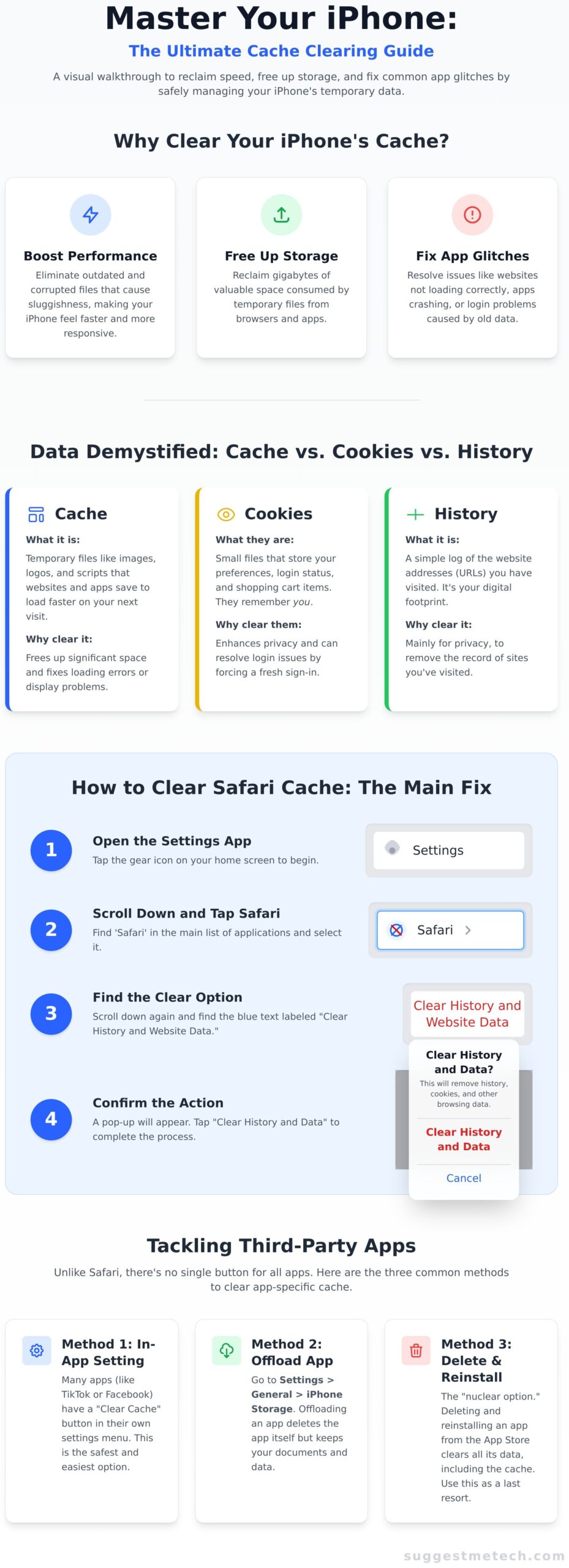
- Cache: Stores website assets like images and code to make pages load faster. Clearing it fixes loading errors and frees up space.
- Cookies: Small files that store your preferences, shopping cart items, and login status. They remember you.
- History: A simple log of the web addresses (URLs) you have visited. It’s your digital footprint.
Now that you understand the “what” and “why,” the next sections will guide you through exactly how to clear cache on iPhone for Safari and other popular apps.
How to Clear Cache in Safari: The Most Common Method
For most iPhone users, the Safari browser is the single largest source of cached data. Over time, it accumulates temporary files, images, scripts, and cookies from every website you visit. While this is designed to speed up browsing, a cluttered or corrupted cache can cause slowdowns, login problems, and display errors. Clearing it is often the easiest and most impactful step you can take to get your browser running smoothly again.
This section provides the most direct instructions on how to clear cache on your iPhone by focusing on Safari, which will resolve the majority of cache-related issues.
Step-by-Step Guide to Clearing Safari’s Cache
Follow these simple steps to perform a complete cleaning of your Safari browser data. This is the most common and comprehensive method.
- Open the Settings app on your iPhone.
- Scroll down the main list and tap on Safari.
- Scroll down to the privacy and security section and tap the blue text that reads Clear History and Website Data. This is the standard method recommended by Apple; their official support page confirms that using the Clear History and Website Data function removes your history, cookies, and other browsing data.
- A confirmation pop-up will appear to warn you that this action is permanent. Tap Clear History and Data to proceed.
[Screenshot: Settings menu with Safari highlighted]
[Screenshot: Confirmation pop-up for clearing Safari data]
Important Note: This action will log you out of websites you are currently signed into. However, it will not delete your saved passwords if you use iCloud Keychain. Also, be aware that if you have Safari enabled in your iCloud settings, this will clear the history and data from all devices signed into your Apple ID.
Should You Clear History, Website Data, or Both?
You may have noticed there are two ways to clear data. Understanding the difference helps you choose the right tool for the job.
- Clear History and Website Data: This is the all-in-one “reset” button. It removes everything-your browsing history, cookies, and cached files. Choose this option for a complete privacy refresh or to fix widespread performance issues.
- Advanced > Website Data > Remove All Website Data: This is a more surgical approach. It removes cookies and cached files but preserves your browsing history. This is the ideal choice if you’re troubleshooting a specific website that’s misbehaving but you don’t want to lose the record of all the sites you’ve visited.
For most situations, using the main Clear History and Website Data button is the recommended and most effective solution.
How to Clear Cache for Third-Party Apps (Facebook, TikTok, etc.)
While Safari has a straightforward cache-clearing option, managing storage for apps like Facebook, Spotify, and TikTok is a different story. iOS doesn’t provide a single button to clear all app caches, meaning you have to tackle them individually. The process for clearing cache for third-party apps requires a more targeted approach, but don’t worry-we’ve broken down the three most effective methods.
Unfortunately, some applications don’t offer any simple way to clear their temporary files. In these cases, you’ll have to rely on the methods below to reclaim your storage space.
Method 1: Check In-App Settings
The best and safest way to clear an app’s cache is by using its built-in tools. Many popular apps provide this option directly in their settings menu. This method is ideal because it targets only temporary files without touching your personal data or login information.
For example, in TikTok, you can navigate to Profile > Settings and privacy > Free up space and tap ‘Clear’ next to Cache. Look for similar options labeled ‘Storage,’ ‘Data Usage,’ or ‘Clear Cache’ within other apps’ settings.
Method 2: Offload the App
If an app doesn’t have a built-in cache-clearing feature, offloading is your next best bet. This clever iOS feature deletes the application itself to free up space but preserves all your essential documents and data. When you reinstall the app, your settings and files will be right where you left them.
Here’s how to do it:
- Go to Settings > General > iPhone Storage.
- Wait for the list of apps to load, then select the one you want to offload.
- Tap Offload App and confirm your choice.
To get the app back, simply tap its icon on your Home Screen, and it will reinstall.
Method 3: Delete and Reinstall the App
Consider this the last resort-the “nuke it from orbit” option. Deleting and reinstalling an app will completely wipe its cache, but it will also erase all of its local data. This is an effective step when learning how to clear cache on iphone for a misbehaving app, but it comes with a major caveat.
Warning: Before proceeding, ensure any critical information within the app, like chat histories or saved files, is backed up to the cloud. Once you delete the app, any data stored only on your device will be gone for good. After confirming your data is safe, delete the app and redownload it from the App Store.
Beyond Cache: How to Reduce ‘System Data’ Storage
You’ve followed all the steps to clear app caches, but a mysterious category called ‘System Data’ (or ‘Other’ on older iOS versions) is still eating up gigabytes of space. This is a common frustration, but you can manage it. While there’s no single “delete” button for this category, you can take practical steps to shrink it.
What is ‘System Data’ Exactly?
Think of System Data as your iPhone’s temporary workspace. It’s a dynamic collection of files that iOS creates and manages to keep things running smoothly. This includes streaming caches from services like Apple Music and Netflix, partially downloaded software update files, system logs, and other temporary assets. Its size fluctuates constantly as your phone performs tasks. You can’t eliminate it, but you can influence its size.
Actionable Steps to Shrink System Data
While learning how to clear cache on iPhone apps helps, tackling System Data requires a different approach. Here are a few proven methods to reclaim your storage:
- Clear Large Message Attachments: Over time, videos, photos, and GIFs sent via Messages can add up. Navigate to Settings > General > iPhone Storage. Tap on Messages and select Review Large Attachments to find and delete old files you no longer need.
- Reduce Message History: By default, your iPhone keeps messages forever. You can tell it to automatically delete older ones by going to Settings > Messages > Message History and changing ‘Keep Messages’ from Forever to 1 Year or 30 Days.
- Perform a Hard Restart: Sometimes, simply restarting your iPhone isn’t enough. A hard restart (quickly press and release volume up, then volume down, then press and hold the side button) can force iOS to run a cleanup process and clear out some temporary system files.
- Back Up and Restore (The Last Resort): If your System Data is still stubbornly high, the most effective solution is to back up your iPhone, factory reset it, and then restore from your backup. This process clears out deep-seated system junk that other methods can’t reach. It’s an involved step, but it’s the ultimate fix for runaway System Data.
These strategies go beyond the typical advice on how to clear cache on iPhone and directly target the most elusive storage consumer on your device. For more practical tech solutions, explore the other guides on SuggestMeTech.
Proactive Tips to Keep Your iPhone’s Cache Under Control
Clearing your cache is a great fix, but preventing it from getting out of control is even better. Shifting from a reactive to a proactive approach can significantly improve your iPhone’s long-term performance. By adopting a few simple habits, you can maintain a faster, more responsive device without constant manual cleanups.
Enable ‘Offload Unused Apps’
iOS has a brilliant, automated feature that does the heavy lifting for you. ‘Offload Unused Apps’ removes the application itself but keeps all your personal documents and data safely on your device. When you need the app again, just tap its icon on your Home Screen to reinstall it with your data intact.
- Go to Settings > App Store.
- Scroll down and toggle on Offload Unused Apps.
The Power of a Simple Restart
It’s the oldest trick in the tech support book for a reason: it works. Restarting your iPhone clears out temporary files and refreshes the RAM (Random Access Memory), which can resolve sluggishness and minor glitches. We recommend making this a weekly habit for optimal performance.
To restart a modern iPhone (with Face ID):
- Press and hold the Side button and either Volume button until the power-off slider appears.
- Drag the slider and wait 30 seconds for your device to turn off.
- To turn it back on, press and hold the Side button until you see the Apple logo.
Be Mindful of Streaming and Social Media Apps
Apps that constantly download content-like TikTok, Spotify, and Netflix-are the biggest culprits for cache buildup. While you don’t need to stop using them, it’s smart to check their impact periodically. Navigate to Settings > General > iPhone Storage to see which apps are consuming the most space. Some, like Spotify, offer in-app settings to clear their cache or limit offline downloads.
By integrating these practices, you’ll spend less time troubleshooting and searching for how to clear cache on iphone. A little proactive management goes a long way in keeping your device running smoothly. For more practical guides, explore the latest reviews and tips on SuggestMeTech.
Reclaim Your iPhone’s Speed and Space
You now have a complete toolkit for keeping your iPhone running at peak performance. Mastering how to clear cache on iphone is more than just a technical task-it’s about taking back control of your device’s speed and storage. From clearing Safari’s browsing data to managing individual app caches and tackling that elusive ‘System Data,’ these simple steps make a significant difference in your daily user experience. A cleaner cache means a faster, more responsive device in your hands.
At SuggestMeTech, our mission is to deliver practical tech advice you can count on. Trusted by thousands of readers and reviewed by tech experts, our guides are designed to give you clear, step-by-step instructions that solve real-world problems. Found this helpful? Check out our other tech how-to guides!
Enjoy the satisfying speed of your newly optimized iPhone!
Frequently Asked Questions About Clearing Your iPhone Cache
How often should I clear the cache on my iPhone?
There is no strict rule, so you don’t need to do it on a fixed schedule. The best practice is to clear the cache only when you encounter a problem, such as a specific website not loading correctly or an app becoming sluggish. For most users, clearing the cache for your browser or a problematic app once every few months is plenty. Clearing it too often can actually slow down your browsing experience temporarily.
Does clearing the cache delete my passwords?
No, clearing your browser’s cache will not delete saved passwords or login credentials. The cache is designed to hold temporary files like images and website scripts to help pages load faster on your next visit. Your passwords, autofill information, and browsing history are stored separately. When you clear website data in your iPhone’s settings, you can do so without worrying about being logged out of all your accounts or losing important login information.
Will clearing the cache make my iPhone significantly faster?
It can provide a minor, temporary speed boost, especially if the cache was very large and causing a specific app to lag. However, clearing the cache is not a magic fix for overall device performance. While it’s a useful troubleshooting step for app-specific issues, you’ll see a more significant impact on speed by managing your storage, keeping your iOS updated, and limiting apps running in the background. Think of it as routine maintenance, not a major upgrade.
Is there a single app that can clear all the cache on my iPhone?
No, there isn’t a single “master” app that can clear all cache across your entire iPhone. Due to Apple’s security and privacy design, each app’s data is sandboxed, meaning one app cannot access or delete the data of another. You must clear the Safari cache through the Settings app, and for third-party apps like Instagram or TikTok, you need to look for a “clear cache” option within that specific app’s own settings menu.
Why is my iPhone storage full even after deleting photos and apps?
This common issue is often caused by accumulated app cache and “System Data.” While our guide on how to clear cache on an iPhone helps, other files like downloaded media in streaming apps, large message attachments, and email downloads can take up gigabytes of space. Go to Settings > General > iPhone Storage to see a breakdown. Often, the best solution is to offload or delete and reinstall the apps that are consuming the most data.
What’s the difference between clearing cache and resetting my iPhone?
These are two very different actions with vastly different outcomes. Clearing the cache is a small, safe procedure that removes temporary, non-essential files from a single app or browser to free up a little space and fix minor glitches. A factory reset, however, is a drastic step that erases all of your personal data-photos, contacts, apps, and settings-and returns your iPhone to the state it was in when it first came out of the box.