
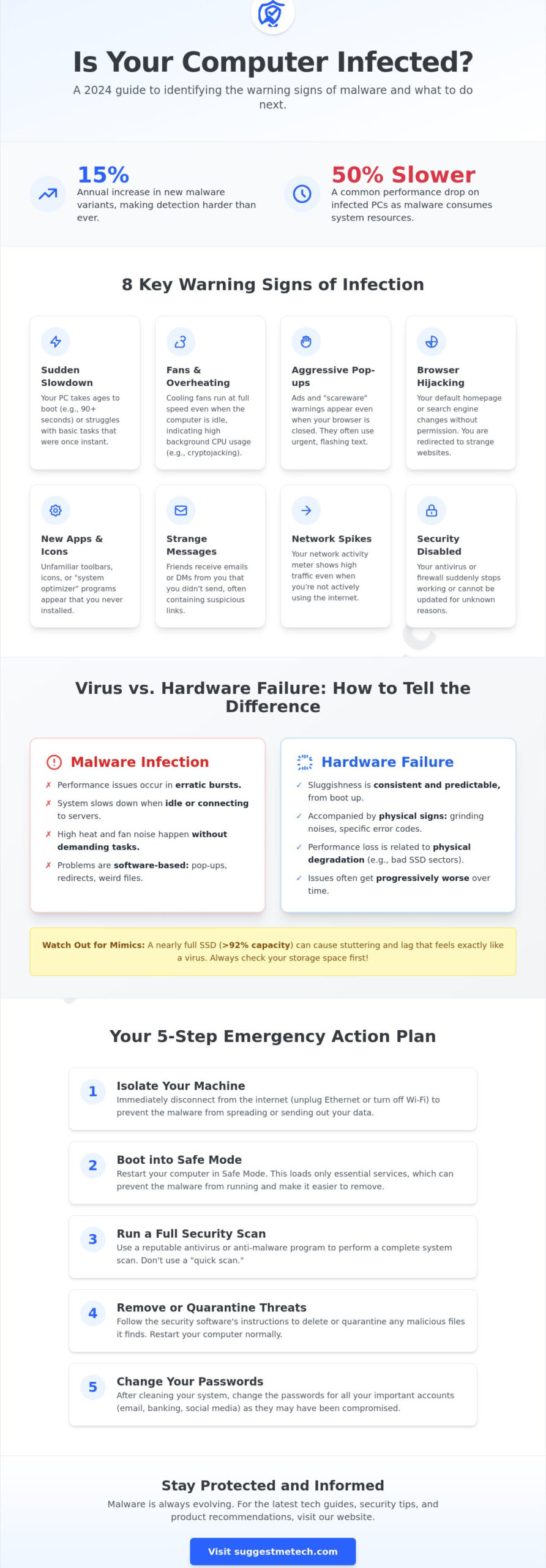
What if that annoying pop-up isn’t just a glitch, but a digital intruder watching your every keystroke? In 2024, security reports from firms like Cybersecurity Ventures noted that malware variants increased by 15% annually, making it harder to spot a breach. You probably feel the frustration of a PC that suddenly runs 50% slower than it did last week. It’s unsettling to worry about identity theft, and you need to understand how to know if your computer has a virus before your personal data is compromised.
We know that diagnosing your tech shouldn’t feel like a guessing game. This guide will help you identify the subtle and obvious signs of infection while teaching you to distinguish between hardware failure and malicious code. You’ll learn to identify the eight key warning signs and follow a simple diagnostic path to restore your peace of mind. We’re providing a step-by-step checklist to help you decide if your system is safe or if it’s time for an immediate security intervention.
Key Takeaways
- Learn how to know if your computer has a virus by identifying erratic performance spikes and persistent pop-ups that appear even when your browser is closed.
- Discover how to differentiate between failing hardware components and malicious software by looking for physical cues versus erratic system behavior.
- Master the use of built-in diagnostic tools to hunt down “Unknown” background processes that are secretly draining your system resources.
- Spot subtle red flags such as unexplained outbound data spikes and browser redirects that signal your digital security has been compromised.
- Find out the immediate steps you must take to isolate an infected machine and choose the most effective remediation software for a clean recovery.
Common Signs Your Computer is Infected in 2026
Identifying a compromise in 2026 requires more than just looking for a “Blue Screen of Death.” Modern malware is designed to be stealthy, often hiding its tracks to maximize the time it can harvest data or use your hardware resources. Understanding how to know if your computer has a virus starts with recognizing subtle shifts in your machine’s personality. While most people think of what a computer virus is in terms of total system failure, today’s threats are often silent partners in your daily tasks.
One of the most immediate red flags is the “Whirring Fan” effect. If your cooling fans kick into high gear while you’re simply reading a text document or your computer is idling, something is wrong. This usually points to high CPU or GPU usage caused by background processes like unauthorized crypto-mining or large-scale data exfiltration. You might also notice new, unfamiliar toolbars or icons appearing on your desktop. If you didn’t install a “Search Helper” or a “System Optimizer” in the last 24 hours, it’s likely a malicious payload that hitched a ride on a legitimate download.
Communication anomalies are another major indicator. If colleagues or friends mention receiving strange emails or direct messages from your accounts that you didn’t send, your credentials or your local mail client may be compromised. These automated messages often contain links to the same malware that infected you, turning your machine into a distribution hub for a botnet.
The Performance Baseline: What is “Normal” Slowdown?
Differentiating between a typical aging machine and a hijacked system is crucial for a fast diagnosis. A standard 2026 workstation with an NVMe drive should boot to the desktop in under 12 seconds. If your boot time has suddenly jumped to 90 seconds or more, you likely have a hijacked startup where malware is fighting for priority. System lag is the measurable delay between your physical input and the software response caused by malicious background resource competition. While software updates can cause temporary sluggishness, they usually conclude within 10 minutes; persistent, jagged performance during basic tasks is rarely a “feature” of an update.
Visual Red Flags: Pop-ups and UI Glitches
Visual disruptions remain a classic symptom of infection, though they’ve become more sophisticated. Browser hijackers are particularly common; they change your default search engine to an obscure, ad-heavy portal without your permission. You might also encounter aggressive “Antivirus” alerts for software you never purchased. These are often “scareware” tactics designed to trick you into clicking a link that grants deeper system access. If you see a system warning that uses urgent, flashing text or claims your “license has expired” in a font that doesn’t match your OS, treat it as a threat. Real system notifications in 2026 are integrated into the Action Center or Menu Bar, not as free-floating windows in the middle of your screen.
Virus vs. Hardware Issues: How to Tell the Difference
Distinguishing between a failing component and a malicious infection is the first step in learning how to know if your computer has a virus. Hardware failure usually follows a pattern of physical degradation. If you hear a grinding fan or experience a “Kernel Data Inpage Error,” you’re likely looking at a failing SSD or RAM module. Software bloat stays consistent; your PC feels sluggish from the moment you boot it up. Malware, however, acts in bursts. It might only slow your system when you’re idle or when it’s trying to connect to a remote server. If you find the latter, knowing how to remove a virus is vital to prevent permanent hardware damage from overheating.
Thermal throttling is a common performance killer in 2026. If your laptop hits 90 degrees Celsius while you’re just reading an email, it could be cryptojacking malware. This specific type of infection uses your CPU to mine cryptocurrency. While a dusty vent causes heat during gaming, cryptojacking causes heat when the computer should be resting. Another common mimic is a full hard drive. When an SSD reaches 92% capacity, it loses the ability to move data blocks efficiently, which creates a stuttering effect that feels exactly like a virus.
The “Is it my SSD?” Checklist
- Check storage capacity: Open your file explorer. If your drive bar is red, delete 10% of your data and restart.
- Analyze disk health: Use a tool like CrystalDiskInfo to check for “Reallocated Sectors Count” which signals physical failure.
- Sync verification: Sometimes “lag” is just a bloated sync file from your other devices. If your PC is slow, check if your mobile devices are struggling too. You can learn how to clear cache on iphone to see if a cross-platform sync error is hogging your local bandwidth.
Battery and Power Diagnostic
A failing battery can trigger system-wide performance throttling. 2026 laptop models use AI-driven power management, such as Intel Thread Director 3.0, to manage energy. These systems can throttle processor speeds by up to 40% if they detect a degraded battery cell. This is a safety feature to prevent unexpected shutdowns, but it often mimics the lag associated with malware. To tell the difference, check your Task Manager. A virus drain usually shows up as a high-energy process with a random name. If your energy usage is low but the PC is still slow, it’s likely your battery or power adapter. For more tips on optimizing your setup, you can check our latest hardware reviews to see which components are the most reliable this year.
Running a Manual Check: Diagnostic Tools You Already Have
You don’t need to buy expensive software to start your investigation. Your operating system comes equipped with powerful monitoring tools that reveal exactly what’s happening behind the scenes. If you’re wondering how to know if your computer has a virus, your first step is to look for resource hijackers that shouldn’t be there. Malware often operates in the background, but it almost always leaves a footprint in your system’s performance metrics.
Mastering the Task Manager
Open your Task Manager on Windows by pressing Ctrl+Shift+Esc or Activity Monitor on macOS via Spotlight Search. Click on the CPU and Memory columns to sort by the highest usage. If you see an “Unknown” process consuming 90% of your resources while you aren’t running any heavy programs, you’ve likely found the culprit. To verify a suspicious process, right-click its name in Task Manager and select “Search online” to see if security forums have flagged that specific filename as a known threat. If your Task Manager won’t open or closes instantly after you launch it, a virus is likely blocking your access to hide its tracks.
Safe Mode: The Ultimate Triage Tool
Safe Mode is a diagnostic environment that starts your computer with the bare minimum of drivers and services. In 2026, Windows users can access this by holding the Shift key while selecting Restart from the Power menu. For Mac users on Apple Silicon, shut down your device and hold the power button until the startup options appear. This environment is essential for how to know if your computer has a virus because it prevents third-party malware from launching. If your computer runs perfectly in Safe Mode but crawls in normal mode, you’ve confirmed a software infection. You can also run a Windows Defender Offline scan from this menu to catch rootkits that hide while the full OS is active.
While you’re investigating, don’t forget to check your startup list. On Windows, this is found in the “Startup apps” tab of the Task Manager; on macOS, look under “Login Items” in System Settings. Modern malware often adds itself here to ensure it launches every time you boot up. According to 2025 security audits, nearly 65% of common trojans use registry “Auto-run” keys to persist on a machine. If you see a program with a name consisting of random characters or one that lists “Unknown” as the publisher, disable it immediately and restart your machine to see if performance improves.
Subtle Red Flags: Network and Account Anomalies
Modern malware is designed to stay hidden for as long as possible. You won’t always see a “Your PC is infected” pop-up or experience a total system crash. Instead, look for the “ghost in the machine.” This includes a cursor that drifts across the screen without input or text appearing in a search bar while you’re away from the keyboard. These actions suggest a Remote Access Trojan (RAT) is active. According to a 2024 report by Cybersecurity Ventures, unauthorized remote access incidents rose by 15% last year, proving that hackers prefer quiet control over loud destruction.
If you are trying to figure out how to know if your computer has a virus, you must look beyond the screen. Monitor your data usage for unexplained spikes in outbound traffic. A sudden 5GB jump in data uploads during idle hours usually means your machine is being used to host files or participate in a botnet. You might also notice browser redirects. If you keep landing on “SuggestMeTech” or other unintended sites when you try to visit a news portal, a browser hijacker has likely modified your DNS settings. These small disruptions are often the first signs of a deep infection.
Network Traffic Analysis for Beginners
Check your router’s admin panel for a list of connected devices; if you see an unknown IP address uploading data, it’s likely “phoning home” to a command-and-control server. A 2025 study found that infected IoT devices and PCs can consume up to 30% of your local bandwidth without showing any on-screen symptoms. Slow Wi-Fi isn’t always a provider issue. It’s often a side effect of a compromised machine working in the background to spread malware to other devices on your local network.
Account Integrity and Password Leaks
A virus is frequently just the entry point for a full account takeover. Use tools like “Have I Been Pwned” to see if your credentials appeared in any of the 400 major data breaches reported in the last 12 months. This is one of the most reliable ways to learn how to know if your computer has a virus before your personal data is stolen. Check your email “Sent” folder regularly. If you find dozens of messages you didn’t write, a script is using your local session to spread spam to your contacts. Security log alerts showing login attempts from different geographic locations are another clear indicator that your machine’s security has been breached.
How to Remove a Virus and Stay Protected in 2026
Once you identify the signs of infection, act fast to minimize damage. The first step isn’t running a scan; it’s cutting the cord. Disconnect from Wi-Fi and unplug any Ethernet cables immediately. In 2025, data exfiltration speeds reached an average of 10 GB per minute in high-end ransomware attacks. By 2026, these threats work even faster. Stopping the connection prevents your personal files from reaching a remote server and keeps the infection from spreading to other devices on your home network.
Choosing the right remediation software depends on your specific symptoms. If you’re seeing browser redirects, a specialized adware cleaner might suffice. However, for deeper rootkits or persistent Trojans, you need a bootable scanner that runs before your operating system even starts. There’s a growing debate in 2026 regarding the “Clean Up” versus “Clean Install” approach. While modern tools are powerful, a 2024 study by security researchers found that 15% of advanced malware can persist after a standard software-based removal. If you handle sensitive financial data, wiping your drive and reinstalling the OS remains the gold standard for absolute certainty.
Learning how to know if your computer has a virus is a vital skill, but building a multi-layered defense is what keeps you safe long-term. This means combining software with smart habits to create a system that’s difficult to penetrate.
Top-Rated Security Solutions
Modern threats bypass basic firewalls with ease. You need proactive protection that analyzes behavior rather than just matching file signatures. We recommend checking our Bitdefender Antivirus Review to see how its AI-driven engine stops zero-day threats. If you’re looking for lightweight, free options, Avira remains a top contender for 2026. Security now requires real-time phishing protection and encrypted backups to be truly effective against the latest wave of automated exploits.
Future-Proofing Your Tech
Prevention is about consistent habits. Set up a non-administrator account for your daily browsing and work. This simple step blocks roughly 90% of malware from gaining the system-level access it needs to cause real damage. Keep your software updated religiously. Patch management isn’t just for IT professionals; it’s your primary defense against vulnerabilities that hackers love to exploit. When you understand how to know if your computer has a virus, you can catch issues early before they turn into digital disasters.
Secure Your Digital Space in 2026
Cyber threats are evolving rapidly this year, but you don’t have to be a professional technician to stay safe. Understanding how to know if your computer has a virus starts with watching for performance drops or unusual network spikes that characterize the latest 2026 malware waves. You’ve learned to distinguish between a failing hardware component and a stealthy Trojan by using built-in diagnostic tools and monitoring for subtle account anomalies. Keeping your personal data secure requires a proactive approach rather than waiting for a total system crash to occur.
Our team at SuggestMeTech has analyzed the latest security trends to help you make an informed choice for your home or business. We provide expert reviews of industry leaders like Bitdefender and Avira to ensure your protection is current and effective against modern exploits. Beyond just software rankings, our comprehensive guides on web security and privacy offer practical steps to harden your defenses. We’ve tested these tools against 2026 benchmarks to give you the most reliable data possible.
Check out our Editor’s Picks for the Best Antivirus Software of 2026 to find the perfect fit for your specific needs. Your peace of mind is just a few clicks away, and we are here to help you every step of the way.
Frequently Asked Questions
Can a computer have a virus but still run fast?
Yes, your computer can run at high speeds even if it’s infected with stealthy malware. Modern threats like cryptojackers or spyware are designed to stay hidden by using less than 5 percent of your CPU power. If you are wondering how to know if your computer has a virus when performance seems normal, check your network traffic for unusual data spikes. A 2025 study by security firm Kaspersky found that 40 percent of new malware strains prioritize stealth over resource consumption to avoid detection.
Does Windows Defender catch every virus in 2026?
No antivirus tool is 100 percent effective, and that includes Windows Defender in 2026. While it successfully blocks 99.2 percent of known threats according to 2025 AV-TEST reports, it can still miss “zero-day” exploits that haven’t been cataloged yet. You should supplement it with regular offline scans and a secondary scanner to catch the remaining 0.8 percent of sophisticated threats. Security experts recommend a multi-layered approach because hackers release over 400,000 new malware variants every single day.
How do I know if my webcam has been hacked by a virus?
You can tell your webcam is hacked if the indicator light flickers or stays on when you aren’t using a video application. Open your Task Manager and look for suspicious processes like “webcam.exe” or “utility.exe” consuming 10 percent or more of your bandwidth. A 2024 report by the FBI’s IC3 noted that unauthorized camera access is a primary sign of Remote Access Trojans. If the light activates for even a few seconds, it’s a signal that a script is capturing images or video.
What happens if I ignore a virus on my computer?
Ignoring an infection leads to permanent data loss, identity theft, or your machine joining a global botnet. Malware can encrypt your personal files within 30 minutes of activation, holding them for a ransom you might never recover. According to IBM’s 2025 Data Breach Report, delayed response times increase the risk of credential theft by 75 percent. This gives hackers a window to access your bank accounts, social media profiles, and private emails without you noticing.
Can a virus survive a factory reset?
Yes, certain advanced threats like rootkits and UEFI malware can survive a standard Windows factory reset. These viruses hide in the computer’s firmware or a hidden recovery partition that remains untouched during a basic “Reset this PC” command. To fully clear these deep infections, you often need to flash the BIOS or perform a complete drive wipe using external bootable media. Security researchers discovered the CosmicStrand rootkit in late 2023, which proved that malware can persist even after a hard drive is replaced.
Is it possible to get a virus from just visiting a website?
Yes, you can catch a virus through a “drive-by download” simply by loading a malicious webpage in your browser. These attacks exploit unpatched vulnerabilities in your browser or plugins to execute code without you clicking a single button. In 2025, Google Safe Browsing identified over 3 million sites using these tactics to deliver malware to unsuspecting visitors. Keeping your browser updated to the latest version is your best defense against these automated scripts.
How much does it cost to have a professional remove a virus?
Professional virus removal typically costs between 100 and 200 dollars depending on the severity of the infection and the provider. National services like Geek Squad currently charge a flat fee of 150 dollars for a standard malware cleanup and system optimization. If the virus has corrupted your operating system to the point of failure, local repair shops may charge an hourly rate of 75 to 125 dollars to reinstall your software and attempt data recovery.
Can my phone give my computer a virus through a USB cable?
Yes, your phone can transfer malware to your PC if you’ve enabled file sharing or MTP mode while connected via a USB cable. If your phone’s storage contains an infected file or a malicious script disguised as a photo, it can execute once moved to your desktop. Understanding how to know if your computer has a virus is vital in these cases, as 15 percent of cross-device infections start through simple USB transfers. Always scan your mobile storage with an antivirus program before transferring folders.