

That “free” backup included with your hosting plan might be the most expensive mistake you ever make. Many providers advertise web hosting with free daily backups, but they often hide 24-hour retention limits or high restoration fees in the fine print. You shouldn’t have to choose between a surprise invoice and losing weeks of work after a simple plugin update crashes your site.
We’ve all felt that pit in our stomach during a security scare or a technical glitch. It’s frustrating when “free” tools don’t actually solve the problem when you need them most. Our goal is to give you total confidence in your data security by highlighting hosts that offer genuine, high-retention protection without the typical hurdles.
This guide previews verified 2026 picks like SiteGround, which offers 30-day retention, and GreenGeeks, comparing their latest pricing and restoration terms. You’ll learn exactly how to pick a host that makes recovery simple so you never lose a byte of data again.
Key Takeaways
- Move beyond risky manual processes by identifying why automated, server-level snapshots are essential for modern dynamic websites.
- Evaluate the top-tier providers for web hosting with free daily backups to ensure your data is stored off-site and protected from hardware failures.
- Compare how 2026’s leading hosts stack up on retention periods and hidden restoration fees so you never face an unexpected bill.
- Implement the “3-2-1” backup strategy using recommended third-party plugins as a secondary layer of professional-grade redundancy.
- Use our final selection checklist to verify restoration ease and storage limits before signing any long-term hosting contract.
Understanding the Real Value of Web Hosting with Free Daily Backups
Finding the right web hosting service is about more than just speed; it’s about your recovery plan. In 2026, web hosting with free daily backups functions as an automated safety net. These backups are essentially “snapshots” of your entire hosting environment. They capture your databases, email accounts, and configuration settings in one go. If a plugin update breaks your layout or a security breach occurs, these snapshots allow you to roll back your site to a functional state with a few clicks.
Relying on manual backups isn’t a viable strategy for modern, dynamic websites. Every time a user leaves a comment, makes a purchase, or updates a profile, your database changes. If you only back up your site manually once a week, you risk losing seven days of critical business data. For a small business in 2026, the financial impact of such data loss extends beyond lost sales; it includes the cost of developer hours to rebuild the site and the long-term damage to your brand’s reputation. There’s a major difference between a standard file backup and a true disaster recovery snapshot. Standard backups might only save your images and text, while disaster recovery snapshots mirror your entire account to ensure your site’s functionality remains intact after a restoration.
Why “Free” Often Comes with Hidden Strings
Many providers claim to offer web hosting with free daily backups, but the value lies in the retention period. Some “free” services only keep your data for 24 hours. If you don’t notice a hack within that window, your clean backup is overwritten. You should also watch out for restoration fees. GreenGeeks, for instance, charges $25 for restorations after the first free monthly request. Always verify if you’re getting a full account mirror or just specific folders before you commit.
The Critical Role of Daily vs. Weekly Cycles
High-traffic blogs and e-commerce stores can’t survive on weekly cycles. Your Recovery Point Objective (RPO) is the maximum amount of data you’re willing to lose. A weekly cycle means a seven-day RPO, which is too risky for most professional operations. Automated daily cycles remove human error. The server handles the heavy lifting so you don’t have to. Have you ever lost data due to a backup failure? Share your experience below so we can help the community find a better solution together.
Key Features to Demand in a Backup-Friendly Hosting Plan
Choosing web hosting with free daily backups is an excellent first step, but the technical details determine if that backup actually works during a crisis. Many budget hosts offer a basic backup that only copies your public_html folder while ignoring your database. This is a recipe for disaster for WordPress users or anyone running an e-commerce store. You must insist on a plan that covers both your physical files and your MySQL or MariaDB databases in every daily run. Without the database, your site’s content, user comments, and product listings are gone forever.
Redundancy is another non-negotiable factor. Even the best local backup fails if the entire server rack suffers a hardware meltdown or the data center experiences a catastrophic event. True reliability requires off-site storage. This ensures your data lives on a separate physical infrastructure. For a deeper look at professional Data Backup Options, including the industry-standard 3-2-1 rule, the CISA provides excellent guidelines on why geographic separation matters for your data safety.
Finally, prioritize self-service restoration tools. If your site crashes at 2 AM on a holiday, you shouldn’t have to wait 12 hours for a support technician to “open a ticket.” Modern hosting should give you the power to roll back the clock immediately. If you’re still comparing providers, reading our latest technology reviews can help you spot which interfaces are actually built for speed and ease of use.
Retention Periods: Is 24 Hours Enough?
A 24-hour retention window is often a trap for the unwary. If malware infects your site on a Friday and you don’t notice the symptoms until Monday, a 24-hour backup cycle has already overwritten your clean files with the infected ones. For business-critical websites, we recommend a minimum 14-day retention window. SiteGround sets a high bar here by offering 30 days of retention. Always check the fine print in shared hosting agreements, as some hosts delete older snapshots the moment a new one begins.
One-Click Restoration vs. Manual Management
Modern web hosting interfaces should offer a “one-click” restoration standard. This removes the danger of manual SQL imports, which frequently lead to database connection errors for beginner users. Top-tier features also include granular restoration. This allows you to recover a single deleted file or one specific database table without overwriting your entire website. It’s a faster, safer way to fix small mistakes without the nuclear option of a full site revert.
Top 5 Web Hosting Providers with Free Daily Backups in 2026
Selecting web hosting with free daily backups requires looking beyond the “free” label to see how long your data actually lasts. We’ve verified that the best providers in 2026 use efficient tools like JetBackup or R1Soft to ensure snapshots don’t impact server performance. These systems follow the core resilience principles found in NIST’s Contingency Planning Guide, ensuring your site stays functional even after a major technical failure. By comparing retention windows and restoration costs, we’ve narrowed the market down to five standout choices.
- SiteGround: The industry leader for retention, offering a full 30-day backup history on all plans.
- Hostinger: Best for value seekers who need daily snapshots on the Business tier and above.
- GreenGeeks: A solid eco-friendly choice that includes daily backups and one free restoration per month.
- Bluehost: Reliable for beginners, particularly those using their Choice Plus plans with integrated CodeGuard.
- DreamHost: Offers a unique 8-day automated backup policy that covers all users without hidden tiers.
The Performance Leaders: SiteGround and Hostinger
SiteGround utilizes a distributed backup system built on Google Cloud infrastructure. This setup allows them to store your data across multiple geographic locations, providing a 30-day safety net that most competitors can’t match. In contrast, Hostinger uses an incremental backup approach. This technology only saves the changes made since your last backup, which keeps your site running fast during the backup process. Both providers offer “On-Demand” backup features, allowing you to create a manual snapshot right before you hit “update” on a major theme or plugin.
Best for Beginners: Bluehost and DreamHost
Bluehost simplifies data protection by integrating CodeGuard into their higher-tier plans. This provides a visual interface that makes it easy to see exactly when your last backup occurred. DreamHost takes a different approach by offering an 8-day automated backup policy for every user, regardless of their plan level. Their interface is less intimidating for those who have never restored a site. It focuses on clear, direct actions rather than complex database management. If you’re unsure which interface fits your workflow, we’d love to hear which control panel you find easiest to navigate in the comments below.
How to Build a “Bulletproof” Backup Strategy Beyond Your Host
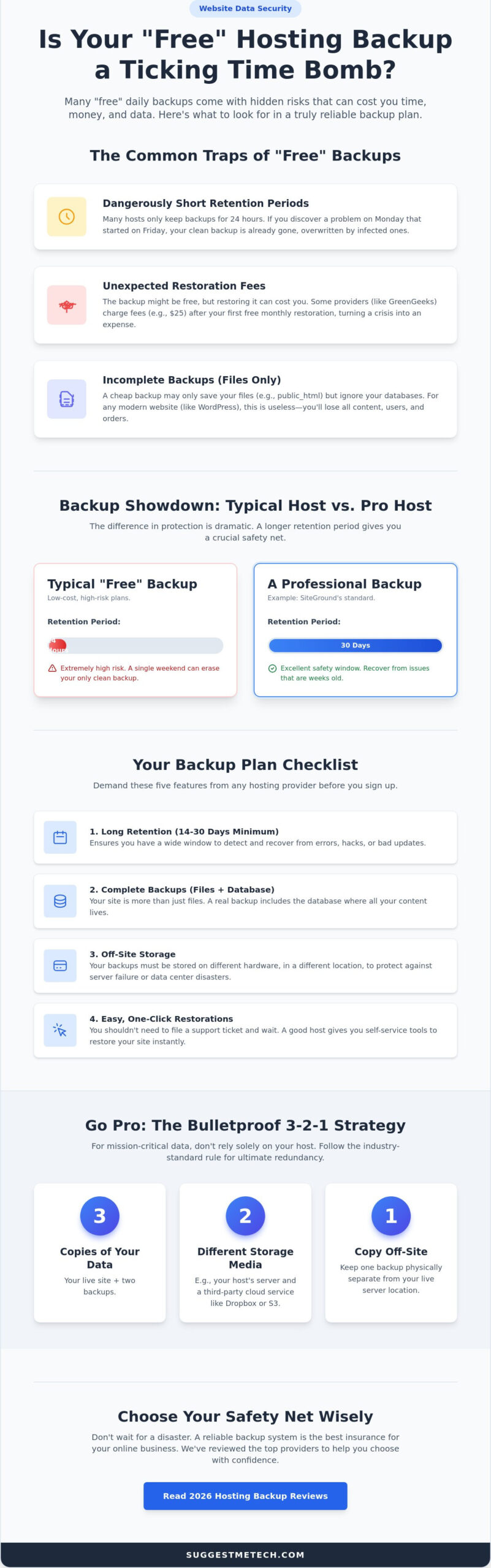
Even the most reliable web hosting with free daily backups shouldn’t be your only line of defense. Relying solely on your hosting provider creates a single point of failure. If the host experiences a catastrophic data center event or your account is locked due to a billing dispute, you lose access to your live site and your backups simultaneously. To achieve true data security, you must implement the 3-2-1 backup rule. This strategy requires keeping three total copies of your data, using two different media types, and ensuring at least one copy is stored off-site, away from your primary server.
Third-party plugins like UpdraftPlus and BlogVault act as a vital secondary layer. While your host handles server-level snapshots, these plugins allow you to manage backups from within the WordPress dashboard. It’s critical to schedule “Pre-Update” backups. Never click “Update WordPress” or “Update Theme” without first triggering a manual snapshot. This ensures you can roll back within seconds if a new version of a plugin conflicts with your site’s code. For absolute safety, perform a local download of your entire site once a month. Storing a copy on your personal computer or an external drive ensures you have a recovery option that is entirely independent of the internet.
Building a resilient system takes effort, but it prevents the total loss of your digital assets. If you’re looking for the best tools to manage these secondary copies, you can find detailed comparisons in our latest technology reviews.
Integrating Third-Party Cloud Storage
Modern backup tools allow you to link your site directly to Google Drive, Dropbox, or Amazon S3 for free. This separation is essential. If your hosting environment is compromised by malware, an off-site backup remains clean and ready for restoration. In 2026, automated cloud syncing is the standard for professional site management. It removes the need for manual intervention and ensures your off-site copy is always as current as your server-side snapshot.
Testing Your Backups: The Step Everyone Skips
A restoration test is the only way to prove a backup actually works. Many site owners discover too late that their backup files are corrupted or incomplete. Use a staging environment to test a restore without breaking your live site. This “sandbox” allows you to verify that your database and files are fully functional. We recommend performing this integrity check at least once every 90 days to ensure your safety net is actually there when you need it.
Conclusion: Choosing Your Safety Net with SuggestMeTech
Securing web hosting with free daily backups is the most practical step you can take to protect your digital investment. Throughout this guide, we’ve explored how different providers handle your data, from the technology they use to the hidden costs of restoration. As we move through 2026, the complexity of web threats and the frequency of software updates make a reliable backup system mandatory rather than optional. It’s the cheapest insurance policy your business will ever buy.
Before you make your final decision, use this checklist to evaluate any potential host. If a provider doesn’t meet these three criteria, your site’s data remains at risk:
- Retention: Does the host keep at least 14 to 30 days of history?
- Restoration Ease: Can you restore a single file or database with one click without waiting for a support ticket?
- Off-site Storage: Is your data mirrored on a separate physical server to survive hardware failure?
We’ve analyzed the current market to help you avoid the frustration of “free” plans that delete your data after 24 hours. By following the 3-2-1 strategy we discussed earlier, you’re not just relying on a host; you’re building a resilient business. We want to hear from you. Have you ever been saved by a daily backup, or did a 24-hour limit cost you weeks of work? Share your experiences in the comments below so the SuggestMeTech community can learn from your journey.
Final Verdict: Which Host Wins in 2026?
If you’re running a high-stakes business site where data loss is not an option, SiteGround is our top pick. Their 30-day retention and Google Cloud infrastructure provide the most robust safety net available. For budget-conscious bloggers, Hostinger’s Business plan offers an incredible value. At an introductory price of $3.99 per month on a 48-month term, you get reliable daily snapshots without breaking the bank. For a deeper dive into performance metrics and uptime stats, check out our full breakdown of the Best Web Hosting Services of 2024.
Take Control of Your Data Security
Protecting your digital assets doesn’t have to be complex or expensive. By now, you know that the best web hosting with free daily backups must offer long-term retention and off-site redundancy to be truly effective. A simple 24-hour snapshot isn’t enough when modern threats can linger undetected for days. By combining a top-tier host with the 3-2-1 backup strategy we explored, you create an unbreakable safety net that keeps your business running regardless of technical glitches or plugin updates.
Our team has tested over 50 hosting providers against 2026 technology standards to ensure you get practical, hands-on advice. We conduct independent, affiliate-supported research to demystify complex specs and provide definitive answers you can trust. If you’re ready to stop worrying about data loss and start focusing on growth, we have the resources to guide your choice. Compare the top-rated hosting plans with free backups at SuggestMeTech and find the right fit for your specific requirements.
You’ve already taken the most important step by educating yourself on these critical features. Now it’s time to put that knowledge into action and build a site that’s truly resilient. We’re excited to see your project thrive with the absolute peace of mind you deserve.
Frequently Asked Questions
Is “free daily backup” really free with web hosting?
The “free” label usually applies to the storage and creation of the data, but restoration might cost extra. For example, GreenGeeks provides one free restoration per month but charges $25 for each additional request. You should always check if your chosen web hosting with free daily backups includes self-service restoration tools. This prevents you from paying a premium just to access your own data during an emergency.
How long do web hosts keep my free backups?
Retention periods vary wildly between providers. SiteGround offers an industry-leading 30-day window, while many budget hosts only keep snapshots for 24 to 48 hours. If you don’t notice a site error within that short timeframe, your clean backup is gone forever. We recommend choosing a host that offers at least 14 days of history for business-critical projects to ensure you have time to react.
Can I restore a single file instead of the whole website?
Yes, many modern hosts allow you to restore individual files or specific database tables through their control panel. This granular restoration is much faster than a full site revert because it doesn’t overwrite your entire public_html folder. It’s a vital feature for fixing small mistakes, such as accidentally deleting a single image or a CSS file, without losing recent comments or customer sales data.
What is the difference between a backup and a snapshot?
A backup is a collection of files and databases, while a snapshot is a complete image of your entire hosting environment at a specific moment. Snapshots are faster for full disaster recovery because they capture server configurations and email settings alongside your website. Most web hosting with free daily backups services use snapshot technology to ensure your site returns to its exact previous state after a crash.
Do free backups include my email accounts?
Most full-account daily backups include your email accounts, forwarders, and stored messages. However, some hosts exclude certain folders to save disk space or limit backup sizes. You should verify if your provider includes the “mail” directory in their automated runs. If email is critical for your business, we suggest using a dedicated email hosting service alongside your web host for better redundancy and storage management.
What happens to my backups if I cancel my hosting plan?
Your backups are typically deleted the moment your hosting account is terminated. Hosts don’t keep data for former customers because storage space is expensive. If you plan to move to a new provider, you must download a full local copy of your site and databases before canceling. Never assume your old host will help you recover data once the billing cycle ends and the account is closed.
Are host-provided backups enough for a WordPress site?
Host backups are an excellent first layer, but they aren’t enough for a professional WordPress site. Server-level snapshots can sometimes fail or capture a corrupted database during the sync. You should follow the 3-2-1 rule by using a secondary plugin like UpdraftPlus to store copies in a separate cloud environment. This ensures you have a recovery option even if your hosting provider experiences a total system failure.
Can daily backups slow down my website performance?
Daily backups won’t slow down your site if your host uses incremental backup technology like JetBackup or R1Soft. These tools only copy the data that has changed since the last run, which uses very few server resources. The process usually happens during low-traffic periods, such as midnight, to ensure your visitors never experience a lag in page load speeds or a disruption in their browsing experience.