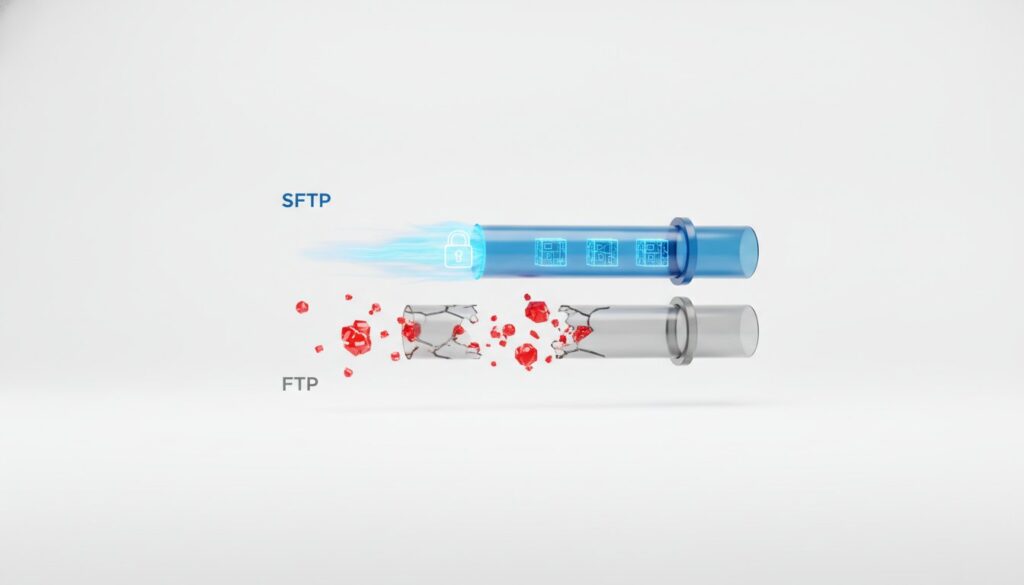
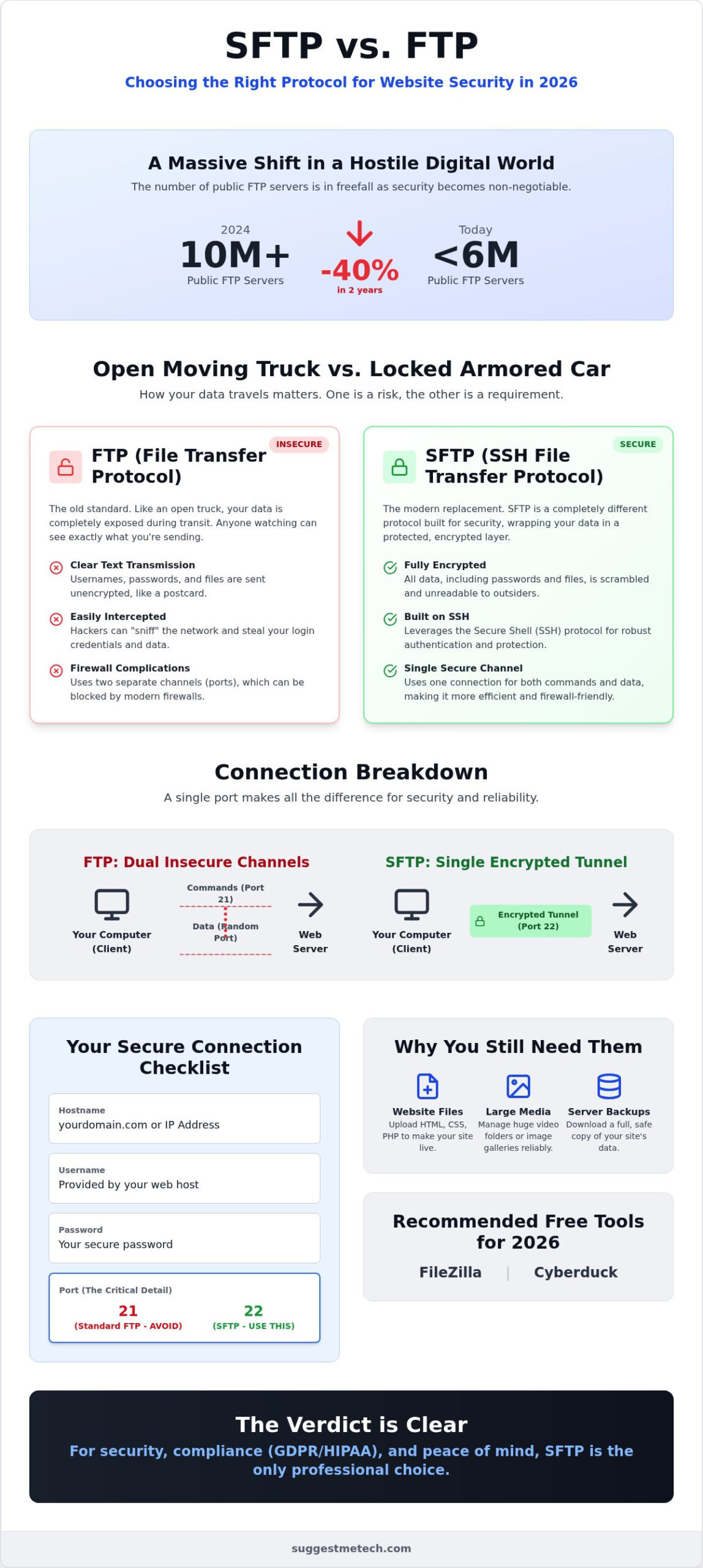
Did you know that the number of publicly visible FTP servers has plummeted by 40% in just two years, dropping from over 10 million in 2024 to fewer than 6 million today? This massive shift isn’t a coincidence; it’s a survival response to an increasingly hostile digital environment. When you’re managing a website, the sftp vs ftp debate isn’t just about technical jargon or port numbers. It’s about whether you’re sending your sensitive data in an open moving truck or a locked armored car.
Most beginners feel overwhelmed when a hosting provider asks for connection details and offers a list of confusing acronyms. You just want to upload your files without worrying about a security breach or a complex setup process. We’ll help you cut through the noise by showing you the critical differences between these protocols so your files stay fast and secure. This guide breaks down the security, speed, and setup requirements for both options, giving you a clear winner for your 2026 workflow.
Key Takeaways
- Understand the critical security gap in the sftp vs ftp comparison and why standard FTP is now a major risk for website owners.
- Learn how SFTP uses encryption to scramble your data, protecting your passwords and sensitive files from being intercepted by outsiders.
- Discover the best free tools for 2026, including FileZilla and Cyberduck, to manage your server transfers with confidence.
- Follow a simple, step-by-step process to configure your first secure connection without getting lost in technical jargon or port numbers.
- Gain the knowledge needed to ensure your file transfer workflow meets modern regulatory standards like GDPR and HIPAA.
Understanding SFTP vs FTP: The Internet’s Moving Trucks
Imagine you’re moving into a new house. You load all your furniture into a truck and drive it to the new address. That is essentially what happens when you use FTP (File Transfer Protocol). It’s the traditional method for shifting data between your local computer and a web server. However, there’s a significant catch. Standard FTP is like a truck with no roof and an open back. Anyone standing on a bridge as you drive under it can see exactly what you’re carrying. If you’re moving sensitive items, this is a massive risk.
This is where the sftp vs ftp choice becomes vital for your website security. SFTP is the armored car of the internet. It uses the same route as the old truck, but your data is locked inside opaque, steel-reinforced walls. Even if a hacker watches the vehicle go by, they can’t see your passwords, your customer data, or your website’s source code. In 2026, choosing the armored car isn’t just a luxury; it’s a requirement for staying online.
You might wonder why we still use these protocols when cloud storage like Google Drive is so common. While cloud storage is great for sharing a single document, it isn’t built for managing the “guts” of a website. When you need to edit a specific configuration file or upload 5,000 product images at once, a dedicated file transfer protocol is much faster and more precise than a browser-based uploader.
The Core Purpose of File Transfer
- Uploading website files: Moving your HTML, CSS, and PHP files from your computer to make your site live.
- Managing large media: Browser-based uploaders often time out. SFTP handles massive video folders or image galleries without breaking.
- Server backups: It’s the most reliable way to grab a full copy of your site’s data and keep it safe on your local hard drive.
FTP vs. SFTP: A Quick 2026 Reality Check
Plain FTP is now a liability. Since it sends everything in “clear text,” hackers can easily sniff out your login credentials. By mid-2026, the number of publicly visible FTP servers has dropped by 40% as reputable web hosts disable the protocol to protect their users. Most modern hosting reviews now penalize providers that don’t offer secure alternatives by default.
It’s a common mistake to think SFTP is just a “secure version” of FTP. In reality, the SSH File Transfer Protocol (SFTP) is a completely different technology built from the ground up for security. While FTP uses two separate channels for commands and data, SFTP bundles everything into one encrypted stream. This makes it much easier to get through firewalls and significantly harder for outsiders to intercept. When you compare sftp vs ftp, the difference isn’t just a single letter; it’s a completely different level of protection.
How FTP and SFTP Work: Clients, Servers, and Connections
To understand how these protocols function, you first need to understand the relationship between your computer and your website’s home. In this setup, your computer is the client and your web host is the server. When you want to move a file, the client sends a request to the server. If the server recognizes your credentials, they perform a digital handshake to establish a stable connection for the transfer.
A major technical difference in the sftp vs ftp debate involves how they communicate during this handshake. Standard FTP uses two separate channels: one for commands, like deleting or renaming files, and another for the actual data transfer. This dual path approach is often clunky and can trigger firewall issues. SFTP, however, uses a single, encrypted tunnel for everything. This makes it more efficient and far more secure because there are no secondary connections for hackers to exploit.
The Role of the FTP Client
You don’t need to be a coder to use these protocols. You simply use dedicated software called an FTP client. Tools like FileZilla act as a bridge between your PC and your server. The interface usually shows two panes. The Local side shows the folders on your computer, while the Remote side shows the files on your server. Moving a file is as simple as dragging it from one side to the other. If you’re still setting up your site, check out our list of web hosting providers that offer easy SFTP integration.
Finding Your Connection Details
To get connected, you’ll need four specific pieces of information from your hosting dashboard: your Hostname, which is usually your domain or an IP address, your Username, your Password, and your Port number. For standard FTP, the port is almost always 21. For SFTP, the port is 22. It’s a small detail that makes a huge difference in whether your connection succeeds. If you enter port 21 while trying to use an SFTP connection, the server will likely reject the request immediately.
Security experts recommend creating a unique FTP or SFTP account rather than using your main hosting login. This limits the potential damage if your credentials are ever compromised. Once you have these details, you can save them in your client for one click access in the future. For more practical advice on building your tech stack, explore our latest tech guides to find the right tools for your specific needs.
SFTP vs FTP: Why Security is Non-Negotiable in 2026
Choosing between sftp vs ftp isn’t just a technical preference; it’s a security mandate. In 2026, the internet is more transparent to hackers than ever before. If you use standard FTP, you are sending your username and password across the web in “plain text.” This means anyone with basic sniffing tools can read your credentials as if they were written on a postcard. Once a bad actor has those details, they have full access to your server files and can inject malicious code into your site in seconds.
SFTP solves this through a process called encryption. It scrambles your data into gibberish that only the receiving server can decode. It’s like a secret code that changes every time you send a message. This protection is why SFTP is the only choice for businesses that must follow strict regulations. In fact, standard FTP is now considered non-compliant for transferring sensitive data under HIPAA, PCI-DSS, GDPR, and CCPA frameworks. If your site handles customer names, emails, or payment info, using FTP is a legal and financial risk you can’t afford.
The technical difference often comes down to the “doors” your server leaves open. FTP typically uses Port 21, which is a frequent target for automated bot attacks. SFTP uses Port 22, the standard for secure shell (SSH) connections. A 2026 survey of chief audit executives revealed that 96% are now prioritizing cybersecurity vulnerabilities, which explains why the number of visible FTP servers has dropped by 40% in just two years. By switching to Port 22, you move your data through a more robust, battle-tested gateway.
What about FTPS? (FTP over SSL)
FTPS is a middle-ground option that adds a layer of SSL encryption to the old FTP protocol. While it is secure, it’s often a headache to set up. Because FTPS uses multiple ports for data and commands, it frequently gets blocked by modern firewalls. Most experts recommend sticking with SFTP because it’s easier to manage and provides more consistent protection across different network environments. When you compare sftp vs ftp, SFTP is the clear winner for simplicity and reliability.
Authentication Methods: Beyond Passwords
To truly lock down your site, you can move beyond traditional passwords. SFTP allows you to use SSH keys. These are long strings of code that act as a digital fingerprint. You keep a private key on your computer and place a public key on your server. Without your specific private key, nobody can log in, no matter how many times they guess your password. This is the best way to keep your domain and server safe from brute-force attacks. As we move through 2026, many high-security hosts are also starting to offer multi-factor authentication (MFA) for file transfers, adding one more layer of defense between your files and the outside world.
Step-by-Step: How to Use SFTP to Manage Your Website
Now that you understand the security logic behind sftp vs ftp, it’s time to get your hands dirty. Setting up a secure connection is a one-time task that saves hours of frustration and protects your site from day one. You don’t need to be a developer to master this. Follow these five steps to get connected safely.
- Download a trusted client: We recommend FileZilla (currently version 3.70.6) or Cyberduck. These tools provide a visual interface so you don’t have to type manual commands.
- Create a new site entry: Open your Site Manager. In FileZilla, this is the icon in the top left corner. Click “New Site” and give it a name. Crucially, change the “Protocol” dropdown from FTP to SFTP.
- Enter your credentials: Type in your Host (usually your domain or IP address), your Username, and your Password. Set the Port to 22. If you leave it at 21, the connection will likely fail.
- Trust the Host Key: When you click connect, a popup will ask you to trust the server’s “Host Key.” This is the server’s digital fingerprint. Check the box to always trust this host and click OK.
- Transfer your files: You can now drag files from your computer pane to the server pane to start your blog or update your existing content.
Navigating the “public_html” Folder
Once you’re connected, you’ll see a list of folders on the server side. Look for one named “public_html” or sometimes “www.” This is the heart of your website. Anything you upload here is live on the internet. You’ll also notice numbers like “755” or “644” next to your files. These are permissions. As a general rule, folders should be set to 755 and individual files to 644. If you need to make a quick update, most clients allow you to right-click a file and select “View/Edit” to change code directly on the server.
Common Connection Errors and How to Fix Them
Errors happen to everyone. If you see “Connection Refused,” it usually means you’re using the wrong port or your web host hasn’t enabled SFTP for your account. “Authentication Failed” is almost always a typo in your login details. Double check your username and password or ensure your SSH key is properly linked in the client settings. If your transfer times out, your internet might be unstable or your server might be hitting a connection limit. For more hands-on troubleshooting, browse our full library of tech tutorials to find a solution that works for you.
The Best FTP and SFTP Tools for 2026
Choosing the right software is the final step in mastering your file transfers. While the sftp vs ftp technical debate favors security, your daily experience depends on the interface you use. In 2026, the market for managed file transfer tools is worth over 2.5 billion dollars, meaning you have plenty of high-quality options to choose from. Whether you’re using one of the best laptops of the year or an older workstation, these tools ensure your connection remains stable.
- FileZilla: This remains the industry standard. As of June 2026, version 3.70.6 is the current stable release. It’s free, open-source, and works perfectly on Windows, macOS, and Linux.
- Cyberduck: This is a favorite for Mac users. It features a sleek interface and integrates directly with cloud storage like Amazon S3 and Google Drive. If you manage both server files and cloud backups, this is your best bet.
- WinSCP: A lightweight powerhouse exclusive to Windows. Version 6.6.2 RC was released in mid-2026, offering advanced scripting features for users who want to automate their transfers.
- Transmit: If you’re a professional developer on macOS, Transmit is the premium choice. It’s famous for extremely high transfer speeds and a “Panic Sync” feature that keeps your site settings safe across devices.
Choosing the Right Hosting for Easy File Management
At SuggestMeTech, we prioritize web hosts that make file management intuitive. While a dedicated client is great for bulk uploads, your hosting dashboard should include a built-in File Manager for quick, emergency edits. We look for providers that offer one-click SFTP account creation and 24/7 support. If you run into a connection error at 2 AM, you need a human expert who can tell you if the issue is your firewall or a server-side port block. A host that defaults to SFTP shows they take your security as seriously as you do.
Final Checklist Before You Upload
Before you hit that upload button, run through these final safety checks. Errors during a transfer can lead to a “White Screen of Death” on your website, so it pays to be careful. When weighing sftp vs ftp, remember that security is a process, not just a protocol.
- Take a full backup: Never overwrite server files without a fresh copy of your site saved locally.
- Verify file sizes: After the transfer, compare the local and remote file sizes to ensure nothing was cut off.
- Look for the lock: Confirm your client shows a closed padlock icon. This verifies your SFTP connection is active and fully encrypted.
By following these steps and using the right tools, you can manage your website with total confidence. You’ve moved from being confused by technical jargon to having a secure, professional workflow that will serve you well throughout 2026 and beyond.
Take Control of Your Website Security Today
You now have the knowledge to move beyond the security risks of traditional file transfers. By choosing SFTP, you’re protecting your site with encryption that meets 2026 compliance standards and keeps your credentials safe from hackers. In the sftp vs ftp comparison, the winner is clear for anyone who values their data and their professional reputation. You’ve learned how to connect using Port 22 and which tools provide the most reliable experience for your specific workflow.
Building a secure website starts with the right foundation. Our expert reviews of top-tier secure hosting providers and beginner-friendly tutorials, updated for 2026 standards, are already used by thousands of new bloggers and site owners to launch their projects safely. Ready to secure your site? Find the Best Web Hosting Services of 2026 here.
Taking this step puts you ahead of the curve. You have the tools, the plan, and the confidence to manage your server like a pro. It’s time to focus on creating great content with total peace of mind.
Frequently Asked Questions
Is FTP still used in 2026 or is it obsolete?
FTP is still functional, but it’s rapidly becoming obsolete for secure transfers. The number of publicly visible FTP servers has declined by 40% in the last two years, dropping to approximately 5.94 million in 2026. While some legacy systems or public data repositories still use it, it’s considered dangerous for website management. Most modern web hosts now disable standard FTP by default to protect their users from avoidable security breaches.
Why is SFTP better than FTP for my small business website?
SFTP is the superior choice because it provides end-to-end encryption for your data and login details. In the sftp vs ftp debate, small businesses must prioritize SFTP to remain compliant with regulations like GDPR, PCI-DSS, and HIPAA. Using unencrypted FTP can leave your customer information vulnerable to interception. This could lead to legal penalties or a total loss of trust in your brand if a breach occurs.
Can I use an FTP client to connect via SFTP?
You can absolutely use the same software for both protocols. Most popular tools like FileZilla, WinSCP, and Cyberduck are designed to handle multiple connection types from a single interface. You just need to change the “Protocol” setting in your Site Manager before you hit connect. This flexibility allows you to manage different servers easily, making it simple to switch between secure and legacy connections whenever necessary.
What is the default port for SFTP vs FTP?
The default port for standard FTP is 21, while SFTP uses Port 22. These ports act like digital doors into your server. Port 21 is a frequent target for automated hacking bots because it lacks native encryption. Port 22 is the industry standard for Secure Shell (SSH) traffic. Correctly identifying these ports in your client settings is the most common hurdle for beginners trying to establish a successful connection.
Is FileZilla safe to use for transferring sensitive files?
FileZilla is safe as long as you use it to establish SFTP connections. The latest version in 2026, version 3.70.6, includes updated security features to protect your stored site profiles. However, you should avoid using the “Quickconnect” bar for sensitive data, as it might default to insecure settings. Always create a formal entry in the Site Manager to ensure your encryption settings are locked in every time you log in.
Do I need a special laptop to use SFTP?
You don’t need any specialized hardware to use these protocols. Any modern computer capable of running a basic web browser can run an SFTP client. Whether you’re using a high-end workstation or a budget-friendly laptop, the software does all the heavy lifting. The most important requirement isn’t your processor speed; it’s a stable internet connection and the correct login credentials provided by your web hosting service provider.
What happens if I use FTP instead of SFTP?
Using FTP instead of SFTP exposes your sensitive information to anyone monitoring the network. Your username, password, and files are sent as plain text, making them easy targets for “man-in-the-middle” attacks. If a hacker intercepts these details, they can gain full control over your website. In 2026, this risk is unnecessary because almost every reputable hosting provider offers a secure SFTP alternative at no extra cost to you.
How do I find my FTP hostname and port number in my hosting panel?
You can find these details in your hosting dashboard under sections labeled “FTP Accounts,” “FTP Manager,” or “SSH Access.” Your hostname is usually your domain name or a specific IP address. The port number will be 21 for FTP or 22 for SFTP. If you can’t find these settings, most hosts provide a searchable knowledge base or a support chat where you can quickly request your “SFTP connection details.”