

Finding a document shouldn’t depend on remembering which device, download folder, or cloud account you used. Learning how to organize your digital files starts with a practical goal: make each file easy to locate and recognize, rather than trying to make every folder look perfect.
A consistent system helps you decide where new files belong, which versions to keep, and what to archive. This guide explains how to choose folders and filenames, sort documents in manageable batches, and keep files accessible across devices. It also covers backups, which protect files but serve a different purpose from organization.
Key Takeaways
- Design folders around how you’ll search for files, not how they look on screen.
- Choose a structure you can apply consistently, then use descriptive names to identify documents and versions.
- Learn how to organize your digital files by starting with one location or category, rather than tackling every device at once.
- Choose one primary home for active files to avoid competing copies across devices and cloud storage.
- Consider local storage, external drives, and cloud storage together to balance everyday access with recovery needs.
Quick Answer
To organize your digital files, create a simple folder structure, give files consistent names that describe their contents, and review the system regularly. Choose one primary location for active documents, then sort files into a small set of useful categories. Keep a separate backup: an organized folder makes files easier to find but won’t protect them if the original is lost or damaged.
Start with one folder or project instead of reorganizing every device at once. A useful system makes it clear where a new document belongs and how to recognize it later, whether you’re browsing on your computer or another device.
What does an organized digital file system do?
An organized system makes finding files predictable. You know which folder to check, and a descriptive filename helps you identify a document without opening several similar copies. For example, a project folder might hold research, drafts, and final deliverables, with names that show each file’s subject and status.
The same principles apply to files on a computer, external drive, or cloud storage. They overlap with the basic ideas behind a document management system, such as naming, storing, and retrieving documents. A personal setup can be much simpler, but should still make each file’s purpose and current version clear.
Why organization and backup are different
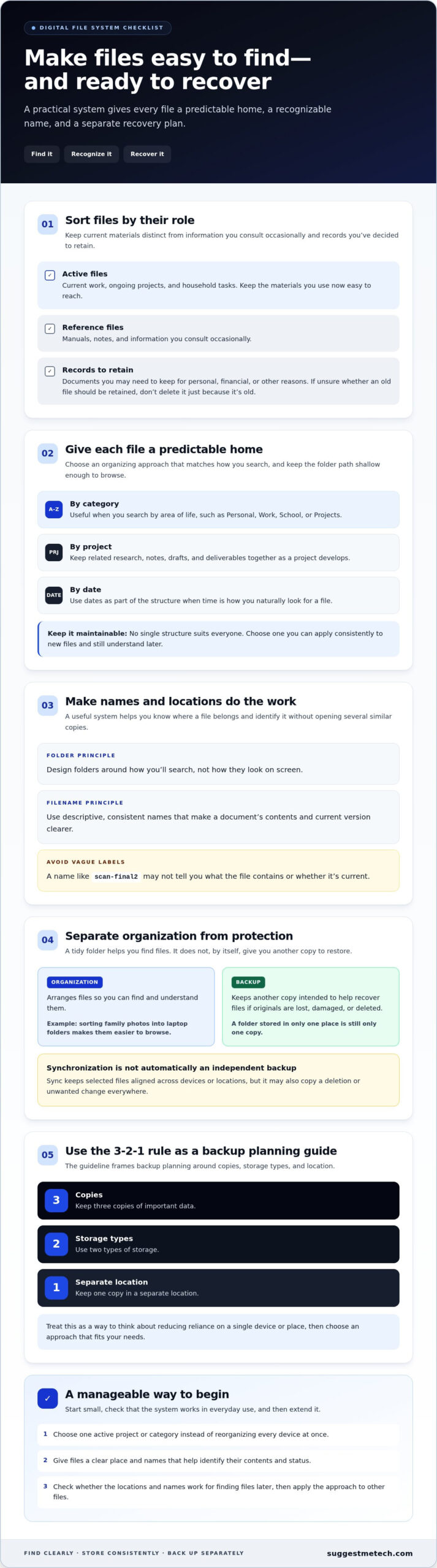
Organization helps you find and understand files. A backup is another copy intended to help you recover files if the originals are lost, damaged, or deleted. Sorting family photos into folders on a laptop makes them easier to browse, but doesn’t protect them if the laptop fails and no other copy exists.
Plan for both needs: decide where active files belong, then choose a separate place for copies you may need to restore. A tidy folder structure is useful, but it isn’t evidence that your documents are backed up.
What should readers expect from the guide?
The process moves from reviewing existing files to choosing a structure, naming and sorting documents, and planning for backups and maintenance. Taking stock first helps you decide what to keep, while consistent names make files easier to recognize and search for later.
You don’t need to do everything at once. Begin with one active project or category, such as household records. Apply the system there, check whether the names and locations work in everyday use, then extend it to other files.
Why a Retrieval-First Digital File System Beats Ad Hoc Folders
With ad hoc folders, you may not remember where a document went, whether a duplicate is current, or what a vague filename such as “scan-final2” contains. These uncertainties become more frustrating when files are spread across a computer, phone, external drive, and cloud storage.
A retrieval-first system gives files a predictable home and names that help you recognize them. A good folder system makes it clear where a file belongs and how to identify it later. That principle is central to how to organize your digital files: design for finding and maintaining documents, not simply for creating folders.
Which files belong in a digital organization system?
Include files you use, refer to, or may need to retain, wherever they’re stored. Common examples include work documents, photos, downloads, household records, and personal projects. Keep current materials distinct from reference items and records you may need later. That way, active folders stay manageable without making older documents difficult to find.
- Active files: Current work, ongoing projects, and household tasks.
- Reference files: Manuals, notes, and information you consult occasionally.
- Records to retain: Documents you may need to keep for personal, financial, or other reasons.
Handle sensitive or legally important records according to your own requirements. If you’re unsure whether a document needs to be retained, don’t delete it just because it’s old.
Illustrative example: Keep current household bills and insurance documents in an “Active Household” folder. Move completed or outdated items you’ve decided to retain into a clearly labeled archive. This separates documents you use now from records you keep for reference, without scattering them across unrelated folders.
How does organization differ from backup?
Organization makes files easier to find. A backup is a separate copy intended to help recover files after the originals are lost or damaged. A neatly arranged folder on one device is still stored in only one place.
Synchronization keeps selected files aligned across devices or locations, but it may also copy a deletion or unwanted change everywhere. Syncing can be convenient for access, but don’t assume it gives you an independent, recoverable backup.
The 3-2-1 backup rule is a common planning guideline: keep three copies of important data, use two types of storage, and keep one copy in a separate location. Use it as a way to think about reducing reliance on a single device or place, then choose a backup approach that fits your needs.
For a broader perspective on central storage and organizing habits, see Stanford’s Organizing Your Digital Workspace. You can also explore practical technology guides for related everyday decisions.
Choose a Folder Structure and File-Naming System You Can Keep
Choose a folder structure that reflects how you usually search for information. You might sort by category, project, or date, or combine these approaches. Keep the layout shallow enough to browse without clicking through a long chain of folders.
No single structure suits everyone or every device. The most useful system is one you can apply consistently to new files and still understand later.
Which folder structure suits personal, school, and work files?
If you usually search by area of life, start with broad folders such as Personal, Work, School, and Projects. If several documents support the same piece of work, give them a project folder. This keeps notes, drafts, and deliverables together as the project develops.
| Structure | Best for | Practical limitation |
|---|---|---|
| Broad categories | People with files spanning a few clear areas, such as work and personal life. | Documents that fit multiple categories can be hard to place consistently. |
| Project-based | Students, teams, or individuals managing work with related notes, drafts, and final files. | Reference materials used across projects may end up duplicated or separated. |
| Date-based | People who retrieve records by when they were created, such as meeting notes or monthly reports. | A date alone may not make a file’s subject clear. |
You can combine approaches, such as Work > Projects > Project Name. Make folder names descriptive, but avoid unnecessary layers. Deep folder paths can make browsing slower and increase the chance that similar files end up in different places.
How should you name files consistently?
Use a repeatable filename pattern that puts the most useful details first. One practical option is date, subject, version. Leave out details that don’t help you identify or sort the file. Consistent names make folders easier to scan. The Network of the National Library of Medicine’s File naming best practices also discusses consistent date formats and avoiding special characters.
Illustrative example: A meeting record could be named 2026-10-03-Team-Planning-Notes. The date format sorts predictably, and the subject tells you what the file contains. For revisions, add a label such as Draft or Approved when it accurately describes the file’s status.
Names such as final-final or new document don’t identify the subject or show which version is authoritative. Before saving, consider whether the name will make sense outside its current folder. This check is especially useful when you move a file between devices or share it with someone else.
How to Organize Your Digital Files Step by Step
A full digital cleanup can feel daunting, so work through one location or category at a time. Start with Downloads, a current project, or documents on one device. Once that batch is in order, use the same approach for the next location.
This workflow for how to organize your digital files moves from taking stock to sorting, checking, and maintaining. If you’re unsure about a file, pause to review it rather than deleting it just to make progress.
- List where files are stored. Note the locations you use, such as Downloads, desktop folders, external drives, phones, and cloud accounts. This inventory gives you a starting point and may reveal where duplicate copies are accumulating.
- Choose one manageable batch and review it. Sort files into four temporary groups: keep, archive, delete, and review. Check a file’s contents and ownership before removing it. Two files with similar names may contain different edits, or one may belong to a shared project.
- Identify duplicates and unclear names. Compare the contents, dates, and context of suspected duplicates before choosing which copy to keep. Rename files with a clear subject and, where useful, a date or version label. Preserve details that explain what a document is or how it relates to a project.
- Move a small test batch. Put a few representative files into the new folders first. Open them from their new locations to confirm they work, then check that the folder path and filename still make sense. If files are shared or linked from another document, make sure the move hasn’t disrupted how you use them.
- Sort the remaining batch and protect important files. Once the test works, continue with the selected location. Keep archives separate from active materials, and make a separate backup of files you may need to recover. Organization makes files easier to find, but it doesn’t replace a backup.
- Run a search test and set a maintenance habit. Pick a recent document and try to find it using your folder structure and filename. If you can’t tell where it belongs or what its name means, adjust the system before applying it to another batch. Review the same location periodically so new files don’t pile up again.
Clearing device storage is a separate task from sorting saved documents. An app cache is temporary data, not the same as your personal files. For that related task, read our guide to clearing iPhone cache, and keep file organization focused on documents, photos, and other items you want to locate and manage.
Keep Digital Files Organized Across Devices, Cloud Storage, and Backups
Choose one primary location for active files, such as a main folder on your computer or a cloud folder you use consistently. Treat it as the current version instead of maintaining competing copies in several places. You can keep backups elsewhere, but make it clear which location is for everyday work and which is for recovery.
Local storage, external drives, and cloud storage serve different needs. The right combination depends on how you access files and how you plan to recover them if something goes wrong.
| Storage type | Access and portability | Recovery tradeoff | Best suited for |
|---|---|---|---|
| Local storage | Convenient on the device where files are saved. | A device problem may make files unavailable unless another copy exists. | People who mainly work from one computer. |
| External drive | Portable, but must be connected to access its files. | It provides another place for copies, but can be lost or damaged. | People who want a separate physical copy or need to move files between devices. |
| Cloud storage | Can make files available across devices through an internet connection and account access. | Recovery and syncing behavior vary by service, settings, and account. | People who work across devices or need access from different locations. |
How can files stay consistent across devices?
Synchronization means keeping selected files aligned across devices or storage locations. Google Drive, Microsoft OneDrive, and Dropbox are examples of cloud storage services. Syncing can make a current document available on multiple devices, but editing separate copies can leave you unsure which version to keep.
Choose one primary copy for active work, and avoid parallel folders with the same purpose. Syncing and backup behavior depends on the service and its settings, so review the options you use. Because synchronization may carry deletions or changes across locations, don’t treat it automatically as an independent backup.
What routine prevents digital clutter from returning?
Use a short recurring review to keep Downloads, desktop files, and active project folders manageable. Move completed work into an archive, remove only files you’ve checked, and test backups by confirming that selected files open or can be restored from the backup location.
To put how to organize your digital files into practice, choose one active folder and decide where its current files should live. Check that the folder is available where you need it, and identify which separate copy is meant for recovery. During a regular review, clear temporary clutter, rename files that are hard to recognize, and archive finished projects. Keep the routine small enough to repeat. A system that’s easy to maintain is more useful than a complex structure you rarely update. Adjust it when your storage needs or device habits change. For more practical technology guides, explore related SuggestMeTech coverage and share which file-organization challenges you’d like addressed next.
Make Your File System Easy to Maintain
A reliable digital filing system doesn’t need to be elaborate. Choose folders based on how you retrieve files, use clear names to distinguish documents and versions, and review one location at a time. These habits help keep files understandable as projects and records accumulate.
As you put how to organize your digital files into practice, keep one primary location for active work and treat backups as a separate part of your plan. Test the system with a real file: save it, find it again, and check that its name and location make sense. If they don’t, adjust the setup before expanding it.
SuggestMeTech publishes practical technology guides and product comparisons to help readers make informed everyday decisions. Explore more practical technology guides for help with related technology choices, and share the file-management challenges you’d like us to cover. Start with one folder today and build a clearer system step by step.
Frequently Asked Questions
These answers cover common decisions when setting up and maintaining a digital filing system, from folder structure and filenames to backups and access across devices.
How do I organize digital files on my computer?
Choose a small set of clear top-level folders, then sort files according to how you’ll search for them. Start with one location, such as Downloads or a current project, and review unfamiliar files before deleting or moving them. Use descriptive names, separate active work from completed records, and make a separate backup of files you may need to recover.
What is the best folder structure for digital files?
The best folder structure is one you can apply consistently and understand later. Broad folders such as Personal, Work, and School suit people who search by area of life. Project folders work well when drafts and deliverables belong together, while date-based folders can help with records reviewed chronologically. You can combine approaches, but avoid unnecessary layers that make files harder to browse.
How should I name files so they are easy to find?
Include details that help you recognize and sort each file, such as a date, subject, and version when relevant. For example, “2026-10-03-Team-Meeting-Notes” describes a dated meeting document more clearly than “notes-final.” Use the same pattern consistently. Vague labels such as “final-final” don’t identify the contents or clarify which copy is current.
Should I organize files by date, project, or file type?
Choose the method that matches how you usually retrieve files. Sort by project when documents support a shared goal, by date when chronology matters, or by file type when you often need to find a particular format. A hybrid structure can work, such as placing project folders inside Work. Avoid sorting by file type alone if it separates materials you need together.
Is cloud storage a backup for my digital files?
Cloud storage can hold an additional copy, but it isn’t automatically an independent backup. Synchronization may carry edits or deletions across connected locations, so a mistake could affect more than one copy. Review how your service handles file history and recovery, then keep a separate backup of important documents. Test that you can open or restore selected files rather than assuming the backup works.
How often should I organize my digital files?
Review files often enough to prevent temporary clutter from accumulating. How often depends on how frequently you create or download documents. A short recurring check of Downloads, desktop folders, and active projects can help you file new items and archive completed work. Focus on the locations that change most; you don’t need to reorganize everything each time. Adjust the routine if clutter returns quickly.
Can I organize files across Windows, Mac, and cloud storage the same way?
You can use the same broad folder structure and naming pattern across Windows, Mac, external drives, and cloud storage. Keep names concise and plain so they’re easier to use in different applications, and test a small group of files before moving a large collection. Filename limits and syncing behavior vary by system and service, so confirm that important files open and remain accessible in their new locations.

