

The best accessibility tools for web browsing depend on the barrier you want to reduce, such as small text, difficult navigation, or content that’s hard to hear or perceive. Your device may already include useful features. Browser settings, extensions, and assistive technologies can all help, but they work in different ways and may not suit every device or website.
To choose a practical setup, compare options by the browsing task they support, their compatibility with your device and browser, and how easy they are to use. A built-in feature may be enough for one need, while an extension or screen reader may suit another. Test your choices on familiar websites and keep the tools that make regular tasks more comfortable and reliable.
Key Takeaways
- Match a tool category to the browsing barrier you want to reduce, rather than looking for one universal solution.
- Compare accessibility tools for web browsing by device, browser support, and how they fit your routine.
- Check that a tool works with your device, browser, and the websites you use most.
- Trial your choice with familiar tasks, such as finding a link or reading an article, to see whether it helps.
- Start with one primary tool and add a relevant setting only if it addresses a separate need.
Quick Answer
Accessibility tools for web browsing include browser settings, extensions, and assistive technologies such as screen readers or voice control. Choose based on the barrier you face, your device and browser, and the way you prefer to interact with websites. These tools can improve access, but they cannot make every website fully accessible.
What counts as an accessibility tool for web browsing?
An accessibility tool is a feature or software that changes how you perceive or interact with web content. It may be built into a browser, added as an extension, or provided by your device’s operating system.
Browser settings can adjust how a page appears, while extensions add features to the browser. Assistive technologies, such as screen readers and voice control, support different ways to access and operate content. For a broader foundation, Web accessibility standards describe how accessible websites are designed to work for people with different needs.
For example, enlarging text changes its visual size, while voice control lets you use spoken commands to interact with a page. Each addresses a different barrier, so one does not replace the other.
Which browsing barriers can tools address?
Start with the task that’s difficult. A tool may help with one part of browsing without resolving every challenge on a page.
- Reading: Read-aloud features speak page text, while reading modes may present an article in a simpler layout. These can suit people who prefer listening or find dense pages tiring to read.
- Vision: Zoom, text-size controls, or screen readers can support people who need larger text, a different visual presentation, or spoken descriptions of page content.
- Hearing: Captions or transcripts provide text alternatives for audio and video information when a website includes them.
- Movement: Keyboard navigation or voice control can offer alternatives to using a mouse, which may help when precise pointing or clicking is difficult.
- Cognitive access: Simplified page views, text-to-speech, or tools that reduce visual distractions may help people focus on or process information.
Needs can vary by task. Someone might use screen magnification to read an article, then switch to keyboard navigation to complete a form. A tool’s usefulness also depends on how a website is built. Settings and assistive technologies can make browsing easier, but missing labels, confusing navigation, or content without an alternative format may still create barriers.
Accessibility Tool Categories for Reading, Vision, Hearing, and Input
Accessibility tools for web browsing change how people perceive or interact with web content. Common categories include screen readers, magnification and display adjustments, reading and speech support, alternative input, and captions or transcripts. Some features are built into a device or browser; others are separate tools. Their features and compatibility can vary.
Begin with the task you want to make easier. The categories below can overlap, and combining tools may help when one option does not address every barrier.
- Screen readers: Announce page text and interface elements aloud for people who use spoken output to navigate.
- Magnification and display adjustments: Enlarge content or change its visual presentation for easier viewing.
- Reading and speech support: Speak selected text or present articles in a less cluttered reading view.
- Alternative input: Support browsing or text entry without relying only on a mouse or touchscreen.
- Captions and transcripts: Provide text alternatives for spoken information in audio and video, when available.
The W3C describes a range of assistive technologies and adaptive strategies people use to access web content. Use these categories to compare tools by everyday need rather than assuming one setup will suit everyone.
Screen readers, magnification, and display adjustments
A screen reader announces text and interface details, such as links and controls, so a person can navigate using spoken output. NVDA and VoiceOver are examples; TalkBack and Windows Narrator are also options to investigate. Check each tool’s current availability and compatibility with your device, browser, and the websites you use.
Magnification enlarges part or all of a display, while text-size and contrast adjustments change how content looks. These features may help when small text or a difficult visual presentation makes reading harder. Since results can differ between browsers and websites, try adjustments on pages you visit regularly.
Reading, speech, and alternative input tools
Text-to-speech reads written content aloud, which may help with long articles or when listening is easier than sustained reading. Reader-style features can simplify a page’s layout, though they may not work with every type of content. Speech recognition can offer another way to control a device or enter text, but commands and performance vary.
Captions and transcripts can make information in a video or audio clip easier to follow. Captions display speech as text during playback; transcripts provide a written version to read separately. Pairing a reading feature with captions may support different tasks, but the most useful combination depends on your preferences and the content.
Compare Web Browsing Accessibility Tools by Need and Compatibility
Start by identifying the task you want to make easier, then check how a tool fits your device and browser. The table compares tool categories rather than naming a universal winner. Actual support can vary by operating system, browser, website, and tool version.
Use the compatibility checks as a starting point, not a guarantee. A website’s design can affect how well a tool works. The U.S. Department of Justice’s Guidance on Web Accessibility and the ADA describes common website accessibility barriers and why they matter.
| Tool category | Possible use case | Typical setup | Compatibility checks |
|---|---|---|---|
| Screen reader | Hear page text and interface elements while navigating | Turn on a device’s assistive technology or install a screen reader | Check operating system, browser support, and whether key website controls are announced |
| Text-to-speech or reader view | Listen to an article or read it in a simpler layout | Use a browser or device feature, or add a browser extension | Check whether it works with the page type, such as articles, forms, or menus |
| Magnification and display adjustments | Enlarge text or change how page content appears | Adjust display or browser settings; some extensions offer additional changes | Test whether text remains readable and controls usable at the chosen setting |
| Speech input | Control a device or enter text without relying on a keyboard or mouse | Enable speech recognition through a supported device feature or tool | Verify operating-system support and which commands work in the browser |
| Captions or transcripts | Follow spoken information in audio or video as text | Turn on available captions or open a provided transcript | Check whether the website provides them and whether they include the needed content |
Which tool category suits each browsing need?
Choose a category that addresses the barrier: screen readers or text-to-speech for spoken output, magnification or display adjustments for content that’s hard to see, and speech input for hands-free interaction when your device supports it. Captions and transcripts can help with audio or video. Some people combine categories, such as using magnification alongside speech output.
How browser and device compatibility affects the choice
Built-in options are integrated with a browser or operating system. Extensions add features inside a browser, while standalone assistive technologies work at the device level. For example, Chrome settings may adjust a page, while an operating-system screen reader can support broader device navigation.
Before relying on an option, review its current setup instructions and supported platforms, then try it on websites you use. A tool’s presence alone does not ensure every page will work as expected.
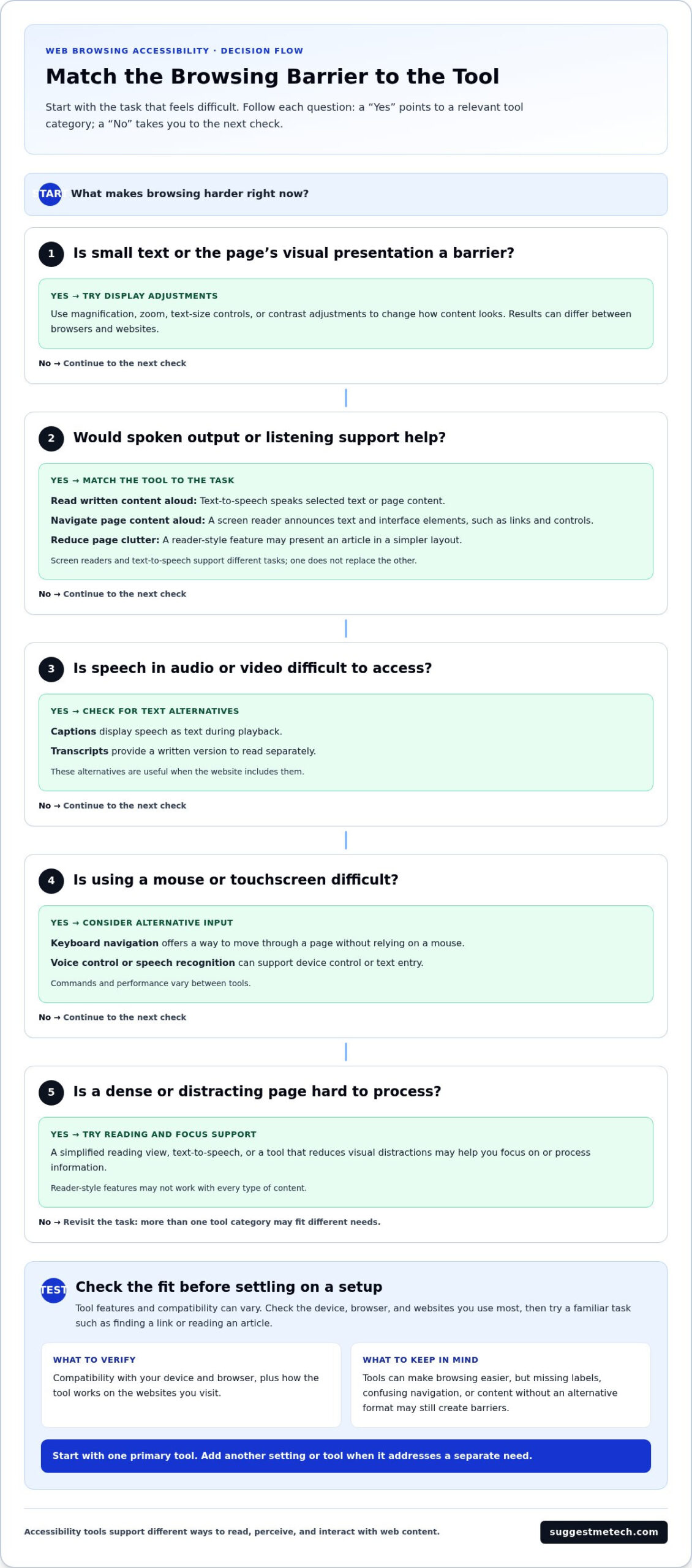
Choose and Test Accessibility Tools for Your Browsing Routine
A simple trial can show whether accessibility tools for web browsing make everyday tasks easier. Identify a specific barrier, choose a category that addresses it, check compatibility, and test the tool on familiar websites. Change one setting at a time so it’s easier to tell what helps and what still needs attention.
A tool can work as intended and still leave difficulty if a website’s design creates barriers. Try it on more than one site before deciding whether it suits your routine.
A practical tool-selection checklist
Before comparing options, describe the task that feels difficult. “I lose my place while reading” points to a different need than “I can’t easily select links.” Use this checklist to narrow your choices:
- Name the barrier: Identify a task, such as reading an article, locating a link, or entering information into a form.
- Check compatibility: Confirm that the tool supports your device, operating system, browser, and any assistive technology you rely on.
- Consider setup: Decide whether you’re comfortable changing a device setting, installing an extension, or learning a separate tool.
- Review privacy information: Understand what information a tool may access, especially if it works with page content or voice input.
- Assess usability: Check that its controls are easy for you to find, adjust, and use during regular browsing.
How to tell whether a tool helps
Try a repeatable task on a familiar website, such as opening an article, finding a link, or completing a form. Note what feels easier and what remains difficult. Change one setting or tool at a time to connect any difference to the adjustment you made.
Repeat the task on another website. Page structure and behavior vary, so a tool that works smoothly on one page may not resolve the same problem elsewhere. For instance, a screen reader may announce a page clearly but encounter a control without a label it can identify. That points to a website barrier, not necessarily a setup error.
If the trial falls short, first adjust the tool’s settings or try a different way of using it. If the barrier persists, consider a complementary category, such as pairing magnification with spoken output. Keep options that help with real tasks and set aside those that add complexity without a clear benefit.
For practical technology comparisons and guides, explore SuggestMeTech’s technology coverage.
Build a Browsing Setup That Fits Your Needs
A comfortable browsing setup usually starts with one tool that addresses a recurring difficulty. Add a browser or device setting if it serves a separate purpose. For example, you might use a screen reader as your primary support and adjust its speech or display settings to suit your preferences. There’s no need to install several tools at once.
The right combination depends on the person, the task, and the device. A setup that works well for reading on a laptop may not be the one you prefer for watching video or browsing on a phone.
When combining tools makes sense
Combine tools when each has a clear, complementary role. Someone who finds text difficult to see might try magnification alongside speech output: magnification changes the visual size of content, while speech provides an audio alternative. A browser setting could also improve readability without replacing the primary tool.
Test a combination rather than assuming the tools will work seamlessly together. Overlapping features can make controls harder to manage, and a website’s layout may respond differently to display changes. Keep the pairing only if it makes a regular browsing task easier without adding unnecessary steps.
Next steps for finding a comfortable browsing setup
Start with one recurring browsing difficulty and make a small, manageable choice. Use these checks to decide whether a setup fits:
- Compatibility: Does the tool support the device, operating system, and browser you use?
- Usability: Can you find and operate its controls comfortably?
- Task performance: Does it help with the specific task, such as reading an article or locating a link?
- Consistency: Does it remain useful across the websites and devices you rely on?
If your needs change between tasks, adjust the setup accordingly. You might use a reading feature for articles and a different input method for forms. Revisit your choices when you change devices or browsers, since compatibility and behavior can differ.
These practical checks can turn comparisons of accessibility tools for web browsing into a setup that suits your routine. For more ideas as you compare everyday technology, explore SuggestMeTech’s practical technology guides.
Make Your Next Browsing Setup Work for You
The most useful accessibility tools for web browsing address a real barrier in your routine. Compare categories by the tasks they support, then check compatibility with your device, browser, and the websites you use. A screen reader, display adjustment, or speech input may help in different situations. Combine tools only when the setup remains manageable.
Start with one recurring difficulty, try a relevant tool, and test it with familiar tasks. If a website still causes problems, the limitation may be in how the page is designed, not in your setup. Adjust your choices as your needs, devices, or browsing habits change.
SuggestMeTech publishes technology reviews and comparisons, with editorial guides focused on practical decisions for readers. Explore SuggestMeTech’s practical technology guides to compare options for your everyday needs.
Frequently Asked Questions
Choosing browsing support often comes down to how a tool fits your device, routine, and preferred way to interact with web pages. These answers clarify common questions about features, compatibility, and practical use.
What are accessibility tools for web browsing?
Accessibility tools for web browsing are features or software that change how people perceive or interact with web content. Browser settings can adjust page appearance, extensions can add functions within a browser, and assistive technologies can support device-wide access. Examples include screen readers that announce page content, magnification that enlarges it, and speech input that lets someone use voice commands. The right option depends on the person’s needs and setup.
Which accessibility tools can help make web pages easier to read?
Text-to-speech, reader-style views, screen magnification, and display adjustments can make pages easier to read in different ways. Text-to-speech reads content aloud; a reader view may reduce visual clutter; magnification enlarges text and other page elements. Browser or device settings can also adjust text size or contrast. Try a feature on the kinds of pages you read most, since layout and behavior can vary across websites.
Can I use a screen reader with any web browser?
Not necessarily. Screen reader support depends on the operating system, browser, screen reader version, and how a website is built. Some combinations may provide a smoother experience than others, and a screen reader may not identify controls clearly if a page lacks accessible labels. Check current platform support and test the browser with websites you use regularly. For important tasks, try navigating links, headings, and form controls, not just reading page text.
How do I choose an accessibility tool for browsing?
Start by naming the browsing task that feels difficult, such as reading long articles, seeing small text, or selecting links without a mouse. Choose a tool category that addresses that barrier, then check compatibility with your device, operating system, and browser. Consider whether setup and controls feel manageable. Test the tool on familiar websites and repeatable tasks. If one option falls short, adjust its settings or try a complementary category.
Are browser accessibility tools free?
Some accessibility features are built into browsers or operating systems, while the availability and cost of extensions and standalone tools vary. For example, VoiceOver is built into Apple devices, and NVDA is a free screen reader for Windows. Other tools may have different pricing or paid options. Check current details before choosing, and compare setup and compatibility as well as cost. A built-in feature may be enough for a specific need.
Do accessibility tools work on every website?
No tool can guarantee the same experience on every website. A screen reader, magnifier, or reading feature may work as intended but still encounter pages with unlabeled controls, confusing navigation, or content that isn’t available in an alternative format. Test tools on more than one website, including pages you rely on for everyday tasks. If a particular page remains difficult, the issue may be its design rather than your setup.
Can I use more than one accessibility tool at a time?
Yes, you can combine tools when each serves a useful purpose. For example, someone might use magnification to enlarge content and speech output to listen to text. Start with one primary tool, then add a setting or second tool that addresses a separate difficulty. Test the combination on familiar websites. More tools aren’t automatically better; overlapping controls or incompatible behavior can make browsing more complicated.
What is the difference between a browser accessibility feature and assistive technology?
A browser accessibility feature is built into the browser and changes how pages appear or behave there, such as zoom or a reading view. Assistive technology is software or a device feature that supports access and interaction, often across more than one app. A screen reader is one example. The categories can overlap, so compare what each option does, where it works, and whether it suits your device and browsing tasks.

