

These tips for better work-life balance with technology start with a simple idea: fewer interruptions often matter more than adding new tools. Work messages can intrude on personal plans, while frequent notifications make it harder to focus or switch off. The aim is not to avoid technology, but to use it with clearer boundaries.
This guide covers practical ways to make everyday technology fit your routines, responsibilities, and availability needs.
Quick Answer
Use technology to support clear work and personal boundaries: adjust notifications, set practical start and stop cues, and tell others when you’re available. Begin with settings already on your devices, then see whether they reduce interruptions without blocking essential contact. Keep the changes that fit your routine and revise them as your responsibilities or schedule change.
Key Takeaways
- Technology supports balance when it helps maintain clear boundaries, not constant availability.
- Interruptions and switching between communication channels can disrupt personal time, even when total screen time seems manageable.
- Compare device settings, calendar routines, and wellbeing apps to find an approach that fits your needs without adding unnecessary friction.
- Build a small, practical routine and test what works in your schedule.
- Review your boundaries as work demands and routines change. Keep the adjustments that help and revise the ones that get in the way.
What Better Work-Life Balance With Technology Actually Means
Technology-supported work-life balance means using digital tools to meet responsibilities while preserving time for rest, relationships, and personal activities. It isn’t about avoiding devices. It’s about deciding when and how technology gets your attention, so useful access doesn’t turn into constant availability or repeated task switching.
The same phone can help coordinate a family pickup and pull you back into work after hours. The difference lies in the habits and expectations around it. For a broader perspective, Understanding Work-Life Balance offers an overview of how work and personal life can overlap, including through technology.
How to recognize when digital habits are disrupting your boundaries
Look for moments when checking feels automatic rather than necessary. You might open a work chat during dinner, glance at email before bed, or switch between a task and incoming alerts. These habits can make personal time feel unsettled because your attention keeps returning to work, even when a response isn’t urgent.
Notice the pattern without judging yourself. Which device, app, or situation prompts unwanted checking? Is it a notification, a quiet moment, or uncertainty about whether someone expects a quick reply? Identifying the trigger helps you choose a focused change, such as silencing one channel during a meal or moving a work app off your home screen.
Why a balanced approach is different for every person
Work duties, caregiving, schedules, and access needs vary. Some people need to monitor a specific channel at certain times; others can turn off work notifications after their shift. Necessary availability is not the same as an expectation to respond instantly to every message. A useful boundary accounts for real responsibilities while reducing avoidable interruptions.
Define success around your circumstances. You might set an end-of-day routine, check messages at planned intervals, or keep one urgent contact method available while muting routine alerts. These habits work best when they support your actual commitments, rather than copying someone else’s schedule or adding rules that are hard to maintain.
How Technology Can Blur Work and Personal Time
Digital boundaries are the habits and settings that define when work messages can reach you, which alerts deserve attention, and where work activity belongs. They help separate necessary access from constant responsiveness. Without clear boundaries, notifications from email, chat, calendars, and personal apps can repeatedly pull your attention between work and life.
The issue isn’t simply how many hours you spend looking at screens. A quick check of one work alert can lead to opening a calendar, scanning another message, and switching to a personal app. Each switch makes it harder to keep work and personal time distinct, even if the original interruption seemed minor.
Notifications, interruptions, and the feeling of being always available
Not every alert needs the same response. An urgent call may require immediate attention, while a routine update, promotional notice, or busy group chat can often wait. When every alert arrives with the same sound or banner, it’s harder to distinguish messages that need action from those that are simply asking to be noticed.
For example, you might tap a work message during a personal task, then see an unrelated email or social notification and move between apps. Decide which alerts need to break through and which can wait for a planned check-in. Essential calls or accessibility alerts may need different settings, so don’t mute everything without considering how you rely on your device.
Remote and hybrid work can make boundaries harder to see
When one laptop or phone holds work chat, personal messages, and entertainment, the same screen can signal different parts of the day. Flexible hours can add another complication: finishing a task later may extend the workday, while an incoming message can leave it unclear whether you’re expected to respond.
Where practical, separate work and personal profiles, browser accounts, or device spaces. Even a simple routine, such as closing work tabs or putting a work laptop away after a set time, can create a visible transition. The FTC’s page on Government Initiatives for Work-Life Balance describes work-life programs and flexibilities from an employer perspective.
For ideas on choosing and using technology, SuggestMeTech’s practical technology guides can help you compare options and focus on settings that fit your devices and routines.
Which Technology Changes Help, and Which Add More Friction?
The most useful technology change is usually the smallest one that addresses a specific interruption. You don’t need to buy an app or disconnect completely to create more separation between work and personal time. Start with a setting or routine you already have, then add a tool only if a clear need remains.
Compare options by the problem you want to solve. Notification settings can quiet selected alerts; a calendar routine can create a predictable time to start or stop work.
| Option | Who may benefit | Limitation to consider |
|---|---|---|
| Built-in focus and notification settings | People who want to limit interruptions without adding another app. | Settings may need to be adjusted on each device or app, and important alerts require exceptions. |
| Calendar routines | People who want reminders for work blocks, breaks, or an end-of-day routine. | A reminder can be easy to ignore if it doesn’t fit the actual schedule or workload. |
| Optional wellbeing apps | People whose specific needs aren’t met by existing device and calendar features. | They may require setup and ongoing maintenance, and some involve subscription or privacy considerations. |
When built-in focus and notification settings are enough
A focus mode is a device setting that limits selected interruptions during chosen periods. You might use one to silence routine work chat after your scheduled hours while allowing calls from a particular contact. Before installing an app, review notification permissions one by one and turn off alerts that don’t need immediate attention.
Keep exceptions for alerts you rely on, including essential calls or accessibility notifications. The goal isn’t to block everything. It’s to quiet routine interruptions without losing access to what matters.
When an additional app or device separation may help
Consider an optional tool only if built-in settings leave a clear problem unsolved. Before using it, weigh the initial setup, what information it may access, whether a subscription applies, and the effort needed to keep its settings current. A separate work profile or device can also help, but it may add steps to everyday tasks.
For focused work, reduce distractions in your surroundings as well as on-screen alerts. Choosing headphones for focused work may help create a more contained workspace, though headphones won’t replace clear expectations about availability. The right solution fits your routine instead of creating another system to manage.
How to Build a More Balanced Technology Routine
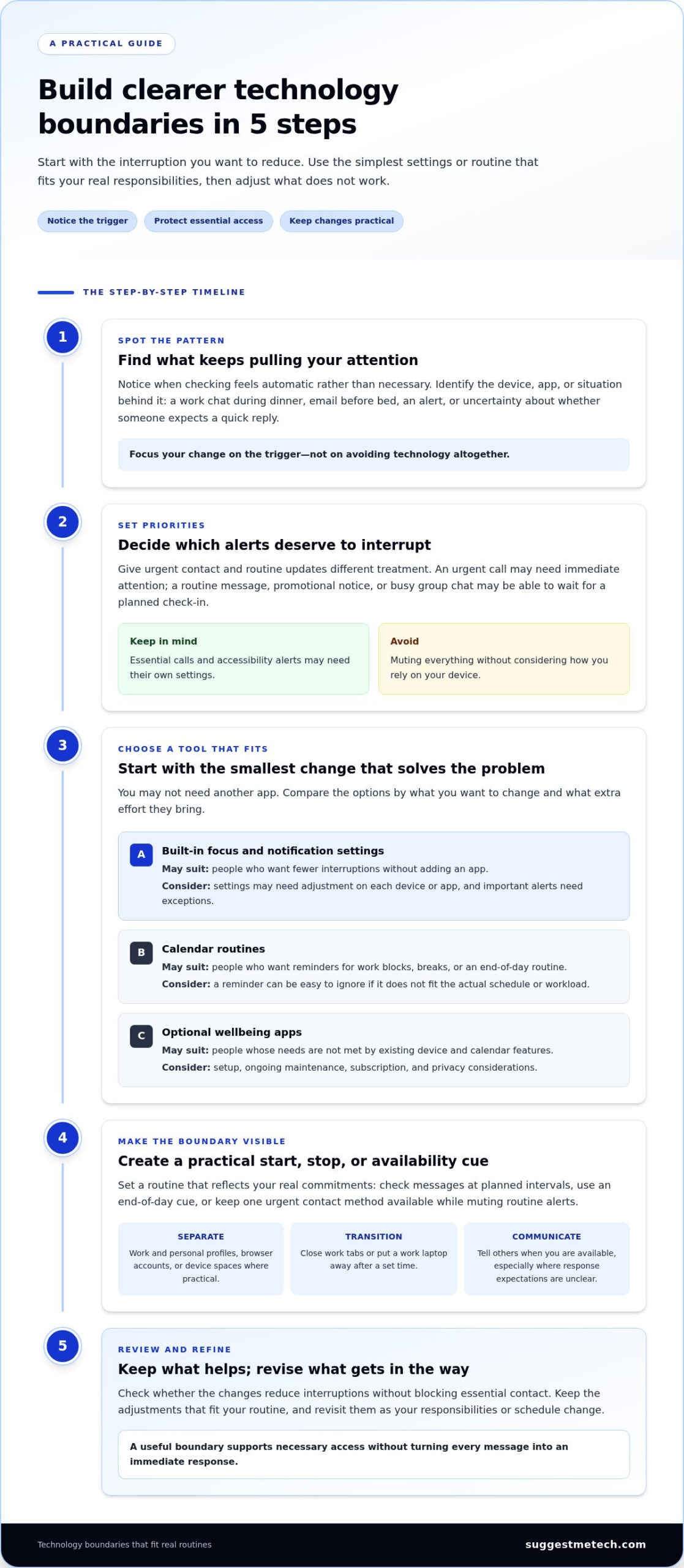
A workable routine doesn’t require a strict screen limit or a completely device-free day. Start with one point of friction, choose a boundary that fits your responsibilities, then use existing settings and routines to support it. Small changes are easier to test and adjust around your actual schedule.
A notification boundary is a clear rule for which alerts can interrupt you, when they can arrive, and which people or channels remain available for essential contact. Build yours in a few manageable steps:
- Identify the friction. Notice when work technology intrudes on personal time or personal alerts interrupt a work task. Pick one recurring moment to address, rather than trying to change every digital habit at once.
- Choose a boundary. Decide what would make that moment feel clearer. For example, keep routine work alerts off during a family activity while leaving calls from essential contacts available.
- Adjust your settings. Use your device’s notification controls or focus settings to support the boundary. Allow only the alerts you need during that period, and check that the setup works across the apps and devices you use.
- Communicate the plan. A calendar block or status message can show coworkers when you’re available. Explain response expectations to relevant colleagues or household members, especially if your schedule is flexible or changes from day to day.
- Review the result. After trying the change, consider whether it reduced unwanted interruptions or blocked something you needed. Keep what works and revise what doesn’t.
Set practical workday start, stop, and availability cues
Use cues you can repeat, not rules that only work on an ideal day. A calendar block can mark time for focus or finishing; a status message can clarify when you’ll next check messages. At the end of work, close work tabs or review tomorrow’s tasks, then put away the device you use for work. A consistent cue makes the transition easier to recognize.
Create calmer transitions and more intentional personal time
Choose a specific place or moment to set work notifications aside, such as silencing routine alerts during an evening walk. If a laptop serves both work and personal needs, separate browser profiles or accounts can help distinguish tasks. A guide to laptops can also help you think through device setup and use. Start with one change, then adapt it to your responsibilities.
Explore practical technology guides for more ways to compare everyday tech options and choose tools that suit your routine.
How to Keep Your Technology Boundaries Useful Over Time
A boundary should make everyday life easier, not become another system to manage. Work patterns, caregiving responsibilities, schedules, and access needs can change, so settings that once helped may need adjusting. Consistency matters more than a perfect routine: choose workable expectations, communicate them, and revisit them when they stop fitting.
Review how the changes feel in practice. Screen-time totals can offer context, but they don’t show whether work messages interrupt dinner or whether an alert you need is being silenced. Pay attention to the moments that matter to you.
Review your digital habits without turning them into another project
Use a brief check-in to consider whether you’re getting fewer unwanted interruptions, whether people understand when you’re available, and whether personal time feels less tangled with work. You don’t need a detailed log. A quick reflection can help you decide whether to keep a setting, adjust it, or remove it because it creates more inconvenience than value.
- Keep a setting that addresses a recurring interruption without blocking access you need.
- Change a boundary that works on some days but conflicts with your current schedule or responsibilities.
- Remove a rule or tool that adds steps without solving a real problem.
Choose the next small change that fits your life
When something changes, such as a new work arrangement or caregiving schedule, reassess the boundary rather than assuming you need to start over. One clear expectation, shared with the people affected, can be more useful than a rigid routine that doesn’t fit. If a setting makes you harder to reach than intended, revise it; if it keeps interrupting personal time, narrow which alerts can get through.
Pick one adjustment to try, such as changing the timing of a focus setting or updating a work status message. Give yourself room to adapt it to real demands. These tips are most useful when they support your responsibilities and leave space for life outside work, rather than turning balance into another target to track.
For more ideas on everyday technology choices, explore SuggestMeTech’s technology reviews and guides. Choose one practical adjustment to try and adapt it to the way you work and live.
Make Technology Work Better for Your Life
Better work-life balance doesn’t require abandoning technology or building an elaborate system. Start by noticing where work and personal time overlap, then choose a practical boundary that fits your responsibilities. Review notifications, use built-in settings before adding tools, and make availability expectations clear to the people affected.
The most useful changes are the ones you can maintain. Try one adjustment, such as setting a clearer end-of-day cue or limiting routine alerts during personal time. Check whether it reduces interruptions without blocking something important, and adapt it as your schedule or needs change. Consistent, flexible boundaries matter more than a perfect routine.
For more guidance on choosing and using everyday technology, explore SuggestMeTech’s technology reviews and guides.
Frequently Asked Questions
Work and personal technology needs differ, so useful boundaries depend on your responsibilities and routine. These answers cover practical ways to manage alerts, set expectations, and review whether your digital habits are working for you.
How can technology help improve work-life balance?
Technology can support work-life balance by making tasks easier to organize and boundaries easier to maintain. Calendar blocks can reserve time for focused work or personal commitments, while notification settings can reduce routine interruptions. Choose tools that fit habits you already have rather than adding systems that need constant upkeep. A good setup helps you meet responsibilities without making every message or app feel like it needs your immediate attention.
Can turning off notifications improve work-life balance?
Turning off selected notifications can help reduce interruptions, but muting every alert may block something you need. Review permissions app by app: routine updates, promotional notices, and group chatter may not need to interrupt, while essential calls or accessibility alerts may require different settings. Try silencing non-urgent work alerts during a specific personal activity, then adjust if you miss important contact. The goal is deliberate access, not total disconnection.
What is the best way to set boundaries with work technology?
Choose a boundary around a recurring problem and make it clear to others. For example, set a workday stop cue, limit routine alerts after that point, and use a status message to explain when you’ll next respond. Keep necessary channels available if your responsibilities require them. This approach is most practical when it fits your actual schedule and expectations.
How do you stop checking work messages after hours?
Make after-hours checking less automatic by turning off routine work notifications, signing out of work apps, or moving them away from your home screen. Set a specific time to review messages again, and tell relevant coworkers what response timing they can expect. If you need to remain reachable for urgent matters, keep an appropriate contact method available while muting less important channels. A repeatable end-of-work routine can reinforce the change.
Do productivity apps help with work-life balance, or can they make it worse?
Productivity apps can help if they solve a specific problem, such as organizing tasks or keeping work blocks visible. They can add friction if setup, notifications, and maintenance take more time than the routine they’re meant to support. First try built-in calendar and device settings. Consider another app only when those tools leave a clear need unmet, and review its privacy, setup, and ongoing demands before relying on it.
Is it possible to have work-life balance while working remotely?
Yes, remote work can fit a balanced routine, though shared devices and flexible hours may make the end of the workday less visible. Use practical cues, such as closing work tabs, changing profiles, or putting a work laptop away when you finish. Calendar blocks and clear availability messages can also help coworkers understand when you’re working. Adapt the routine to your duties and household needs rather than following a fixed template.
How often should I review my digital boundaries?
Review your digital boundaries when your schedule, responsibilities, or work arrangement changes, and whenever a setting creates a new inconvenience. A brief check-in can help you notice whether interruptions have eased, whether important messages still get through, and whether people understand your availability. Screen-time totals alone don’t show whether your boundaries are working. Keep, adjust, or remove settings based on how they affect your everyday routine.

