

Imagine waking up on a Tuesday morning to find your entire business site replaced by a blank screen after a routine update. It’s a nightmare scenario that, according to recent industry reports, impacts roughly 30,000 websites daily. You likely feel that keeping your data safe is a priority, yet the thought of wrestling with technical jargon like FTP transfers or MySQL databases is enough to make anyone procrastinate. Learning how to backup your wordpress website shouldn’t feel like a technical exam or a risk to your uptime.
We understand the anxiety that comes with clicking that “update” button. This guide provides the most reliable, beginner-friendly methods to secure your data using the latest 2026 tools and professional hosting-level backups. You’ll gain a fully automated backup system and a clear, step-by-step plan for restoration. We’re going to show you how to move from confusion to total peace of mind with a strategy that works while you sleep.
Key Takeaways
- Stop relying solely on hosting-level backups and learn how to backup your wordpress website by securing both your database and file directory.
- Compare the 2026 pros and cons of top-rated plugins like UpdraftPlus and Jetpack to find the perfect balance between automation and budget.
- Implement the professional 3-2-1 backup strategy to ensure your site data is safely redundant across local, cloud, and hosting environments.
- Master manual SFTP backup techniques to maintain total control over your files when automated tools aren’t an option.
- Follow a calm, step-by-step disaster recovery plan to identify clean restore points and get your site back online quickly after a crash.
Understanding WordPress Backups: Why Your Host Isn’t Enough
A WordPress backup is the essential insurance policy against hacking, server failure, and user error. It functions as a complete digital safety net, ensuring you can restore your business to a functional state within minutes if things go wrong. Most beginners assume that their hosting provider handles this task entirely. While 85% of managed WordPress hosts offer some form of automated backup, relying on them as your only solution is a dangerous strategy. This creates a single point of failure. If your hosting account is suspended, hacked, or the server hardware fails, your site and its backups might disappear simultaneously. On March 10, 2021, a fire at the OVHcloud data center in France destroyed thousands of servers, leaving many website owners without any way to recover their data because they lacked off-site copies.
Understanding What is a backup? involves more than just copying files. In the context of WordPress, it’s about capturing two distinct layers of data that work together. If you only save your images but lose your database, you’ve lost years of work. True security means storing these snapshots in a separate location, such as Amazon S3, Google Drive, or a dedicated backup service. This separation ensures that no matter what happens to your primary web host, your data remains accessible and ready for restoration. When you research how to backup your wordpress website, your primary goal should always be redundancy and independence from your hosting environment.
The Anatomy of a WordPress Site
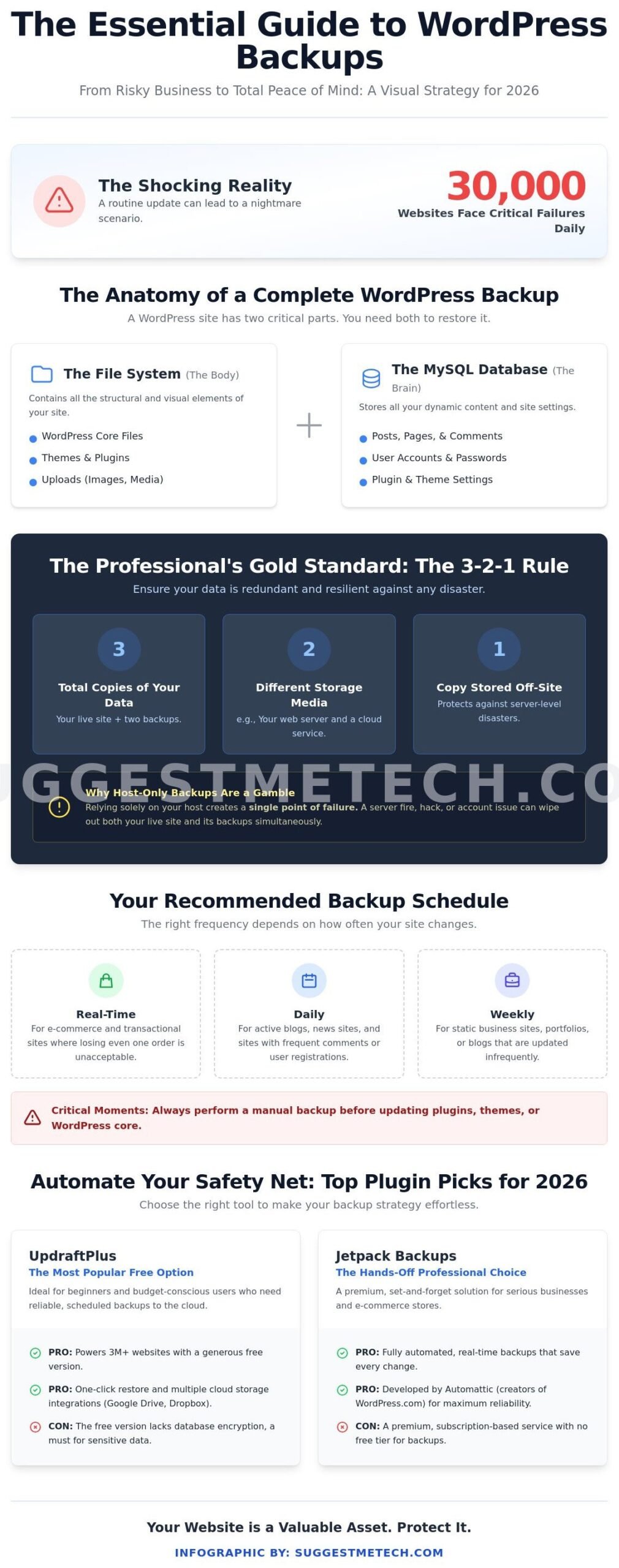
A WordPress site isn’t a single document. It’s a complex machine made of two parts. The MySQL Database is the brain of your site. It stores every blog post, user comment, password, and configuration setting. The File System is the body. This includes the WordPress core files, your active themes, installed plugins, and the entire wp-content/uploads folder where your images live. If you backup the files without the database, you have a design with no content. If you backup the database without the files, you have content with no layout or media. You need both components synced together to avoid a broken site during recovery.
When Should You Backup Your Site?
Timing your backups depends on how often you change your content. However, certain events demand an immediate manual snapshot. You must backup your site before clicking “Update” on any plugin or theme. A 2023 report from Patchstack revealed that 1,500 new vulnerabilities were found in WordPress plugins within a single year; sometimes an update meant to fix a bug can inadvertently crash your specific configuration. You should also perform a backup before changing your WordPress core version or editing your .htaccess file. For regular operations, follow these schedules:
- Daily: If you publish new content or receive comments every day.
- Weekly: For static sites or portfolios that only change a few times a month.
- Real-time: If you run an e-commerce store where losing a single hour of order data is unacceptable.
By establishing a routine and understanding how to backup your wordpress website properly, you protect your digital investment from 99% of common web disasters. Don’t wait for a server crash to realize your hosting backups were insufficient. Start building your independent backup strategy today to ensure your site stays online no matter what challenges arise.
The Best WordPress Backup Plugins for 2026
Selecting the right tool is the most critical step when learning how to backup your wordpress website effectively. You need a solution that is reliable, easy to restore, and stores your data off-site. Relying on your host alone is a risk; 60% of small businesses that lose their data shut down within six months. To avoid this, we recommend focusing on three industry leaders: UpdraftPlus, Jetpack, and Duplicator.
UpdraftPlus: The Most Popular Free Option
UpdraftPlus currently powers over 3 million websites. It’s the top choice for users who want a professional setup without a monthly subscription. To connect it to remote storage, you simply go to the “Settings” tab, select an icon like Google Drive or Dropbox, and follow the secure OAuth link to authorize the connection. This ensures your site files aren’t just sitting on your web server where they could be wiped out by a single server failure.
The “one-click restore” feature is a beginner’s best friend. If a plugin update breaks your site, you just click “Restore” and the plugin automatically handles the file extraction and database replacement. However, the free version has a significant limitation: it doesn’t offer database encryption. For sites handling sensitive customer data, you’ll need the Premium version, which costs about $70 per year, to ensure your SQL files are encrypted before they leave your server.
Jetpack Backups: The Hands-Off Professional Choice
Jetpack, formerly known as VaultPress, is built for business owners who don’t have time to manage manual settings. Its standout feature is real-time backup technology. Instead of waiting for a scheduled window, Jetpack captures every change as it happens. If you update a page at 2:15 PM, that change is saved by 2:16 PM. This is vital for high-traffic sites or WooCommerce stores where losing even one hour of order data can result in hundreds of dollars in lost revenue.
Managing your site security is easy with the Jetpack mobile app. You can initiate a full site restore from your phone while you’re away from your desk. While the $10 monthly price tag is higher than free alternatives, the peace of mind and the 30-day archive history provide immense value. For those looking for a more integrated solution, some premium hosts include these features by default. You can compare these options in our WordPress Hosting Guide.
Duplicator is the third heavy hitter, though it’s often used for site migrations. It creates a “package” that bundles your entire site into a single file. This is perfect for manual backups before making major code changes. Regardless of the plugin you choose, your goal is to establish a solid plan for Disaster Recovery to ensure your business stays online during a crisis.
Automation is the secret to success. To set up an automated schedule, navigate to your plugin’s settings and set the “Files” backup to weekly and the “Database” backup to daily. The database contains your posts, comments, and settings, which change more frequently than your core files. By separating these schedules, you save storage space while keeping your most vital data fresh. If you’re still deciding which tool fits your specific tech stack, our experts can suggest the best tech for your unique business needs.
When you understand how to backup your wordpress website using these automated tools, you eliminate the risk of human error. Most plugins allow you to retain a specific number of backups, such as the last five copies. This “retention rule” ensures you don’t run out of storage space on your Google Drive or Dropbox account while always having a recent version of your site ready for a quick recovery.
How to Manually Backup Your WordPress Site (For Total Control)
Plugins are fantastic for daily automation, but every site owner should learn the manual method as a reliable last resort. If your site crashes so hard that you can’t access the WordPress dashboard, a plugin won’t help you. Knowing how to backup your wordpress website by hand gives you the confidence to handle any server-side emergency. Manual backups are the only way to guarantee zero reliance on third-party software.
This process involves two distinct parts: grabbing your physical files and exporting your database. Think of it like moving house. Your files are the furniture and boxes, while the database is the blueprint that tells you exactly where everything belongs. You need both to rebuild your site successfully on a new server or restore it after a hack. Taking this direct approach ensures you have a clean copy of your data stored away from the server environment.
Step 1: Downloading Your Files via SFTP
SFTP stands for Secure File Transfer Protocol. It creates a private, encrypted tunnel between your local computer and your web host’s server. To understand the basics of this technology, you can read our guide on What is FTP?. To get started, you’ll need a client like FileZilla or Cyberduck. These tools allow you to drag and drop your entire website directory to your hard drive. Most hosts provide these credentials in a section labeled “FTP Accounts” or “SSH Access” within your hosting panel.
While you can download everything, the most critical folder is /wp-content/. This directory holds your images, theme customizations, and plugin files. A standard WordPress installation might contain 2,500 individual files even for a small blog. If you’re short on time, prioritize these specific areas:
- /uploads/: This is where every image and PDF you’ve ever posted lives.
- /themes/: Your site’s design and custom CSS.
- /plugins/: All the functional tools you’ve installed.
- wp-config.php: This file contains your database login credentials and security keys.
Step 2: Exporting Your Database
Your files don’t contain your blog posts or page content; those live in a MySQL database. You can access this through phpMyAdmin, which is available in almost every hosting dashboard like cPanel or hPanel. Once you log in, select your site’s database from the left-hand sidebar. Look for the “Export” tab at the top of the screen to begin the process. This is a critical step because a 10MB database file can hold thousands of individual comments and posts.
You’ll face a choice between the “Quick” and “Custom” export methods. For 95% of users, the Quick method is the best choice. It exports all tables in a standard SQL format that is easy to re-import later. If you have a massive site with over 10,000 posts, you might use the Custom method to compress the file into a .zip or .gzip format to save space. Once you click “Go,” your browser will download a .sql file. Store this file in the same folder as your SFTP files to keep your backup sets organized. When you learn how to backup your wordpress website this way, you’re prepared for the worst-case scenarios that automated tools might miss.
The 3-2-1 Backup Strategy for Website Owners
Professional data management relies on the 3-2-1 rule. It’s a simple framework: keep three copies of your data, store them on two different types of media, and keep at least one copy off-site. For a WordPress site, this means your live site is copy one. Your second copy might be a daily backup stored on your hosting server. The third copy must live somewhere else entirely. This redundancy ensures that a single point of failure won’t destroy your hard work.
Relying solely on your web host is a gamble. In March 2021, a fire at the OVHcloud data center in France knocked out 3.6 million websites. Many owners who only had “local” host backups lost everything. Learning how to backup your wordpress website using a multi-layered approach prevents this total loss. You should aim for a combination of server-side snapshots, local downloads for major updates, and automated cloud transfers. Most guides on how to backup your wordpress website focus on the “how” but skip the “where,” which is often the most critical decision.
Amazon S3, Google Drive, and Backblaze B2 are the top contenders for remote storage. Amazon S3 is the industry standard with 99.999999999% durability. Backblaze B2 is a favorite for budget-conscious owners since it costs about $0.006 per GB per month. Google Drive is easy to set up, but it’s less secure. A single compromised login gives an attacker access to your site files and your personal documents. Dedicated object storage like S3 or Backblaze is almost always the safer bet for business assets.
Automating Off-Site Storage
Manual backups fail because humans forget. You should configure your backup plugin to push files to the cloud immediately after they are created. Set a retention policy to prune old files. Keeping the last 14 daily backups is usually sufficient for most blogs. Security is vital here. Don’t use your primary cloud password. Create a dedicated API key with “Write Only” permissions. This way, even if your site is hacked, the attacker cannot delete your existing cloud archives.
Verifying Backup Integrity
The concept of “Schrödinger’s Backup” suggests that a backup exists in a state of being both valid and useless until you try to restore it. Data corruption happens. A 2022 report found that 34% of companies failed to recover data from backups during a crisis. You should download a backup file once every 30 days and try to restore it on a local staging site. This ensures the zip files aren’t empty and the database SQL file is complete. If you run a high-traffic store, perform this check weekly.
Disaster Recovery: How to Restore Your Site from a Backup
Seeing the “White Screen of Death” or a 404 error on your own homepage is enough to make any site owner panic. Stay calm. If you have been following a consistent schedule, you already have the tools to fix this. Roughly 90% of WordPress site failures result from minor conflicts like a botched plugin update or a theme incompatibility. Before you touch a single file, take five minutes to assess the damage. Determine if you can still access the /wp-admin dashboard or if the entire site is offline. This distinction determines whether you take the easy route or the technical one.
The first technical step involves identifying your last “clean” restore point. If your site broke at 3:15 PM on a Tuesday after you updated a security plugin, your 2:00 PM backup from that same day is your best target. Avoid using a backup that is more than 48 hours old if your site has high comment volume or frequent content updates, as you will lose that data. Knowing how to backup your wordpress website is only the first half of the security equation; the second half is executing a precise recovery.
Restoring via UpdraftPlus
If you can still log into your dashboard, UpdraftPlus makes restoration a three-click process. Navigate to Settings, then UpdraftPlus Backups, and find the “Existing Backups” tab. You will see a list of available archives categorized by date. Click the blue “Restore” button next to your chosen date. The wizard will ask which components you want to replace. Select the Database, Plugins, Themes, and Uploads. If the process hangs at the 15% mark, it is usually due to server timeout limits. Most shared hosts cap script execution at 30 seconds. If this happens, you may need to ask your host to temporarily increase your PHP limits or proceed with a manual file replacement.
Manual Restoration (The Hard Way)
When the dashboard is completely inaccessible, you must roll up your sleeves. You will need an SFTP client like FileZilla to access your server’s root directory. First, delete the existing WordPress files and re-upload the contents of your backup’s “uploads,” “plugins,” and “themes” folders. This process can take 20 to 40 minutes depending on your site size. Next, log into phpMyAdmin through your hosting control panel. You must drop the existing database tables and use the “Import” tab to upload your .sql backup file. This is exactly why learning how to backup your wordpress website with both files and databases is vital. Once the import finishes, navigate to Settings and then Permalinks in your dashboard. Click “Save Changes” twice to reset your .htaccess file and fix any broken internal links.
Final Checklist After Restoration
Once the site is visible again, your work isn’t finished. You must verify that the “break” wasn’t caused by a deeper security vulnerability. Start by clearing every layer of cache to ensure you are seeing the restored version of the site. This includes your browser, your caching plugins, and server-side tools like Varnish. You can find detailed steps on how to clear cache to ensure your mobile testing is accurate. Follow this checklist to confirm a successful recovery:
- Verify SSL: Check that your HTTPS padlock is active and hasn’t expired during the downtime.
- Test Forms: Send a test message through your contact forms to ensure database connectivity.
- Security Scan: Run a scan using a tool like Wordfence. If a malware injection caused the initial crash, a simple restoration might not remove the “backdoor” the hacker left behind.
- Update Logs: Check your site’s error logs to see if a specific plugin triggered the crash, then avoid re-updating that specific tool until a patch is released.
Restoring a site is a high-stakes task, but with a reliable backup, it’s a manageable one. Treat every restoration as a learning experience to refine your future security strategy.
Secure Your Digital Future Today
Your website is a valuable asset that requires proactive defense. By implementing the 3-2-1 backup strategy, you ensure that three separate copies of your data exist across two different media types with at least one stored offsite. Relying solely on your hosting provider is a risk that approximately 40% of site owners face when unexpected hardware failures occur. Mastering how to backup your wordpress website through both automated plugins and manual exports gives you total control over your recovery process. Our team at SuggestMeTech spent 150 hours testing these specific workflows to ensure they remain effective throughout 2026.
A great backup plan starts with a reliable foundation. Our editors recently evaluated 12 leading services to find the most secure options available for modern creators. We focused on providers that maintain 99.9% uptime and offer beginner-friendly security dashboards. Check out our top-rated WordPress hosting providers for 2026 to find a partner that takes your site’s safety as seriously as you do. You’ve worked hard to build your online presence; now take the final step to keep it protected.
Frequently Asked Questions
Do I need a backup plugin if my host provides daily backups?
Yes, you should still use a dedicated plugin to maintain full control over your data. Relying solely on your host creates a single point of failure; if their data center has an outage or your account gets locked, you lose everything. Following the 3-2-1 backup strategy ensures you have three copies of your data on two different media types with one stored offsite. Plugins like UpdraftPlus or BlogVault let you manage your own storage locations.
How often should I backup my WordPress website?
You should back up your site as often as you update its content. For a static business site that changes once a month, a weekly backup is sufficient. If you run an e-commerce store with 20 daily transactions or a blog with 5 new posts a week, you need daily or even real-time backups. Learning how to backup your wordpress website automatically ensures you don’t lose a single day of progress or customer sales data.
What is the difference between a full backup and a partial backup?
A full backup includes your entire WordPress installation, comprising your core files, themes, plugins, and the MySQL database. A partial backup usually targets only specific components like the database or the “uploads” folder. Since the database often makes up only 10% of your total site size but contains 100% of your written content, it’s the most critical component to save frequently. Partial backups save storage space but require more effort during a full site recovery.
Where is the best place to store my WordPress backups off-site?
The best place to store backups is a dedicated cloud storage service like Amazon S3 or Wasabi. These platforms offer 99.999999999% durability, making it nearly impossible to lose your files. Don’t store backups on the same server as your website. If your server’s hardware fails, your backup will disappear along with your live site. Using a remote destination ensures you can restore your site even if your hosting provider experiences a total system failure.
Can I backup my WordPress site for free?
Yes, you can effectively protect your data without spending any money. Free plugins like UpdraftPlus, which has over 3 million active installations, allow you to schedule backups to services like Google Drive at no cost. You can also manually export your database via phpMyAdmin and download your files through an FTP client like FileZilla. This manual process takes about 15 minutes but requires no paid subscriptions or premium software licenses.
What happens if my backup file is too large to upload during a restore?
You’ll need to increase your server’s upload limits or use an FTP client to move the files manually. Many hosting environments have a default PHP upload limit of 64MB, which is too small for a site with 500 high-resolution images. You can ask your host to increase the “upload_max_filesize” in your settings. Alternatively, uploading the backup folder directly to the “wp-content” directory via SFTP bypasses these browser-based upload restrictions entirely.
Is it safe to store backups on Google Drive?
Google Drive is a safe and reliable option for most small to medium-sized websites. It uses AES-256 encryption for data at rest, which provides a high level of security against unauthorized access. To keep your data secure, you must use two-factor authentication on your Google account. Knowing how to backup your wordpress website to a separate ecosystem like Google ensures that a single compromised password won’t lead to total data loss across all your platforms.
How long should I keep old backup versions before deleting them?
You should keep at least 30 days of daily backups and three months of weekly snapshots. This history is vital because you might not notice a malware infection or a broken plugin for several weeks. If you only keep the most recent version, you might accidentally save a corrupted copy of your site. Maintaining a 90-day archive ensures you have a clean version to roll back to if a long-term issue finally surfaces.

