

The sharpest image isn’t always the best choice for a web page. To learn how to optimize images for the web, make each file the right size and compress it while preserving the detail visitors need. The goal is a practical balance: images should look clear on different screens without slowing page loads.
Images shape a page’s appearance, so reducing file size shouldn’t mean accepting blurry photos or fuzzy graphics. This guide explains how resizing, formats, compression, and quality settings affect that balance. You’ll also learn when lazy loading helps, which images should load immediately, and how to choose an approach suited to each image and its place on the page.
Key Takeaways
- Resize images to suit their display area before uploading, and preserve the original proportions to avoid distortion.
- Compare image formats and compression settings to reduce file size while keeping important details clear.
- Use responsive image options to serve suitable versions across screen sizes and device resolutions.
- Load images that appear after scrolling only when they’re needed, while prioritizing important images near the top of the page.
- Consider how lighter image files can support a smoother page experience, especially for visitors on slower connections.
1. Image compression and quality settings
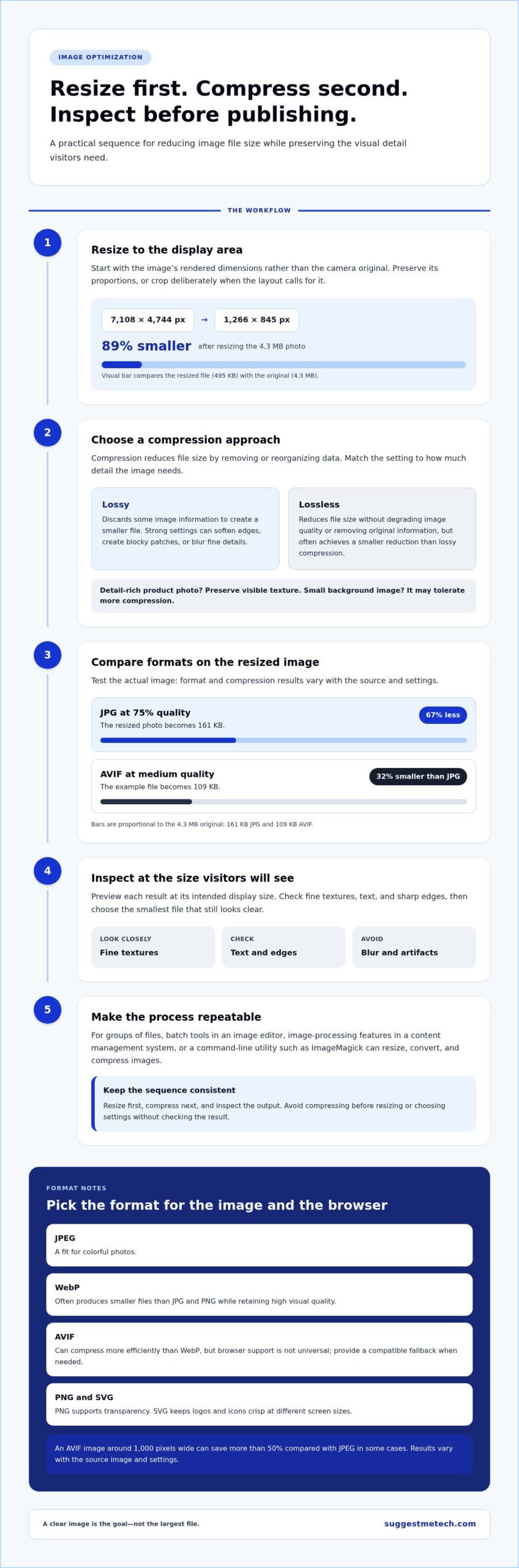
Compression reduces an image’s file size by removing or reorganizing data. The right setting depends on the image’s purpose: a detailed product photo needs visible texture, while a small background image may tolerate more compression. A practical approach to how to optimize images for the web is to resize first, compress next, then inspect the result at its intended display size.
Lossy compression discards some image information to create a smaller file. At strong settings, it can soften edges, create blocky patches, or blur fine details. Lossless compression reduces file size without degrading image quality or removing original information, but it often achieves a smaller reduction than lossy compression. Choose according to how much visual detail each image needs.
A before-and-after example shows how the steps work together. A 7,108 × 4,744-pixel photo is 4.3 megabytes; resizing it to 1,266 × 845 pixels reduces it to 495 kilobytes, an 89% reduction. Saving that resized image as a JPG at 75% quality brings it to 161 kilobytes, a further 67% saving. An AVIF version at medium quality is 109 kilobytes, 32% smaller than the JPG.
These figures are examples, not fixed targets. A 1,000-pixel-wide AVIF can save more than 50% compared with JPEG in some cases, but the result varies with the source image and settings. WebP often produces smaller files than JPG and PNG while retaining high visual quality. Test the format and compression level on the actual image, then compare detail at the size visitors will see.
To compress images without noticeable quality loss, resize them to their intended display dimensions first, then test progressively stronger compression settings. Preview each result at its displayed size and inspect fine textures, text, and sharp edges. Choose the smallest file that still looks clear.
For batch processing, use an image editor with batch tools, your content management system’s image-processing features, or a command-line utility such as ImageMagick. These can resize, convert, and compress groups of files. Choose a workflow that suits your technical comfort and publishing process.
Avoid uploading oversized originals, compressing before resizing, or choosing settings without inspecting the output. These mistakes can leave files unnecessarily large or make images visibly blurry. Preserve transparency when needed, and add meaningful alt text so screen-reader users can understand the image’s relevant content.
2. What does image optimisation mean?
Image optimisation means preparing each visual for its actual role on a web page. Match its dimensions to the display area, account for device pixel ratio, and reserve space in the layout. For example, an image shown at 500 by 500 CSS pixels may need more source pixels to remain sharp on high-density devices.
Start with the element’s rendered width and height, not the camera’s original resolution. A 4,080 × 3,072-pixel phone photo displayed in a 500 × 500-pixel square can usually be resized substantially. Preserve its aspect ratio when resizing, or the subject may look stretched. Cropping can refine composition when the layout needs a square image.
Device pixel ratio affects how many source pixels a screen uses to draw each CSS pixel. For a 500-pixel-square display area, a device pixel ratio of 2 corresponds to a 1,000-pixel-square image. At a ratio of 3, the matching image is 1,500 pixels square. The best source dimensions therefore depend on both the display area and the devices your page serves.
As practical starting points, photos and graphics around 1,000 pixels wide can suit varied displays. Logos and icons are commonly sized between 100 and 600 pixels wide. A full-screen visual may need dimensions up to 2,400 × 1,600 pixels, while a general picture guideline is 1,000 × 1,500 pixels. Treat these as context-dependent examples, not universal requirements.
For a smaller example, a 300 × 300-pixel display area can use a 600 × 600-pixel image for sharper results on high-resolution screens. A responsive page can offer different source widths, allowing browsers to select an image suited to the viewport instead of downloading one oversized file for every device.
Image dimensions also affect layout stability. If a browser doesn’t know an image’s proportions before it loads, nearby text can shift as the image appears. Specify the image’s width and height so the browser can reserve the correct space. An 800 × 200-pixel image can reserve its space with width="800" and height="200", even when CSS later changes its display width.
For web pages, file size and dimensions work together: a correctly sized image is less likely to carry unnecessary data. A commonly suggested image file-size range is 200KB to 500KB, but the subject, format, visual detail, and display role matter. Check the result in the actual page layout, where the element’s size and surrounding content are visible.
Use descriptive filenames, such as red-bicycle-city-street.jpg, rather than a generic camera label. Keep alt text simple and focused on the image’s important content. This gives screen-reader users useful context without turning metadata into a string of keywords.
3. Want to learn more about image resolution?
Resolution describes the pixel detail in a raster image, while the file format determines how the image is stored. Choose formats based on image content and browser support. JPEG suits colorful photos; PNG supports transparency, while SVG keeps logos and icons crisp at different screen sizes.
WebP and AVIF are modern options for full-color photos, including carousel images. WebP works across modern browsers and often creates smaller files than JPG or PNG while maintaining high visual quality. AVIF can compress more efficiently than WebP, but browser support isn’t universal, so provide a compatible fallback when needed.
The HTML <picture> element lets a page offer multiple formats or compositions. Inside it, <source> elements list options, and the browser selects a supported match before displaying the fallback <img>. This is useful when the same photo has AVIF and WebP versions, with JPEG as a fallback.
For screen-size selection, use srcset and sizes on an image element. They describe available image widths and the expected display width, helping browsers choose a suitable file. For example, a set with 400-, 800-, and 1,600-pixel candidates gives the browser choices for smaller and larger viewports without forcing every screen to download the largest version.
Use <picture> when the format or visual crop needs to change. Use srcset and sizes when the content stays the same but different widths are needed. A wide desktop banner and a mobile banner framed around its subject need art direction; a product photo with the same crop generally needs responsive width options.
A server can select an image format using the request’s Accept header, which tells it which media types the browser supports. The server can then return a suitable format, such as AVIF or WebP, when accepted, and a fallback otherwise. It must still deliver image dimensions suited to the page’s display and responsive layout.
Choose raster formats, which store images as pixels, for photographs and detailed textures. JPEG is a familiar choice for photos with gradients; PNG suits graphics requiring transparency. SVG is vector-based, describing shapes rather than fixed pixels, so logos and icons stay sharp at different sizes. GIF has a limited palette of 256 colors, making it less suitable for full-color photography.
Don’t treat resolution as a PPI setting alone. The commonly cited 72 pixels per inch doesn’t determine how sharp an image looks on a screen; pixel dimensions and display size matter more. Compare the actual formats and browser support for your audience, then test the selected image in the page layout.
4. Lazy loading below-the-fold images
Lazy loading delays an image request until the image approaches the visible part of the page. Adding loading="lazy" to an image’s <img> element enables this behavior. On a long article, images farther down can wait while the browser loads content near the top first.
Load images eagerly when visitors see them immediately, such as a page logo or lead photograph. Use lazy loading for images that require scrolling, such as illustrations in later sections. This prioritizes the first screen without making visitors wait for every offscreen image.
For example, a recipe page may show the finished dish near the title, followed by preparation photos farther down. Load the lead image eagerly, then apply loading="lazy" to later photos. The browser can request them as visitors scroll toward them, rather than treating every image as equally urgent.
Don’t lazy-load an image that forms the page’s main visual near the top. If it is the Largest Contentful Paint element, delaying its request can postpone when the main content appears. Load it eagerly, and consider fetchpriority="high" to signal that it matters more than other assets.
fetchpriority="high" and lazy loading serve different purposes. The priority attribute tells the browser which requested resource deserves more attention; it doesn’t cancel lazy loading. An image marked both lazy and high priority may still wait until it approaches the viewport, so don’t combine these settings for a critical image.
Native lazy loading is straightforward because the browser decides when to request an offscreen image. It can suit pages with many below-the-fold images and a standard scrolling layout. Developers can use JavaScript for more control over when images load, but that adds implementation and testing work.
Keep the layout stable while images load. Provide each image’s width and height so the browser can reserve space before downloading it. For example, declared dimensions prevent a later article image from leaving an empty area that collapses or suddenly shifts text when the image appears.
Test loading behavior on a short mobile screen and a desktop page. Confirm that the first visible image appears promptly, then scroll through the page and check that later images load in time. If a gallery image stays blank during normal scrolling, adjust its loading approach or have the browser request it earlier.
Lazy loading reduces unnecessary early requests, but it doesn’t improve image quality or replace resizing and compression. Use it selectively: load images near the top eagerly, lazy-load content that is genuinely offscreen, and preserve image dimensions for a smoother experience.
5. Benefits of image optimization
Image optimization improves more than a page’s total file size. Visitors on slow connections may wait less when there’s less image data to download. Browsing a gallery or reading an illustrated guide can feel more responsive. The benefit comes from matching each file to its role, not from making every image as small as possible.
Page speed can also influence purchase decisions. A survey found that 70% of consumers said page speed affects their willingness to make a purchase. For an online store, product images are part of the shopping experience: a faster-loading product page helps customers reach details and choices with fewer delays.
Smaller images can also reduce the amount of data a page transfers. One example shows that 40 optimized images could fit within the total page weight of one original image. This illustrates why image optimization matters on image-heavy pages, such as portfolios, travel guides, or product catalogs.
Responsive delivery offers another benefit: the browser can download an image suited to the visitor’s screen instead of using the same large file everywhere. For example, a mobile visitor viewing a small product card doesn’t need the same image dimensions as someone viewing a full-width gallery image on a desktop.
A repeatable workflow makes these improvements easier to maintain. Keep a high-quality source file, then create a web-ready version for each display role. A content management system or image service can automatically resize or convert files, but review the output before publishing. Automation saves repetitive work, while a visual check catches unwanted crops and compression artifacts.
Measure the page before and after changing its images. Compare loading behavior under the same page and connection conditions, then inspect image quality on a phone and desktop. If the page gets faster but a product label or facial detail becomes unclear, adjust the image version or compression setting rather than accepting the loss in quality.
Prioritize pages where images dominate the experience, such as a photo portfolio or product listing. Convert suitable files to efficient formats, retain fallbacks where needed, and avoid sending unnecessarily large versions. This balances speed, clarity, and maintenance instead of optimizing one metric in isolation.
If you’re comparing technology options for your publishing workflow, SuggestMeTech’s technology reviews and guides can help you evaluate relevant tools and services against your needs.
SuggestMeTech: Technology Reviews and Guides
SuggestMeTech publishes Technology Reviews and Guides under the tagline “Trusted Tech Reviews & Comparisons,” helping readers compare technology options and make informed decisions. After learning how image formats, resizing, compression, and loading choices affect a site, use these guides to evaluate related technology for your needs.
When comparing tools or services for a website workflow, consider practical differences such as features, usability, and fit for your requirements. The right choice depends on the task, and clear comparisons help you assess options without confusing product research with hands-on implementation.
Visit suggestmetech.com to explore the guides or contact SuggestMeTech with your questions.
Make image optimization part of your publishing workflow
Image decisions work best when built into your publishing process, rather than postponed until a page feels slow. When adding or updating content, include image preparation in your review: consider the image’s purpose, how it will appear on the page, and whether the finished result still looks right.
For a website project or an existing site you’re refining, decide who will handle image preparation and how results will be reviewed before publication. A consistent process helps keep image choices aligned with the page and its readers. Use what you’ve learned about how to optimize images for the web as a starting point, then adapt the workflow to your content and tools.
For a technology-focused perspective as you consider your next steps, contact SuggestMeTech to discuss your project. Keep testing, make deliberate adjustments, and build a process that helps every image serve its purpose.
Frequently Asked Questions
Use these answers to make practical choices about image preparation, format selection, responsive delivery, and loading behavior on your site.
What does image optimisation mean?
Image optimization means preparing files to suit a page’s appearance, loading needs, and audience. To optimize images for the web, consider how each image will appear, which details need to stay crisp, and how browsers can choose suitable versions. A small decorative icon and a detailed product photo have different requirements, so match your approach to each image’s purpose.
How do I optimise a JPEG for the web?
Start with a copy of the original JPEG, then crop or resize it for its intended placement before exporting. Adjust the quality setting and compare the exported file with the original at the size visitors will see. Check faces, product labels, and fine edges for visible artifacts. Keep the source file for future edits, since repeatedly exporting an already compressed JPEG can gradually reduce detail.
Want to learn more about image resolution?
For web display, pixel dimensions matter more than a PPI label. PPI describes pixels per inch in print, while browsers render images according to layout dimensions and available screen pixels. For example, a small logo may look sharp at its displayed size but blurry if enlarged beyond its source dimensions. Check it at its largest intended display size, including on high-density screens.
Which image formats are best for websites: AVIF, WebP, JPEG, and PNG?
Choose a format based on the image and the browsers your audience uses. AVIF and WebP can suit full-color photos when supported; JPEG remains a practical option for photographs with gradients. PNG is useful when transparency matters, such as a logo placed over different backgrounds. A page can offer a modern format with a fallback, so the browser can choose a compatible option without changing the image’s purpose.
How much can AVIF and WebP reduce image file size compared with JPEG and PNG?
There’s no single reduction that applies to every file. In one example, an AVIF image at medium quality was 32% smaller than the preceding JPEG, and a 1,000-pixel-wide AVIF saved more than 50% compared with JPEG in some cases. WebP often creates smaller files than JPG and PNG while maintaining high quality. Compare the same image and dimensions before choosing a format.
How do responsive images work with srcset, sizes, and the picture element?
srcset lists available image versions, while sizes describes how much space the image occupies in the layout. The browser uses these details to select an appropriate option for the viewport. Use the <picture> element for format alternatives or a different crop, such as a wide desktop banner and a tighter mobile composition. Test the selected version at each relevant layout size.
How do I optimize images for Core Web Vitals, especially Largest Contentful Paint?
Prioritize the main image in the initial viewport, especially if it is the Largest Contentful Paint element. Load it eagerly rather than delaying it, and use fetchpriority="high" to signal its importance. Make sure its dimensions suit the layout and that the browser can discover it without waiting for other page code. Then test loading behavior and inspect the visual result.
When should web images be lazy-loaded, and which images should load eagerly?
Load images eagerly when they appear near the top of the page or provide its main visual; use lazy loading for content visitors reach by scrolling. For example, an article’s opening photograph should load promptly, while images in later sections can wait until they approach the viewport. Apply loading="lazy" selectively, then scroll through a real page to ensure deferred images appear before visitors reach them.

