

A page can feel faster when it waits to fetch images below the screen. This guide explains lazy loading for images in practical terms: browsers defer requests for off-screen images, while images visible at the start should load eagerly. You’ll learn why that distinction matters during an initial page visit.
Loading every image immediately can compete with the content readers need first. The sections ahead explain how browsers respond to network conditions, why image dimensions help prevent layout shifts, and how to check whether deferred requests begin as readers scroll.
Key Takeaways
- Use deferred loading for images below the initial viewport, while letting prominent, immediately visible images load promptly.
- Understand how browser timing can reduce unnecessary early image requests without treating lazy loading as a fixed-distance setting.
- Consider how network conditions affect when deferred images arrive and how to observe requests during scrolling.
- Set image width and height so the browser can reserve space before each image loads and reduce unexpected page movement.
- Distinguish native browser behavior from script-based approaches, and choose based on the compatibility and control your page needs.
Deferring image requests until needed
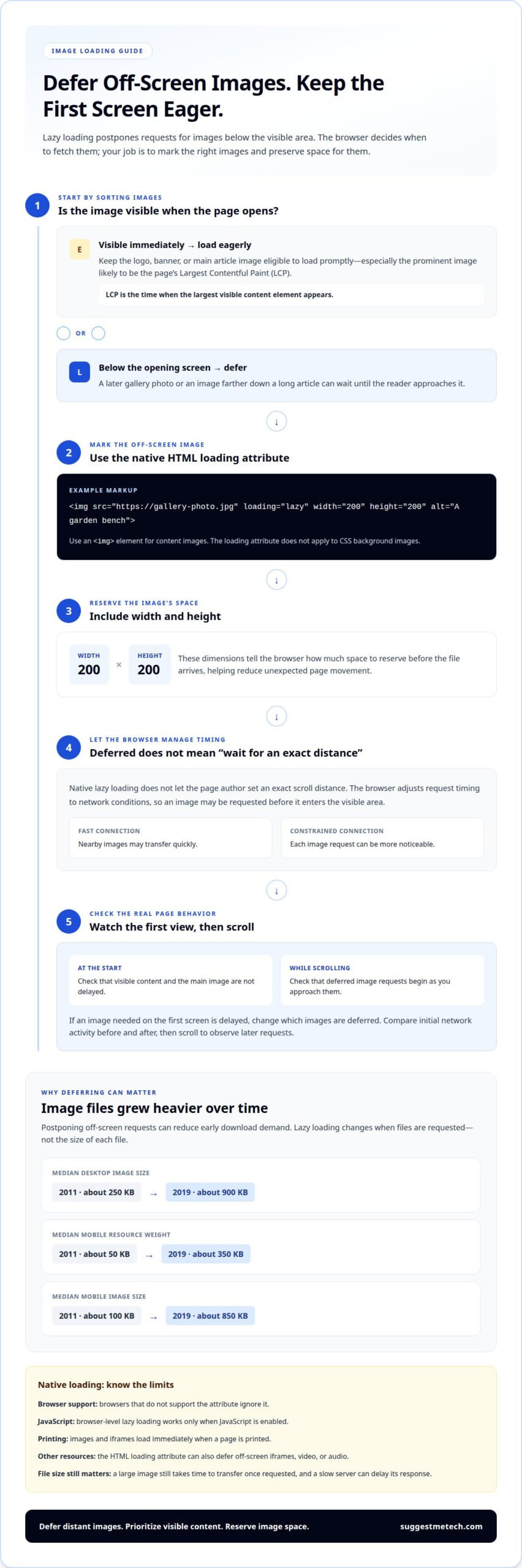
Lazy loading tells a browser to postpone fetching off-screen images until they approach the visible area. The HTML loading attribute communicates that preference on an image element. For example, <img src="https://gallery-photo.jpg" loading="lazy" width="200" height="200" alt="A garden bench"> marks a gallery photo for deferred loading. The browser can then prioritize content near the top of the page.
Consider a page with a long product gallery. Without deferral, the browser may request every photo while preparing the initial view, including images far below the fold. With lazy loading, those later requests can wait until the reader scrolls closer. The browser manages the timing; the page author can’t set an exact scroll distance through the native attribute.
Images already visible when a page opens need different treatment. The browser should load them eagerly, especially the image likely to be the page’s Largest Contentful Paint, or LCP. LCP measures when the largest visible content element appears. Marking that prominent image as lazy can delay an important part of the first screen instead of helping.
- Use
loading="lazy"for an image positioned below the initial viewport, such as a later gallery item. - Keep a logo, banner, or main article image visible immediately eligible for eager loading.
- Add
widthandheightvalues, such as200and200, to describe the image’s space. - Use an
<img>element for content images, because the loading attribute does not apply to CSS backgrounds.
Deferral applies to more than images. The HTML loading attribute can also defer off-screen iframes, video, or audio resources until the user approaches them. For example, an embedded video lower on an article page may not need to be requested before the reader reaches that section. This avoids loading every distant element at once.
Native browser behavior has limits. Browsers that don’t support the attribute ignore it, so visitors using them get no lazy-loading benefit from the markup. Browser-level lazy loading also works only when JavaScript is enabled. Keep these limits in mind when deciding whether native behavior suits a site’s audience and implementation.
Printing changes the behavior: images and iframes load immediately when a page is printed. That explains why print view can request resources that were deferred during scrolling. For ordinary browsing, the rule is simple: defer distant images, load visible content eagerly, and specify image dimensions so the browser knows where each image belongs before its file arrives.
How lazy loading can reduce initial page load times
Lazy loading can reduce the work a browser handles before displaying a page’s first screen. It postpones requests for images farther down the page, leaving more network capacity for visible text, styles, and essential media. On a news article, for example, readers may see the headline and opening paragraphs before photographs near the bottom are requested.
Each image request asks the browser to fetch a file from a server. When a page requests every image immediately, those transfers can compete for bandwidth and device resources. Deferring distant images reduces that early demand, particularly on pages with long sequences of content that readers may never reach.
Image weight helps explain the potential benefit. Median desktop image size grew from about 250 KB in 2011 to about 900 KB in 2019. Deferring several large images can postpone substantial downloads. The initial display may need only the images appearing near the top.
The effect depends on the page structure. A short page with one visible image has little below-the-fold content to defer. A long editorial page with several photographs can avoid requesting later files during the first view. Lazy loading changes when requests happen, not the size of each image file.
- Identify images below the opening screen, such as photographs in later article sections.
- Apply native lazy loading to those images so the browser can defer their requests.
- Keep the first-screen content available for prompt display, including the main visual.
- Compare the initial network activity before and after, then scroll to see deferred requests begin.
Native HTML lazy loading can reduce early image downloads without requiring a separate script for that behavior. One example using the native attribute received a Google PageSpeed Insights score of 98. That score describes the example, not a guaranteed result for every page. Image formats, server response, CSS, and other resources also affect performance.
Consider a recipe page with a finished-dish photo near the title and process photos farther down. The browser can prioritize the opening view and postpone later photos. As the reader scrolls to each step, the browser can request images closer to display. This aligns downloads with the reader’s progress.
Lazy loading doesn’t replace image optimization or management of other page resources. A huge image still takes time to transfer once requested, and a slow server can delay its response. The best fit is a page with meaningful off-screen images and an initial view that benefits from fewer competing downloads.
Assess the results by watching both the first display and later scrolling. If the top content appears promptly and deferred images arrive as readers approach them, loading behavior is working with the page structure. If an image needed immediately is delayed, change which content is deferred.
Network conditions and loading behavior
A browser balances image requests against the network available to a visitor. A fast connection may transfer nearby images quickly, while a constrained connection makes each request more noticeable. The browser can adjust its timing to network conditions, so a deferred image may be requested before it enters view. The exact distance depends on browser behavior.
Image-heavy pages make that timing matter. From 2011 to 2019, median mobile resource weight rose from about 50 KB to about 350 KB. Median mobile image size increased from about 100 KB to about 850 KB over that period. Those figures show why sending every image early can create substantial work, especially on mobile networks.
At the 90th percentile, websites send more than 5 MB of images on both desktop and mobile. A reader on a slow or interrupted network may wait longer for those files. Deferring images gives the browser room to prioritize resources needed for the current view, then request later images as scrolling brings them closer.
Network timing also affects what page events tell you. The browser’s load event can fire while lazily loaded images, iframes, videos, or audio remain unloaded, even within the visual viewport. A page’s load event alone doesn’t prove that every visible image has finished transferring.
- Use the image’s Boolean
completeproperty to determine whether that image has finished loading. - Open the browser Developer Tools Network tab and filter its request list to show images.
- Reload the page, observe the initial image requests, then scroll and watch for later requests.
- Repeat the test under different network conditions to see how request timing changes.
For example, a photo gallery may show its first row immediately, then request later rows as the reader scrolls. In Developer Tools, those later network requests show whether the browser waits until the reader approaches them. If all gallery files arrive at once, confirm that the image elements use the intended loading attribute and include dimensions.
Network tests should reflect how a page is used. A desktop connection can make early requests seem harmless, while a mobile connection can reveal the cost of downloading distant images. Compare the first screen, scrolling behavior, and completed image requests. The complete property can show whether an individual image finished loading, while the Network tab shows when its transfer began.
Lazy loading doesn’t eliminate network requests; it changes their timing. Readers who scroll through every section will still request those images. The practical benefit is prioritization: images needed for the current view can take precedence over files farther down the page, especially when network capacity is limited.
Preventing layout shifts with image dimensions
An image can move nearby text when it loads if the browser hasn’t reserved space for it. Setting the image’s width and height attributes lets the browser calculate that space before downloading the file. For example, a square image declared as 200 pixels by 200 pixels has a known place in the layout from the start.
Does native image lazy loading affect SEO, accessibility, or Core Web Vitals? The loading attribute controls when an image request begins; it doesn’t replace meaningful alternative text or correct layout dimensions. Reserving space for an image can reduce layout movement, which is measured by Cumulative Layout Shift, one of Google’s Core Web Vitals.
Image dimensions describe the image’s intrinsic proportions, while CSS can scale it to fit a responsive layout. If an image is 200 pixels wide and 200 pixels high in its HTML attributes, CSS can display it smaller on a phone while preserving the square space. The browser can then place nearby headings and paragraphs without waiting for the image file.
Consider a long gallery where each image appears as the reader scrolls. Without dimensions, the browser may have no space to reserve at first. When a photo arrives, the gallery expands and pushes content down. That sudden movement can make a reader lose their place or tap the wrong control.
- Set both
widthandheighton each image element. - Match the attributes to the image’s aspect ratio so reserved space reflects its shape.
- Use responsive CSS to scale images while keeping their proportions intact.
- Check the page as images load, especially galleries with varied image shapes.
What are common image lazy loading mistakes and risks? Applying lazy loading to an image needed immediately can delay its appearance, while missing dimensions can cause layout shifts. A script that inserts images should also provide dimensions, and CSS background images can’t use the HTML loading attribute.
Dimensions matter alongside deferred loading, not instead of it. A sample using explicit image width and height received a Google PageSpeed Insights score of 98. That score belongs to the example, but it illustrates how reserving space can support a more stable page. Your layout still needs correctly matched proportions.
For a practical check, open a page with a lazy-loaded gallery and watch its layout as you scroll. If each image occupies space before appearing, surrounding text should stay in place as files arrive. If a row jumps, first inspect the image element’s width and height, then check whether a script or styling rule changes its proportions.
How image lazy loading works
Lazy loading ties image requests to how close an element is to the browser’s viewport. Native attributes and JavaScript provide different levels of control over that timing.
The Image Lazy Loading Process
Image lazy loading postpones a request until the browser considers the image close to the visible viewport. This lets readers reach text or controls before distant image files compete for network resources.
The browser needs image dimensions to estimate where each element sits. Without specified width and height, an image can be treated as 0×0 pixels. In a gallery, several such images may appear to fit inside the viewport, prompting the browser to request them together.
That makes dimensions part of the loading process, not just a layout concern. A mobile gallery with correctly sized image elements gives the browser useful information for deciding which images are distant and which are approaching.
The HTML Loading Attribute
To lazy load an image in HTML, add the loading attribute with the value lazy to its image element. For example, set loading=”lazy” on an image below the first screen; keep a hero image visible when the page opens eager.
The browser decides when to begin a deferred request, using its own distance threshold. That threshold is built in and can’t be changed through the native attribute. Browser-level lazy loading also works only when JavaScript is enabled, so the attribute doesn’t provide its benefit in every situation.
Don’t lazy load images needed immediately, especially those above the fold or the hero visual. Delaying the image most important to the first screen can postpone its display rather than improve the experience.
JavaScript and Intersection Observer
Intersection Observer is a browser API that detects when an observed element enters or leaves the viewport. A JavaScript implementation can observe an image placeholder, then assign its image source as it approaches the viewport.
For example, a script can observe each later gallery image and use a 300px rootMargin to start loading before it enters the viewport. This gives the network time to fetch the file before the reader reaches it. Native loading is simpler; JavaScript offers more control over the trigger.
To test either method, open browser Developer Tools, select the Network tab, and filter requests to images. Reload, note the first requests, then scroll. Deferred files should appear in the request list as their elements approach. An image’s Boolean complete property can also show whether its file finished loading.
Choose native loading for straightforward image markup. Consider Intersection Observer when a page needs a custom trigger or additional loading behavior. Support figures differ: native loading is reported at 74.7% globally, while Intersection Observer raises support to 94.91% of devices.
Explore practical technology guides to compare web performance approaches and related tools.
SuggestMeTech: Technology Reviews and Guides
SuggestMeTech helps readers understand web performance through Technology Reviews and Guides. If you’re comparing browser features, image tools, or other technology choices, its editorial coverage can help you assess how each option fits your needs. Use that context to evaluate the trade-offs, then apply this article’s criteria to your own page: prioritize visible content, defer appropriate off-screen images, and reserve space with image dimensions.
SuggestMeTech also offers Advertising Space for organizations seeking a relevant way to reach technology-focused readers. Explore its guides for context on technology decisions, or consider advertising if your goal is to connect with that audience.
Visit suggestmetech.com to explore its guides or get in touch.
Make performance part of your publishing workflow
Page performance changes as layouts, content, and visitor habits evolve. Revisit image-loading choices whenever you update a template or add a gallery. Test the actual page on mobile and desktop, then observe its behavior during the first view and later browsing. This helps keep technical decisions grounded in the experience readers have.
Now that lazy loading for images is explained, use these ideas to decide what your pages should prioritize. If you’re weighing related technology choices or want to reach technology-focused readers, explore SuggestMeTech’s guides and advertising options.
Contact SuggestMeTech to discuss your needs, and keep building a clearer, faster experience for your readers.
Frequently Asked Questions
These answers cover common implementation decisions, from choosing markup to understanding how deferred image requests fit into a page’s design.
Why use browser-level lazy loading?
Browser-level lazy loading lets the browser schedule image requests without a separate loading script. This can simplify page code and keep request timing under the browser’s control. For example, a content editor can mark later article images in the HTML, while the browser decides when to fetch them. This approach suits pages that need straightforward deferral rather than custom image-loading behavior.
Can CSS background images use the loading attribute?
No. The HTML loading attribute applies to image elements, not CSS background images. If a photograph conveys information, include it in the page markup as an image element so it can have alternative text and use native loading behavior. Reserve CSS backgrounds for decoration, such as a texture behind a section, when the image isn’t essential content for the reader.
Can I change how close an image needs to be to the viewport before it loads?
Not with the native loading attribute. Browsers use their own built-in distance thresholds, which the attribute’s API doesn’t let a page author adjust. If a page needs a custom trigger, JavaScript with Intersection Observer can observe elements and configure a margin around the viewport. For instance, a 300px root margin can prompt loading before an image enters view.
Can loading work with images in the viewport that aren’t immediately visible?
Yes. A browser can still defer a lazy-loaded image even when it falls within the visual viewport. The attribute signals deferred loading, but timing remains under browser control, and a load event doesn’t prove that every such image has finished loading. For example, an image partly visible near the bottom of a screen may not be ready when another page resource triggers the load event.
How does lazy loading help?
Lazy loading can avoid fetching images a visitor never reaches. Someone who opens a long tutorial to find an answer, for example, may leave before viewing its later diagrams. Deferring those files can reduce unnecessary transfers during that visit. It also lets developers align image requests with the page’s reading flow instead of treating every gallery item as equally urgent from the start.
How do I implement placeholders using native lazy loading?
Native lazy loading controls when an image file is requested; it doesn’t create a placeholder by itself. Reserve space for the image with dimensions, then style a background color or simple placeholder behind it if a visual cue would help. In a product gallery, this can prevent empty gaps while deferred photos load. Keep any placeholder separate from the final image’s meaningful alternative text.
What should I consider before implementing lazy loading?
Start by deciding which images visitors need immediately, then identify content that can wait. Consider the opening content and later sections, load key visuals promptly, and provide dimensions and alternative text. Test the reading flow to make sure important images aren’t delayed. These checks align loading behavior with how people use each page.
What is lazy loading for images?
Image lazy loading postpones fetching image files until they’re more relevant to a visitor’s current view. It changes when the browser requests an image, not the image itself. For example, a map lower on a location page can wait while someone reads the address and opening hours, then load as the visitor moves toward it.

