

The app with the longest feature list may slow down your studying. The best note-taking apps for students match how you work in class: typing lecture notes, handwriting equations, recording explanations, or building a searchable study system. When notes are scattered across devices and folders, finding the right explanation before an exam can take longer than reviewing it.
Free-plan limits, syncing, collaboration, privacy, and AI features can make it hard to compare options. This guide matches Notion, OneNote, Goodnotes, Notability, Evernote, and Obsidian to student workflows, highlighting the trade-offs that matter across devices, organization, and revision. Use it to find a setup that suits your courses without paying for features you don’t need.
Key Takeaways
- Match your note-taking app to your courses, from visual problem-solving to research-heavy reading and group work.
- Compare the best note-taking apps for students by how they capture, organize, and help you revisit class material.
- Check device compatibility and free-plan limits before committing, especially if you switch between a laptop, tablet, and phone.
- Test a realistic class-note task in your top choices before moving your existing notes.
- Use AI summaries or flashcards as study aids, then verify them against your notes and course materials.
Quick Answer: Which Note-Taking Apps Are Best for Students in 2026?
The best note-taking apps for students depend on how you study: Google Keep or Apple Notes can suit quick capture, OneNote structured class notebooks, and Goodnotes handwritten notes. Notion supports organized course work, while Obsidian suits linked research notes. For AI study features, compare each app’s current plan access. Let your courses, devices, collaboration needs, and budget guide the choice.
These are workflow matches, not a universal ranking. A student sketching biology diagrams needs a different setup from someone organizing research across several courses.
A fast shortlist by student need
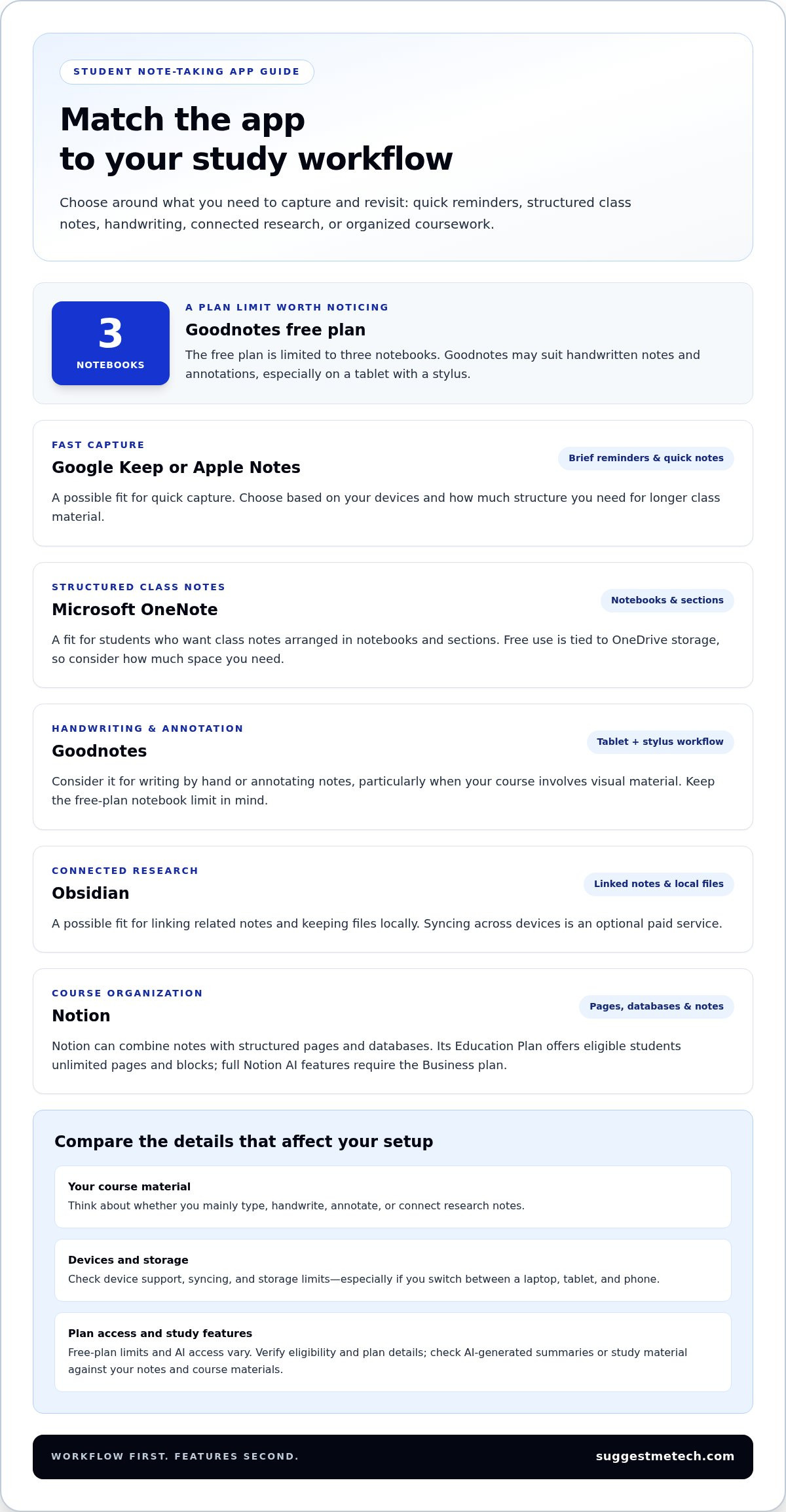
- Quick capture: Google Keep or Apple Notes can work for brief reminders and fast notes. Choose based on your devices and how much structure you need for longer class material.
- Structured class notebooks: Microsoft OneNote suits students who want notes arranged in notebooks and sections. Its free use is tied to OneDrive storage, so consider how much space you need.
- Handwriting: Goodnotes is an option for annotating or writing by hand, especially on a tablet with a stylus. Its free plan is limited to three notebooks.
- Connected research: Obsidian suits students who want to link related notes and keep files locally. Syncing across devices is an optional paid service.
- Course organization and AI: Notion can combine notes with structured pages and databases. Its Education Plan offers eligible students unlimited pages and blocks, but full Notion AI features require the Business plan.
What this comparison evaluates
This comparison looks at how each app captures information, organizes course material, retrieves notes through search, syncs across devices, supports collaboration, and exports work. These details affect whether you can find your notes when you need them for a group project or exam revision.
Built-in note-taking and AI-powered study tools are different things. Writing, drawing, or saving lecture notes is not the same as asking AI to summarize, transcribe, or transform them into study material. AI availability can depend on the app and plan, and generated content should be checked against course materials.
Platform support, offline use, collaboration, student eligibility, and plan limits can change. Check the details that matter to your setup before choosing. For a broader feature-by-feature reference, see this comparison of note-taking software.
How Student Note-Taking Needs Change by Course and Study Style
A student note-taking app helps you capture, organize, retrieve, and review course material. The right workflow depends on the class: you may need to record key ideas quickly, work through visual problems, connect readings, or share project notes with classmates.
Start with the material you need to revisit. Searchable typed notes can help in a lecture-heavy course, while diagrams and handwritten annotations may matter more in a class built around equations, maps, or close reading.
Typed notes, handwriting, and mixed media
Keyboard-first notes suit fast lectures and text-heavy subjects. For example, a history student can label each lecture by date and topic, then search for a term across several weeks of notes while preparing for an exam. Consistent headings for key concepts also make review easier.
Handwriting and drawing can be practical for working through calculus steps, labeling a biology diagram, or marking up a passage. A tablet and stylus support that approach, while a laptop may be more comfortable for long blocks of typed text. Some students combine both: type an explanation, then add a sketch or handwritten solution.
Audio recordings, images, and file attachments can add context, but support varies by app and plan. Treat them as optional capture methods. If you rely on lecture recordings, check that the app supports your workflow and review its storage and privacy terms.
Research into digital and handwritten note-taking explores trade-offs such as typing speed, distraction, and how students process information. The research into digital note-taking can help frame the choice, but your course demands and study habits should guide it.
Organization, retrieval, and revision
Organization tools solve different problems. Notebooks and folders group notes by course or topic. Tags add labels across those groups, backlinks connect related pages, and search helps retrieve a phrase when you don’t remember where you filed it. Choose a structure you can maintain during a busy term.
A simple system might use one top-level space per course, a dated page for each class, and a short set of topic labels. Consistent course and topic labels reduce last-minute searching for the lecture where a concept was explained.
Saving class notes is not the same as practicing recall. Flashcards and practice questions turn material into prompts you answer from memory. Whether you make them yourself or use an app’s study features, check questions and summaries against the original notes and course materials.
For more practical comparisons of everyday tools, explore SuggestMeTech technology reviews.
Best Note-Taking Apps for Students: Compare the Main Options
The best note-taking apps for students serve different purposes. Some focus on quick capture or handwritten class notes; others organize coursework or connect ideas across a research library. The comparison below matches each option to a student workflow and highlights trade-offs rather than naming one universal winner.
Platform labels indicate the main ecosystems in which students commonly use each app. Check current device support, offline access, and plan details before relying on a feature for class.
Which app fits each student workflow?
| App | Best-fit student | Strengths | Trade-offs | Platforms |
|---|---|---|---|---|
| Notion | Students organizing courses, tasks, and reference material together | Flexible pages and databases support structured course workspaces. Eligible students with a valid school email can access the Education Plan, which includes unlimited pages and blocks. | Its flexible setup takes time to maintain. Full Notion AI features require the Business plan. | Web, desktop, and mobile apps; check feature parity for your device. |
| Microsoft OneNote | Students who prefer sectioned notebooks and work across Microsoft devices and services | Notebook-style organization suits lecture notes and course sections. The core app is free, with storage tied to OneDrive; eligible students may access it through Office 365 Education. | Available storage depends on the connected OneDrive account, and the broader Microsoft setup may be more than a quick-capture user needs. | Windows, macOS, iOS, Android, and web. |
| Google Keep | Students capturing short reminders, lists, and quick ideas | Its simple note-and-list approach makes small pieces of information easy to capture. | It may be less suited to detailed, linked course notebooks. Check current export and offline options for your needs. | Google ecosystem, including web and mobile. |
| Apple Notes | Students already working mainly with Apple devices | A convenient fit for capturing and organizing notes within the Apple ecosystem. | It is a less natural choice if your regular workflow depends on non-Apple devices. Check cross-platform access before committing. | Apple devices and iCloud access. |
| Goodnotes | Students who write by hand, annotate, or work through visual material | Built for handwritten notes; available on iOS, iPadOS, macOS, Android, and Windows. | The free plan is limited to three notebooks. A stylus-based workflow works best when it fits your devices and study habits. | iOS, iPadOS, macOS, Android, and Windows. |
| Obsidian | Students connecting research notes and building a personal knowledge base | Stores notes as local Markdown files and supports linked-note workflows. The core app is free. | Building a useful system takes setup. Cross-device sync is an optional paid service. | Windows, macOS, Linux, iOS, and Android. |
What to compare beyond the feature list
Before moving course material, test each candidate with your actual routine: create a class note, find it later, open it offline if needed, and export or share it. For a group project, check whether classmates can edit the same document or only receive a shared copy.
Compare free-plan limits, student eligibility, and privacy terms too. Built-in notes are not the same as study transformation tools: AI features may summarize or reshape material, but availability can depend on the app and plan. For example, Notion’s full AI feature set requires its Business plan. Treat generated summaries and study aids as drafts to verify against course materials.
How to Choose a Note-Taking App for Your Classes and Devices
Choose a note-taking app by testing it against your study routine, not by collecting features you may never use. Course demands, devices, capture style, organization, and review habits all affect whether notes stay useful throughout the semester.
Use this process to narrow the best note-taking apps for students to a manageable shortlist, then compare the same class task in each one before moving existing notes.
Match features to your classes and devices
- 1. Identify course needs. For visual subjects with equations or diagrams, prioritize handwriting and drawing if you use a compatible stylus. For lecture-heavy or reading-heavy courses, searchable typed notes and keyboard capture may be more practical.
- 2. Check your devices. List the laptop, tablet, and phone you actually study on. Confirm the app supports them and syncs across your setup. If you’re choosing a computer too, compare options in a guide to the best laptops for students.
- 3. Choose a capture style. Decide whether you mostly type, handwrite, annotate readings, or combine methods. A tool that feels comfortable during class is more useful than one with extra features that slow you down.
- 4. Set an organization approach. Consider whether you want course notebooks, folders, tags, or linked notes. Pick a structure you can keep consistent, so finding a topic later doesn’t depend on remembering exactly where you filed it.
- 5. Match your review and collaboration habits. If you revise by searching old notes, test search with your own terms. For group projects, check whether the app supports shared editing or only lets you send a copy.
Test the app before moving all your notes
Try the same realistic task in each shortlisted app: create a course notebook, capture a lecture or reading assignment, and add headings or a diagram as you normally would. Then find one detail again. This reveals friction that a feature list won’t show.
Before committing a semester’s notes, test synchronization on each study device, offline access where you need it, and export options. Export makes it easier to back up or move your notes to another tool. Retrieval matters just as much: a note you can’t find during revision isn’t doing its job.
Review current plan limits, student eligibility, and privacy terms before adding extensive or sensitive material. A short trial can reveal storage restrictions or missing features before they become part of your routine.
For more practical technology comparisons, explore SuggestMeTech guides as you narrow your shortlist.
Build a Study System with Your Note-Taking App
A useful study system turns class notes into material you can find, understand, and review. Keep the routine small enough to repeat throughout the semester: capture notes during class, clarify them soon afterward, then return to them with questions or practice prompts.
The best note-taking apps for students support that process, but the app alone won’t create a study habit. A clear course structure and regular review matter more than adding tools you don’t use.
Turn class notes into useful revision material
After class, spend a short review session correcting unclear points, adding context from readings, and labeling the note with its course and topic. For example, turn a heading such as “Cell division” into questions that prompt you to explain the stages without looking at your notes.
You can make flashcards or practice questions yourself, or use an app feature to generate study material from your notes. AI summaries and flashcards can help identify key ideas or provide a starting point for revision, but they may omit qualifications or misunderstand course-specific terms. Check each output against your notes, readings, and instructor’s materials before studying from it.
Use the prompts to retrieve information from memory, then revisit the original note to correct gaps. This keeps your notes as the reference source and makes generated material a study aid, not a substitute for understanding.
Keep notes accessible and portable
Use the same basic structure for every course, such as a course label, date, topic, and lecture or reading notes. Consistent labels make search and browsing more predictable, especially when several classes cover related ideas.
Check which export or backup options your app supports, then save a copy periodically if that fits your workflow. A backup gives you another route to your material if you change apps or lose access to a device. Test that exported notes remain readable before relying on them for a full term’s work.
- Capture: Record lecture points or annotate the assigned reading.
- Clarify: Correct gaps and add course and topic labels soon after class.
- Review: Create questions or flashcards, then test recall and verify details.
- Protect: Check sync, export, and backup options as your notes accumulate.
Keep the routine manageable and adjust it to your classes. For more practical technology guides, explore SuggestMeTech’s reviews and comparisons.
Choose a Note-Taking Setup You’ll Keep Using
The best note-taking apps for students fit the work you do in class, the devices you rely on, and the way you review material. Handwriting may suit diagram-heavy courses, while searchable typed notes can help with lecture-heavy classes. A consistent course structure makes either approach easier to revisit.
Compare your shortlist using the same criteria: capture methods, organization, search, syncing, collaboration, and export. Then test it with a real class task. Plan limits, student eligibility, offline access, AI tools, and privacy terms can vary or change, so consider how they fit your setup. Choose a system you can maintain through a busy semester, not one that depends on features you’re unlikely to use.
Explore SuggestMeTech’s practical technology guides and comparisons to continue comparing your options. Start with the workflow that feels natural, try it with a real class task, and adjust as your study needs become clearer.
Frequently Asked Questions
These answers address common questions about choosing an app, working within free-plan limits, and using recording, offline, and AI features for study.
What is the best note-taking app for students?
The best app depends on your courses, devices, and study habits. OneNote suits students who prefer structured class notebooks, while Goodnotes is an option for handwritten notes and diagrams. Notion can organize course material in pages and databases, and Obsidian supports linked research notes. Compare the best note-taking apps for students by testing how well they capture, organize, sync, and retrieve the material you use.
Are free note-taking apps good enough for students?
Free apps can be enough if their limits fit your workload. OneNote’s core app is free, with storage tied to OneDrive, and eligible students may access it through Office 365 Education. Notion offers eligible students an Education Plan with unlimited pages and blocks. Other free tiers may cap notes, notebooks, or uploads, so check current limits before moving a semester’s work into an app.
Can note-taking apps record lectures and create summaries?
Some apps offer recording, transcription, or AI summaries, but the options and plan requirements differ. Notability’s Plus plan includes transcription after a recording is finished. That doesn’t mean every app can record lectures or summarize them, so check current features and plan terms. Follow your instructor’s rules for recording, and review any summary against your notes and course materials before relying on it.
Which note-taking app is best for handwritten notes?
Goodnotes is an option for students who write by hand, annotate readings, or sketch diagrams, especially on a compatible tablet and stylus. Its free plan is limited to three notebooks, so consider whether that fits your courses. OneNote may also suit students who want notebook-style organization and a mix of typed and visual notes. Try writing a real class note on your device before choosing.
Is Notion or OneNote better for students?
Choose Notion if you want to organize notes alongside course pages, tasks, and databases. Eligible students with a valid school email can access its Education Plan, which includes unlimited pages and blocks. Choose OneNote if you prefer a notebook-and-section structure for class notes. Its core app is free, but storage depends on OneDrive. The better fit comes down to your organization style and storage needs.
Can I use a note-taking app offline?
Offline access depends on the app, device, and sometimes which notes have been made available locally. Don’t assume every page, attachment, or shared document will work without an internet connection. Before relying on an app in a classroom or during travel, test it in airplane mode on the device you study with. Check that you can open, edit, and later sync the notes you need.
Are AI note-taking apps accurate enough for studying?
AI-generated summaries and flashcards can help turn notes into review prompts, but they may omit details, introduce errors, or miss course-specific context. Treat them as a first draft, not as the authority on a topic. Check each claim against your lecture notes, readings, and instructor materials, then revise questions that don’t test the concepts your course emphasizes. Active review still requires you to work through the material yourself.

