

Leaving Google doesn’t mean abandoning every service at once. To understand how to de-Google your life, start by listing which services hold your email, files, photos, contacts, and account sign-ins. Then decide what to move, keep, or back up. The goal is to reduce dependence without losing access to important data.
It makes sense to question how much of your digital life relies on one company, especially when changing your email address can affect account recovery and everyday logins. This guide explains why people move away from Google, how to assess the risks of relying on one provider, and what to consider before migrating email, importing data, or creating backups. Use it to plan your next steps, whether you want to switch several services or start with one.
Key Takeaways
- Map the accounts and sign-ins tied to your current email before changing addresses, so you can prioritize essential access.
- Compare the privacy, convenience, and account-recovery trade-offs behind each service you plan to replace.
- Reduce the impact of depending on one provider by keeping independent copies of important information and knowing how to restore them.
- Test data imports and a new search engine with everyday tasks before making them your default.
- Use technology reviews and guides to compare options against your needs, rather than switching services without a clear reason.
1. Challenges of migrating an old email account
An old Gmail address often does more than receive messages. Banks, work tools, shopping accounts, password resets, and family contacts may all depend on it. Changing providers is an account-by-account transition, not simply a matter of copying messages into a new inbox.
Some Google services can be difficult to replace: Gmail may handle account recovery, Google Photos may organize years of images, and collaborators may share files through Google Drive. Alternatives can offer different privacy controls, but may require new workflows, storage arrangements, or shared links. The trade-off is between familiar integration and greater control over separate services.
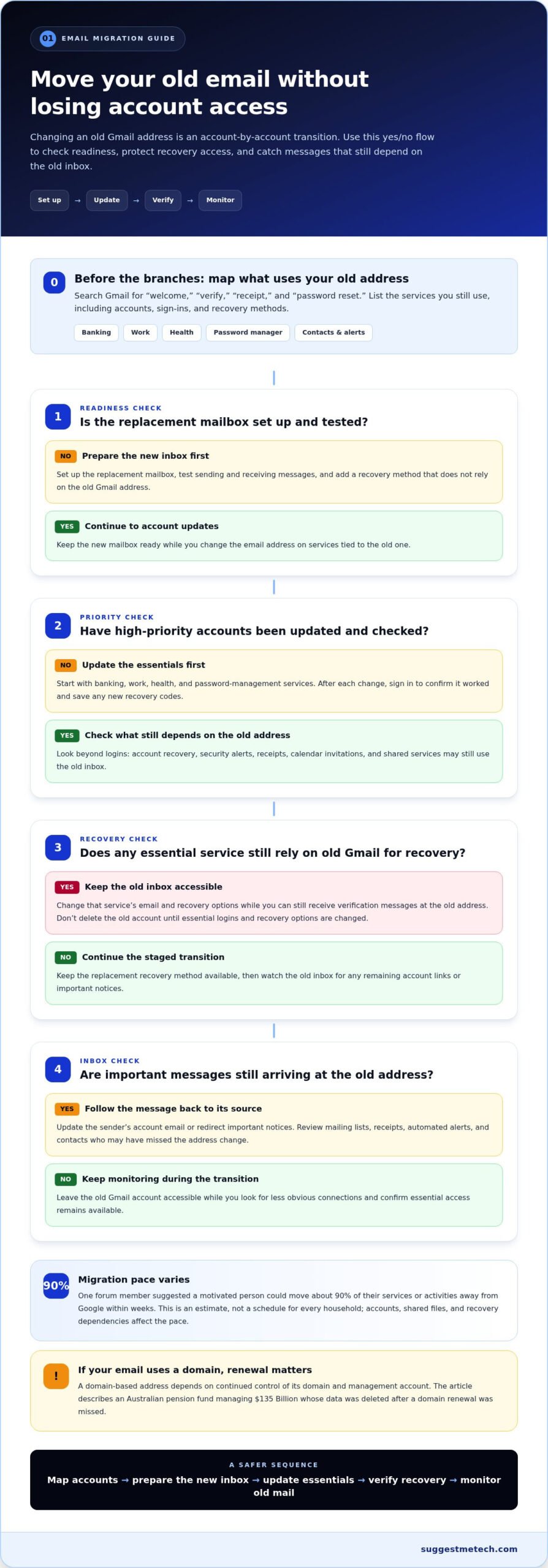
Start by listing accounts connected to your old address. Search Gmail for terms such as “welcome,” “verify,” “receipt,” and “password reset,” then note the services you still use. A streaming account may need only a new login email, while a bank account may also use your address for security alerts and recovery.
- Set up the replacement mailbox before changing account records. Test sending and receiving messages, and add a recovery method that does not rely on the old Gmail address.
- Update high-priority accounts first, including banking, work, health, and password-management services. Sign in afterward to confirm each change and save any new recovery codes.
- Tell regular contacts about the new address. Keep the old account accessible during the transition so messages from people who missed the announcement remain visible.
- Review mailing lists, receipts, and automated alerts. Unsubscribe from messages you no longer need, and redirect important notices to the replacement inbox.
Account recovery is a common snag. If a service sends a verification message to your old Gmail address, changing that service’s email may require access to the old inbox. Keep it active while updating services, and don’t delete it until you’ve changed essential logins and recovery options.
A forum member suggested that a motivated person could move about 90% of their services or activities away from Google within weeks. That estimate is a possibility, not a schedule for every household. The number of accounts, shared files, and recovery dependencies determines how quickly a migration can proceed.
Domain-based email adds another dependency: the address may rely on continued control of its domain. A pension fund in Australia managing $135 Billion had data deleted after a domain renewal was missed. The example shows why email continuity also depends on renewing the domain and maintaining access to its management account.
Make the change in stages: set up the new inbox, update critical accounts, test recovery, then monitor the old Gmail account for missed messages. This keeps access visible while you look for less obvious connections, such as calendar invitations or forgotten accounts that still send receipts.
2. Reasons for moving away from Google services
People reconsider Google when one account connects search, maps, photos, documents, mobile settings, and advertising preferences. Their reasons vary: some want fewer linked services, while others prefer different privacy controls, features, or ways to store personal information.
Alternative services vary in price. Some offer free plans, while others charge for extra storage or features. Compare what each plan includes, especially storage limits and export options, and whether its free tier suits your daily use.
Replace Google Maps, Calendar, Drive, and Photos one service at a time. Choose a maps app based on your navigation needs, a calendar that supports sharing, a file service with suitable storage, and a photo library that can import your albums. Test each alternative with a real task before moving everything.
Google Search results can expose personal information published on websites. Find the page hosting the information and request its removal from that site. Then use Google’s personal-information removal process for eligible results. Removing a result from Search does not remove the source page.
To reduce tracking in Chrome, Android, and other apps, review privacy settings, turn off optional activity collection, and limit permissions such as location access. An Android weather app may need location for local forecasts, for example, while a notes app may not.
Privacy is one reason to leave, but convenience matters too. Google services often work together: a Calendar invitation can open in Gmail, and Drive files can appear in shared workflows. Moving one service may reduce some data sharing, but it can also mean managing separate accounts and settings.
Before switching, identify the specific concern you want to address. If targeted advertising worries you, review ad and activity settings first. If you’re concerned about relying on one account, move important files or schedules to separate services. If a feature you rely on works especially well, keeping that service while changing others may be a reasonable compromise.
- List the Google services you use and the information each holds.
- Set a priority, such as privacy controls, collaboration, storage, or ease of use.
- Test one alternative with a small task, such as sharing a calendar event.
- Check how export, account recovery, and sharing work before migrating more data.
Google Search removal requests address search visibility, not every copy of personal information online. If a profile page contains your old contact details, removing the search result alone may leave the page accessible through other routes. Start with the publisher, then address the search result separately.
For a structured comparison of everyday technology choices, explore technology reviews and comparisons and weigh features against your priorities.
3. Risks of keeping data with one company
Keeping Gmail, Drive, Photos, and account sign-ins under one Google account creates concentration risk. If access is disrupted, several parts of daily life may become harder to reach at once. De-Googling carries risks too: a rushed move can lose files, break shared access, or leave accounts tied to an inbox you no longer monitor.
Privacy and security risks come from both concentration and migration. One provider may hold messages, location-related information, documents, and account activity. A rushed transfer can expose data or interrupt account recovery. The aim is to reduce dependencies without creating gaps in account security.
Legal access is another consideration. Section 702 of the Foreign Intelligence Surveillance Act is cited as a law under which Google and other technology companies can be compelled to hand over user data to government agencies without a warrant. This is one reason some people assess where their data is stored and which services they use.
Centralization also creates a practical single point of failure. If someone gains access to a Google account through a stolen password or convincing phishing message, connected services may be at greater risk. A compromised inbox can also help an attacker reset passwords for accounts that use it for recovery.
Moving data doesn’t automatically remove these risks. A new provider still needs a strong, unique password and secure recovery options. An unfamiliar app may request broad access to contacts or files, so review its permissions before importing personal information. Don’t export sensitive records onto a shared computer or leave an archive in an unprotected downloads folder.
- Use a password manager to create a unique password for each important account.
- Enable multifactor authentication where available, using a method you can access if your phone changes.
- Review third-party app permissions and remove access that no longer serves a clear purpose.
- Keep a separate backup of essential files and test that a sample file opens correctly.
Splitting services across providers can limit how much information sits in one account, but it adds work. Separate email, storage, and calendar services mean tracking different recovery settings and renewal notices. Choose a level of separation you can maintain, rather than creating accounts you may later forget.
During migration, keep access to the old service until you’ve tested the replacement. Open imported documents, confirm shared folders still work, and send a test message from the new email account. Store recovery codes separately from the accounts they protect. These checks can catch broken permissions or missing data before you rely on the new setup.
A measured approach treats privacy and security as ongoing choices, not a one-time switch. Map which services share an account, protect the most sensitive information first, and change one dependency at a time. This makes it easier to see whether a new service reduces exposure or simply moves the same risks elsewhere.
4. Data import and backup during migration
Export important information before closing or changing a Google account. A backup is a separate copy you can access if an import misses messages, files, or settings. If you’re planning how to de-Google your life, save essential documents before moving them so you have a fallback if the transfer is incomplete.
Gmail alternatives include privacy-focused email providers, paid mailbox services, and email included with a domain. Compare storage, import tools, search, and recovery options. Choose a simple mailbox if you mainly send messages; consider a fuller service if you rely on calendar or contact features.
To migrate email, create the replacement mailbox first, then use its import tool or an email application that supports IMAP, a standard for accessing and syncing mail across services. Import a small sample, then check sent messages, attachments, folders, and dates before moving the rest.
- Export or copy important messages and contacts before starting the transfer.
- Check whether labels become folders, and whether filters or signatures need rebuilding.
- Send a test message from the new account and reply from another mailbox.
- Keep the old account available while you identify missing mail or account alerts.
An email import may not recreate every Gmail setting. A filter that labels receipts, for instance, may need to be set up again in the new inbox. Check contacts separately, too, because transferring email and importing an address book are often distinct tasks.
For files, download a separate copy of critical Google Drive documents before importing them elsewhere. Open sample files after transfer, especially spreadsheets with formulas and documents shared with collaborators. Check folder structure and sharing permissions, since copied files may not retain the same access arrangements.
Review photos separately. Compare albums and dates after importing a Google Photos library, then open representative images and videos. Keep the original export until the new library displays the files you need. A second copy on an external drive can protect important family photos if an online account becomes inaccessible.
Switching from Android to iPhone means transferring contacts, photos, calendars, and files, then replacing any Google apps you no longer want. A de-Googled Android setup instead changes the apps and account dependencies on an Android phone. Before either move, back up the phone and confirm how you’ll restore essential data.
Phone backups should include practical details beyond photos. Check contacts, text messages, authenticator access, downloaded documents, and app-specific files. A travel document saved inside a notes app, for example, may not be included in a photo or contact transfer. Open important files on the new device before wiping the old one.
Finish with a restore test. Retrieve a saved document, search for an older email, and confirm a contact’s details are still usable. As you plan how to de-Google your life, organize backups by service and date so an email archive doesn’t get confused with a phone export. Delete temporary copies from shared devices after verifying the transfer.
5. How to replace Google Search with privacy-focused search engines
To replace Google Search, choose a different search engine and set it as your browser’s default. Privacy-focused alternatives differ in how they gather results, personalize searches, and handle queries. Test them with searches you actually make, such as local opening hours, technical instructions, or news about a specific topic.
DuckDuckGo, Brave Search, Startpage, and Mojeek are examples to compare. Their approaches and results differ, so a privacy label doesn’t mean they offer identical search quality or features. Try the same query on each, then compare relevance, local results, image search, and how clearly each service explains its privacy practices.
Some search engines build their own indexes, while others rely partly on external indexes. An index is a catalog of web pages that a search engine can retrieve. This can affect coverage and ranking. If a niche result appears on Google but not your new engine, compare another alternative before concluding it’s missing everywhere.
Try a search engine briefly before choosing it as your default. Search for a familiar local business, a specific product manual, and a recent news topic. Check whether the results answer your queries without extra steps. For local searches, confirm that maps and opening hours are useful in your area.
To switch, open your browser’s settings and find its search engine or address-bar search option. Select your preferred alternative, then test it from a new tab by entering a query in the address bar. If your browser syncs settings through a Google account, review sync options so the old preference doesn’t return on another device.
- Choose an engine whose privacy policy explains what query information it handles.
- Compare search relevance for your regular topics, not just one test query.
- Check whether image, video, news, and map results meet your needs.
- Set the chosen engine as default on each browser and device you use.
Search quality varies by topic. A privacy-focused engine may work well for general definitions but provide less useful local results for a nearby repair shop. Keep a second engine available for specific searches, or switch temporarily when results are incomplete.
Search engines also differ in features such as filters, safe-search controls, and image previews. Test these functions before relying on them for work or school. Someone researching a technical issue may value precise date filters, for example, while a casual user may care more about clear, relevant results.
Replacing Google Search doesn’t require changing browsers or your phone’s operating system. Change the search engine first, then use it for ordinary searches over time. If results frustrate you, adjust the default or compare another service instead of treating one poor result as proof that every alternative performs the same.
Review your choice across your usual devices. A browser extension, mobile browser, and desktop browser can each have separate search settings. Check each one directly, then keep the engine that balances useful results with the privacy approach you prefer.
SuggestMeTech: Technology Reviews and Guides
SuggestMeTech offers “Trusted Tech Reviews & Comparisons” through its Technology Reviews and Guides. If you’re weighing alternatives for email, search, storage, or mobile devices, use these guides to compare practical differences and decide which features fit your needs.
Turn to SuggestMeTech when you need clearer comparisons before changing a service or device. Its reviews and guides help you consider usability, privacy controls, and how an option fits your daily routine, so you can make an informed choice rather than switch on impulse.
For questions about the publication or its Advertising Space, contact SuggestMeTech. You can also visit suggestmetech.com.
Make your next digital change deliberate
Decide what greater control means in your everyday digital life. It might mean choosing which accounts can access your information, keeping essential data in more than one place, or reducing the services connected to one login. That goal gives each change a clear purpose and helps you judge whether your new setup works for you.
There’s no need to treat how to de-Google your life as an all-or-nothing project. Choose one manageable change, use it in your normal routine, and keep what fits your needs. A thoughtful pace makes it easier to notice friction and adjust without disrupting the tools you rely on.
Before making another switch, compare the options against your own priorities, such as privacy settings, ease of use, and compatibility with your devices. SuggestMeTech’s Technology Reviews and Guides can help you explore those choices. Visit SuggestMeTech to explore technology guides and choose a next step that feels practical for you.

