

What if the fastest way to load a website was to stop downloading it altogether? Most people assume their internet speed depends entirely on their provider, but the real secret lies in a background process called caching. Understanding what is browser caching helps you see why your favorite sites load instantly while others crawl. It is essentially a digital short-term memory that stores repetitive files locally so your device doesn’t have to fetch them from a distant server every single time.
It’s frustrating to deal with slow-loading pages and confusing technical jargon, especially when you’re watching your mobile data disappear. This guide explains the mechanics of how caching speeds up your web experience and why it’s essential for modern performance. You’ll learn how it impacts site speed, when to clear your data, and we invite you to share your own speed optimization experiences as we dive into the details.
Quick Answer
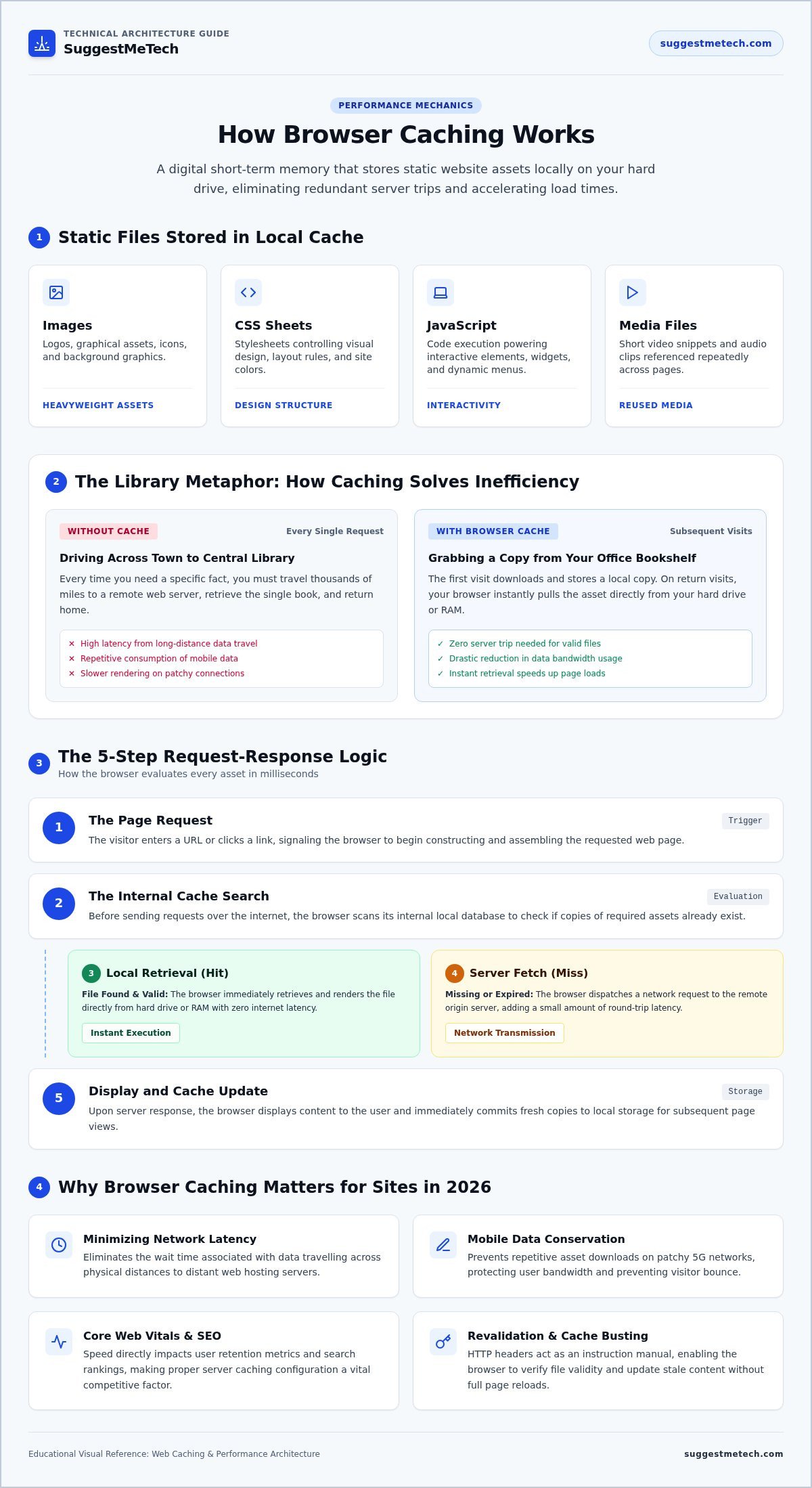
Browser caching is a process where your web browser stores static website files, like images and stylesheets, on your local hard drive. When you revisit a site, the browser loads these files from your device instead of the internet. This mechanism, known as what is browser caching, drastically reduces page load times and saves bandwidth by avoiding unnecessary data transfers.
Key Takeaways
- Understand what is browser caching and how it functions as a local storage system to eliminate redundant data downloads.
- Discover the five step process your browser uses to determine when to serve local files instead of requesting them from a server.
- Learn how HTTP headers act as an instruction manual to manage file expiration and ensure your site remains fast and responsive.
- Identify the direct impact of caching on user retention and how it serves as a critical factor for SEO performance in 2026.
- Master troubleshooting techniques like cache busting to resolve stale content issues and keep your website data up to date.
Understanding the Fundamentals of Browser Caching
Understanding what is browser caching starts with recognizing it as a temporary storage mechanism that saves static website files, such as images and scripts, on your local device. When you revisit a page, the browser retrieves these files from your hard drive instead of the server. This process significantly improves load times and reduces data usage.
The primary goal of this technology is to minimize latency. Every time you click a link, your browser sends a request to a server that might be thousands of miles away. By using local storage instead of server retrieval, you skip the wait time associated with long-distance data travel. This is a specific subset of the broader concept of web caching, which focuses on making resources available closer to the end user.
Most modern websites rely on hundreds of individual files to look and function correctly. These typically include:
- Images: Logos, icons, and background graphics.
- CSS: Stylesheets that control layout and colors.
- JavaScript: Scripts that power interactive elements and menus.
- Media: Small video clips or audio files used across multiple pages.
The Library Metaphor: A Simple Way to Think About Cache
Imagine you’re researching a topic at a massive central library across town. Every time you need a specific fact, you have to drive there, find the book, and drive back. That is how a browser works without caching. It’s slow, exhausting, and inefficient.
Now imagine you have a personal bookshelf in your office. The first time you need a book, you still drive to the library. But instead of returning it immediately, you keep a copy on your shelf. The next time you need that information, you just reach out and grab it. It’s nearly instantaneous. Caching only works for sites you’ve already visited because your browser needs to “read” the files once before it can store them for later.
Why Websites Need Caching in 2026
Web pages have grown significantly in complexity and size. In 2026, the average site loads more high-resolution assets and complex scripts than ever before. If every visitor had to download these files from scratch on every page load, the internet would feel incredibly sluggish. Efficiency isn’t just a luxury anymore; it’s a requirement for staying competitive.
Mobile users benefit the most from these optimizations. When you’re on a patchy 5G connection, reducing the number of server requests is the difference between a usable site and a bounce. Caching also plays a major role in improving Core Web Vitals. These metrics measure real-world user experience, and faster loading times directly translate to better search rankings. It’s a key factor we evaluate in our web hosting reviews, as the right server configuration makes caching much more effective.
How the Browser Caching Process Works
To truly grasp what is browser caching, you need to see the logic your browser follows every time you visit a website. It isn’t a random process. Instead, it’s a precise sequence of checks that balances the need for speed with the requirement for accurate, up-to-date content.
When you click a link, your browser acts as a gatekeeper. It evaluates every image, script, and stylesheet to decide if it needs to spend time and data fetching it from the internet or if it can simply grab it from your own device’s storage. This decision happens in milliseconds, but it determines how fast the page feels.
The Request-Response Cycle Step-by-Step
- Step 1: The Request: You enter a URL or click a link, signaling the browser to start loading a page.
- Step 2: The Cache Search: Before reaching out to the internet, the browser scans its internal database for a cached version of the site’s assets.
- Step 3: The Retrieval: If the file is found and still valid, the browser loads the asset instantly from the hard drive or RAM.
- Step 4: The Server Fetch: If the file is missing or expired, the browser requests the data from the web server, which adds a small amount of latency.
- Step 5: The Update: Once the server responds, the browser displays the content and saves a fresh copy in the cache for your next visit.
Sometimes, the browser finds a file but isn’t sure if it’s still current. It performs a process called revalidation by sending a tiny request to the server to check for changes. This is governed by specific HTTP caching headers and directives that tell the browser exactly how long to trust its local copy.
Identifying Cacheable Resources
Not every part of a website should be stored. Static assets like company logos, brand fonts, and CSS files are perfect for long-term caching because they rarely change. By storing these, your browser handles the heavy lifting once and reuses the results across every page of the site you visit.
Dynamic assets are a different story. Information like your bank balance, a shopping cart, or a live news feed is rarely cached. These files change constantly, and showing an old version could lead to serious errors. Developers manually tag files as cacheable or non-cacheable using server instructions. When you’re evaluating web hosting providers, you’ll find that we prioritize hosts that make managing these cache settings simple and intuitive for site owners.
Technical Mechanisms: Headers, Expiration, and Validation
If you’ve ever wondered what is browser caching in a technical sense, look at the HTTP headers. These act as the instruction manual the web server sends with every file. They tell your browser exactly how to behave, specifying whether a file should be saved, how long it stays fresh, and when it needs an update. Without these rules, your browser wouldn’t know if it’s looking at a logo from yesterday or a critical update from five minutes ago.
The core concept here is “Time to Live” (TTL). This is the expiration date for a cached file. Once the TTL passes, the browser considers the file “stale” and knows it’s time to check the server for a newer version. Following HTTP cache best practices ensures that your site stays fast without serving outdated information. This balance is vital for maintaining a professional web presence and a seamless user experience.
| Header | Function | Type |
|---|---|---|
| Cache-Control | Sets specific rules like max-age and public/private access. | Modern Standard |
| Expires | Provides a specific fixed date and time for expiration. | Legacy |
| ETag | A unique identifier (fingerprint) for a specific file version. | Validation |
| Last-Modified | Records the date a file was last changed on the server. | Validation |
Cache-Control and Expires Headers
Cache-Control is the modern heavyweight for setting caching rules. It uses the “max-age” directive, which tells the browser exactly how many seconds to keep a file. For example, setting it to 31,536,000 seconds stores a file for a full year. This is ideal for static assets like fonts or logos. The older Expires header works similarly but uses a fixed date, like “Friday, 27 Mar 2026.” Because fixed dates are harder to manage across different time zones, most developers prefer the relative flexibility of the max-age directive.
Validation with ETags and Last-Modified
Even when a file’s time expires, it doesn’t always mean the content has changed. ETags, or “Entity Tags,” act like digital fingerprints for your files. Instead of downloading a massive 2MB image again, your browser sends the ETag back to the server and asks, “Has this fingerprint changed?” If the server confirms the file is the same, it sends a tiny “304 Not Modified” response. This is a massive win for performance. You save bandwidth and processing power because you’re only downloading a tiny confirmation string instead of the entire original file.
Why Browser Caching Matters for Users and Site Owners
The value of understanding what is browser caching goes beyond technical curiosity. It directly influences how long a visitor stays on your site. When pages load instantly, users are more likely to explore multiple pages, which lowers your bounce rate. In 2026, search engines prioritize user experience more than ever, making site speed a confirmed and critical ranking factor for SEO.
Every millisecond counts in a digital landscape where attention spans are measured in seconds. Implementing effective caching strategies isn’t just about technical optimization. It’s a fundamental business decision that affects your bottom line. By minimizing the distance data has to travel, you create a frictionless environment that encourages user engagement and repeat visits.
Mobile users specifically benefit from this efficiency. For individuals on limited data plans, every megabyte saved by caching is a direct cost saving. By not forcing users to download the same brand assets repeatedly, you respect their data limits and provide a more accessible service. This user-first approach is essential for building a sustainable online community.
Performance and Speed Benefits
The performance gap between a cached site and a non-cached site is staggering. For example, a high-resolution 2MB header image stored in the local cache can load in as little as 10ms. Without caching, that same image might take 2 seconds or longer to travel from a remote server to a user’s screen. This delay is often enough to trigger a bounce.
For new bloggers, these seconds are the difference between gaining a loyal reader and losing them to a faster competitor. Navigating a well-cached site provides an “Instant Load” feeling that makes the web feel like a local application rather than a series of distant requests. This psychological boost keeps readers focused on your content rather than the loading bar.
Bandwidth and Server Resource Savings
Website owners see tangible financial and operational benefits through reduced server load. Caching significantly lowers the “bandwidth bill” because the server doesn’t have to send the same files for every page view. This reduction in outbound data transfer can lead to substantial savings on hosting plans that charge based on usage.
This efficiency also provides a safety net during traffic spikes. Small business sites often struggle when a post goes viral, but caching allows the server to focus its resources on dynamic content while the browser handles the static assets. Beyond the financial aspect, there is a growing environmental impact to consider. Reduced data transfer contributes to a “Green Web” by lowering the total energy consumption of data centers worldwide.
If you are ready to optimize your site, we recommend you read our expert web hosting reviews to find providers that prioritize these performance features.
Managing and Troubleshooting Browser Cache Issues
While caching is designed to be invisible, it occasionally causes a specific frustration known as the “stale content” problem. This happens when a website owner updates a file, but your browser continues to serve the old version stored on your hard drive. Understanding what is browser caching also means knowing when it’s necessary to bypass these stored files to see the most current version of a page.
Developers often combat this issue using a technique called “cache busting.” By changing the file name or adding a version string to the URL, they trick the browser into thinking it’s a completely new resource. If you’re a user and a site looks broken or outdated, it’s usually a sign that your local files are out of sync with the server. In these cases, manual intervention is the quickest fix.
Don’t confuse clearing your cache with clearing your cookies. While they’re often grouped together in settings, they serve different purposes. Clearing your cache removes stored images and scripts to fix display issues. Clearing cookies logs you out of websites and resets your personal preferences. For most speed or display problems, you only need to target the cache.
How to Clear Your Browser Cache
Most desktop browsers allow you to clear your data through the settings or history menu. It’s a straightforward process that can resolve many common loading errors. Follow this quick checklist for the most popular browsers:
- Open your browser settings and locate the “Privacy and Security” section.
- Select “Clear Browsing Data.”
- Ensure “Cached images and files” is checked.
- Choose a time range (select “All time” for a thorough clean).
- Click “Clear data” to finish the process.
If you only need to refresh a single page, try a “Hard Refresh.” On Windows, press Ctrl+F5. On a Mac, use Cmd+Shift+R. This shortcut forces the browser to ignore the cache and download everything from the server for that specific page. For mobile-specific steps, see our guide on how to clear cache on iPhone.
Choosing the Right Hosting for Caching Support
The efficiency of your caching often depends on the quality of the server where the website lives. The best web hosting providers set up optimal caching headers by default, ensuring that browsers know exactly how to handle your files. This reduces the manual work for site owners and provides a better experience for visitors.
High-quality hosting services often include server-side caching tools like Redis or Memcached. These work in tandem with the browser to speed up data retrieval even further. When you’re evaluating a new host, check their dashboard for “Cache Management” features. These tools allow you to purge the server cache with a single click, which is vital when you’re launching a major site update and want everyone to see the changes immediately.
Optimizing Your Digital Speed for 2026
Master the mechanics of what is browser caching to transform your browsing experience from sluggish to instantaneous. You now understand how local storage reduces server strain and why technical headers are the secret to keeping content fresh. These optimizations aren’t just for developers; they’re practical tools for anyone looking to save mobile data and improve site performance. By managing your cache effectively, you ensure that your digital presence remains fast and responsive for every visitor.
Speed remains a critical factor for online success. Whether you’re troubleshooting stale content or looking for a faster provider, the right infrastructure makes all the difference. Our 2026 updated speed benchmarks and comprehensive tech guides for beginners simplify these complex choices. Find the best web hosting with optimized caching features by exploring our expert tested performance reviews. Start applying these speed tips today and enjoy a faster, more efficient internet experience.
Frequently Asked Questions
What is the difference between browser caching and server caching?
Browser caching stores files on your local device, while server caching stores data on the web server or a Content Delivery Network. Browser caching eliminates the need for a network request entirely for static assets. Server caching reduces the work the server performs to generate a page. Both technologies aim to improve speed, but they operate at opposite ends of the internet connection to achieve that goal.
Does clearing my browser cache delete my passwords?
No, clearing your cache does not delete your saved passwords. Passwords are stored in a separate credential manager or encrypted database within your browser settings. Caching only involves static assets like images, scripts, and stylesheets. If you want to remove passwords, you must specifically select “Passwords” or “Autofill form data” in your browser’s privacy and security settings before you click the clear button.
How long do files stay in the browser cache by default?
There is no universal default duration for how long files stay in the cache. The storage time is determined by the website developer using specific HTTP headers like Cache-Control. A brand logo might stay for one year, while a news feed might only stay for minutes. If no header is provided, the browser uses a heuristic algorithm to guess an appropriate expiration date based on history.
Can browser caching be a security risk?
Browser caching can be a minor security risk on shared or public computers. Since the browser stores local copies of pages you’ve visited, another person using the same machine could potentially view sensitive information from the cache. Developers prevent this by using the “private” or “no-store” directives for sensitive pages. This ensures that personal data like bank statements or medical records is never saved locally.
Why do some websites tell me to clear my cache after an update?
Websites suggest clearing your cache because your browser might be trying to load an old version of a file that is no longer compatible with the updated site. This “stale content” issue can cause broken layouts, missing images, or non-functional buttons. Clearing the cache forces the browser to download the latest files from the server. This ensures you see the website exactly as the developer intended.
Does browser caching affect my SEO rankings?
Yes, browser caching indirectly improves your SEO rankings by enhancing site speed and user experience. Google uses Core Web Vitals as a ranking factor, and faster load times contribute to better scores. When you understand what is browser caching and implement it correctly, you reduce bounce rates and increase session duration. These positive user signals help search engines recognize your site as a high-quality resource.
Is it possible to disable browser caching entirely?
You can disable browser caching through your browser’s developer tools or by using specific browser extensions. While this is helpful for developers who need to see real-time changes during coding, it’s not recommended for regular browsing. Disabling the cache will make every website feel significantly slower and will increase your data consumption. Your device would have to download every single asset on every page load.
How much disk space does the browser cache typically use?
Most modern browsers automatically manage cache size based on your available disk space. It typically ranges from a few hundred megabytes to several gigabytes. Browsers use a “Least Recently Used” policy, which means they automatically delete old or rarely accessed files when they need to make room for new ones. You can manually limit this space in the advanced settings of some browsers if necessary.

