

What if your slow internet isn’t an internet problem at all? A sluggish connection can come from one device, your home network, or the service you’re trying to reach. Pinpointing the source first can help you avoid unnecessary settings changes and choose a more useful next step.
This guide shows you how to narrow down the cause, try practical troubleshooting checks, and decide when to contact your provider. You’ll also learn what to note if the problem persists, so you can explain what’s happening clearly and move forward with confidence.
Key Takeaways
- To figure out what to do when your internet is slow, check whether the issue follows one device or affects several.
- Compare Wi-Fi with Ethernet, if available, to help distinguish wireless problems from broader connection issues.
- Start with low-risk fixes, including checking the affected device and router placement, before changing equipment or settings.
- Use symptoms and test results to narrow down whether the likely cause is your device, Wi-Fi, router, or internet provider.
- If the slowdown continues, note when it happens, which devices are affected, and how you tested before contacting your provider.
Quick Answer: What to Do When Your Internet Is Slow
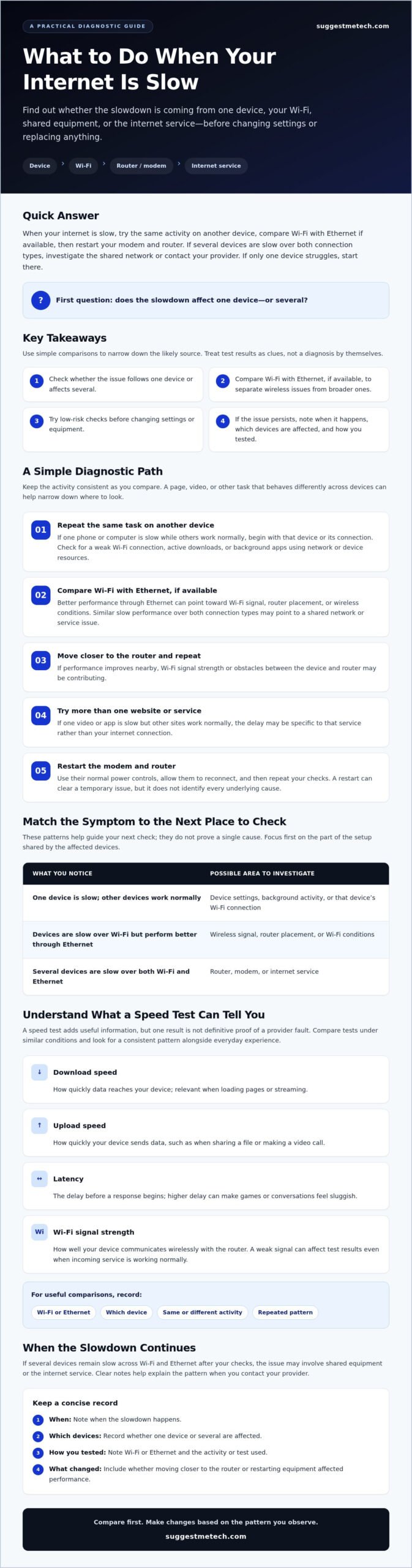
If you’re working out what to do when your internet is slow, try the same activity on another device, compare Wi-Fi with Ethernet if available, then restart your modem and router. If several devices are slow over both connection types, investigate the shared network or contact your provider. If only one device struggles, start there.
This order helps narrow down the cause before you make changes. A slowdown on one phone or laptop suggests a different issue than slow performance across every connected device.
Keep the comparison consistent: try the same website, video, or other task on each device. If you can connect a computer to the router with an Ethernet cable, compare that result with Wi-Fi. Better performance over a wired connection can point to a wireless signal issue. Similar slow performance over both connections may suggest a broader network or service problem.
Your connection type can also affect what performance to expect. For background on options such as DSL, cable, and fiber, see this guide to types of Internet connections. Don’t assume the connection type is the cause, though. First check whether the slowdown affects several devices and connection methods.
Start with checks that take only a few minutes
Try the same activity on a second device and note whether it loads more smoothly. Then move the affected device closer to the router and repeat the test. If performance improves nearby, Wi-Fi signal strength or obstacles between the device and router may be contributing.
A restart can clear a temporary issue, but it won’t identify every underlying cause. Note what you observed, then restart the modem and router using their normal power controls. Allow them to reconnect before repeating your checks. If the slowdown returns, your comparisons can help guide the next step.
Separate a slow connection from a slow website or app
Test more than one website or service. If a video buffers but other sites load normally, the delay may be specific to that service rather than your internet connection. Try another app or webpage on the same device, then compare with a second device if possible.
A speed test can add useful information, but one result isn’t definitive proof of a provider fault. Results can vary with Wi-Fi signal, device activity, and the test itself. Repeat the test under comparable conditions, and note whether you used Wi-Fi or Ethernet. Look for a consistent pattern alongside your everyday experience, not a single number in isolation.
How to Identify What Is Making Your Internet Slow
Start by checking how widely the slowdown occurs. If one device struggles while others work normally, the cause is more likely local to that device or its connection. If several devices are affected at once, focus on shared parts of the setup, such as Wi-Fi, the router, modem, or internet service.
Speed tests can help describe the problem, but they’re clues rather than a complete diagnosis. Compare results under similar conditions, and consider what you’re doing online when the slowdown occurs.
Check whether one device or the whole network is affected
Try the same activity on a phone, computer, or other device connected to the same network. For a fair comparison, use the same room and connection type where possible. If only one device is slow, check whether it has a weak Wi-Fi connection, active downloads, or background apps using network or device resources.
If several devices slow down together, investigate the shared connection. The pattern may point to congested or weak Wi-Fi, a router or modem issue, or a problem with the provider. The FCC consumer guide also outlines factors that can affect broadband performance and when to follow up with a provider.
Use the symptoms to guide your next check:
| What you notice | Possible area to investigate |
|---|---|
| One device is slow; other devices work normally | Device settings, background activity, or that device’s Wi-Fi connection |
| Devices are slow over Wi-Fi but perform better through Ethernet | Wireless signal, router placement, or Wi-Fi conditions |
| Several devices are slow over both Wi-Fi and Ethernet | Router, modem, or internet service |
Use speed tests as clues, not a complete diagnosis
Download speed describes how quickly data reaches your device, which matters when loading pages or streaming. Upload speed measures how quickly your device sends data, such as when sharing a file or making a video call. Latency is the delay before a response begins; higher delay can make games or conversations feel sluggish even if downloads are reasonably fast.
Wi-Fi signal strength describes how well your device communicates wirelessly with the router. A weak signal can affect test results even when the incoming service is working normally. Record whether each test used Wi-Fi or Ethernet, and run comparisons under similar conditions. Then compare the results with the details of your subscribed plan. There’s no single speed requirement that fits every household or online activity.
For more practical technology guidance, explore internet troubleshooting tips alongside your test notes.
What to Do When Your Internet Is Slow: Step-by-Step Fixes
Start with checks that are easy to undo, and retest after each one. That way, you can tell which change matters instead of altering several things at once.
Work through the steps in order. If you’re deciding what to do when your internet is slow, avoid factory resets or advanced router changes until basic checks point to a reason for them.
- Check the affected device. Close apps and browser tabs you don’t need, then pause active downloads or updates. If one device is slow, restart it and check that it’s connected to the expected Wi-Fi network. Retest the same task before moving on.
- Reduce competing network activity. Pause large downloads, streaming, or other bandwidth-heavy activity on devices you can control. Try the affected task again. If it improves, network demand may be contributing. Resume other activity afterward and see whether the slowdown returns.
- Test closer to the router. Move the device nearby and repeat the task. If performance improves, distance, walls, or other obstructions may be weakening the Wi-Fi signal. If practical, place the router in an open, central spot rather than behind furniture or inside a cabinet.
- Restart the modem and router. Follow the equipment manuals or provider instructions for restarting each device. Let the connection come back fully before testing again. A restart may clear a temporary issue, but it won’t show by itself whether the cause is the device, Wi-Fi, or provider.
- Compare Wi-Fi with Ethernet. If you have a suitable cable and port, connect a computer directly to the router and repeat the same test. Better performance over Ethernet points toward a Wi-Fi issue. Similar slow results on both connections suggest looking beyond wireless signal alone.
- Check whether a VPN changes the result. A VPN routes your internet traffic through an additional service, which can affect performance in some situations. Compare the same task with the VPN on and off, if it’s safe and appropriate to do so. Don’t disconnect a VPN if your work, school, or security requirements call for it.
Before changing router settings, note the current values or save a configuration backup if the router supports it. Avoid a factory reset unless your provider or equipment guidance recommends it, since it can erase custom settings and require setup again. For another general troubleshooting reference, check that the instructions apply to your specific device before following them.
Is It Your Wi-Fi, Router, Device, or Internet Provider?
Slow loading and buffering can come from different parts of a connection, so one symptom rarely proves the cause. Compare devices and connection methods, then use the pattern to decide whether to check your setup, troubleshoot one device, or contact your internet provider.
These checks help narrow down where to investigate next. They’re useful indicators, not guarantees; a slow website or app can also be the source of a delay.
| Likely source | Useful check | Who should investigate further |
|---|---|---|
| Wi-Fi signal or local conditions | Move closer to the router and compare performance with Ethernet, if available. | You can check router placement and obstructions; seek device or router guidance if the issue persists. |
| Router or modem | Check whether multiple devices are affected over both Wi-Fi and Ethernet; inspect connections and indicator lights using the manual. | You can perform basic checks. Contact the provider or equipment maker if the equipment appears faulty or won’t reconnect. |
| One device | Compare it with another device on the same network; check its connection, software updates, downloads, and background apps. | Start with the device’s settings and support resources if other devices work normally. |
| Internet provider or service | Test more than one device over Wi-Fi and Ethernet, and record comparable results. | Contact your provider if several devices remain slow across connection types after basic checks. |
| Website, browser, or app | Try other sites or services on the same device and network. | Contact the affected service’s support if the delay is limited to that site or app. |
When Wi-Fi or router conditions are the likely cause
If a device works better near the router, distance, walls, or other obstacles may be affecting its Wi-Fi signal. Local interference is another possibility, but the change in performance alone doesn’t confirm the cause. Try a more open router location, then retest from the same device.
An Ethernet comparison can clarify the pattern. If wired performance is better while Wi-Fi remains slow, focus on the wireless connection and router placement. If both are slow, investigate other shared causes rather than assuming Wi-Fi is at fault.
When a device or internet provider needs attention
If only one device struggles, check its network connection and software before changing settings for the whole home. A slow browser or app may also be caused by that software or the service it connects to, not by your internet provider.
If multiple devices remain slow over both wired and wireless connections, record when it happens, which devices you tested, and the results. That evidence gives your provider a clearer starting point. If you’re still deciding what to do when your internet is slow, use these comparisons to choose the next check instead of treating any single result as proof.
Explore practical technology guides for more help comparing devices and understanding common tech issues.
When to Contact Your Provider and Prevent Slow Internet from Returning
Contact your internet provider if the slowdown continues after basic checks and affects multiple devices, especially if it persists over both Wi-Fi and Ethernet. A repeated pattern is more useful than one poor test result and gives support a clearer picture of what’s happening.
Before contacting support, gather a few comparable observations. Ask the provider to check for a service issue, account-specific problem, or plan detail that could help explain the results. This keeps the conversation focused without assuming the cause.
What information to gather before requesting support
Keep a short record while the issue is happening. Include the time, affected devices, connection method, and test results. If possible, compare tests under similar conditions, such as using the same device and location once over Wi-Fi and once over Ethernet.
Also note what you’ve already tried, such as moving closer to the router or restarting the network equipment, and whether anything changed. This helps support avoid repeating checks and distinguish an intermittent slowdown from an issue affecting devices across connection types.
When you contact the provider, ask whether there are known service interruptions, whether they can see an account-specific issue, and how your test results compare with the details of your plan. Follow their instructions for any further checks, and write down what they recommend. If you find that your current internet package is no longer fast enough for your household, reviewing options on broadbandfreedom.co.uk can help you evaluate faster fibre services.
Reduce the chance of recurring slowdowns
Place the router where its signal can reach the rooms where people commonly connect. An open, central location may be more useful than a hidden spot behind furniture. If performance dips during busy periods, check whether several devices are streaming, downloading, or updating at once. Pause nonessential activity and see whether the connection becomes more usable.
If the problem is limited to one browser or app on an iPhone, investigate that app or device before changing the whole network. An iPhone cache-clearing guide may be useful for browser-specific issues, but clearing a cache won’t resolve a wider connection slowdown.
Use this checklist before you escalate
- Record when the slowdown occurs and whether it affects one device or several.
- Note whether each test used Wi-Fi or Ethernet, and keep results from comparable conditions.
- List the checks you’ve already tried and whether they changed performance.
- Ask your provider about service status, account-specific issues, and plan details.
- Review router placement and connected-device activity if slowdowns recur during busy periods.
This evidence-based approach helps clarify what to do when your internet is slow: document the pattern, ask focused questions, and make changes only when the results point to a likely cause.
Use the Results to Choose Your Next Step
The most useful answer to what to do when your internet is slow comes from the pattern you uncover. If the slowdown is limited to one device or service, focus your next checks there. If it affects multiple devices over Wi-Fi and Ethernet, share your observations with your provider rather than making unnecessary router changes.
Keep the process simple: compare, record, and act on what the evidence suggests. A single speed test or symptom may not reveal the cause, but consistent results can help you explain the problem and decide what to investigate next.
For more practical help with everyday tech questions, explore more practical technology guides. Take one check at a time to narrow down the cause and choose a useful next step.
Frequently Asked Questions
Use these answers to choose a check that fits your symptoms and decide what information may help with the next step.
Is my internet slow because of my router?
It could be, but a router is only one possible cause. Compare the same activity on another device, then test over Ethernet if you can. If wired performance is better, investigate Wi-Fi signal conditions or router placement. If several devices remain slow on both Wi-Fi and Ethernet, record your results and check with your provider. A single slow website or device doesn’t confirm a router problem.
How do I test whether my internet is actually slow?
Use a reputable speed-test tool and note download speed, upload speed, and latency. Record whether you tested over Wi-Fi or Ethernet, then repeat the test under similar conditions. Compare the results with the details of your subscribed plan, rather than assuming one speed applies to every household. A single test can reflect device, network, or service conditions, so consider repeated results alongside what you notice during everyday tasks.
What should I do if my internet is slow on only one device?
Check that the device is connected to the expected Wi-Fi network and compare its performance with another device. Pause unnecessary downloads, restart the affected device, and try more than one website or app. If the issue follows that device even on another network, review its connection and software settings or consult device support. Avoid resetting the whole home network before you’ve narrowed the problem down to the device.
Can restarting my router fix slow internet?
Restarting your router and modem can resolve some temporary connection problems, but it won’t fix every cause of slow internet. Follow the equipment instructions, wait for the connection to return, then retest. If the slowdown comes back or affects several devices, note when it happens and what your tests show. Repeated restarts shouldn’t replace checking Wi-Fi conditions or contacting your provider when the problem persists.
Why is my Wi-Fi slow while Ethernet works normally?
If Ethernet performs better, the issue may be specific to the Wi-Fi connection rather than the entire internet service. Distance from the router, physical obstacles, or local wireless conditions could contribute, though no single test confirms the cause. Compare performance near the router and under similar conditions. If Wi-Fi remains unreliable, review equipment placement and consult your router guidance or provider before changing advanced settings.
When should I contact my internet provider about slow speeds?
Contact your provider if the slowdown continues after basic checks, especially if several devices are affected. Before you reach out, record when it happens, which devices you tested, whether you used Wi-Fi or Ethernet, and the comparable results. Ask whether there are service issues, whether your account has a specific problem, and how your plan is expected to perform. This helps you discuss the issue without assuming its cause.
Can a slow website mean my internet connection is slow?
Not necessarily. If one website or app is slow while other services work normally, the delay may be specific to that site or service. Try several destinations and, if possible, compare another device on the same network. If many websites and devices are slow, investigate the shared connection or contact your provider. These comparisons help separate a broader internet slowdown from a problem with a single service.

