

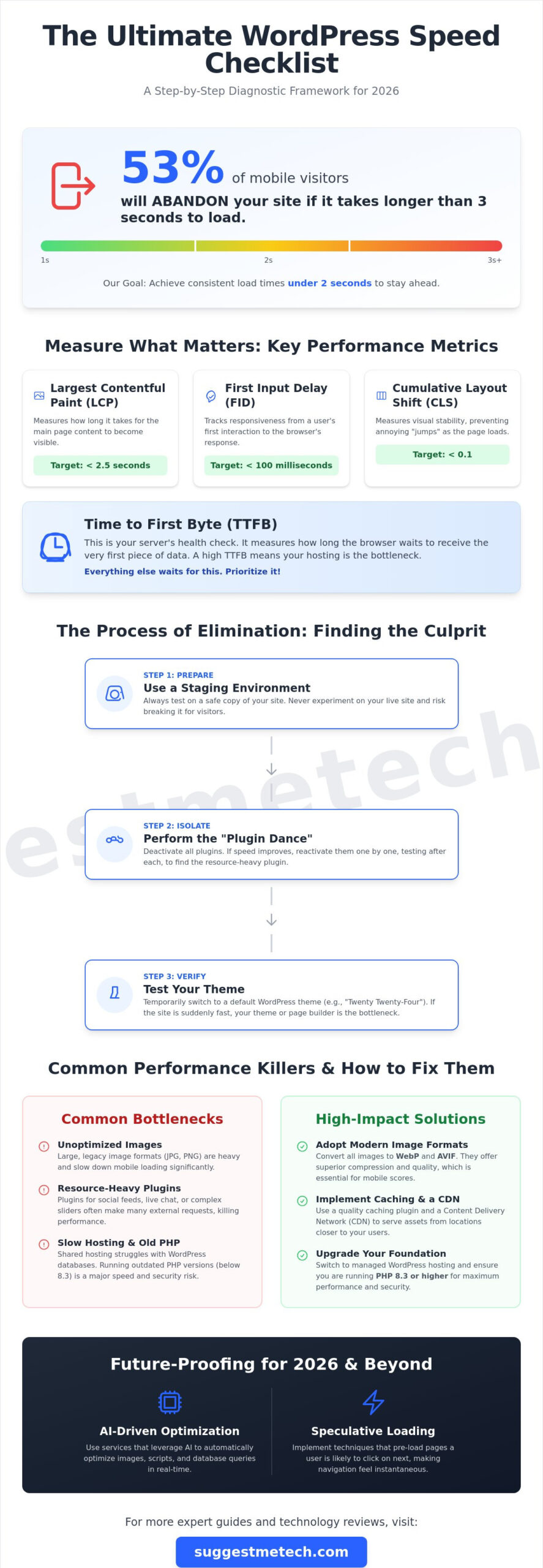
Did you know that 53% of mobile visitors will abandon your site if it takes longer than three seconds to load? If you’re currently watching your search rankings slip or dealing with high bounce rates, you aren’t alone. Most site owners feel overwhelmed by the technical jargon involved in troubleshooting a slow wordpress site. It’s frustrating to manage a complex stack of plugins without knowing which ones are actually helping or hurting your performance. You deserve a site that works as hard as you do, without the constant technical headaches.
You don’t need to be a developer to reclaim your speed and provide a better experience for your users. This guide provides a clear, step-by-step diagnostic framework to help you identify specific bottlenecks and achieve load times under two seconds. We’ll walk through the latest standards for WordPress 7.0, including why upgrading to PHP 8.3 or higher is essential for your Core Web Vitals. You’ll gain a clear understanding of your hosting limits and learn how to strip away the digital weight that’s holding your business back in 2026.
Key Takeaways
- Understand why metrics like Time to First Byte (TTFB) and Core Web Vitals are the essential starting points for any performance audit.
- Master a safe, systematic approach to troubleshooting a slow wordpress site by isolating problematic plugins and themes without breaking your layout.
- Learn why adopting modern image formats like WebP and AVIF is no longer optional for maintaining high mobile performance scores in 2026.
- Identify when your current hosting environment is the primary bottleneck and how switching to managed services can automate your speed gains.
- Discover how to implement AI-driven optimizations and speculative loading to stay ahead of user expectations and search engine requirements.
Benchmarking Performance: How to Measure Your Current Speed
You can’t fix what you haven’t measured. Before you start changing settings or deleting plugins, you need a clear baseline of your current performance. Effective troubleshooting a slow wordpress site begins with understanding exactly where the friction occurs for your users. In 2026, Google’s Core Web Vitals remain the primary standard for evaluating user experience. These metrics go beyond simple load times to measure how your site actually feels to a visitor.
- Largest Contentful Paint (LCP): This measures how long it takes for the main content of a page to become visible. Aim for under 2.5 seconds.
- First Input Delay (FID): This tracks responsiveness by measuring the time from a user’s first interaction to the moment the browser processes that interaction.
- Cumulative Layout Shift (CLS): This ensures visual stability. It measures how much the page layout “jumps” as images and fonts load in.
One metric stands above the rest when evaluating your server health: Time to First Byte. TTFB is the time it takes for a server to send its first byte of data back to the user. If your TTFB is high, even the most optimized front-end won’t save your speed. It’s the primary indicator that your hosting environment is struggling to keep up with the demands of the WordPress platform and its database requirements.
Use Google PageSpeed Insights to identify immediate “low-hanging fruit” like oversized images or render-blocking scripts. However, don’t rely solely on a single test from your local computer. You must test from multiple global locations to see the true user experience. A site that feels snappy in New York might be painfully slow for a user in London or Sydney if you aren’t using a proper content delivery network.
Understanding Your Speed Metrics
There is a significant difference between actual load time and perceived speed. Users care about when they can interact with the page, not when the last background script finally finishes. In your browser console, look for “turtle” icons or red flags in the network tab that signal significant server lag. For 2026, set a strict benchmark: aim for 1.5 seconds on mobile connections. This ensures you stay well ahead of the 53% of mobile visitors who typically bounce after three seconds of waiting.
The Best Diagnostic Tools for 2026
For a deep-dive analysis, GTmetrix and WebPageTest offer detailed waterfall charts. These charts show exactly which file is clogging the pipe, whether it’s a slow-loading font or a bulky third-party script. If you suspect your database is the problem, the “Query Monitor” plugin is excellent for troubleshooting a slow wordpress site in real-time. It identifies slow database queries and resource-heavy plugins that are dragging down your response times. This data-driven approach moves you beyond guesswork and into specific, functional fixes.
The Process of Elimination: Finding the Slowdown Culprit
Randomly changing settings is a recipe for frustration. When troubleshooting a slow wordpress site, you need a logical system to identify the specific culprit. Most performance issues stem from three areas: plugins, themes, or the database. To find the source without crashing your live site, always use a staging environment. This is a duplicate of your site where you can experiment freely without affecting your visitors or your search rankings.
The most effective method is what many call the “Plugin Dance.” Start by deactivating all your plugins at once. If your site speed improves instantly, you know a plugin is the problem. Reactivate them one by one, testing your speed after each activation. You’ll quickly see which specific tool is dragging down your load times. This systematic approach is far more efficient than guessing and ensures you only remove what is truly necessary.
Don’t forget to evaluate your theme. Even popular page builders like Elementor or Divi can introduce heavy code that slows down your response times significantly. To test this, temporarily switch to a default WordPress “Twenty-Twenty” series theme. If your site suddenly feels lightning fast, your current theme or page builder is likely the bottleneck. For more detailed reviews of modern, lightweight tools, you can check out our latest technology guides to find leaner alternatives that won’t sacrifice design.
Identifying Resource-Heavy Plugins
Certain categories of plugins are notorious for high resource consumption. Social media feeds, live chat widgets, and high-end sliders often make constant external requests that kill your performance. Always look for “orphan” data after you uninstall a plugin. Many tools leave behind rows in your database that continue to slow things down long after the plugin is gone. Seek out lightweight alternatives that prioritize “vanilla” JavaScript over heavy libraries to keep your site lean and responsive.
Cleaning the WordPress Database
Your database is the engine room of your site. Over time, it accumulates bloat from post revisions, expired transients, and spam comments. This unnecessary weight makes it harder for your server to find the data it needs, which directly impacts your speed. Using a tool like WP-Optimize allows you to prune these tables safely, which is a vital part of troubleshooting a slow wordpress site. If you are starting a blog in 2026, maintaining a clean database from day one is the best way to prevent future slowdowns. A lean database ensures that your server responds quickly to every user request, providing the foundation for a sub-two-second load time.
Front-End Optimization: Images, Caching, and Scripts
Front-end optimization is where you’ll see the most visible results when troubleshooting a slow wordpress site. Even if your server is fast, bulky assets like uncompressed images and messy scripts will choke a user’s browser. By 2026, traditional JPEG and PNG formats are no longer enough to meet modern performance standards. You must transition to WebP or AVIF formats. These next-gen formats offer significantly better compression without losing visual quality; this is critical since images often account for over 60% of a webpage’s total weight.
Caching is your most powerful tool for reducing server load. It works by storing a static version of your site so the server doesn’t have to rebuild the page for every visitor. Page caching stores the entire HTML of a page. Browser caching tells the visitor’s device to remember certain files like logos or CSS. Object caching stores specific database queries. Implementing all three ensures that your site feels instantaneous to repeat visitors and significantly improves your Largest Contentful Paint (LCP) scores.
Minifying your CSS and JavaScript is another essential step. This process removes unnecessary spaces and comments from your code, shrinking file sizes without changing how your site looks. To handle global traffic, a Content Delivery Network (CDN) is indispensable. A CDN stores copies of your site on servers around the world. This reduces the physical distance data must travel, which dramatically lowers latency for users who are far from your primary server.
Advanced Image Management
Implementing “Lazy Loading” ensures that images and videos only load when they enter the user’s viewport. This prevents the browser from downloading every image on a long page all at once. You should use AI-based compression tools to automatically shrink file sizes as you upload new content. Just as you would clear cache on iPhone to free up space and boost speed, clearing your WordPress cache after these optimizations is vital to ensure visitors see the fastest version of your site immediately.
Managing Scripts and Third-Party Bloat
Third-party scripts for ads and tracking are major performance killers. You should defer non-essential JavaScript so it only runs after the main content has loaded. Localizing Google Fonts and Analytics scripts by hosting them on your own server reduces external requests and speeds up rendering. For tracking pixels, consider setting up a “Delayed Script” execution that waits for a few seconds before firing. This prioritization ensures your user sees your content first, which is the most important factor for maintaining high mobile performance scores in 2026.
Foundation Check: Evaluating Your Web Hosting
Managed WordPress Hosting offers a significant performance leap by providing environments specifically tuned for the platform. These services include built-in server-side caching and resource isolation, which prevents other sites from stealing your processing power. You should also check your PHP version immediately. Running anything below PHP 8.3 is a major risk. In 2026, nearly 47% of WordPress sites still run on end-of-life PHP versions, leading to massive security gaps and sluggish execution speeds. WordPress 7.0 “Louis Armstrong” performs best on PHP 8.3 or higher.
If your traffic has grown but your plan hasn’t, you’ve likely outgrown your current hosting. Signs include frequent 504 gateway timeouts or a Time to First Byte (TTFB) that consistently exceeds 500ms. High-performance managed hosts like Kinsta have demonstrated average TTFB scores as low as 158ms in benchmark tests. If you’re ready to upgrade, read our guide to choosing the right tech stack for your business.
Shared vs. Managed Hosting
Shared servers suffer from the “noisy neighbor” effect. If another site on your server experiences a traffic spike, your site’s performance drops. This directly impacts your TTFB and frustrates your users. Modern hosting must utilize NVMe storage and dedicated RAM to handle the database-heavy nature of WordPress. For a curated list of high-performance providers, see our review of the best web hosting services of 2024.
Server-Side Technologies to Look For
Your host’s technology stack determines your ceiling for speed. Look for providers that support HTTP/3 and the QUIC protocol, which significantly improve mobile load speeds by streamlining how data is sent. If you run a high-traffic e-commerce site, Redis or Memcached is essential for object caching to prevent database bottlenecks. Finally, verify that your host uses Nginx or LiteSpeed servers. These modern stacks handle concurrent visitors much more efficiently than legacy Apache servers, making them vital for troubleshooting a slow wordpress site effectively.
Advanced 2026 Tactics: Future-Proofing Site Speed
By 2026, troubleshooting a slow wordpress site requires looking beyond basic fixes and adopting predictive technologies. The landscape has shifted from reactive maintenance to proactive optimization. One of the most significant advancements is the use of AI-driven performance plugins. These tools don’t just apply static settings; they analyze your traffic patterns in real-time and adjust server resources or caching layers to handle spikes before they cause a slowdown. This ensures your site remains responsive even during unexpected surges in visitor activity.
Another cutting-edge tactic is the implementation of “Speculative Loading.” This technology uses a browser’s idle time to predict which page a user is likely to click next. By pre-fetching or even pre-rendering that content in the background, the transition between pages feels instantaneous. For sites with high-traffic or complex dynamic content, Edge Functions are becoming the new standard. These allow you to run small snippets of code at the CDN level, delivering personalized content at lightning speeds without ever hitting your primary server.
If you’ve reached the absolute limits of traditional optimization, moving toward a “Headless WordPress” architecture is the ultimate speed play. By decoupling the WordPress backend from a modern React or Next.js frontend, you can achieve enterprise-level performance that is virtually impossible with standard themes. While this requires more technical expertise, it provides a level of control and speed that future-proofs your brand for the next decade of web development.
AI and Automated Optimization
Modern AI tools have revolutionized how we handle code bloat. These plugins can now identify and disable unused CSS on a per-page basis, ensuring that only the necessary styles are loaded for any given visitor. You should also implement automated testing suites that monitor your site 24/7. These systems will alert you immediately if a new plugin update or a content change slows down the site, moving your strategy from manual configuration to an “Auto-Pilot” speed suite that maintains your sub-two-second load times without constant intervention.
The 2026 Tech Stack
Your performance ceiling is often determined by your underlying infrastructure. Ensure your domain settings are optimized at the DNS level using a provider like Cloudflare to reduce lookup times. Furthermore, the shift toward “Full Site Editing” (FSE) themes is now complete. These themes are significantly leaner than legacy options and are designed to work natively with WordPress 7.0’s performance enhancements. To maintain sub-second speeds, every site in 2026 must have these five essentials:
- Managed WordPress Hosting: With dedicated resources and server-level caching.
- Modern PHP: Running version 8.3 or higher for maximum execution speed.
- Next-Gen Images: Mandatory use of WebP and AVIF formats.
- Edge Caching: Moving content closer to the user via a global CDN.
- FSE Theme: A block-based foundation that eliminates traditional code bloat.
Reclaiming Your Speed and Rankings
You’ve now seen that troubleshooting a slow wordpress site doesn’t have to be a guessing game. By following a structured diagnostic framework, you can isolate resource-heavy plugins and transition to high-performance image formats like WebP or AVIF. Remember that even the best front-end tweaks will fail on a weak server foundation. Running the latest PHP version and utilizing managed hosting are non-negotiable steps for achieving sub-two-second load times in 2026. This disciplined approach ensures you aren’t just adding more plugins, but actually removing the weight that slows you down.
We’ve applied our expert troubleshooting framework to help you find the best path forward. Our team tested over 50 hosting providers using real-world speed benchmarks to see who actually delivers under pressure. Don’t let a slow server or outdated tech stack hold your business back any longer.
Ready to upgrade? Check out our top-rated web hosting picks for 2026. Your visitors deserve a fast, seamless experience; now you have the roadmap to give it to them.
Frequently Asked Questions
Why is my WordPress site slow even with a caching plugin?
Caching only masks performance issues; it doesn’t fix underlying slow database queries or heavy external scripts. If your server takes too long to generate the first byte of data, a plugin can only do so much. You should check if your caching is properly configured at the server level, as PHP-based plugins are often less efficient than LiteSpeed or Nginx caching. Proper server-side optimization ensures your site stays fast even when the cache is cleared.
How do I know if my hosting is the reason for my slow site?
A high Time to First Byte (TTFB) is the clearest indicator that your hosting is the bottleneck. If your TTFB is consistently over 500ms even on a blank page, your server is struggling to process requests. Troubleshooting a slow wordpress site often reveals that shared hosting environments lack the dedicated RAM and NVMe storage needed for modern performance. If your hardware is outdated, no amount of software optimization will solve the lag.
What is the fastest WordPress theme for 2026?
Block-based Full Site Editing (FSE) themes are currently the fastest options available for the modern web. Themes like GeneratePress, Astra, or the default “Twenty-Twenty” series are built with minimal code and rely on native WordPress functions rather than heavy third-party libraries. These themes ensure your site remains lean and scores higher on Core Web Vitals without requiring extensive custom optimization. Choosing a lightweight foundation is the easiest way to prevent future speed issues.
Do too many plugins really slow down WordPress?
Quality matters more than quantity, but every active plugin adds some level of processing overhead to your server. A single poorly coded plugin can cause more damage than twenty well-optimized ones. When troubleshooting a slow wordpress site, focus on removing plugins that make frequent external requests. Live social feeds or complex trackers often create bottlenecks that a caching plugin cannot fix. Always prioritize plugins that use modern, efficient coding standards.
How can I speed up my WordPress site for mobile users?
Prioritizing the “Critical Path” for rendering is the best way to improve mobile speeds immediately. This involves deferring non-essential JavaScript and using modern image formats like AVIF to reduce the total payload. Since mobile devices have less processing power than desktops, minimizing the amount of code the browser has to execute will directly lead to faster interaction times. You should also implement a mobile-specific caching strategy to serve optimized assets to handheld devices.
What should my target load time be for a WordPress site?
You should aim for a total load time of under two seconds on a standard 4G mobile connection. For 2026, the specific focus is on the Largest Contentful Paint (LCP) occurring within 1.5 seconds. Meeting these benchmarks ensures that your users don’t get frustrated and helps you maintain a competitive edge in search engine results pages. Consistent speed builds trust with your audience and significantly improves your overall conversion rates over time.
Is Elementor bad for site speed?
Elementor is not inherently bad, but it does add significant CSS and JavaScript bloat compared to the native block editor. If you use a page builder, you must be more aggressive with asset minification and script deferral. It’s helpful to disable unused Elementor widgets and experiments to ensure only the necessary code loads on each page. Balancing design flexibility with performance requires a disciplined approach to how you build and optimize your layouts.
Can a slow WordPress site affect my SEO rankings?
Site speed is a confirmed ranking factor for both desktop and mobile search results. Google uses Core Web Vitals to measure user experience, and sites that fail these metrics often see a decline in organic visibility. A fast site keeps users on the page longer, which reduces bounce rates and signals to search engines that your content is valuable. Investing in speed is just as important as investing in high-quality content for your long-term growth.