

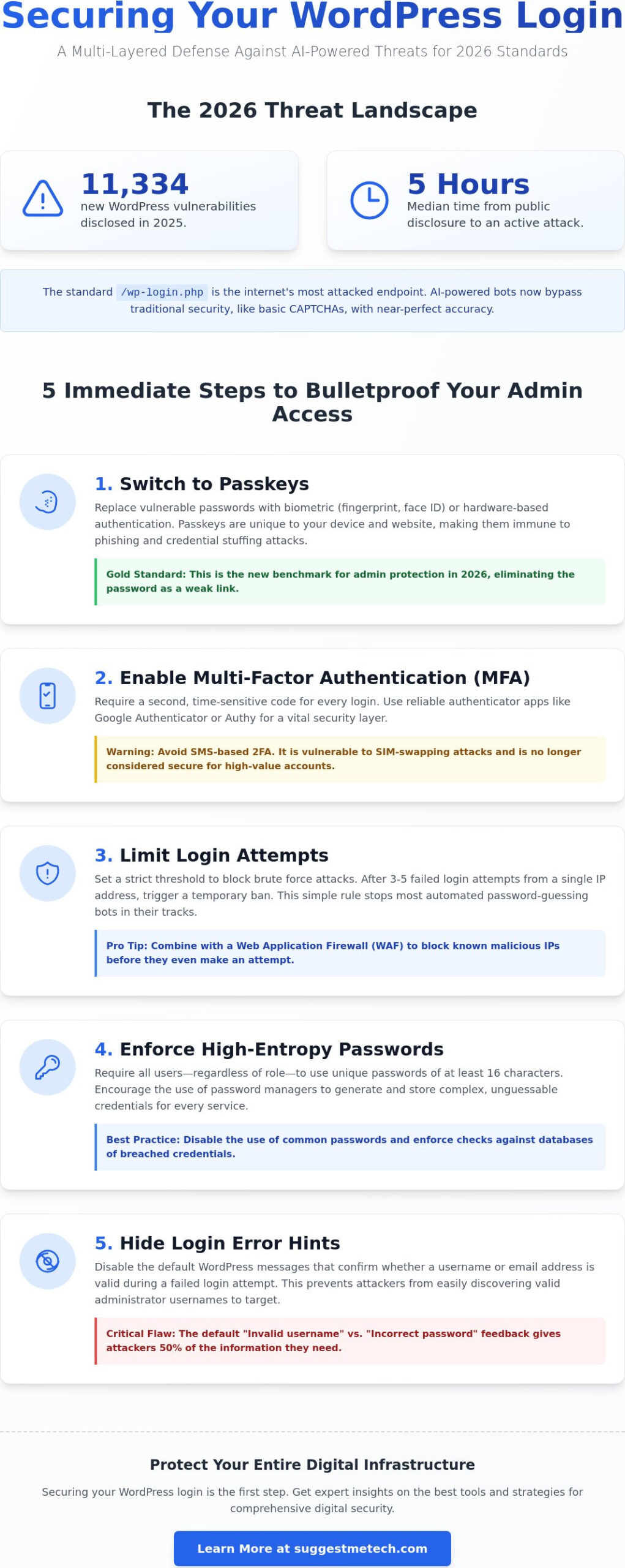
In 2025, a record 11,334 new WordPress vulnerabilities were disclosed, and the median time from a public disclosure to an active attack has shrunk to just five hours. Learning how to secure your wordpress login page isn’t just a basic task anymore; it’s a high-stakes race against AI-powered bots that never sleep. You have likely felt the anxiety of wondering if your site is next or worried that a complex security setup might accidentally lock you out of your own dashboard.
We understand that you want a site that stays fast and accessible while remaining completely impenetrable to unauthorized users. It is frustrating to choose between performance and protection, especially when your business data is on the line. This guide promises to clear that confusion by providing the most effective strategies to shield your admin area using 2026 security standards. You will learn how to implement a multi-layered defense that prioritizes identity verification over simple passwords. We will walk through everything from server-level hardening for WordPress 7.0 to choosing the right tools that offer real-time threat intelligence without the bloat.
Key Takeaways
- Discover the essential technical steps on how to secure your wordpress login page to block AI-driven brute force attacks before they reach your server.
- Learn why moving beyond passwords to biometric logins and multi-factor authentication is the new gold standard for admin protection in 2026.
- Evaluate the pros and cons of hiding your admin URL and implementing IP whitelisting to create an invisible barrier for automated botnets.
- Compare the top security plugins of the year to find the right balance between real-time threat detection and site performance.
- Create a fail-safe recovery plan with automated backups and update schedules to ensure you never lose access to your business data.
Why Your WordPress Login is a Magnet for Attacks in 2026
The standard /wp-login.php URL is the most attacked endpoint on the internet. Because WordPress powers a massive portion of the web, botnets are hard-coded to scan for this specific path. If you are trying to figure out how to secure your wordpress login page, you must first acknowledge that a simple password is no longer a sufficient barrier. In 2026, automated scripts don’t just guess; they use sophisticated pattern recognition to bypass traditional security measures within minutes of a site going live.
A successful login breach can be devastating for your business. Hackers rarely stop at stealing data. They often install backdoors for persistent access or inject SEO spam, which places invisible malicious links in your content. This ruins your search engine rankings and can lead to your domain being blacklisted by Google. Understanding the WordPress security overview is essential to realize that your login page is the primary gatekeeper for your entire digital reputation.
Defining Brute Force and Credential Stuffing
Brute force attacks involve bots attempting thousands of password combinations every second. While basic, these attacks are now powered by AI that prioritizes common variations based on your site’s niche. Even more dangerous is credential stuffing. This method uses databases of emails and passwords leaked from other major site hacks. If you reuse a password from a compromised service, a bot can gain access to your dashboard on the first try. Using “admin” as your username remains the single biggest vulnerability because it gives attackers 50% of the credentials they need to succeed.
The 2026 Threat Landscape for WordPress
The tools available to attackers have become incredibly cheap and efficient. Low-cost AI software can now solve standard image-based CAPTCHAs with nearly 100% accuracy, rendering old-school “click the traffic lights” tests obsolete. Modern attacks are also highly distributed. Instead of attacking from one location, botnets rotate through thousands of unique IP addresses. This makes simple rate-limiting tools less effective since each IP only attempts a few logins before switching. Whether you run a high-traffic e-commerce store or a small hobbyist blog, learning how to secure your wordpress login page with multi-layered verification is the only way to stay ahead of these automated threats.
5 Immediate Steps to Bulletproof Your Admin Access
Securing your site requires moving beyond theoretical threats and taking immediate action. If you want to know how to secure your wordpress login page against modern botnets, you must implement a multi-layered defense. These five steps provide a clear order of operations to stop unauthorized access before it starts. By tightening these entry points, you turn a standard login screen into a high-security gateway.
- Switch to Passkeys: Replace traditional passwords with biometric or hardware-based authentication.
- Enable MFA: Use authenticator apps to require a second, time-sensitive code for every login.
- Limit Login Attempts: Set a strict threshold of three to five failed attempts before triggering a temporary IP ban.
- Enforce High-Entropy Passwords: Require all users, regardless of their role, to use unique strings of at least 16 characters.
- Hide Login Hints: Disable the default messages that confirm if a username is valid during a failed attempt.
The Move to Passkeys and MFA
Passwords are often the weakest link in your security chain. In 2026, Passkeys have emerged as the gold standard because they use biometric data or hardware keys that cannot be phished or recorded by keyloggers. Unlike traditional passwords, Passkeys are unique to your device and the specific site, making credential stuffing attempts useless. For those not ready for full passwordless access, Multi-Factor Authentication (MFA) is non-negotiable. Apps like Google Authenticator or Authy generate time-sensitive codes that provide a vital second layer of defense. You should avoid SMS-based 2FA, as SIM-swapping attacks have made it unreliable for high-security environments. For the best protection, check out these CISA authentication tools to see which hardware or software solutions fit your workflow.
Refining Login Behavior and Feedback
Standard WordPress settings are surprisingly helpful to hackers. By default, the login screen tells an attacker if they got the username right but the password wrong. You must disable these hints to keep them in the dark. Additionally, you should strictly limit login attempts using a dedicated security plugin. Setting a threshold of three failed attempts before an IP ban significantly slows down automated guessing scripts. Enforcing high-entropy passwords for every user role is another critical step. Even a contributor account can be an entry point for a site-wide breach. You can find detailed technology reviews and guides to help you select the best security plugins for enforcing these rules automatically. Finally, set up automated email alerts. Knowing exactly when a suspicious login attempt occurs allows you to react instantly if a breach is attempted. This proactive approach is essential when learning how to secure your wordpress login page effectively.
Beyond Plugins: Server-Side Hardening and URL Obfuscation
Plugins are an excellent first line of defense, but relying solely on them leaves a gap in your strategy. True hardening happens at the server level, where you can block malicious traffic before it even reaches the WordPress core. When you are looking at how to secure your wordpress login page, you must consider tools like .htaccess for Apache or configuration files for Nginx. These methods are lightweight and often more resilient than plugin-based solutions because they consume fewer server resources during a heavy bot attack.
Hiding the Login Page: Security vs. Obscurity
Changing your login URL from /wp-login.php to something unique, like /internal-access-2026, is a common tactic called “security through obscurity.” Using a lightweight tool like WPS Hide Login makes this change simple. It’s important to understand that this won’t stop a determined, targeted hacker who can still find the path through other scripts. However, it effectively eliminates the “noise” from global botnets that only scan for the default path. If you decide to move your login path, always bookmark the new URL immediately. Losing this address can lead to an accidental lockout that requires manual database or FTP edits to fix.
Advanced Server-Level Restrictions
For high-security environments, IP whitelisting is the ultimate gatekeeper. By adding a few lines of code to your server configuration, you can instruct WordPress to only display the login page to your specific office or home IP address. Any other visitor will see a 403 Forbidden error. This makes it virtually impossible for remote attackers to guess your credentials. You should also consider adding a layer of basic authentication. Password protecting your .htaccess file creates a secondary, browser-level login prompt that must be cleared before the WordPress login screen even loads.
Another critical step is disabling XML-RPC. This is an outdated legacy API that many bots use to execute thousands of login attempts in a single request, bypassing standard login forms. Unless you specifically use the WordPress mobile app or certain remote posting tools, this feature is a massive back-door vulnerability that should be closed. Integrating these server-side tactics is a professional approach to how to secure your wordpress login page without bloating your site with unnecessary software. These steps ensure your business data remains safe while maintaining peak site performance.
The Ultimate Security Plugin Showdown: Which Should You Trust?
While server-level hardening provides a solid foundation, most site owners need the automation and user interface that only a dedicated security plugin can offer. In 2026, the market is divided between plugins that run on your server and those that offload security to the cloud. When you are deciding how to secure your wordpress login page, you must weigh the protection benefits against the potential performance impact. A plugin that catches every bot but triples your page load time isn’t a viable solution for a growing business.
Top Contenders: Wordfence, Solid Security, and Jetpack
Wordfence remains the most popular choice for real-time threat intelligence. Its endpoint firewall is updated constantly to block new 2026 vulnerabilities. The free version is excellent, though it comes with a 30-day delay on firewall rules; the Premium version costs $149 per year and provides real-time protection. If you prefer a more guided approach, Solid Security (formerly iThemes) is priced at $99 per year and excels at reducing your attack surface through user-friendly hardening. It’s an ideal tool for those who want a “set it and forget it” experience. Jetpack Security is the third major player, offering cloud-based brute force protection. Because Jetpack processes security off-site, it’s often the best choice for maintaining high performance on smaller hosting plans.
Matching the Tool to Your Hosting Environment
Your choice of provider determines how much heavy lifting your plugin needs to do. If you are already using the best web hosting services, you likely have access to a server-level Web Application Firewall (WAF) that blocks malicious requests before they even reach your WordPress installation. Managed WordPress hosting plans often include built-in login protection, which can make some plugin features redundant. Before you install a heavy security suite, check your hosting dashboard for existing brute force mitigation tools. This prevents software conflicts and ensures your site remains lean and fast.
Choosing the right balance of tools is the most practical way to maintain a bulletproof admin area. You don’t need every feature available, just the ones that fill the gaps in your current setup. For more detailed evaluations on the latest software, you can read our full technology reviews and guides to see which security tools performed best in our 2026 stress tests. This data-driven approach is the most reliable method for learning how to secure your wordpress login page without compromising on user experience or site speed.
Maintaining Your Fortress: Updates, Backups, and Emergency Recovery
Maintaining a secure site is a continuous process, not a one-time setup. Even if you follow every tip on how to secure your wordpress login page, your defenses will crumble if you neglect basic maintenance. Cybercriminals constantly hunt for unpatched vulnerabilities in WordPress core, themes, and plugins. Research shows that 91% of new vulnerabilities discovered in 2025 were found within plugins rather than the core software. Staying updated is your primary defense against these evolving threats.
The Update and Backup Synergy
Backups serve as your ultimate safety net. You should automate off-site backups to services like Dropbox or AWS daily. This ensures that if a login breach occurs or a security measure fails, you can revert to a clean version of your site within minutes. If you are just starting a blog, building this habit early will save you from catastrophic data loss later. Monitoring audit logs is equally vital. These logs show you exactly who logged in and when, allowing you to spot successful unauthorized entries that might otherwise go unnoticed.
What to Do If You Are Locked Out
Many site owners fear that strict security will lead to an accidental lockout. It happens to the best of us, and you need a plan before it does. If a security plugin prevents you from reaching the dashboard, use an FTP client or your hosting File Manager to rename the plugin’s folder. This action disables the plugin and restores standard access. For more complex issues, such as a compromised admin email, you can use phpMyAdmin to edit the wp_users table directly. This allows you to reset your password or update your email address at the database level.
Take Control of Your Site Security Today
Securing your WordPress admin area isn’t a one-time task; it’s an ongoing commitment to protecting your digital assets. By moving toward identity-based verification like Passkeys and implementing server-level hardening, you eliminate the vulnerabilities that traditional passwords leave wide open. Applying these 2026 standards for how to secure your wordpress login page ensures your business data remains shielded from even the most advanced AI-powered botnets. Remember that a fast, secure site starts with proactive maintenance and a fail-safe recovery plan.
We’ve done the heavy lifting for you by conducting expert tech reviews based on hands-on testing and comprehensive 2026 security benchmarks. Whether you’re a solo blogger or managing a high-traffic store, our community-driven recommendations help you find the perfect balance between performance and protection. To give your site the strongest possible foundation, explore our top-rated web hosting picks with built-in security. You’ve now got the tools and the knowledge to build an impenetrable fortress. Stay vigilant, keep your software updated, and enjoy the peace of mind that comes with a truly hardened website.
Frequently Asked Questions
Is changing the WordPress login URL really necessary?
Changing your login URL isn’t strictly necessary, but it’s a highly effective way to reduce the background noise from automated bot attacks. By moving the page from the default path, you stop thousands of generic scripts from hitting your server every day. It’s a simple step that saves server resources, though you still need strong authentication to stop targeted attacks.
Will a security plugin slow down my website performance?
Some security plugins can impact speed if they perform heavy processing on every page load or run frequent malware scans during peak traffic. To minimize this, you should choose a plugin that offloads tasks to the cloud or use server-level hardening. Modern 2026 tools are designed to be lightweight, and the performance hit is usually negligible compared to the risk of a site breach.
What is the best free two-factor authentication (2FA) plugin for WordPress?
WP 2FA is widely considered one of the best free options because it focuses specifically on authentication without adding unnecessary bloat. The free version of Wordfence also includes robust 2FA features that work seamlessly with most authenticator apps. Both options provide a critical layer of defense when you’re looking at how to secure your wordpress login page effectively.
Can I secure my login page without using any plugins?
Yes, you can implement high-level security using server-side configurations like IP whitelisting or .htaccess password protection. These methods are extremely fast and don’t require any third-party software. Understanding how to secure your wordpress login page through manual server edits is a great way to keep your site lean, though it requires some technical comfort with file editing.
What should I do if I see hundreds of failed login attempts in my logs?
Don’t panic, as seeing failed attempts is a normal part of running any WordPress site. You should ensure that you have rate limiting enabled to automatically ban IP addresses after three to five failed attempts. If the volume of attacks is high enough to affect your server performance, you should consider changing your login URL to hide the entry point from automated botnets.
Are Passkeys better than traditional passwords for WordPress?
Passkeys are significantly better than passwords because they rely on biometric data or hardware keys that can’t be phished or stolen in a data breach. They eliminate the risks of credential stuffing and keylogging entirely. Switching to Passkeys is the most impactful step you can take to modernize your login security and protect your business data.
How do I recover my WordPress account if I lose my 2FA device?
You can recover access by using the backup codes provided during the initial 2FA setup process. If you don’t have those codes, you’ll need to use FTP or a File Manager to temporarily rename the security plugin’s folder, which disables the 2FA requirement. Once you’ve regained access to your dashboard, you can reset your settings and re-enable the plugin.