

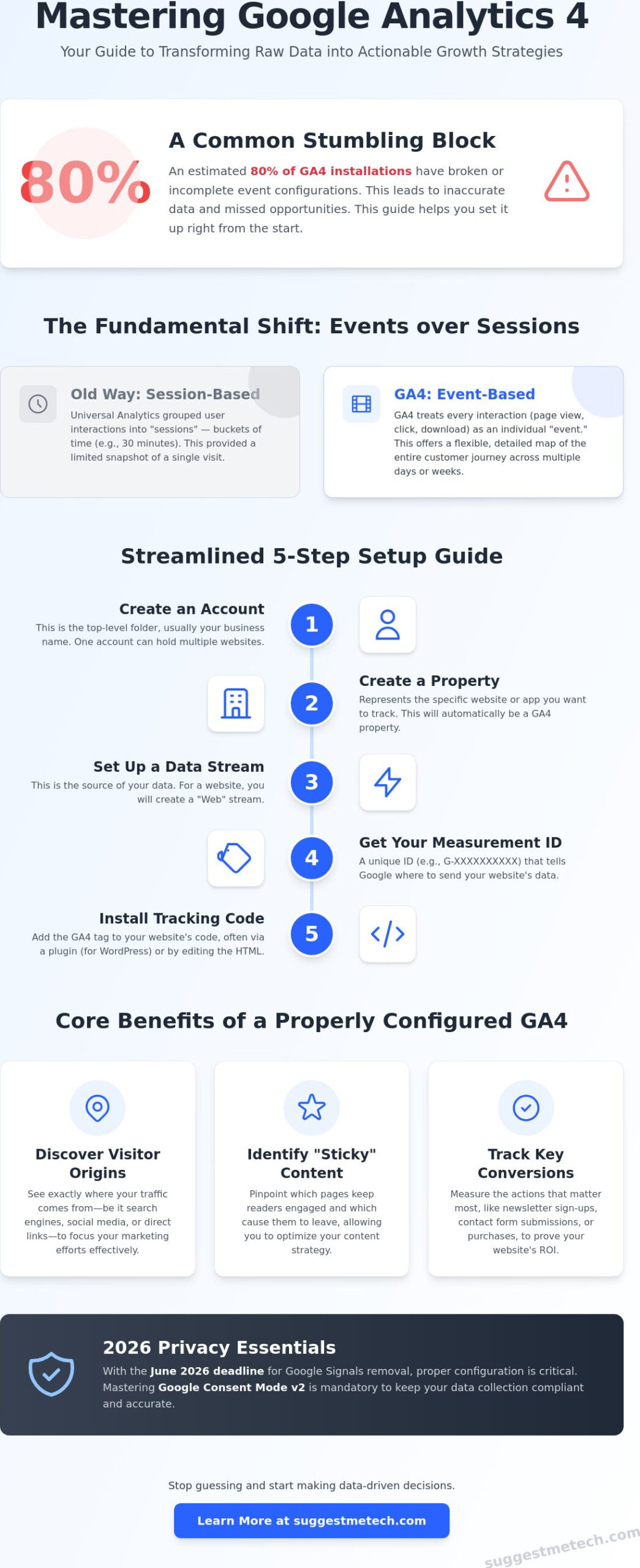
Did you know that roughly 80% of Google Analytics 4 installations currently have broken or incomplete event configurations? It’s a staggering number that explains why so many site owners feel lost. If you’re overwhelmed by technical jargon or worried about breaking your website during setup, you’re in good company. Getting started with google analytics shouldn’t feel like a chore; it should be the compass that guides your business decisions.
I understand that the interface can feel like a maze, especially with the June 2026 deadline for Google Signals removal making proper configuration more critical than ever. You want to know which pages are popular without needing a degree in data science. This guide promises to help you master the basics of GA4 and transform your raw website data into actionable growth strategies. We’ll walk through creating a functional tracking setup, explain mandatory consent requirements, and show you how to pinpoint your best content with confidence.
Key Takeaways
- Understand the fundamental shift from session-based tracking to event-based data to better capture how visitors actually interact with your content.
- Follow a streamlined five-step setup for getting started with google analytics to ensure your properties and data streams are functional from the start.
- Learn to navigate the GA4 interface to quickly access real-time reports and bird’s-eye views of your website’s overall performance.
- Identify underperforming “low engagement” pages and set up specific conversions to track your most important business milestones.
- Master 2026 privacy essentials, including Google Consent Mode v2, to keep your data collection compliant and accurate.
What is Google Analytics 4 and Why Does Your Website Need It?
Google Analytics 4, often called GA4, is a free platform provided by Google that tracks and reports website traffic. If you’re looking for a clear answer to What is Google Analytics 4, think of it as a high-tech dashboard for your website’s performance. As of 2026, it is the only version of Google Analytics available. The old Universal Analytics system was completely sunset in 2024, and all its historical data has been deleted. This means that getting started with google analytics today requires a fresh focus on how modern data collection works.
The most significant change in GA4 is the shift from “sessions” to “event-based” tracking. In the past, analytics tools grouped user actions into buckets of time called sessions. GA4 does things differently. It treats every single interaction, such as a page view, a button click, or a file download, as an individual “event.” This approach is much more flexible. It allows you to see exactly how a person moves through your site over several days or weeks, rather than just looking at what they did in a single thirty-minute window. It provides a much more accurate map of the customer journey.
The Core Benefits of Using GA4 in 2026
GA4 vs. Other Analytics Tools
While there are many paid, privacy-focused alternatives available, GA4 remains the industry standard for 2026 digital marketing. One of its biggest advantages is the integration with the broader Google ecosystem. If you’re using Google Ads to drive traffic or Google Search Console to monitor your SEO, GA4 connects all that data in one place. While some simpler tools might be easier to learn, they often lack the depth of insight that GA4 provides for free. Most professional marketing agencies and employers expect you to know GA4, making it an essential skill for anyone managing a website today.
How to Set Up Your Google Analytics Account: A 5-Step Guide
Setting up a new tracking system can feel daunting, but the process is actually quite linear. When you’re getting started with google analytics, your first task is to visit the official portal and sign in with your Google account. You’ll be prompted to create an Account name, which is usually your business name. From there, you’ll create a Property. This represents the specific website or app you want to track. As of 2026, this will automatically be a GA4 property, as previous versions are no longer supported.
The technical handshake between your site and Google happens through a Data Stream. For most beginners, this will be a Web stream. Once created, you’ll receive a Measurement ID. This is a unique string of characters starting with G- followed by numbers and letters that acts as a destination address. This ID tells Google’s servers which property should receive the data coming from your website. If you’re looking for the official documentation, Google provides a detailed walkthrough on How to Set Up Your Google Analytics Account.
Account and Property Hierarchy
Think of your Account as a folder and your Properties as the files inside it. One account can hold multiple properties, which is useful if you run several different niche websites. During the setup, you must set the correct time zone and currency. If you leave these at the default settings, your reports will be out of sync with your actual business hours. This makes it hard to see when people are actually visiting. For security, never share your main login credentials. Use the User Management settings to add team members with specific permission levels instead.
Installing the Tracking Code
Once you have your Measurement ID, you need to put it on your site. For WordPress users, this is usually as simple as using a dedicated plugin or an integrated tool. If you choose the right web hosting, many modern providers offer one-click GA4 integration right in their control panel. This removes the need for extra plugins and keeps your site running fast. If you prefer a manual approach, you’ll need to copy the global site tag (gtag.js) and paste it into the head section of your website’s HTML code.
After installation, you must verify that everything is working. Open your website in a new incognito window, then check the Real-time report in your GA4 dashboard. If you see yourself appearing as a visitor, your setup is successful. If you’re still feeling unsure about the technical side, exploring our tech guides and reviews can help you find the right tools to simplify your digital stack. Proper setup is the only way to ensure your data is clean and actionable from day one.
Navigating the GA4 Interface: Where to Find Your Data
The GA4 dashboard can look like the cockpit of a jet at first glance. When you’re getting started with google analytics, the Home screen is your primary starting point. It provides a quick summary of your recent traffic trends and highlights. Just below that, the Real-time report is incredibly useful for testing. It shows you exactly who is on your site right now, which is perfect for confirming that your tracking code is firing correctly after an update. Navigating these menus is the next logical step after getting started with google analytics and finishing your initial installation.
One thing that trips up many beginners is the difference between “Users” and “New Users.” In modern analytics, a “User” is anyone who has visited your site, including returning visitors. A “New User” is someone who is visiting for the very first time on their current device. If you’re looking for a specific metric and can’t find it, use the Search bar at the top. You can type questions like “how many people visited yesterday?” and GA4 will pull the answer directly for you, saving you from digging through multiple menus.
Acquisition: Where Do Your Visitors Come From?
The Acquisition tab tells the story of how people found you. You’ll see two main reports: User Acquisition and Traffic Acquisition. User Acquisition focuses on how people found your site for the first time. Traffic Acquisition shows where your latest sessions came from, regardless of whether the user is new or returning. This helps you understand which marketing channels are driving the most volume.
You’ll encounter several key categories here:
- Organic Search: Visitors who found you through search engines like Google or Bing.
- Organic Social: Traffic coming from unpaid posts on platforms like Facebook or LinkedIn.
- Referral: People who clicked a link on another website to reach yours.
- Direct: Users who typed your URL directly into their browser or used a bookmark.
Engagement: What Are People Doing on Your Site?
Once people arrive, you need to know if they’re actually reading your content. The Engagement section is where you’ll spend most of your time. Instead of old-school bounce rates, GA4 uses “Average engagement time” to show how long people actually stay active on a page. This is a much better indicator of content quality than a simple click.
To see which content is winning, head to “Pages and screens.” This report lists your most popular URLs. You can also monitor “Events” to see specific actions. If you see a high number of “file_download” or “click” events on a specific page, you know that content is driving real engagement. By regularly checking these reports, you’ll understand which topics your audience loves and which ones need more work to keep people interested.
Practical Analytics: Using Data to Grow Your Website
Data is only valuable if you use it to change how you work. Once you’ve finished getting started with google analytics and have data flowing into your dashboard, it’s time to build a growth plan. Your first priority should be identifying “Low Engagement” pages. These are URLs that receive plenty of traffic but have very short average engagement times. Usually, these pages have a weak opening or don’t answer the reader’s question quickly enough. By identifying this “Fix-it” list, you can reclaim lost traffic without spending a dime on new marketing.
One of the best moves you can make is connecting Google Search Console to your GA4 property. This integration allows you to see the exact phrases people type into Google to find your site. If you see people are finding you for a specific term you haven’t covered in detail, that’s your next blog post idea. It’s the most reliable way to align your content with actual user intent. This level of insight is exactly why getting started with google analytics is a non-negotiable step for any serious site owner in 2026.
Improving Your Content Strategy
Use your Acquisition reports to see which social platforms actually send you visitors who stay. If one platform sends 1,000 people but they leave in ten seconds, while another sends 100 people who stay for three minutes, you know where to focus your effort. When you start a blog in 2026, these metrics act as your validation tool. They tell you if your chosen niche is actually resonating with a real audience. If engagement is consistently low across all your topics, it might be time to pivot your content pillars.
Setting and Tracking Conversions
Not every click is equal. You need to tell GA4 which actions are “Conversions.” This could be a newsletter signup, a file download, or a “Thank You” page load after a purchase. By marking these specific events as conversions, you can finally calculate your return on investment (ROI). You’ll also gain access to the “Conversion Paths” report. This shows the journey a user takes before they commit. Maybe they find you on Google, visit three times via social media, and finally buy after a direct visit. Understanding this path helps you see the true value of every marketing channel you use. For more help building your digital toolkit, explore our technology reviews and guides for expert recommendations.
Maintaining Your Analytics: Privacy and Best Practices in 2026
Setting up your dashboard is a great milestone, but getting started with google analytics also involves a commitment to ongoing maintenance. Data privacy is no longer optional. With the June 15, 2026, deadline for Google Signals removal now passed, Google Consent Mode v2 has become the primary way to handle data flow. If you have visitors from the European Economic Area, you must use a Consent Management Platform that talks to GA4. This ensures you’re only collecting data from users who have given you the green light, keeping your business on the right side of global regulations.
One of the most common mistakes beginners make is failing to adjust the default data retention settings. By default, GA4 only keeps user-level data for two months. If you don’t change this to 14 months in your property settings, you’ll lose the ability to perform year-over-year comparisons for specific user behaviors. Additionally, you should manually exclude your own internal IP address. If you don’t, every time you visit your site to check a layout or post a blog, you’re inflating your own traffic numbers and skewing your engagement metrics.
Privacy-First Tracking
We’ve entered a cookie-less future where traditional tracking is less reliable. GA4 uses machine learning and AI to fill in the gaps when users opt out of tracking. This is why your privacy policy must be transparent. You should clearly state that you use “Anonymized Data,” which is information that tracks behavior without identifying the specific individual. This approach respects user privacy while still giving you the high-level trends you need to grow. Getting started with google analytics in this era means being a responsible steward of your audience’s information.
Keeping Your Dashboard Clean
A cluttered dashboard leads to bad decisions. Regularly audit your “Events” list to ensure you aren’t tracking junk data or duplicate clicks. You should also keep an eye out for “Referral Spam,” which are fake visits from bots designed to get you to click their links. You can filter these out in your admin settings to keep your traffic reports accurate. Finally, make sure you’ve connected your domain name correctly within the Data Stream settings. This prevents “cross-domain” issues where a single user looks like two different people because they moved from your main site to a shop subdomain. Using third-party annotation tools to mark when you changed your site design or launched a new campaign will also help you make sense of sudden traffic spikes months down the road.
Take Control of Your Website’s Future
Mastering GA4 is no longer just a technical requirement; it’s a competitive advantage. By moving beyond simple traffic counts and focusing on event-based data, you can finally see which content truly resonates with your audience. Maintaining your setup involves more than just installation. You must prioritize privacy compliance through Consent Mode and keep your reports clean by filtering out internal traffic. These steps ensure your growth strategies are based on accurate, reliable information.
Getting started with google analytics is much easier when your technical foundation is solid. We’ve spent hours testing the best tools to help you succeed. If you’re ready to ensure your site is fast, secure, and properly integrated, check out our top-rated web hosting picks to get your site GA4-ready. Our expert-tested hosting reviews and beginner-friendly tech guides are updated with the latest 2026 strategies to help you navigate these choices with confidence.
You don’t need to be a data scientist to win at digital marketing. With the right setup and a bit of curiosity, you’ll turn those raw numbers into a thriving online presence. Start small, check your reports weekly, and watch your site grow.
Frequently Asked Questions
Is Google Analytics 4 free to use for beginners?
Yes, the standard version of Google Analytics 4 is completely free for beginners and small businesses. Most users find that the free tier provides all the depth they need to track growth and user behavior effectively. While an enterprise version called GA4 360 exists for high-traffic corporations, the version you use for getting started with google analytics won’t cost you a penny.
How long does it take for Google Analytics to show data after setup?
You should see data in your Real-time report immediately after a successful installation. Standard reports, however, usually take 24 to 48 hours to fully process and display in your dashboard. If you’ve just finished the setup, give the system a full day before you expect to see a comprehensive breakdown of your visitor demographics or acquisition channels. This delay is a normal part of how Google processes data.
What is the difference between a Session and an Event in GA4?
A session is a group of user interactions that take place within a given timeframe, while an event is a single, specific action like a click or a scroll. GA4 focuses heavily on events because they provide a more granular look at user behavior. Instead of just knowing someone visited for ten minutes, you’ll see exactly which buttons they clicked and which videos they watched during that time.
Can I use Google Analytics on a WordPress site without knowing how to code?
Yes, you can easily install Google Analytics on WordPress without touching a single line of code. Many modern web hosts offer direct integrations, or you can use popular plugins that handle the technical handshake for you. You simply paste your Measurement ID into the plugin settings, and the tool takes care of the rest. This makes getting started with google analytics accessible for users who prefer a hands-off technical approach.
Why is my own traffic showing up in Google Analytics?
Your traffic appears because GA4 tracks every visitor by default, including the site owner. To fix this, you must define your internal IP address in the “Data Streams” settings and create a filter to exclude it. This keeps your data clean and ensures that your own testing doesn’t accidentally inflate your page view counts or engagement metrics. It’s a vital step for maintaining accurate reports.
What is a ‘Measurement ID’ and where do I find it in 2026?
Your Measurement ID is a unique code that identifies your specific web data stream and starts with “G-“. You can find it within the Admin panel by navigating to “Data Streams” and clicking on your specific website stream. This ID is the primary link between your website’s code and your analytics property, so you’ll need to copy it exactly during your initial installation process.
Do I need to worry about GDPR when using Google Analytics?
Yes, compliance with GDPR is essential if you have visitors from the European Economic Area. You’ll need to implement Google Consent Mode v2 and ensure your privacy policy accurately describes your data collection. GA4 includes built-in features like IP anonymization by default, but you are still responsible for obtaining proper user consent before the tracking scripts fire. Staying compliant protects your business and builds trust with your audience.
How many websites can I track with one Google Analytics account?
You can track up to 100 different “Properties” or websites within a single Google Analytics account. This hierarchy is perfect for business owners who manage a portfolio of niche sites. Each property stays completely separate, allowing you to view individual reports for every domain while managing all your login permissions and user access from one central dashboard. It provides an efficient way to oversee multiple projects.