

A 500 error means the server encountered an unexpected condition and couldn’t complete your request. To understand how to fix a 500 internal server error, first identify whether the failure is temporary or tied to a specific page or action.
This guide explains common triggers, practical troubleshooting for visitors and website owners, and ways to reduce future disruptions through careful monitoring, updates, and testing.
Key Takeaways
- Use server logs and request details to narrow down which configuration, resource, or application issue is triggering the error.
- Recognize that an HTTP 500 response is a general server-side failure, so the exact cause needs investigation.
- Use monitoring and tested updates to spot trouble earlier and reduce the chance of recurring disruptions.
- For PHP-related failures, trace the exception and call stack, then inspect the affected code and database queries.
- Review file and directory permissions carefully, granting only the access the application needs.
Common causes of internal server errors
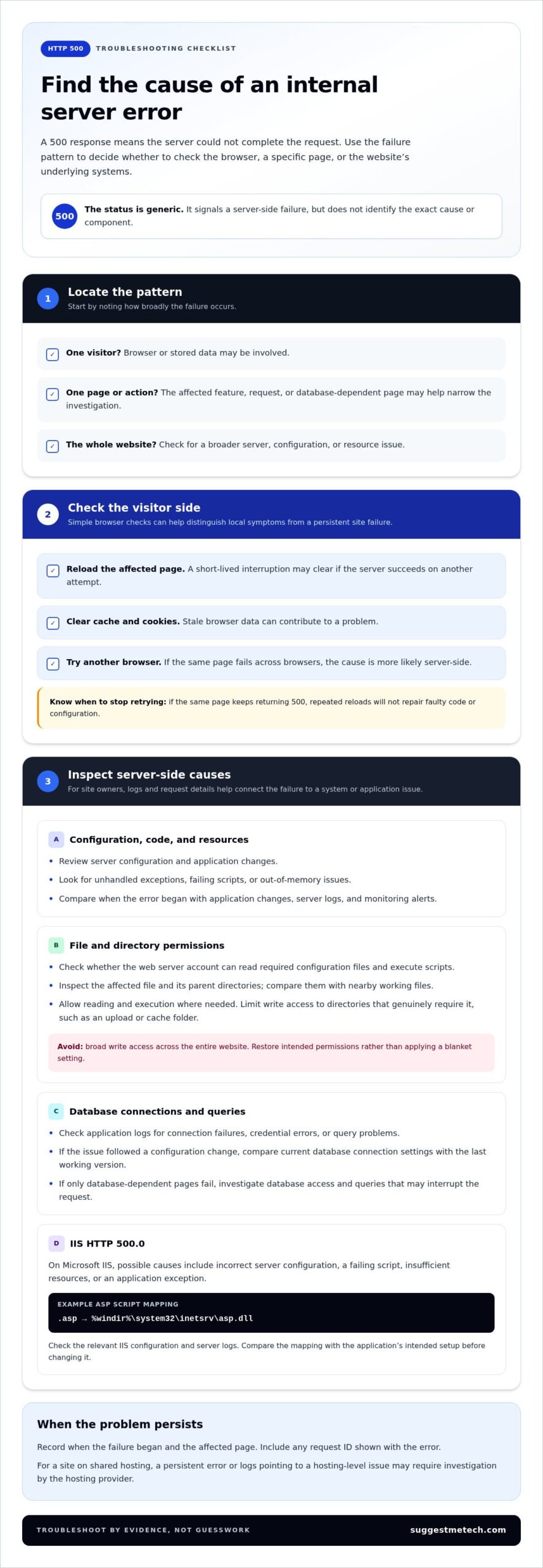
An HTTP 500 error means the server encountered an unexpected condition and couldn’t complete the request. The cause may be browser data, server configuration, application code, permissions, or a database connection.
First, identify whether the failure affects one visitor, one page, or the whole website. The pattern helps narrow down where to investigate.
User-Side and Server-Side Causes
User-side causes involve the browser or its stored data. Server-side causes originate in the website’s system or application.
Reload the affected page, then clear your browser cache and cookies. Stale stored data can contribute to problems, while trying another browser helps identify browser-specific behavior. If the same page fails across browsers, the cause is more likely server-side.
Server-side causes include improper configuration, out-of-memory issues, unhandled exceptions, and faulty permissions. For example, a website may return Error 500 after an application change triggers an exception. Visitors can test another browser, but server owners or administrators need to investigate a persistent server failure.
If you manage a site on shared hosting, contact your hosting provider when the error persists or server logs point to a hosting-level issue. Include the affected page, when the problem began, and any request ID shown with the error.
IIS HTTP 500.0 Causes
IIS HTTP 500.0 is an internal server error generated by Microsoft’s Internet Information Services web server.
Possible causes include incorrect server configuration, a failing script, insufficient resources, or an application exception. For example, a broken handler mapping can stop IIS from passing a request to the correct script engine. Check the relevant IIS configuration and server logs for clues about the failed request.
For IIS, an example script mapping for .asp files points to %windir%system32inetsrvasp.dll. If the mapping is missing or points elsewhere, ASP requests may fail. Compare the mapping with the application’s intended setup before changing it, since unrelated configuration edits can create additional errors.
File and Directory Permissions
File and directory permissions determine which accounts can read, change, or run website files.
If the web server account cannot read a required configuration file or execute a script, the request may fail with Error 500. For example, an application may work until a deployment changes file ownership and blocks the server process. Check permissions on the affected file and its parent directories, then compare them with nearby working files.
Grant only the access the application needs: allow reading and execution where required, and limit write access to directories that genuinely need it, such as an upload or cache folder. Avoid broad write access across the entire website. Because permissions vary by server and application, restore the intended access rather than applying a blanket setting.
Database Connection Problems
A database connection problem occurs when an application cannot reach or authenticate with the database it needs to handle a request.
For example, a page that loads product details may fail if the database server is unavailable or the application’s connection settings are incorrect. The application may then encounter an unhandled error instead of returning the requested content. Check application logs for connection failures, credential errors, or database query problems.
If the issue began after a configuration change, compare the current connection settings with the last working version. If only database-dependent pages fail, that pattern can help distinguish a connection issue from a general server outage. Site owners can also review database queries for bugs or logic flaws that interrupt the request.
Meaning of HTTP 500 Internal Server Error
HTTP status code 500 means a server encountered an unexpected condition and couldn’t fulfill a request. The code identifies a server-side failure, but it doesn’t reveal the exact cause or which component failed.
Think of a website request as a handoff: your browser asks for a page, and the server processes that request. A failed application or server operation can interrupt the handoff and return Error 500 instead of the requested content.
HTTP 5xx Errors
HTTP 5xx errors are status codes that indicate a server-side problem prevented a request from completing normally.
Error 500 is a generic catch-all when the server can’t provide a more appropriate 5XX response. Other codes describe more specific situations: 501 means the server doesn’t support the requested functionality; 502 means a proxy or gateway received an invalid upstream response; 503 means temporary maintenance or overload; and 504 means a server waited too long for another server’s response.
These distinctions help administrators choose where to investigate. A 503 can point toward overload or planned maintenance, while a 504 suggests a delayed response between systems. Since a 500 doesn’t identify its cause, understanding how to fix a 500 internal server error starts with identifying what failed behind the response.
Whether HTTP 500 Is Temporary
An HTTP 500 error is a server failure that may be temporary or may persist until its underlying cause is resolved.
A short-lived interruption can clear after a reload if the server processes the request successfully on another attempt. If the same page continues returning 500, repeated reloads won’t repair faulty code or configuration. Website owners should record when the failure began and compare that time with application changes, server logs, and monitoring alerts.
For visitors, a reload is a simple first check. If other pages work but one page continues failing, that pattern can help the site administrator narrow the investigation to the affected feature or request. Knowing how to fix a 500 internal server error also means recognizing when a browser retry won’t address a server-side cause.
Preventing HTTP 500 Errors
Preventing HTTP 500 errors means finding failures early and reducing the chance that code or configuration changes disrupt requests.
Use server error logs to connect a failed response to the request that triggered it. Regular log monitoring, code reviews, automated testing, and tested backup and recovery procedures can help administrators detect problems and prepare to recover. For example, testing a code change before deployment may reveal an exception that would otherwise interrupt a live page.
Website monitoring can track both HTTP and HTTPS responses, showing whether users can reach pages through each protocol. TCP monitoring on ports 80 and 443 can also identify connectivity or service-level failures that may precede internal errors. A monitoring result of HTTP 200 means the tested request received an OK response, but ongoing checks are needed to notice later failures.
For practical technology guidance on monitoring and website reliability, explore technology monitoring guides as you plan how to track site availability and server responses.
Preventing server errors through monitoring and updates
Server monitoring checks whether a website responds, while updates change its software or configuration. Using both helps administrators spot failures and reduce risks from untested changes. A useful process records what changed, checks affected pages, and preserves evidence when something fails.
Monitor Availability and Response Status
Website monitoring sends requests to selected pages and records whether they respond successfully. Include important user journeys, such as opening the homepage or submitting a login form. The homepage may load while a database-dependent account page fails, so checking only one address can miss a partial outage.
Track HTTP responses and connectivity separately. An HTTP 200 indicates an OK response in a monitoring check, while an HTTP 500 signals an internal server error. TCP monitoring on ports 80 and 443 can identify connectivity or service-level failures that may precede web errors. Set alerts around failed checks so administrators can investigate promptly.
Use Logs to Investigate Failures
Server logs record events that help administrators connect an error response with its cause. Log HTTP 500 responses alongside details about the initiating requests. A timestamp, affected route, and request identifier can help distinguish one failing action from a broader outage.
After an alert, review the logs and compare the error time with application activity. For example, repeated failures on a checkout route may point to that application path, while errors across unrelated pages suggest a wider issue. Keep error logging useful and access-controlled, especially when request details might contain sensitive information.
Test Updates Before Deployment
Software updates change application code, plugins, libraries, or server configuration. Testing changes before deployment helps reveal compatibility problems before visitors encounter failed requests. Apply updates in a test environment when available, then check core pages and forms after release.
Use code reviews and automated tests to catch mistakes that can trigger exceptions. For example, a test can reveal that a new checkout change breaks an existing order submission. Record the update and its outcome, so a new Error 500 can be compared with recent changes. Apply security and maintenance updates through a controlled process rather than changing several components without tracking them.
Prepare a Recovery Process
A recovery process defines how administrators restore service after a failed change or server incident. Keep tested backups and document how to restore the site and its data. A backup that has never been restored in a test may not provide a reliable recovery path.
After a deployment triggers Error 500, use monitoring alerts and logs to identify the affected component. If the recent change matches the failure, follow the documented rollback or recovery procedure. Recheck the affected pages and monitor subsequent requests, confirming that the correction restored normal responses rather than hiding the original error.
How do you fix a 500 error caused by PHP code or scripts?
A PHP-related 500 error occurs when a server-side script fails while processing a request. Find the failing request and its error details before changing code, so you can target the actual cause.
Trace the PHP exception
A PHP exception is an error condition that interrupts an application’s normal execution. Check the Application event log or a custom Application log for the exception type, message, and call stack.
The call stack shows which functions were running when the failure occurred. For example, if a product page fails after a recent code change, the stack may identify the function that loads product information. Match the log entry to the affected request and time before editing files.
Use these details to narrow the issue:
- Exception type: identifies the class of failure recorded by the application.
- Message: describes the immediate problem, such as a missing value or failed operation.
- Call stack: shows the sequence of functions leading to the exception.
Check scripts and application code
PHP script debugging involves inspecting the server-side code that runs when a page or feature is requested. Review the file and function named in the call stack, then look for syntax errors, incorrect logic, or assumptions about data.
For example, a script may expect a database result but receive an empty value. Check how the code handles that result before using it. Review nearby changes too, since a small edit can affect a shared function used across several pages.
If available, reproduce the failing action in a safe test environment. Compare a successful request with the failed one, including the input and application log entries. This can reveal whether a particular form value, page route, or code path triggers the exception.
Inspect database queries
A database query is an instruction that asks a database to retrieve or change information. A bug, syntax error, or logic flaw in a query can interrupt PHP code and lead to an HTTP 500 response.
Review the query mentioned near the exception and check the values passed to it. For instance, a search page may fail when its code builds a query from unexpected input. Correct the query or add appropriate handling for the result, then test the same request again.
Test one change at a time
Controlled testing means changing one likely cause, then checking whether the original failure remains. Save the current code before editing, make a focused correction, and repeat the exact request that triggered the error.
If the same PHP error persists, compare the new log entry with the original exception. A changed message or call stack may show that the first issue was corrected but another failure remains. Confirm related pages still work before applying the change to the live site.
How can file and directory permissions cause a 500 error, and what permissions are safe?
Safe file permissions follow the principle of least privilege: each account gets only the access its role requires. Appropriate settings depend on the operating system, web server account, and application, so avoid applying the same permission pattern to every site file.
Review permissions after deployments, migrations, or restores, since these changes can alter file ownership or access rules.
How permissions trigger server errors
Start by identifying the file or directory involved in the failed request, then check its owner and access rules. Directory access matters along the full path: an account may need permission to pass through parent directories before reaching a file. Compare the affected item with a working file used by the same application to spot relevant differences.
Choose access by task
Read permission lets an account view file contents, write permission lets it make changes, and execute permission lets scripts run or allows directory access. Assign each permission according to the application’s actual needs.
- Application files: allow the server to read required files and execute scripts that need to run.
- Upload folders: limit write access to the application account that stores uploads.
- Configuration files: restrict changes to the account responsible for site administration.
- Directories: allow only the access needed to reach files within the directory path.
On Unix-like systems, review ownership and permissions for the owner, group, and other users. On Windows, inspect the access control list, or ACL, which assigns rights to accounts and groups. The right setting depends on the file’s purpose and the account performing the task.
Diagnose and correct a permission failure
Use the relevant log entry to identify the affected path, then check ownership and permissions without changing unrelated files. If a deployment changed access, restore the expected ownership and grant only the required rights. Test the affected page or script after each adjustment to identify which change resolved the problem.
Avoid broad write access across the website. For ongoing maintenance, use website technology guidance to inform decisions about the tools and practices that support secure site upkeep.
SuggestMeTech: Technology Reviews and Guides
SuggestMeTech’s Technology Reviews and Guides help readers compare technology products and services using practical considerations such as budget and team needs. After troubleshooting an Error 500, use these resources when evaluating website-related technology or deciding what factors matter in a service comparison. They offer decision support, not server diagnosis or repair.
If you’re comparing hosting options, SuggestMeTech’s technology reviews and guides can help you weigh features and trade-offs. Explore coverage across business, school, entertainment, and security to find information relevant to your needs.
Visit suggestmetech.com to explore SuggestMeTech’s guides and reviews, or contact us with your feedback.
Build a Clearer Plan for Your Website
Use the next maintenance window to make troubleshooting a repeatable process. Document who can review server logs, where application errors appear, and how to test a change before it reaches the live site. An incident record can capture the affected page, failure time, recent changes, and the steps that restored service.
That preparation gives you a clearer starting point if you need to decide how to fix a 500 internal server error again. It also helps distinguish a brief interruption from a recurring application or configuration issue, so future decisions can be based on evidence rather than guesswork.
When you’re comparing website technologies or looking for practical guidance on related decisions, SuggestMeTech’s reviews and guides can help you assess your options. Explore SuggestMeTech’s technology guides and take your next step with a more informed plan.
Frequently Asked Questions
These answers explain what the error indicates, which clues can help narrow down its cause, and where troubleshooting should begin.
What is Error 500?
Error 500 is a general HTTP status response used when a server cannot complete a request and has no more specific server-error response to return. The message shown to visitors may be a custom page rather than the server’s technical explanation. Treat it as a signal to investigate the request, not as a diagnosis of the exact fault.
What Causes It?
The cause is usually in the application or server processing the request, not in the text of the error page. To narrow it down, compare the failure with recent changes: a new deployment, configuration edit, or change in application behavior can offer a useful lead. If nothing changed, investigate whether the problem affects one function or the whole site.
What does a 500 Internal Server Error mean?
It means the server returned a failure response while handling your request. The number identifies the response category, not the cause or the repair. This distinction matters: a 401 response concerns unauthorized access, while a 404 indicates a page wasn’t found. A 500 instead tells you that the requested operation failed during server-side processing.
What are the most common causes of a 500 error?
Common causes include application exceptions, configuration problems, resource limits, file-access restrictions, and failures involving connected services. The most useful clue is often the pattern: if a feature fails after a change, investigate that change first; if unrelated pages fail together, look for a shared component. This approach helps prioritize checks without assuming that every Error 500 has the same source.
How can website visitors troubleshoot a 500 error?
Visitors can check whether the failure affects one page or the entire site, then note what they were doing when it appeared. If the page involved a purchase or form submission, look for a confirmation before trying again to avoid duplicate actions. Visitors can’t inspect server settings, so persistent failures need attention from the website’s owner or administrator.
How can website owners diagnose a 500 error in server logs?
Start with the time of the failed request and find matching entries in the web server and application logs. Compare the failed entry with a nearby successful request to spot differences in the route, processing step, or error message. If present, a request identifier can narrow the search. Gather the relevant log details before changing code or configuration.
How do you fix a 500 error caused by .htaccess or server configuration?
Save a copy of the current configuration before editing it. Review recent directives or settings, then revert one suspected change at a time and retest the affected page. If the error clears, the changed rule is a strong lead. Restore only the required settings carefully. Avoid replacing the entire configuration with a generic file, since sites often depend on custom routing or access rules.

