

An error code doesn’t necessarily mean a website is broken. HTTP status codes describe how a server handled a request, helping you tell whether it succeeded, redirected you, or encountered a request or server problem.
The code’s class is a useful starting point for deciding what to check next. This guide explains common responses and how to interpret them during everyday browsing and website troubleshooting.
Key Takeaways
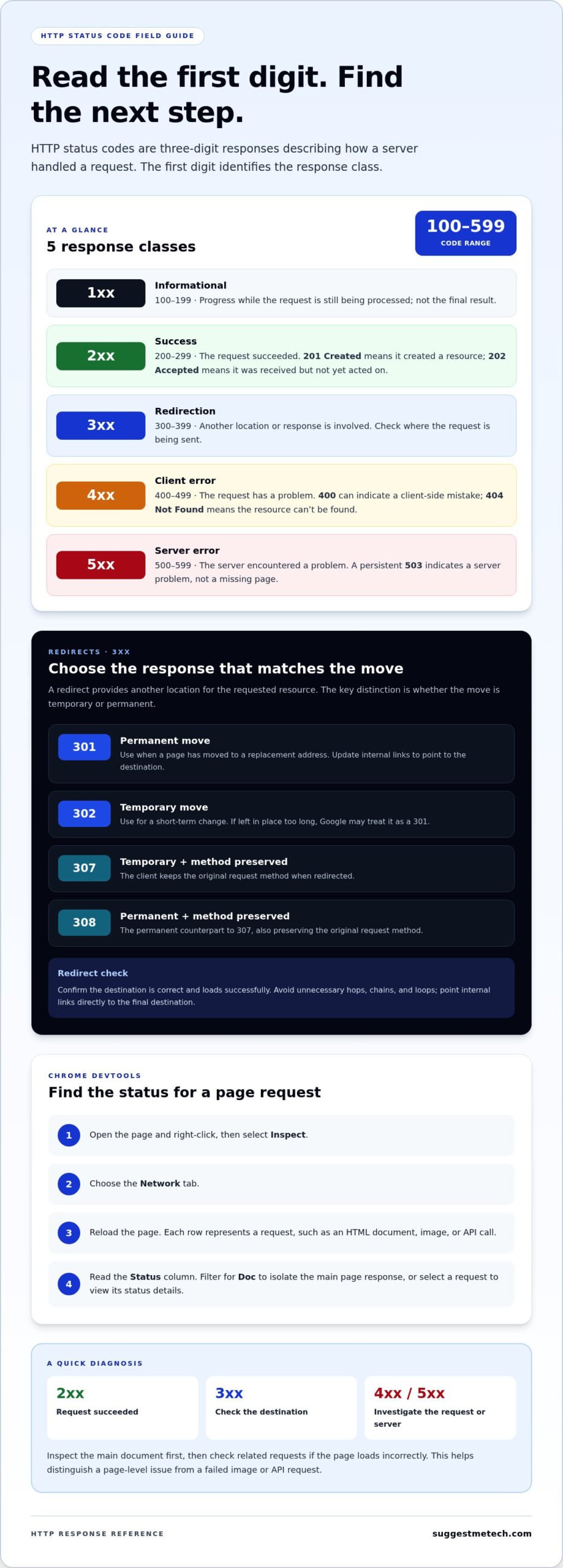
- Use the first digit to identify whether a response signals success, redirection, a request problem, or a server issue.
- Distinguish temporary redirects from permanent ones before changing links or diagnosing unexpected page behavior.
- Informational responses usually describe progress between the browser and server, rather than a failed page load.
- A rate-limit response means requests are arriving too quickly; pause and review how the requests are being sent.
- For request errors, check the method, submitted data, and request format to narrow down what needs correction.
What are HTTP status codes?
HTTP status codes are three-digit responses that describe the result of a browser or API request. They fall into five classes, from informational responses to server errors, so understanding website error codes starts with the first digit.
Status Code Categories and Classes
A status code class groups HTTP responses by their first digit and general purpose. The five classes are informational, successful, redirection, client error, and server error.
Codes from 100 to 199 are informational; 200 to 299 indicate successful responses; 300 to 399 signal redirection. The 400 to 499 class identifies client errors, while 500 to 599 indicates server errors. For example, 201 Created means a request created a resource, while 404 Not Found means the server can’t find the requested resource.
In API development, a status code helps the receiving application decide what to do next. A 200 response can indicate a successful request, while 202 Accepted means the server received it but hasn’t acted on it yet. An API might return 400 when submitted data contains a client-side mistake. Developers can use these responses to separate successful operations from validation problems or server failures.
Checking Status Codes in Chrome
Chrome’s DevTools Network panel shows the status code returned for each page request. Open the page, right-click, select “Inspect,” choose the “Network” tab, then reload the page.
Each row represents a request, such as an HTML document, image, or API call. Find the “Status” column and look for a value such as 200 or 404. If the column isn’t visible, widen the panel or select a request to view its status in the details pane. Filtering for “Doc” can help isolate the main page response from its supporting files.
Status Codes and Search Rankings
Status codes tell search engines whether a page is available, moved, or returning an error. A 301 signals a permanent move, while a 404 indicates that the requested resource can’t be found.
Use a redirect when a page has a replacement destination, and update internal links to point to that destination. A 302 represents a temporary redirect, although Google may treat one that remains in place too long as a 301. A persistent 5xx response, such as 503, indicates a server problem rather than a missing page. Check the affected URL and its intended destination before changing the response.
For a practical diagnosis, compare the code with the request and expected outcome: a 2xx response means success, a 3xx response points elsewhere, and a 4xx or 5xx response calls for investigation. In Chrome, inspect the main document first, then check related requests if the page loads incorrectly. That sequence helps distinguish a page-level issue from a failed image or API request.
Redirect status codes
Redirect status codes tell a browser that a requested resource is available at another location. The response provides a destination, allowing the browser to follow the new address and continue the connection.
Permanent and Temporary Redirects
A permanent redirect marks a URL change intended to last, while a temporary redirect signals a short-term change. HTTP 301 Moved Permanently gives the new URL, whereas 302 Found identifies a temporary location and keeps the original URI for future requests.
Choose a permanent response when a page has moved to a replacement address, such as after a site restructure. Use a temporary response for a short-lived change, such as directing visitors to a maintenance notice. A 302 left in place too long may be treated by Google as a 301, so review temporary rules as the site changes.
HTTP 307 Temporary Redirect also preserves the original request method while sending the client to another URI. HTTP 308 Permanent Redirect combines a permanent move with that same method preservation. These distinctions matter for requests such as form submissions, where changing the method could affect how the destination handles the submitted data.
Redirection Responses
Redirection responses are HTTP status codes from 300 to 399 that direct a client to another resource or provide a related response. A 301 suits a permanent URL move; a 302 suits a temporary one.
For example, if a page moves from /old-page to /new-page, the server can return a 301 response with the new location. A 307 is useful when the client must keep its original request method during a temporary redirect. A 308 is the permanent counterpart when method preservation is needed.
Managing redirects means keeping destinations accurate and avoiding unnecessary hops. Each redirect adds a request and response before the browser reaches the page. Review redirect rules after changing URLs, and update internal links to point directly to the final destination. A chain from an old page through an intermediate URL to a current page can usually be reduced to one redirect.
If a redirect sends visitors to the wrong page, check its destination. Make sure the target URL is correct, loads successfully, and doesn’t redirect users back to the original address. A malformed destination can break the connection or create a loop, with pages redirecting to one another without reaching usable content.
When a URL changes, map the old address to its closest relevant replacement before setting up a redirect. Don’t send unrelated pages to one general destination just to avoid a missing-page response. After the change, test the old URL in a browser and inspect the status code and destination. This can help catch an incorrect response before it affects more visitors.
For more practical technology guidance, explore technology reviews and guides that help explain how digital tools and services work.
What does a 1xx Informational status code mean?
A 1xx response is an informational message sent while a request is still being processed. The server uses it to communicate progress before sending a final response, so the 1xx code alone doesn’t confirm that the requested task is complete.
HTTP status codes from 200 to 299 indicate successful responses, while codes from 300 to 399 indicate redirection. A 2xx code means the request succeeded; a 3xx code tells the client that another response or location is involved.
Informational responses are HTTP status codes from 100 to 199 that provide updates before the final response. They can help a client and server coordinate a request without replacing the eventual result.
100 Continue means the server received the request headers and the client should send the request body when needed. For example, after a 100 response, a browser or API client can proceed with a large upload instead of sending its body before the server is ready.
102 Processing means the server accepted the full request but hasn’t completed it, so a final response isn’t available yet. This status was introduced in RFC 2518 and removed from WebDAV in RFC 4918, making it a useful example of how status-code support can change over time.
103 Early Hints sends selected response headers before the final HTTP message. A browser can use those early details to prepare resources while the server continues processing the main request.
Successful responses are HTTP status codes from 200 to 299, and each code describes a different kind of success. The code’s meaning depends on the request and the work completed by the server.
- 200 OK means the request succeeded; what success means depends on the request method.
- 201 Created confirms that the request succeeded and created a new resource, such as a record submitted through an API.
- 202 Accepted means the request was received but hasn’t yet been acted upon.
- 204 No Content means there’s no response content to send, although the headers remain useful.
- 206 Partial Content returns only part of a resource when the client requests a range.
These distinctions matter in API development. A client should interpret 201 as resource creation, rather than expecting the same response format as 204, which contains no content. A 202 also doesn’t mean the requested processing is finished; the client may need a later update to learn the outcome.
203 Non-Authoritative Information describes a modified response returned by a transforming proxy. The proxy received a 200 OK response from the origin, then returned a changed version. The status identifies that the content came through a transformation rather than being passed through unchanged.
Read the code alongside the response format and request. A 100 or 103 message precedes the final result, while a 2xx code reports success. A 3xx code instead signals redirection, so the client may need to follow another location. Distinguishing these responses helps explain whether the server is still working, has completed the request, or expects the client to continue elsewhere.
Rate limiting
Rate limiting controls how often a user or application can request a website resource. HTTP 429 Too Many Requests means too many requests arrived within a given time period.
To work out where an error originates, retry the page and compare results across devices or networks. If one device fails but another loads the page, investigate the first device. If multiple users see the same server code, the website is the more likely source.
Common 5xx server errors identify problems on the server side: 500 means the server encountered a situation it can’t handle, 502 means a gateway received an invalid response, 503 signals a server-related error, and 504 means a gateway didn’t receive a response in time.
A 429 response is a rate-limit signal, not proof that the requested resource has disappeared. A website or API may use it to control repeated requests, such as an application refreshing the same page in a tight loop. Pause requests, then retry at a slower pace; for an API, review the client’s retry behavior and avoid sending another request immediately after every 429 response.
HTTP 413 Content Too Large means the request exceeds what the server will process. For example, an upload may contain more data than the endpoint accepts. Reduce the submitted content or adjust how the request is prepared; changing the method alone won’t make an oversized body smaller.
A timeout describes a request that didn’t receive a response in time, while a rate limit describes requests arriving too frequently. HTTP 504 specifically identifies a gateway that couldn’t get a response in time. Check whether the failure affects one request or several, and note the status code and the action that triggered it.
Temporary service interruptions can produce 503 responses. Website owners should review server resource usage, maintenance activity, server logs, and DNS when diagnosing a 503. Those checks help distinguish capacity pressure from planned work, application faults, or problems resolving the site’s name.
For a 500 error, inspect server logs around the failed request and identify recent changes to the application or configuration. A 502 calls for examining the connection between the gateway and the server it contacts. For a 504, investigate which upstream response is delayed; for a 503, include the resource, maintenance, log, and DNS checks above.
If a code appears on just one device, retry the page in another browser or on another device using the same network. If it appears across devices on that network, test a different network. If the same server error follows the website across networks, report the URL, status code, time, and action to the website owner. Contact your internet service provider when multiple sites fail only on your connection. Involve the hosting provider when the website owner identifies a server or hosting fault.
Request validation and method errors
Request errors occur when the server can’t process a request as sent or rejects its method. A 404 means the server can’t find the requested resource; check the address and try again.
These responses may point to a malformed URL, missing access rights, or submitted data the endpoint can’t handle. The specific code helps distinguish a browser-side mistake from a server rule.
400 Bad Request means the server can’t or won’t process a request because it perceives a client error. Check the request message for an incorrectly formed URL, missing fields, or invalid syntax. For example, an API request with a misspelled parameter may be rejected before the origin server performs its intended action.
401 Unauthorized means the client must authenticate itself to receive the requested response. Confirm that you’re signed in and that the request includes the expected authentication details. A 401 differs from 403 Forbidden, which means the client lacks access rights and the server refuses the resource.
405 Method Not Allowed means the target resource rejects the request method. A browser or API might send a POST request to an endpoint that accepts GET instead. Compare the method with the endpoint’s expected behavior, then use the appropriate method rather than repeatedly sending the rejected request.
422 Unprocessable Content means the request is syntactically correct but can’t be processed. For instance, a form may reach the server in the right format but contain a value the application can’t accept. Review the error message and correct the specific field or value before resubmitting.
414 URI Too Long means the server can’t process a URI because it exceeds an acceptable length. Excessive data in a GET request’s query string can cause this response; sending that data in a POST request may be more appropriate. 413 Content Too Large instead refers to a request body that’s larger than the server is willing or able to process.
Other request-related codes identify narrower issues. 416 Range Not Satisfiable means the server can’t provide the requested portion of a file. 417 Expectation Failed means the server can’t meet the request’s Expect header requirements. 423 Locked identifies a locked resource, while 424 Failed Dependency means a request failed because another request it depended on failed. 426 Upgrade Required indicates the client should switch protocols as specified in the Upgrade header.
To troubleshoot a 404 as a visitor, check the spelling and path in the address bar, remove accidental extra characters, and open the page through the site’s navigation. If a link still leads to 404, report the broken address to the website owner. For a form or API request, compare the method, submitted values, and response message with what the endpoint expects.
SuggestMeTech: Technology Reviews and Guides
SuggestMeTech publishes technology reviews and guides to help readers compare products and services and make informed choices. After identifying an HTTP status code, explore these guides for broader context on the technology or services involved, such as what to consider when evaluating web hosting options.
This article helps distinguish a request problem from a server response. Technology guides can inform your next decision, whether you’re comparing services or learning how a tool fits your needs. SuggestMeTech also offers advertising space for advertisers seeking placements on a technology-focused publication.
Visit suggestmetech.com to explore more technology reviews and guides.
Turn Error Checks Into a Clearer Next Step
Treat an error as a prompt to clarify what you need next, not as a diagnosis on its own. Note whether the issue blocks an essential task, affects one feature, or causes confusion without stopping progress. This helps you describe its practical impact and decide what to address first.
A useful report explains what you expected and what happened instead. For example, “I expected the account page to open after signing in, but it returned an error” gives a clearer starting point than “the site is broken.” This detail makes understanding website error codes more useful in real situations.
If the same issue returns, compare the circumstances rather than relying on memory. Did it follow a particular action, affect one part of the site, or prevent you from completing a task? A concise record of these patterns can help you explain the problem and judge whether it has changed.
For broader context as you explore technology choices, visit SuggestMeTech. Keep approaching technical problems with clear observations and practical questions. Each careful check can make your next decision easier.
Frequently Asked Questions
What does a 4xx Client Error mean?
A 4xx response usually points to something about the request or the way the page was accessed, rather than a general outage. Start by checking the full address, whether you’re signed in, and what action triggered the response. If a form or app is involved, note the submitted fields and request method. These details help distinguish a one-off input problem from an access or page issue.
What do common 4xx website errors like 400, 401, 403, 404, and 429 mean?
Read these codes as different clues: 400 points to request formatting, 401 to sign-in, 403 to permissions, 404 to the address or page, and 429 to request frequency. The useful next step depends on the code. Correct a malformed form submission, review account access, navigate to the page from the site menu, or pause automated retries. Record the code and the action that produced it.
What causes browser errors like ERR_CONNECTION_TIMED_OUT and DNS_PROBE_FINISHED_NXDOMAIN?
These messages appear when Chrome can’t complete a connection or resolve a domain name. A mistyped domain can trigger DNS_PROBE_FINISHED_NXDOMAIN; a delayed or unreachable response can produce ERR_CONNECTION_TIMED_OUT. Check the spelling, then try another website. If other sites work, retry the affected domain later. If several sites fail, restart the browser and compare access on another network.
What do HTTP status codes mean for SEO and search engine indexing?
Status codes help crawlers decide how to handle URLs, but the intended page setup matters too. Check that important pages resolve to their preferred address and that site navigation points to current URLs. For removed content, decide whether a relevant replacement exists or the old URL should remain unavailable. Review crawl reports for recurring patterns, then fix the underlying links or configuration instead of treating every reported code alike.

