
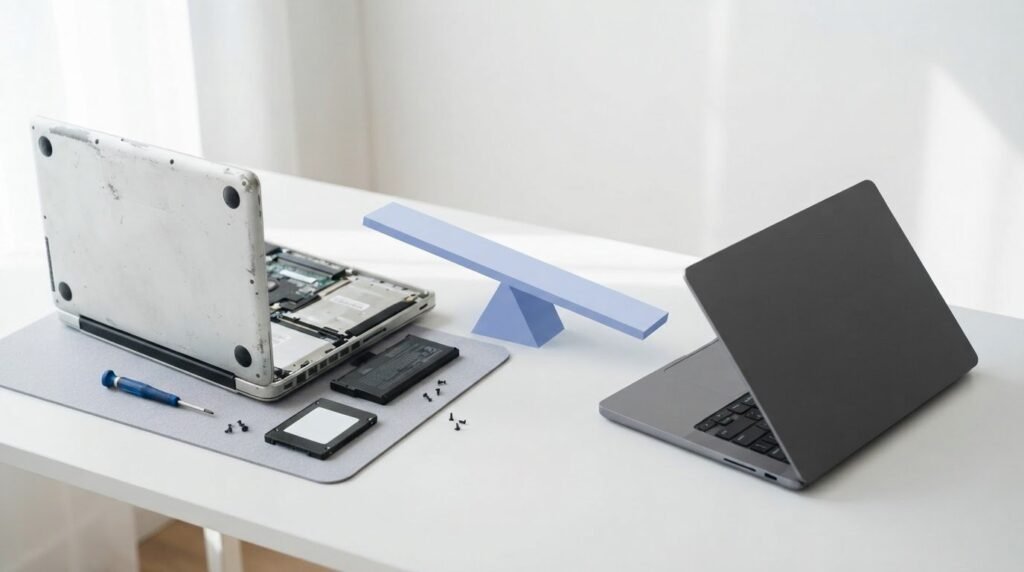
A computer’s age can matter as much as the repair quote. If a repair costs under 30-40% of a comparable replacement, fixing it is often a sensible choice; at 50% or more, replacement deserves serious consideration. Whether you should repair or replace your old computer also depends on what failed and whether the repaired machine will still meet your needs.
It’s tempting to focus on the immediate bill when a familiar computer develops a problem that seems fixable. But a low-cost repair may only postpone a larger failure, while an older computer with one minor issue may still have useful life left. This guide answers the question, should I repair or replace my old computer, by comparing repair costs, age, component failures, and performance. You’ll learn which problems are often worth fixing, when age shifts the balance toward replacement, and how to tell whether a repair will restore the performance you need.
Key Takeaways
- Compare the repair quote with the cost of a suitable replacement, and consider whether the fix addresses the underlying problem.
- Weigh computer age alongside device type: a laptop, desktop, gaming PC, and business machine may have different useful lifespans.
- Separate isolated issues, such as a worn battery or damaged keyboard, from failures affecting several major components.
- Judge a repair by the performance you’ll gain and whether the computer can still handle your everyday tasks.
- Use practical technology reviews and guides to compare your options before deciding what to do next.
Should I Repair or Replace My Computer?
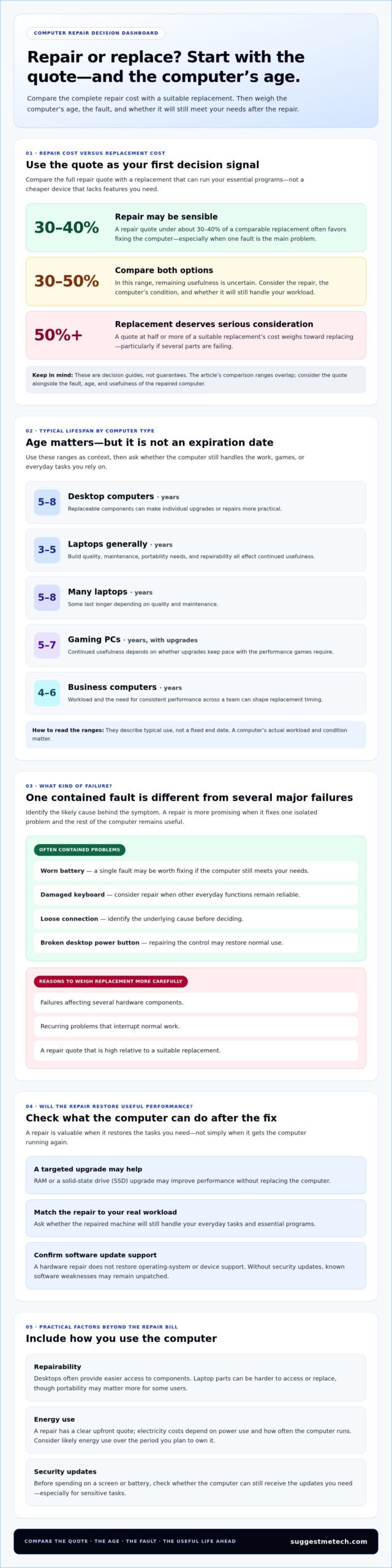
Compare the repair quote with a replacement that meets the same needs. A repair costing about 30-40% of replacement cost can favor repair; at 50% or more, consider replacing the computer.
Repair Costs for Common Parts
Part prices vary by computer and repair, so compare the full quote with the value of the device.
RAM and solid-state drive (SSD) upgrades may improve performance without replacing the computer.
Repair Costs Versus Replacement Costs
Compare the complete repair quote with the cost of a replacement that runs your essential programs, not with a cheaper device that lacks features you need.
The first may make keeping the laptop worthwhile; the second makes replacement worth considering, especially if other parts are failing.
| Option | Cost comparison | Best suited to |
|---|---|---|
| Repair | About 30-40% of replacement cost | A computer with one fixable fault |
| Compare both | Between 30-50% of replacement cost | A repairable computer with uncertain remaining usefulness |
| Replace | 50% or more of replacement cost | A computer with costly or multiple failures |
Choose repair when one part is the main problem and the quote is low relative to a suitable replacement.
Energy Use and Buying New
How do repair costs and energy use compare with buying a new computer? A repair has a clear upfront quote, while energy costs depend on the computer’s power use and how often it runs. Consider expected electricity use alongside the purchase price, especially if the computer stays on for long work sessions.
A replacement may use less electricity, but its purchase cost still matters. Compare the repair bill and likely energy use over the period you plan to own the computer. Choose the option whose combined cost and performance suit your daily workload.
Risks of Missing Security Updates
What are the security risks of using a computer that no longer receives updates? Without security updates, known software weaknesses may remain unpatched, increasing exposure when you browse, open attachments, or sign in to accounts. Repairing the computer does not restore update support if its operating system or device is no longer supported.
Before spending on a screen or battery, confirm that the repaired computer can still receive the updates you need. If it cannot, replacement may be more practical for online banking, work files, and other sensitive tasks.
Is it worth fixing a laptop or a desktop?
A computer’s lifespan provides useful context, but its role and repairability also shape its value. Compare the expected service life for its type with how you use it and which parts can be replaced.
Expected Lifespans by Computer Type
Desktop computers generally have an expected lifespan of 5-8 years, while laptops generally last 3-5 years. Many laptops last 5-8 years, depending on quality and maintenance. Gaming PCs generally last 5-7 years with upgrades, and business computers generally last 4-6 years.
These ranges describe typical use, not a fixed expiration date. A gaming PC may remain useful longer if upgrades keep pace with the owner’s games. A business computer may be replaced while it still works because its role requires consistent performance across a team.
| Computer type | Typical lifespan | What affects continued usefulness |
|---|---|---|
| Desktop | 5-8 years | Replaceable components and the tasks it must handle |
| Laptop | 3-5 years generally; many last 5-8 years | Build quality, maintenance, and portable-use demands |
| Gaming PC | 5-7 years with upgrades | Whether upgrades maintain the performance games require |
| Business computer | 4-6 years | Workload and the need for consistent organizational performance |
Use the range as a reference, then consider whether the computer still handles your actual workload. A desktop used for email and documents has different demands from a gaming PC running new releases.
Desktop and Laptop Repairability
A desktop often provides easier access to components, making individual upgrades or replacements more practical. For example, you may be able to change a compatible storage drive without replacing the monitor, keyboard, or case. This makes desktops a good fit for owners who value gradual upgrades and can work within the system’s compatibility limits.
Laptops pack components into a compact design, and some parts can be harder to access or replace. Their advantage is portability: a student carrying one between classes may value that convenience more than easy upgrades. Before choosing a repair, consider whether the affected component is replaceable and whether the computer will remain useful for its intended setting.
In short, a desktop may be the stronger repair candidate when one replaceable part is the main problem. A laptop can still be worth fixing when portability matters and the repair preserves the tasks it already handles.
Minor repairs versus serious component failures
A single faulty part can leave an otherwise useful computer worth fixing. Failures affecting several hardware components, or recurring problems that interrupt normal work, make the decision harder. Identify the likely cause behind the visible symptom before choosing a repair.
A damaged keyboard, worn battery, or loose connection is often a contained problem. If a laptop still starts, opens the programs you need, and stores files reliably, repairing one fault may restore its everyday use. For example, a desktop with a broken power button may work normally once that control is repaired.
Serious failures can affect core operation or several parts at once. A computer that shuts down unexpectedly, repeatedly fails to start, or shows storage errors may have a problem beyond one replaceable component. A motherboard failure, for example, can make a repair more involved than replacing a keyboard.
Look for patterns rather than treating each symptom separately. One crash after a software update differs from repeated crashes during ordinary tasks. A laptop fan running loudly alongside sudden shutdowns may point to a problem that needs attention before more hardware is affected.
- Isolated fault: One function fails, while other tasks remain stable.
- Repeated symptoms: Crashes, failed starts, or shutdowns return after restarting.
- Multiple warning signs: Performance problems appear alongside unusual sounds or storage errors.
- Work interruption: The failure prevents essential tasks or threatens business continuity.
Back up important files before a repair if the computer can still access them. Copy work documents, photos, and saved projects to a separate storage location, then open a few copied files to confirm they work. If the computer cannot start or its drive is failing, avoid repeated attempts that could make access harder. Prioritize recovering essential data.
A backup plan is especially important when a computer failure could bring a business to a halt. Keep essential files separate from the machine, and plan how work could continue if it becomes unusable. For a home user, that might mean preserving tax records and family photos before taking a laptop in for service.
To decide whether a repair is worthwhile, list the symptoms, identify which tasks still work, and note when each problem occurs. Then weigh a focused fix against the possibility of multiple failing parts. A contained issue on a dependable computer may justify repair; recurring failures that disrupt work or put data at risk call for a broader replacement decision.
Assessing whether repairs restore useful performance
A repair is worthwhile when it fixes the fault and leaves the computer capable of handling your regular tasks. Judge the result by daily performance, software compatibility, and remaining upgrade options.
Performance After Repairs
Before approving a repair, list the tasks the computer must handle: video calls, document editing, browsing, or a particular work program. After the fix, test those same tasks. A working keyboard matters little if the computer still freezes during a basic video call.
Distinguish a component fault from a broader performance limit. Replacing a faulty drive may address startup delays, while a motherboard problem can affect several functions. A repair can extend useful service if it resolves the actual bottleneck, rather than improving one symptom while other tasks remain slow.
Use this practical test after repair:
- Restart the computer and open the programs you use regularly.
- Try a typical workload, such as a video call with documents open.
- Check that files open and save without errors.
- Compare the result with the performance you need, not with a new machine.
For a computer aged 4-6 years, the repair decision depends on the fault and available upgrades. At 7 or more years, replacement becomes more likely unless the fix is simple and performance needs are modest.
Operating System and Software Compatibility
To check whether your computer can run current operating systems and software, identify its model and hardware, then compare those specifications with the requirements for the operating system and programs you rely on. Before investing in repairs, confirm that the machine receives operating system updates and can run essential applications.
Compatibility and speed are different. A computer may open a program today but lack support for a newer operating system, limiting future updates. Repairing the keyboard or screen won’t change that; a supported hardware upgrade may help only if the system allows it.
Use these checks to make the comparison concrete:
- Find the computer’s model and installed processor, memory, and storage details.
- Compare those details with the requirements for your operating system.
- Check each essential program, including work or school software.
- Confirm that updates remain available for the operating system you plan to use.
A motherboard replacement may involve replacing other components, so weigh it against the computer’s overall compatibility. If the repair restores stable performance and the machine supports your essential software, keeping it can make sense. If it cannot run supported software, a successful repair may still leave your needs unmet.
How computer age affects repair decisions
A computer’s purchase date is only one clue. To judge whether age changes the repair decision, assess the condition of its parts, the work it must handle, and whether a targeted upgrade can meet that need.
Assess the parts, not only the purchase date
Components can age at different rates, so one fault doesn’t mean the whole computer is worn out. A desktop with a failing storage drive may still have a sound processor and enough memory for daily tasks. Identify the affected part and check how the rest of the computer performs before treating its age as a reason to replace everything.
Use the computer’s history as evidence. A laptop used mainly for occasional writing may show a different wear pattern from one carried daily and used for long work sessions. Note recurring faults, performance changes, and whether previous repairs solved the problems. Those details help distinguish a computer with one aging component from one developing several limitations.
Match an upgrade to the computer’s remaining role
An upgrade makes sense when it removes a specific obstacle without creating a larger compatibility problem. Added memory may help a computer handle several open applications, while replacement storage can improve slow access to files. Neither change will make an older processor suitable for every demanding task. First decide what the machine must do, then assess whether the proposed part suits that workload.
For example, a family desktop used for browsing and document editing may remain useful after a focused upgrade. The same change may not meet the needs of someone editing large video projects. Compare the computer’s current role with the work you expect it to handle next, rather than upgrading simply because a component can be changed.
Use age to plan the next decision
Think of the computer as part of a replacement plan, not just as a single repair bill. If you rely on it for work, consider how you would continue essential tasks during a breakdown and whether a secondary device could cover them. For home use, decide which files and applications must move if the machine is retired. Planning ahead can make a future replacement less disruptive.
When comparing possible replacements, include factors such as the software you need, portability, and upgrade flexibility. SuggestMeTech’s technology reviews and comparisons can help readers assess computer options against those practical requirements. The useful question is not simply how old the current machine is, but whether its next repair will keep it suited to its role.
SuggestMeTech: Technology Reviews and Guides
SuggestMeTech, “Trusted Tech Reviews & Comparisons,” publishes Technology Reviews and Guides to help you compare computer options after weighing repair costs, age, and performance. Use these guides when deciding what kind of replacement fits your everyday tasks or when comparing technology choices before buying.
Use the criteria in this article to focus your comparison: required software, useful performance, upgrade potential, and whether the repair addresses the actual fault. A laptop that meets your needs after a minor fix may not need replacing; a computer that can’t support essential software may call for a different choice. SuggestMeTech also offers Advertising Space.
Explore SuggestMeTech’s guides or visit suggestmetech.com to keep comparing your options.
Choose the next step that fits your needs
Deciding whether you should repair or replace your old computer is also a chance to define what you need from your next setup. Consider the work it must handle, where you’ll use it, and which limitations you don’t want to carry forward. That can make a replacement more deliberate, or clarify why keeping your current machine still works for you.
If the decision remains close, write down your essential tasks and compare each option against them. A clear list can separate must-haves from features that won’t affect your day-to-day use.
Continue comparing your computer options with SuggestMeTech. Take the next step with a clear view of what matters most, and choose the path that supports how you work.
Frequently Asked Questions
Use these answers to turn the repair-or-replace decision into practical checks. Each addresses a question that can help you assess your options before committing to a repair or a new computer.
Can you upgrade it instead of replacing it?
Yes, if the computer’s design supports the part and the upgrade addresses a real limitation. First identify the exact model, then check its manufacturer documentation for compatible memory or storage. Consider whether the upgrade can be installed without replacing other components. For example, a storage upgrade won’t solve a problem caused by an underpowered processor, so match the proposed change to the slowdown you experience.
Is it a hardware or software problem?
Try to reproduce the problem and note what happens just before it appears. If one program fails while other applications work, the issue may be limited to that software. If the problem occurs before the operating system loads, hardware is more likely. Record error messages and recent changes, then test with a different user account or a clean restart. These observations can help narrow the cause without guessing at a part.
Is it worth it to fix my computer?
A fix is worth considering if the computer remains useful and the repair resolves the problem interrupting your work. Include practical costs beyond the repair itself, such as time without access to the machine or the effort of moving files and settings to another computer. For a household computer used occasionally, temporary inconvenience may be manageable. For a machine needed for daily work, continuity may matter more.
How old is too old to repair a computer?
There’s no single age that makes repair pointless. Instead, assess whether the computer still fits your routine, whether its operating system receives updates, and whether the repair would leave other limitations untouched. A machine serving one narrow purpose, such as playing local media, may remain useful longer than one expected to run demanding new applications. Base the decision on its role, not its birthday alone.
How much does computer repair cost in the United States?
There isn’t one nationwide repair price because the total depends on the fault, the computer’s design, and the work required. A quote may cover parts, labor, and diagnostic work, so compare what the estimate includes before judging the total. Ask whether the proposed work will resolve the reported problem or only one symptom. The most useful comparison is between the complete repair and a replacement that meets your actual needs.
What is the 50% rule for deciding whether to repair or replace a computer?
The 50% rule treats a repair quote equal to half the price of a comparable replacement as a reason to consider buying new. Use it as a prompt to compare, not as an automatic decision. Before applying it, make sure the replacement comparison uses a computer suited to the same workload. Also consider whether the repair quote covers the full fault, rather than only the first part identified.
Which computer problems are worth repairing, and which usually require replacement?
Problems with a clear cause and defined fix are easier to evaluate than intermittent faults that appear unpredictably. Before deciding, ask what the repair is expected to change and how you’ll know the issue is resolved. If the same symptom returns after a fix, the original diagnosis may have missed another cause. A pattern of unresolved issues makes replacement more attractive than a repair plan with no clear endpoint.
How much does upgrading RAM or an SSD improve an older computer?
The improvement depends on what currently limits the computer. To judge the result, record a task that feels slow, such as opening a large project or switching between work applications, before making changes. Repeat it afterward under similar conditions. If the delay remains, memory or storage wasn’t the main bottleneck. This before-and-after check helps distinguish a noticeable improvement from an upgrade that doesn’t address your actual workload.

