

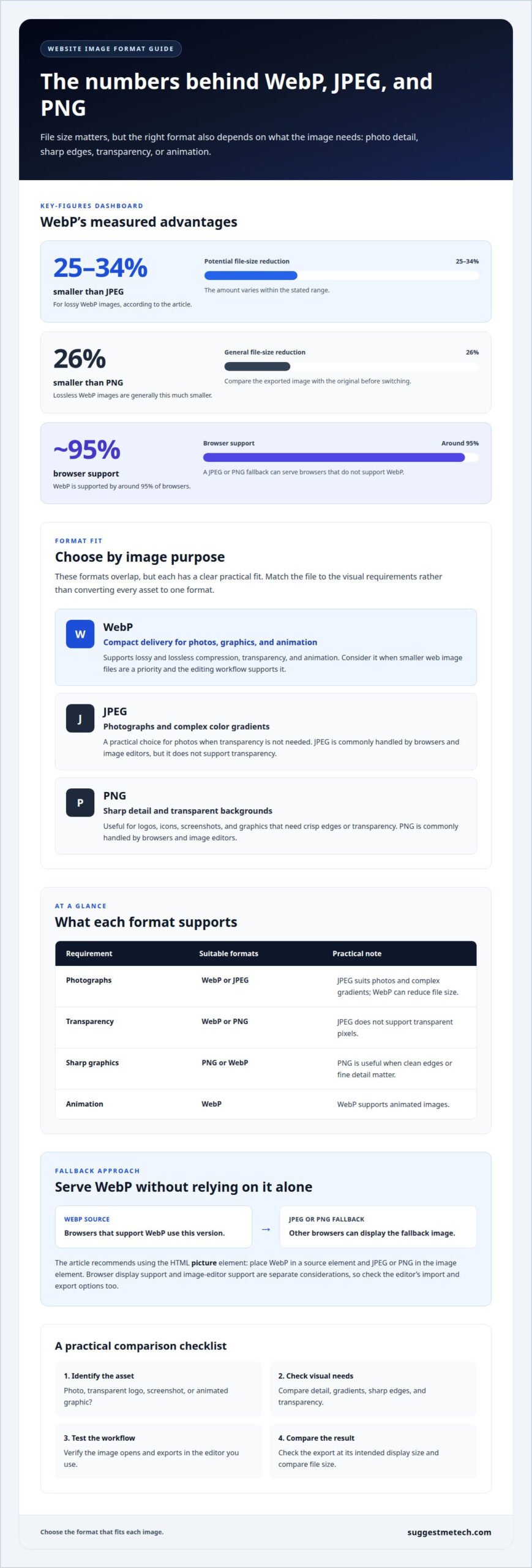
The newest image format isn’t automatically the right replacement for every image. The practical answer to webp vs JPEG vs PNG for websites is that WebP often creates smaller files, but JPEG remains useful for photos and PNG for transparent or sharply detailed graphics. Lossy WebP images can be 25-34% smaller than JPEGs, while lossless WebP images are generally 26% smaller than PNG files.
It makes sense to focus on file size: lighter images can help pages load faster. But the best choice also depends on image quality, transparency, and animation support. This guide compares those trade-offs, explains which format suits common website images, and offers a practical way to choose the right format for each use.
Key Takeaways
- Match the image format to its purpose rather than converting every website image to the same type.
- Consider browser and image-editor compatibility when choosing a format for your workflow.
- Use transparency and animation requirements to narrow down the formats that fit your image.
- Compare image quality and file size together when optimizing pages for faster loading.
- Apply a simple decision guide to choose the right format for photos, graphics, and other website visuals.
Which Scenario These Image Formats are Ideal for?
Choose an image format by matching the file to its purpose and delivery workflow. WebP suits smaller web images, JPEG suits photographs, and PNG suits graphics needing crisp edges. WebP is supported by around 95% of browsers, so a fallback can help serve images to the remainder.
To serve WebP with a JPEG or PNG fallback, use the HTML picture element. Place the WebP file in a source element and the JPEG or PNG file in the img element. Browsers that support WebP use it; others can display the fallback.
| Format | Typical website use | Compatibility consideration | Best fit |
|---|---|---|---|
| WebP | Photos, graphics, and animated images | Supported by around 95% of browsers | Pages prioritizing compact image files |
| JPEG | Photographs and complex color gradients | Commonly handled by browsers and image editors | Photos where transparency is unnecessary |
| PNG | Logos, icons, screenshots, and transparent graphics | Commonly handled by browsers and image editors | Sharp detail or transparent backgrounds |
Browser support and editing support are separate considerations. A browser may display WebP correctly, while an older editing workflow may not open or export it directly. Check your image editor’s import and export options before making WebP the only working copy.
For example, a team editing product photos in a tool that exports JPEG can keep the JPEG as its source file. The website can then serve a WebP copy with the JPEG as a fallback. This keeps the editing workflow familiar while allowing browsers to use the lighter version.
PNG remains a practical choice for a logo with transparent space around its mark. JPEG suits a detailed landscape photograph, where gradients and many colors matter more than transparency. WebP is useful when the same site needs efficient delivery for both photos and graphic assets.
- Use WebP as a web-delivery option when browser support and the site workflow fit.
- Keep JPEG for photographs when a straightforward editing and fallback path matters.
- Choose PNG for interface graphics where clean edges or transparency are essential.
Before converting a large image library, test a representative file in the browser and editor. Check that the export looks right, the fallback loads, and the format suits the asset. If a site uses both a WebP hero photo and a transparent PNG logo, choosing formats separately often works better than using one format everywhere.
What is a WebP file?
WebP is a raster image format for web graphics and photos. Raster images store pictures as a grid of colored pixels, like a product photo displayed on a website. WebP supports both lossy and lossless compression, letting creators balance file size against retained image detail.
Lossy compression reduces file size by discarding some image data; lossless compression preserves the original pixel information. For example, a WebP product photo can use lossy compression, while a diagram with fine lines may benefit from lossless encoding.
WebP supports images with 24-bit or 32-bit color depth and an alpha channel, which stores transparency. It also supports 8-bit and 10-bit color depth. At 10-bit depth, each primary color has 1,024 shades, allowing over one billion possible colors.
WebP’s capabilities make it flexible, but the format should still suit the image. A photo, logo, and screenshot have different visual priorities. Compare the export at its intended display size before replacing an existing file.
- Photographs: JPEG remains a practical choice for photos and complex color gradients. WebP is also suited to photos when reducing file size is important.
- Graphics: PNG works well for logos, icons, and screenshots that need transparency or sharp detail. WebP can also store transparent images.
- Web optimization: WebP supports lossy and lossless compression, so it can serve different image types with one format.
Resize images to fit the space they will occupy instead of uploading a much larger original. For a wide banner, prepare an image sized for that layout and provide responsive versions when the design calls for them.
There isn’t one quality setting that suits every image. Export a test at a moderate quality level, then compare it with the source at the size visitors will see. Inspect faces, text, gradients, and sharp edges; adjust compression if visible artifacts appear.
Use an image editor or conversion tool that exports WebP and lets you choose lossy or lossless compression. Keep an original copy, then compare the WebP export with the JPEG or PNG version. This simple workflow helps protect image quality while revealing unnecessary file weight.
For a photo-heavy page, test WebP against JPEG. For a transparent logo, compare WebP and PNG around the edges. Choose based on the visible result, required transparency, and file size that best serves the page.
Transparency and animation support
Transparency lets an image sit over a page background without an opaque box. PNG and WebP support transparent pixels through an alpha channel, while JPEG does not. For a logo over a colored navigation bar, choose PNG or WebP; a JPEG displays a filled background instead.
An alpha channel stores how transparent each pixel appears. In a PNG icon, transparent pixels can reveal the page color behind its outline. PNG images can use 24-bit or 32-bit color depth with an alpha channel, making them useful when a graphic needs both detailed color and transparency.
JPEG uses lossy compression and does not support transparency. A JPEG product photo can work well in a white page area, but it cannot preserve a transparent cutout around the product. Saving that cutout as JPEG fills its transparent area with a background color.
WebP supports transparency and animation, making it an option for a transparent interface icon or short animated graphic. For a logo that needs a transparent background, compare WebP and PNG. For a looping animated illustration, WebP can combine animation with compact web delivery.
| Format | Transparency | Animation | Suitable example |
|---|---|---|---|
| WebP | Supported | Supported | Transparent animated website graphic |
| PNG | Supported | Not listed as a supported feature here | Static transparent logo or icon |
| JPEG | Not supported | Not listed as a supported feature here | Photo displayed against a solid background |
For a static graphic, use PNG when lossless compression and precise edges matter. A company mark with thin lettering is a practical example: its transparent background lets it sit on different page colors. WebP is another option when the graphic needs transparency in a web-optimized file.
Animation changes the decision. A moving loading indicator or animated badge needs a format that supports multiple frames, which WebP does. A static PNG remains suitable for a still version. Choose a still image when motion adds no information to the page.
GIF is another animation option, but its palette is limited to 256 colors. That limitation can show in a gradient-heavy animation, such as a softly shaded banner. WebP supports animation and may suit that graphic better, while a static PNG or JPEG fits a nonmoving design.
Use this quick selection process: identify whether the graphic needs transparency, decide whether it moves, then compare the result at its display size. For a transparent static logo, test PNG and WebP. For a photo without transparency, JPEG remains suitable. For an animated graphic, consider WebP and inspect its colors and edges before publishing.
File size and website loading speed
Image file size affects how much data a browser must download before displaying a page. WebP can achieve an average of 30% more compression than JPEG while retaining good image quality. Smaller files can reduce image transfer time, especially on pages with several large visuals.
Compression reduces the data stored in an image file. Lossy methods remove some visual information, while lossless methods preserve it. WebP supports both, so choose based on the image and the quality you need. A detailed portrait, for example, needs a different quality check from a flat diagram.
Google researchers reported that WebP compresses 42% better than libpng and 23% better than ZopfliPNG. These comparisons relate to PNG compression tools, not every individual image or export setting. Results vary with the original image, its dimensions, color detail, and compression choices.
File size is only one factor in loading speed. A browser must also request, download, decode, and display each image. Even an efficiently compressed image can load slowly if its pixel dimensions far exceed its display size. A properly sized WebP can avoid sending unnecessary image data.
- WebP: Useful when reducing image transfer size is a priority and the visual result remains clear.
- JPEG: Useful for photographs when its appearance and file size suit the page.
- PNG: Useful for graphics that need lossless detail, though complex images can produce larger files.
Consider a page with a large banner and several product photos. Exporting appropriately sized WebP versions can reduce the data transferred for those images. Keep the originals, then compare the exports at their actual display size. Check fine details, gradients, and edges before choosing the smaller version.
For a fair test, use the same source image and dimensions. Export it in WebP, JPEG, and PNG, then compare file sizes and visible quality. A photo may show little visible change after WebP compression, while text inside a screenshot may need sharper detail. The best balance depends on the image’s purpose.
WebP’s smaller files can reduce the image data a page sends, but format choice alone doesn’t determine page speed. Image dimensions, the number of images, and the browser’s decoding work also matter. For a practical review, inspect the largest images first, resize oversized files, and compare compressed versions before updating the page.
Use WebP when it provides a clear size advantage without harming important details. Choose JPEG or PNG when their image quality or specific features better suit the asset. Testing representative images from a page is more useful than converting every file blindly.
WebP file-size comparisons with JPEG and PNG
WebP’s file-size advantage depends on whether it uses lossy or lossless compression. Compare equivalent images at matching dimensions and visual quality, then choose the smaller file that still serves its purpose.
Licensing relates to image rights and the terms of tools used, not just the file extension. Image format also doesn’t provide accessibility text: add meaningful alt text and review metadata after conversion.
WebP File Size
Lossy WebP images are 25-34% smaller than JPEGs, depending on the compression level. Lossless WebP images are generally 26% smaller than PNG files. Those comparisons give a useful starting point, not a guaranteed result for every image. A photo with smooth gradients and a logo with sharp edges can produce different outcomes, even at matching dimensions.
WebP is useful when a website needs smaller files while retaining an acceptable visual result. Compare the WebP export with its source at the size visitors will see. Check faces, text, gradients, and transparent edges before selecting it for an image library.
JPEG File Size
JPEG uses lossy compression, making it a common option for photographs and complex color gradients. A lossy WebP file is generally smaller than a comparable JPEG, though the difference depends on compression settings. JPEG remains practical when its appearance and size suit the image or an existing workflow exports it reliably.
For a product photo, export both formats from the same source and compare them at the intended display size. Keep the JPEG if WebP’s smaller file introduces visible artifacts. This avoids choosing a format by file size alone.
PNG File Size
PNG uses lossless compression, preserving image detail, and can support transparency. Lossless WebP files are generally 26% smaller than PNG files, though individual results vary by content. PNG can remain the better fit when its detail and established editing workflow matter more than reducing file size.
A screenshot with small text or a transparent interface icon needs careful inspection. Compare PNG with lossless WebP and check lettering, edges, and transparency. Choose the version that preserves the details the graphic needs.
For a fair comparison, use the same original image and pixel dimensions. Export WebP, JPEG, and PNG versions where each format suits the image, then record file size and inspect quality. Don’t compare a resized WebP with a full-sized PNG; the different dimensions make the result misleading.
Metadata can include details such as camera information or copyright notices. Conversion tools may handle metadata differently, so review export settings and inspect the converted file when that information matters. Alt text is separate from metadata: describe informative images in the page text rather than relying on the filename or format.
Choose WebP when the tested export reduces file size without damaging important details. Keep JPEG for photos when its result suits the page, and PNG when lossless detail or transparency is the priority. The clearest decision comes from comparing equivalent files, not assuming one format wins for every image.
SuggestMeTech: Technology Reviews and Guides
SuggestMeTech’s “Trusted Tech Reviews & Comparisons” help readers weigh technology choices, including image format, file size, and website needs. Use these guides when evaluating related tools or services and looking for practical information to support your decision.
For example, a website owner choosing between WebP, JPEG, and PNG can use this comparison to identify image requirements, then explore relevant technology guides for broader decisions. SuggestMeTech also offers Advertising Space for businesses promoting technology-related offerings.
Visit SuggestMeTech to explore its Technology Reviews and Guides.
Build an Image Workflow You Can Maintain
A useful image policy should work beyond a single page update. Record which formats suit common assets, how editors export them, and where fallback files belong. This gives designers and developers a consistent starting point as the site changes.
For your next update, test the workflow on a representative page before applying it across the site. Check whether the content system preserves filenames, whether editors can update source images, and whether future changes remain straightforward. A small, repeatable process can prevent image decisions from becoming a technical hurdle every time someone publishes.
Your approach to webp vs jpeg vs png for websites can evolve with your content and tools. Review it when you redesign pages, change image workflows, or add new types of visuals. Focus on what each page needs instead of converting files simply for consistency.
If you’d like to discuss your next steps, contact SuggestMeTech. A clear plan can make your next website update easier to manage.
Frequently Asked Questions
These answers address common decisions about image formats, publishing workflows, and website performance.
Is WebP replacing JPG?
No. WebP is another option, not a reason to remove every JPEG from a website. JPEG remains useful for existing photo libraries, editing workflows, and fallback delivery. A practical migration can generate WebP versions for web pages while retaining original JPEG files for future edits. This keeps published versions separate from the source and preserves established content workflows.
How do WebP, JPEG, and PNG compare in file size and image quality?
WebP can produce smaller files, but the best result depends on the image and export settings. A WebP vs JPEG vs PNG for websites comparison is most useful when every version comes from the same source and uses matching dimensions. Inspect details at the intended display size, especially text, faces, and gradients. A smaller file isn’t a good trade if compression obscures a product label.
Which image formats are best for photographs, logos, icons, and screenshots on websites?
Choose a format based on each asset’s visual requirements and how it will be used. For a photograph without transparent areas, compare JPEG and WebP exports. For a logo displayed over different background colors, preserve a transparent master. For a settings-panel screenshot, inspect small labels and interface lines. The suitable format keeps those details clear in the page context.
How do WebP lossy and lossless compression compare with JPEG and PNG?
Lossy compression discards some image information, while lossless compression retains it. WebP supports both approaches; JPEG uses lossy compression, and PNG uses lossless compression. Keep an untouched master before exporting compressed versions. For example, repeated edits and saves can affect a compressed JPEG, so create new exports from the original rather than treating a web-ready file as the source.
Do WebP, JPEG, and PNG support transparency, animation, and color profiles?
WebP supports transparency and animation, PNG supports transparency, and JPEG doesn’t support transparency. Color profiles are a separate consideration: conversion settings can affect whether profile information carries into an export. If brand colors matter, compare the export with its source in the browser. A transparent or animated image still needs review for accurate color rendering.
What are browser support and compatibility differences for WebP, JPEG, and PNG?
WebP works in around 95% of browsers, so a fallback can cover browsers that don’t support it. JPEG and PNG are practical fallback choices. Editing software is a separate compatibility issue: browser display support doesn’t guarantee that a team’s editor can open or export WebP. Test the entire workflow, from image editing to page display, before changing publishing practices.
How much can switching website images to WebP reduce page weight and loading time?
Lossy WebP images are 25-34% smaller than JPEGs, depending on compression level, while lossless WebP images are generally 26% smaller than PNG files. These file-size comparisons don’t directly predict loading time. To assess a page, compare its image data before and after conversion, then consider how much of the page’s total transferred data those images represent.
What are the SEO and Core Web Vitals effects of using WebP, JPEG, or PNG?
The webp vs jpeg vs png for websites decision doesn’t determine search visibility by itself. Smaller image transfers may help if images are slowing a page, particularly a prominent image that takes time to appear. Preserve descriptive alt text, set image dimensions in the layout, and avoid visibly degraded exports. Compare page performance before and after changes to assess their practical effect.

