

The best WordPress theme may be the one with fewer features. The practical answer to how to choose a WordPress theme is to start with what your site needs to do, then compare themes for the right layouts, useful customization options, mobile responsiveness, and a comfortable fit for your skills and budget. A theme should support your site’s purpose without adding complexity you don’t need.
Choosing between free and paid themes can feel like a trade-off between saving money and gaining flexibility, but the right option depends on what you need. This guide explains how to match features to your site, find themes, test their mobile layouts, and compare options before deciding. You’ll also learn how to assess updates, support, and performance so your choice works beyond the initial design.
Key Takeaways
- Match the theme type and editing experience to how you plan to build and manage your site.
- Preview your layout on a phone as well as a desktop to spot navigation and readability issues.
- Compare free and paid themes by their customization options, update history, documentation, and support.
- Look beyond the demo design: assess performance, accessibility, and search-friendly structure before choosing.
- Choose features that meet your site’s needs without adding tools or complexity you won’t use.
Where Do You Find WordPress Themes?
Find themes in the WordPress dashboard or the WordPress Theme Directory. Before installing one, identify its type and editing experience: block, classic, hybrid, or universal.
- Choose the editing approach that fits your workflow. A block theme uses blocks for site elements, including headers, footers, and page templates. Full Site Editing, available through the Site Editor, lets you adjust those parts alongside page content. Choose a block theme if you want to build and edit the overall layout within WordPress’s block interface. The default WordPress theme for 2025 is a block theme.
A classic theme uses traditional templates and commonly offers the Theme Customizer for settings such as colors, fonts, and menus. It may suit you if you prefer that familiar control panel or already know your way around a classic theme. Compare the editing tools, not just the demo’s appearance, before choosing.
- Compare hybrid and universal themes by how they handle editing. A hybrid theme combines a classic foundation with selected block features, such as block-based template parts. It may suit a site owner who wants newer editing tools without moving every design control into the Site Editor. Check which parts of the site use blocks and which still rely on classic settings.
A universal theme is designed to work with both classic and block editing approaches. This flexibility may help if your site combines older customization workflows with newer blocks. These labels describe different approaches, so open the theme details and examine its actual editor support. For example, check whether you can edit the header through the Site Editor.
- Browse themes through WordPress before downloading files. In your dashboard, open Appearance, select Themes, then choose Add New. The WordPress Theme Directory includes thousands of themes for different site purposes and editing preferences. Use its search and filters to narrow your choices, then review screenshots and theme details.
Free themes are often easy to install directly from the dashboard. If you have a theme as a ZIP file, upload it through the Add New theme screen. A downloaded theme won’t appear on your site until you activate it. Install one theme at a time so you can see how its templates and settings behave.
- Match the theme’s templates to your site’s main task. A template controls the layout of a page type, such as a blog post or archive. Check that the theme supports the pages you need instead of choosing based on its homepage demo alone. For an online shop, select a theme designed for WooCommerce. A general-purpose block theme can also be customized for different kinds of sites.
Preview each candidate, but treat its demo as a guide, not a guaranteed result. The demo may depend on plugins or content that isn’t included with the theme. For example, a portfolio preview might rely on sample galleries or extra tools. Check the theme’s editing interface and templates before committing.
How do I know if my theme is mobile responsive?
A responsive WordPress theme adjusts its layout to fit different screen sizes. Test the same pages on a phone and desktop, then check whether text, images, menus, and buttons remain usable.
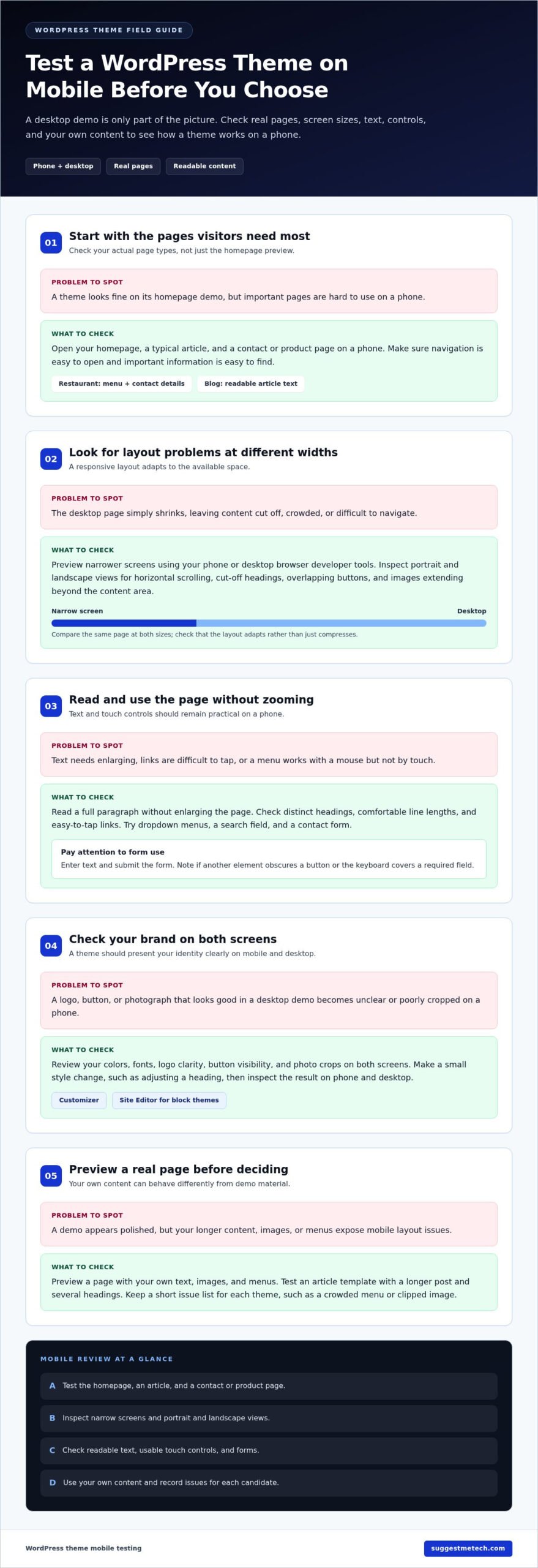
Follow these steps before settling on a design. A desktop preview alone won’t show how visitors experience your site on mobile.
- Start with the pages visitors need most. Open your homepage, a typical article, and a contact or product page on a phone. A theme controls how content appears, including its layout, fonts, and colors. Check whether the navigation is easy to open and important information is visible without awkward scrolling.
For example, a restaurant homepage should make its menu and contact details easy to find on a small screen. A blog should keep article text readable without making visitors zoom.
- Test the layout at different screen sizes. Use your phone and a desktop browser’s developer tools to preview narrower screens. Use browser developer tools or a mobile phone to inspect the page at different widths.
Look for horizontal scrolling, cut-off headings, overlapping buttons, and images that extend beyond the content area. Check portrait and landscape views, too. A responsive layout should adapt to the available space, not simply shrink the desktop page.
- Check readable text and touch-friendly controls. Read a full paragraph on your phone without enlarging the page. Make sure headings are distinct, line lengths are comfortable, and links are easy to tap. A menu that works with a mouse but is difficult to use by touch can frustrate mobile visitors.
Try a contact form, search field, and any dropdown menus. Enter text and submit the form yourself. If another element obscures a button or the keyboard covers a required field, note where the theme’s mobile layout needs attention.
- Compare your brand across devices. Many themes may look appealing in desktop demos, but focus on the colors, fonts, and image treatment that support your brand. Check whether a logo stays clear, buttons remain visible, and photographs crop sensibly on a phone.
Some themes let you adjust presentation through the Customizer; block themes may use the Site Editor. Make a small change, such as adjusting a heading style, then inspect the result on both screens. This shows whether you can maintain the design yourself without sacrificing readability.
- Test a real page before committing. Preview a page with your own text, images, and menus, because demo content may behave differently. If the theme includes a template for articles, test that layout with a longer post and several headings. For additional practical technology guidance, explore WordPress theme reviews and guides.
Keep a short list of issues for each candidate, such as a crowded menu or clipped image. Choose the theme that presents essential content clearly on both a phone and a desktop, with fewer layout fixes needed.
Theme developers and free or paid themes
Theme features matter, but the developer’s update and support practices also affect how manageable a theme is. Compare the WordPress Theme Directory listing, developer documentation, and available support before deciding.
- Review the theme’s listing before installing it. WordPress Theme Directory listings show details such as version updates, active installations, and ratings. Consider these signals together rather than treating one rating as a complete measure of quality. Check whether the latest version and update history suggest ongoing maintenance, then read user feedback for recurring concerns about layout or theme settings.
Anyone can create a WordPress theme and offer it for free or for a fee. A listing can help you assess the author’s track record, but it doesn’t replace checking documentation and support options. Shortlist themes whose features fit your site, then compare their developer information.
-
Assess Developer Support
Open the theme’s documentation and related support forum before choosing it. Look for clear installation instructions, explanations of settings, and useful answers to questions about common tasks. A theme with a complex layout may need more guidance than a simple design, so check whether the documentation explains the controls you’ll use.
Read recent forum discussions for patterns, such as unanswered questions about menus or recurring problems with theme settings. Commercial theme support is often available for a set term and may require renewal. Factor that into your decision, especially if you expect to rely on developer help after setup.
- Check whether development appears ongoing. Review the changelog, which records theme updates and changes. Note its version history and whether updates address bugs or add useful improvements. A changelog gives you a clearer view of development than a demo page, which focuses on appearance rather than maintenance.
Free theme updates may not always be readily available, so inspect the developer’s update history and documentation carefully. Don’t assume a theme’s current layout will continue receiving changes. If you depend on a particular feature, such as a custom homepage layout, assess whether its documentation and update record support long-term use.
Apply the same review to paid themes. A paid option may offer more built-in customization without requiring a developer, but extra settings help only if they suit your site. Compare the available controls with the changes you expect to make yourself.
-
Compare Free and Paid Options
Compare the free version and any paid option by features, update access, documentation, and support. A free version may suit a straightforward site with a layout you can use as provided. A paid theme may fit better if its added controls let you build the design you need without hiring a developer.
Check exactly which features belong to each version, then compare them with your practical requirements. Don’t pay for controls you won’t use, and don’t choose a free option solely because it has no purchase fee. The strongest fit is the theme whose development and support arrangements match your site’s needs.
Comparing free and paid themes
Compare themes by the tasks they support, not just by whether they’re free or paid. These steps help you weigh customization, quality, and fit for your site.
- Match features to your requirements. WordPress offers thousands of free and premium themes, so first list the functions your site needs. A basic information site may need clear page layouts, while a publication may need flexible article displays. Choose a free theme if its tools cover those needs. Consider a paid option if its additional features solve a specific design problem.
For example, note whether you need a custom homepage or separate layouts for different content. Compare each theme against that list instead of getting distracted by features you won’t use.
- Compare customization options. Commercial themes usually offer more built-in customization without requiring a developer. That can help if you plan to adjust several parts of your design. A free theme may suit you better when its existing layout works with only minor changes.
Test the controls you expect to use. If your small business site needs distinct service and contact pages, check whether the theme lets you adjust those layouts directly. More settings are useful only when they support a real task.
- Assess quality and performance. Coding quality varies widely among free WordPress themes. Commercial themes are often optimized for speed, SEO, and other factors, but those claims don’t replace testing. Compare candidate themes using the same content and plugins, then inspect how their pages perform and display.
A theme that loads many scripts can affect performance. Check what each option adds beyond its visual layout, and compare similar pages, such as article templates, rather than unrelated demos.
- Weigh the trade-offs for your situation. Use this comparison alongside the features you actually need. A site owner with straightforward needs may prefer a free theme that already fits the design. A site needing more built-in controls may benefit from a paid option.
Factor Free theme Paid theme Customization May offer basic controls Usually offers more built-in options Code quality Varies widely Assess the theme itself Best fit Sites that suit the included design Sites needing extra design flexibility Compare the free and paid versions side by side. Mark the features that support a real site task, then choose the option that fits without adding unnecessary complexity.
How do you evaluate a WordPress theme’s speed, accessibility, and SEO?
Evaluate each theme using the same sample pages and content, then compare loading behavior, usability, and page structure. A polished demo can hide extra scripts or design choices that affect real visitors.
- Inspect the theme’s scripts before judging speed. Scripts are code files that add interactive features. Loading many scripts in the page’s head area can reduce performance, so inspect the theme’s source or ask a developer to review it. In Chrome, developer tools can help identify loaded files and show whether the theme adds scripts you don’t need.
Compare candidate themes using the same page content, images, and active plugins. For example, test the same article template rather than comparing one theme’s homepage with another theme’s gallery. This helps separate the effects of the theme from differences in content and functionality.
- Test common actions with a keyboard. Use Tab to move through navigation, links, and buttons, then check whether the current focus is visible. Press Enter to open a menu or activate a control. Visitors who can’t use a mouse should still be able to reach the main menu and contact link.
Check text contrast and heading order on a sample page. Dark text on a light background is easier to distinguish than pale text over a busy image. A clear sequence of headings also helps visitors scan a long article. Test these details in the actual theme preview, not just its promotional screenshots.
- Review page structure for search clarity. Open a sample post and check whether its title, headings, and main content follow a sensible order. A theme should display the article title clearly and keep body text separate from navigation and decorative elements. For example, a recipe page should make the recipe heading and instructions easy to identify.
Don’t treat a theme as a replacement for quality content or an SEO plugin. Instead, look for clean presentation, readable headings, and templates that display your information consistently. Compare how the same page appears in each candidate, including its archive and search results layouts.
- Test a realistic page before choosing. Add representative text, images, menus, and necessary plugins to a test installation. Check the page on desktop and mobile, then repeat keyboard navigation. A portfolio theme, for example, should keep project titles and captions understandable alongside image galleries.
Record specific issues for each theme, such as slow-feeling interactions, unclear focus, or crowded headings. Use those observations to compare the candidates rather than relying on a single score or demo. For more practical technology comparisons, explore SuggestMeTech’s technology guides.
SuggestMeTech: Technology Reviews and Guides
SuggestMeTech provides Technology Reviews and Guides to help readers compare technology options and make informed decisions. If you’re weighing theme features, editing tools, or free and paid choices, explore its guides after identifying what your site needs.
Use these resources to build a clearer shortlist and understand the trade-offs between options. SuggestMeTech also offers Advertising Space for organizations seeking to reach readers interested in technology.
Visit SuggestMeTech to explore its technology reviews and guides.
Keep Your Theme Aligned With Your Site’s Next Step
The best decision is one you can keep aligned with your site as it grows. Revisit the design whenever a page’s purpose, audience, or publishing workflow changes. That way, your theme won’t become a constraint simply because it suited an earlier version of your site. The goal isn’t constant redesign, but a deliberate choice that supports how you publish and serve visitors.
Use what you’ve learned about how to choose a WordPress theme as a decision framework, not a hunt for a perfect demo. Record why you selected your theme and which site needs mattered most. That note will make future design changes easier to judge, especially when a new feature or layout looks appealing but adds complexity. To continue exploring technology choices, visit SuggestMeTech. Move forward with a theme that fits your priorities, then let real use inform what comes next.
Frequently Asked Questions
These answers address practical decisions that may arise as you narrow your options. Use them to match a theme to your site’s purpose, tools, and plans for future changes.
What should the theme be able to do?
Choose a theme that supports the tasks visitors come to your site to complete. For a local service business, that might mean finding service details and submitting an inquiry; for a publication, it could mean browsing topics and reading articles. List the essential visitor actions, then check whether the theme supports them through its layouts and settings without adding unrelated features.
How do I know if a theme is reliable and secure?
Look for a clear update history, usable documentation, and developer responses to reported issues. Then consider how the theme fits your maintenance routine: keep a backup before theme updates and test significant changes in a staging environment before publishing. A theme alone can’t guarantee site security, so review its update practices alongside your WordPress, plugin, and hosting maintenance.
Is it worth buying a theme where there are so many nice-looking free options?
A paid theme can be worthwhile if it solves a specific problem that free options don’t. For example, a growing publication may need distinct layouts for reviews, guides, and category pages. If a free theme already supports your content and workflow, extra controls may not justify the cost. Compare the features you’ll actually use, along with ongoing support and update terms.
Is the theme compatible with the plugins I want to use?
Test your essential plugins with the theme before building the live site. Add a contact form, SEO tool, or shop plugin to a staging copy and check the pages where each appears. Watch for duplicate controls, broken layouts, or features that stop working. For an online store, confirm the theme is designed for WooCommerce and test key shop pages, such as product and cart displays.
Should I look into purpose-built themes, such as for portfolios, e-commerce, or niche-specific themes?
Choose a purpose-built theme when its layouts match your website’s central purpose. A photographer may benefit from portfolio templates that showcase project images, while an online shop needs product-focused pages and WooCommerce support. A niche theme can save setup work, but avoid one that relies on specialized features your site won’t use. A flexible general theme may suit broader or changing goals.
Theme Lock-In: How Easy Is It to Switch?
Check whether the theme stores content in standard WordPress posts and pages or depends heavily on theme-specific shortcodes and page-builder elements. Switching themes generally changes how content is displayed, but shortcodes can remain as unwanted text if the old theme created them. Before committing, inspect a sample page and consider how its layout and content would look with another theme.
What factors should you consider when choosing a WordPress theme?
Start with your site’s purpose, visitor tasks, essential page layouts, and the editing workflow you can manage. Then weigh mobile usability, accessibility, performance, plugin needs, developer updates, and support. For example, a solo writer may value straightforward article publishing, while a community site may prioritize clear navigation across several content categories. Rank your requirements so attractive extras don’t outweigh essential functions.
How do you choose a WordPress theme for your website type and goals?
Map each goal to a page or feature before comparing themes. A portfolio needs project pages that present work clearly; a shop needs product layouts and a smooth checkout path. A nonprofit might prioritize donation information, event pages, and volunteer details. Preview those specific tasks with sample content, then choose the theme that supports them without forcing your site into an unsuitable structure.

