

According to a 2025 Pew Research Center survey, 90% of adults aged 65 and older actively use the internet, yet finding the best laptop for seniors in 2026 often feels like deciphering unnecessary technical jargon. You shouldn’t have to battle cramped keyboards, microscopic screen text, or surprise operating system updates just to manage your banking or enjoy a video call with family. For everyday computing, practical visual comfort and dependable reliability matter far more than raw processing power.
You deserve a machine that works smoothly without constant maintenance headaches or online security worries. In this guide, we review the most accessible, durable, and intuitive laptops available today, filtering out the retail gimmicks to focus on what actually improves your daily routine. We compare the leading Windows, Apple, and ChromeOS models on display clarity, keyboard comfort, and built-in safety, helping you choose the right device with complete confidence.
Quick Answer
The best laptop for seniors in 2026 balances a high-contrast display of 15 inches or larger, a comfortable keyboard, and low-maintenance software. Top options include the 15-inch Apple MacBook Air for Apple ecosystem users, the Dell Inspiron 15 for familiar Windows multitasking, and ChromeOS devices for streamlined, virus-resistant web browsing.
Key Takeaways
- Discover how prioritizing visual ergonomics, such as 15-inch anti-glare screens, reduces eye strain far more effectively than premium processing chips.
- Identify the best laptop for seniors in 2026 based on direct lifestyle matches, from straightforward web browsing to seamless family video calls.
- Compare Windows 11, macOS Golden Gate, and ChromeOS to determine which operating system aligns best with your existing technical comfort level.
- Learn the essential hardware checklist, including why 16GB of RAM and solid-state storage ensure responsive performance without unnecessary expenses.
- Follow simple initial setup steps to enlarge system text scaling, eliminate distracting bloatware, and safeguard personal accounts against digital threats.
What Makes a Laptop Ideal for Older Adults in 2026?
Most computer reviews focus heavily on gaming frame rates, peak processing speeds, and featherlight builds. For older adults, these standard benchmarks miss the mark entirely. Evaluating the best laptop for seniors in 2026 means shifting attention away from raw silicon power toward daily usability, sensory accessibility, and hardware ergonomics.
A senior-friendly laptop must minimize physical strain. As hand dexterity changes and vision shifts, hardware features like key spacing, panel glare, and audio clarity dictate the entire computing experience. Hardware that accommodates these needs eliminates the daily friction that turns routine web browsing or family check-ins into frustrating chores.
Display Quality and Visual Ergonomics
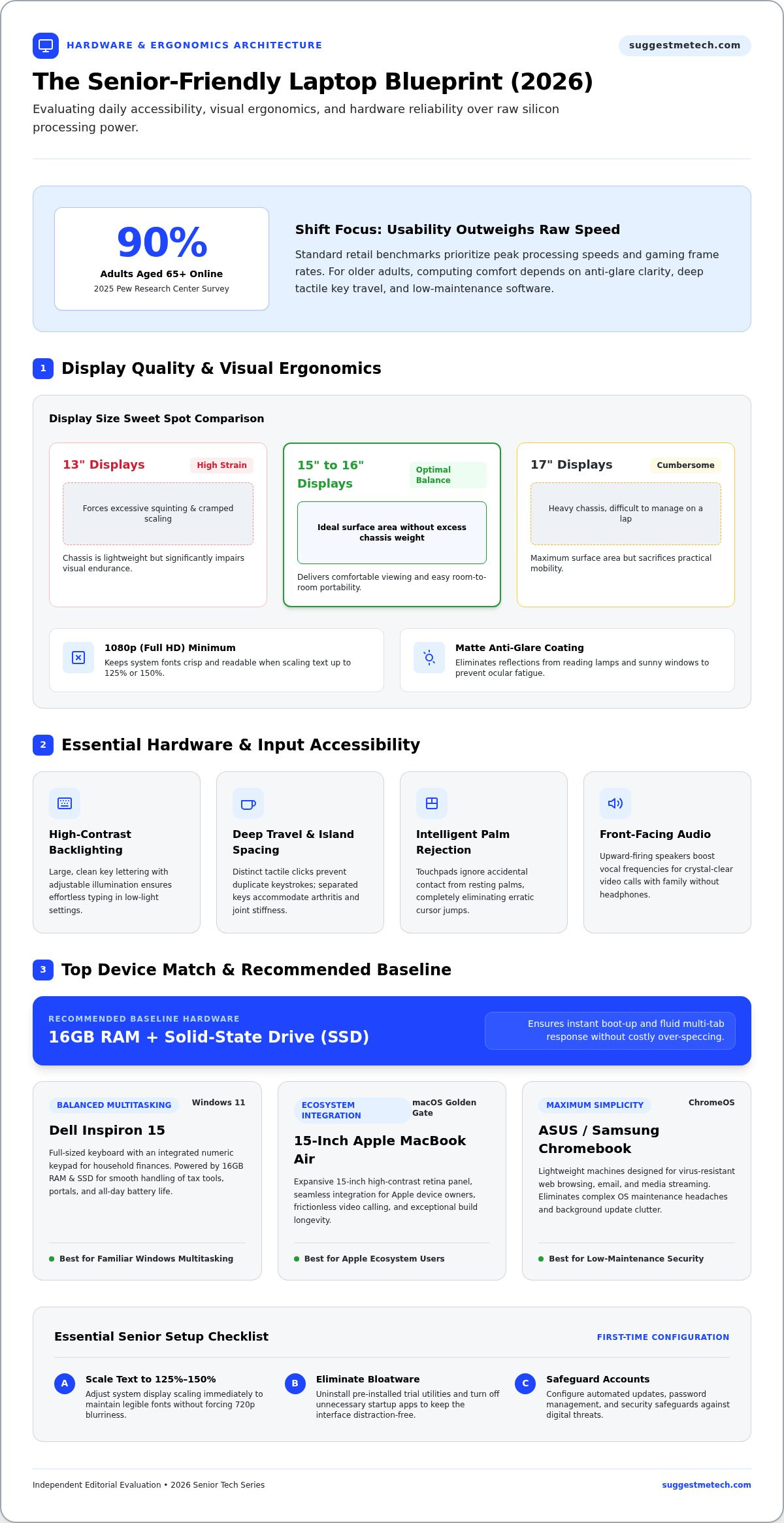
Screen real estate directly impacts visual endurance. A 15-inch to 16-inch display offers the optimal balance, delivering enough surface area for comfortable viewing without making the chassis too heavy to move between rooms. Smaller 13-inch displays frequently force excessive squinting, while oversized 17-inch units can be cumbersome to manage on a lap.
Resolution matters just as much as panel dimensions. A minimum resolution of 1080p (Full HD) ensures that system fonts remain crisp and legible, especially when increasing text scaling to 125% or 150%. Pair this with a matte, anti-glare finish to eliminate annoying reflections from reading lamps or sunny windows. Exploring standard computer accessibility features shows that high-contrast displays and anti-reflective coatings significantly reduce ocular fatigue during extended sessions.
Keyboard Comfort and Touchpad Responsiveness
Typing should never feel like tapping on a flat sheet of rigid glass. Seniors with arthritis or reduced finger sensitivity benefit substantially from keyboards that feature deep key travel and distinct tactile feedback. This distinct physical click confirms each keystroke clearly, preventing duplicate letters and missed characters.
When selecting the best laptop for seniors in 2026, consider these essential physical inputs:
- High-contrast key labels: Large, clean lettering with adjustable backlighting ensures effortless typing in dimly lit rooms.
- Generous key spacing: Island-style keyboards prevent accidental multi-key presses caused by hand tremors or joint stiffness.
- Intelligent palm rejection: Reliable touchpads ignore accidental brushing from resting palms, avoiding erratic cursor jumps across the screen.
- Clear front-facing speakers: Upward-firing speakers deliver crisp vocal frequencies, making high-definition video calls with grandchildren easy to hear without headphones.
The Best Laptops for Seniors in 2026: Top Rated Picks
Every older adult brings different technical expectations, physical comfort needs, and daily habits to the table. Some want an intuitive machine purely for checking email and family photos, while others require a powerful, familiar workhorse to manage investments and volunteer projects. At SuggestMeTech, our hands-on reviews focus on real-world reliability rather than retail hype to highlight the top contenders.
To identify the best laptop for seniors in 2026, we evaluated devices across build quality, operational simplicity, and long-term value. If you want to explore the wider PC market beyond these specialized recommendations, browse our comprehensive roundup of the best laptops for direct comparisons across every budget category.
Top Overall Pick: Balanced Everyday Performance
The Dell Inspiron 15 stands out as the most reliable, conventional Windows notebook for everyday household tasks. Configurations featuring 16GB of RAM and a fast solid-state drive boot instantly, effortlessly juggling tax software, medical portals, and video chats. Its full-sized keyboard includes an integrated numeric keypad, which makes inputting household finances far easier for tired fingers. With all-day battery life, you can read on the porch without dragging a power cable along.
Best for Maximum Simplicity and Security
For users who primarily browse websites, write emails, and stream media, modern ChromeOS hardware like the ASUS Chromebook Flip or Samsung Chromebook Plus offers unmatched peace of mind. These lightweight notebooks start up in under ten seconds and update silently in the background.
- Sandboxed architecture: Applications run in isolated memory spaces, virtually eliminating the threat of accidental malware infections or suspicious browser toolbars.
- Automated cloud backups: Cherished family photos, bookmarks, and documents sync continuously to Google Drive, ensuring data remains safe even if the hardware is damaged.
- Zero maintenance overhead: The streamlined interface removes confusing system registries and complicated driver dialog boxes entirely.
Best Premium Choice: Visual Clarity and Audio
The 15-inch Apple MacBook Air equipped with Apple silicon remains the gold standard for premium craftsmanship. Its expansive Retina display renders text with razor-sharp definition, virtually eliminating eye strain during long reading sessions. Combined with studio-quality microphones, six room-filling speakers, and an advanced 1080p webcam, family video calls sound crisp and lifelike. Readers seeking hands-on advice can explore SuggestMeTech for personalized buying guidance and practical setup walkthroughs.
Comparing Operating Systems: Windows vs macOS vs ChromeOS
Operating systems dictate how you interact with your computer every day. Selecting the best laptop for seniors in 2026 depends heavily on software familiarity rather than processor benchmarks alone. Choosing an interface that aligns with your established habits prevents routine tasks from feeling like complex chores.
Your current smartphone provides the best starting clue. According to a 2025 Pew Research Center survey, 78% of older adults own a smartphone. Pairing your laptop with the platform already in your pocket dramatically flattens the learning curve and keeps technical frustrations to an absolute minimum.
| Operating System | Maintenance Demands | Ideal Senior Persona | Key Advantage |
|---|---|---|---|
| ChromeOS | Near zero | Casual browsers, online banking users | Automated security and cloud backups |
| Windows 11 | Moderate | Former office workers, spreadsheet users | Extensive legacy software compatibility |
| macOS | Low to moderate | iPhone and iPad owners | Seamless ecosystem sync and messaging |
ChromeOS: The Low-Maintenance Champion
ChromeOS centers entirely around the Google Chrome web browser. It strips away confusing system registries, buried hard drive folders, and manual driver updates. Security updates install invisibly in the background without forcing sudden system restarts mid-session. Because web apps run inside isolated sandboxes, ChromeOS offers the strongest defense against rogue pop-up downloads and phishing scams.
Windows 11: Maximum Familiarity and Flexibility
For retirees accustomed to desktop PCs from previous careers, Windows 11 offers immediate, comforting familiarity. The classic Start menu, movable taskbar, and recognizable folder structures require zero retraining. It also includes comprehensive built-in accessibility tools like Narrator, high-contrast themes, and system-wide Magnifier shortcuts. However, users must stay alert to third-party bloatware notifications and disable aggressive browser switch prompts during initial setup.
MacOS: Seamless Ecosystem for iPhone Users
Apple computers running macOS Golden Gate excel when paired with other Apple hardware. Text messages, photos, and incoming FaceTime calls automatically synchronize across devices, letting you respond on a full keyboard without hunting for your handset. Simple system routines feel familiar across screens; understanding how to clear cache on iphone mirrors storage management on a Mac. Smooth multi-touch trackpad gestures and dependable retail support make macOS an intuitive, long-lasting investment.
Essential Features Checklist: How to Evaluate Hardware Specs
Computer spec sheets often read like an avalanche of confusing acronyms. Retailers frequently push expensive configurations packed with gaming processors or graphics chips that average users simply never utilize. When shopping for the best laptop for seniors in 2026, the goal is simple: secure smooth, responsive performance without wasting money on unused horsepower.
Focusing on a few balanced components ensures your computer handles daily routines without stuttering or unexpected crashes. Prioritizing solid baseline hardware guarantees your laptop remains fast, responsive, and reliable for years down the road.
Processing Power and Memory Requirements
Modern entry-level processors, such as an Intel Core i3, AMD Ryzen 3, or energy-efficient Snapdragon chips, effortlessly manage streaming video, social feeds, and web browsing. You do not need expensive workstation chips for responsive daily performance.
System memory and storage type, however, make or break the daily experience:
- Avoid 4GB of RAM: Modern web browsers consume substantial memory. Machines with only 4GB will choke and freeze when you open multiple tabs. An 8GB configuration serves as the functional minimum, while 16GB provides effortless multitasking longevity.
- Demand a Solid State Drive (SSD): Never buy a computer relying on an old mechanical hard drive. An SSD possesses no moving parts, boots the operating system in seconds, opens programs instantaneously, and withstands accidental bumps.
- Target 256GB of storage: This capacity offers plenty of local space for family photo libraries, tax records, and downloaded video files without filling up.
Webcam, Audio, and Physical Connectivity
Clear physical inputs and versatile ports keep routine use completely painless. Built-in webcams should feature 1080p resolution; grainy 720p cameras make faces look shadowy and blurred during family catch-ups. Upward-firing speakers and modern Bluetooth pairing allow you to connect directly to wireless hearing aids or personal headphones without tangled cords.
Physical connections remain equally important. While thin laptops increasingly eliminate classic ports, having at least one standard rectangular USB-A port alongside modern USB-C ports allows you to plug in a full-sized external mouse or backup flash drive without requiring awkward dongles. For help comparing detailed hardware sheets across current models, explore SuggestMeTech’s practical hardware breakdowns to find the ideal match for your needs.
How to Set Up a New Laptop for a Senior User
Unboxing a fresh computer can feel daunting when default factory settings cater to corporate offices rather than personal comfort. Even the best laptop for seniors in 2026 requires thoughtful customization out of the box to prevent frustration. Investing thirty minutes during initial setup transforms a generic retail machine into an intuitive, accessible personal hub.
The goal is to eliminate unnecessary visual noise while adding practical safety nets. Simplifying the desktop interface, enhancing readability, and establishing reliable support channels will keep daily computing smooth and stress-free for years to come.
Adjusting Display Scaling and Accessibility Settings
Default operating system fonts are frequently too tiny for comfortable reading. Head straight to system display settings and increase scale sizing to 125% or 150%. This enlarges desktop icons, browser menus, and application buttons without distorting visual layout or causing text blur.
Next, adjust these essential physical accessibility controls:
- Enlarge and recolor the mouse pointer: Change the standard white cursor to a bright yellow or high-contrast black pointer at twice its standard size, ensuring it never disappears against light backgrounds.
- Switch to single-click navigation: Configure file management settings so opening documents and desktop icons requires only a single click, eliminating the coordination strain of rapid double-clicks for arthritic fingers.
- Enable voice dictation: Turn on built-in speech-to-text tools in system accessibility menus, allowing users to compose long emails or messages simply by speaking aloud.
Installing Protection and Remote Family Assistance
Data privacy and malware prevention remain urgent concerns for older adults navigating online banking and communication. Rather than buying aggressive third-party antivirus utilities that barrage users with terrifying renewal pop-ups, rely on the operating system’s built-in defenses and harden the web browser.
Install a reputable ad-blocking browser extension like uBlock Origin. This single step removes misleading “Download Now” banners, deceptive malware traps, and intrusive video ads from news websites. Clean up the browser interface by pinning a prominent favorites bar stocked with direct links to essential destinations: personal email, local banking portals, medical patient charts, and family photo albums.
Finally, configure a trusted remote desktop application like Chrome Remote Desktop or Quick Assist. This secure link allows adult children or family members to view the screen and resolve confusing software dialogs from miles away, guaranteeing ongoing peace of mind without frustrating phone troubleshooting sessions.
Choosing Your Perfect Senior-Friendly Laptop with Confidence
Investing in the best laptop for seniors in 2026 is ultimately about reclaiming independence, comfort, and peace of mind. Prioritizing an anti-glare 15-inch screen and a well-spaced keyboard protects against physical fatigue far better than any cutting-edge processor ever could. Pairing responsive solid-state storage with an operating system you already understand ensures that connecting with family, handling banking, and managing daily affairs remains simple and safe.
Technology should work for you, not get in your way. Taking a few moments to adjust text scaling, strip away visual clutter, and establish remote safety nets turns a modern notebook into an inviting everyday companion. If you want further assistance narrowing down your options, explore our expert tech guides and independent hardware reviews to find unbiased evaluations and straightforward advice with zero technical jargon. With the right hardware on your desk, staying connected has never been easier.
Frequently Asked Questions
Which laptop screen size is best for an older adult with failing eyesight?
A 15-inch to 16-inch display is ideal for older adults coping with vision changes. This specific size provides sufficient physical surface area to enlarge font scaling up to 150% without truncating paragraphs or crowding toolbars off the screen. Panels smaller than 14 inches cause constant squinting, while heavy 17-inch laptops prove cumbersome to lift or carry around the home.
Is a Chromebook or a Windows laptop easier for a senior to learn?
A Chromebook running ChromeOS is significantly easier to learn for seniors who only need web access. It boots in seconds, runs inside a clean browser window, and eliminates confusing Windows file paths, driver installations, and update dialogs. However, for retirees who spent decades using Windows desktop machines in their working careers, Windows 11 offers familiar visual cues that require far less initial retraining.
How much memory and storage does an older adult really need?
Finding the best laptop for seniors in 2026 requires targeting at least 8GB of RAM, with 16GB preferred for smooth, long-term multitasking. Web pages consume heavy memory resources, so avoiding 4GB prevents system freezing when multiple tabs open. Pair this with a 256GB Solid State Drive (SSD), which delivers rapid start-up times and ample local room for photos without moving parts.
Can a senior connect their modern Bluetooth hearing aids to a laptop?
Yes, modern laptops running Windows 11, macOS, and ChromeOS feature Bluetooth connectivity that pairs directly with compatible digital hearing aids. This routing sends video call dialogue, YouTube speech, and media audio straight into the user’s ears with zero room echo. If direct pairing isn’t supported by an older hearing aid brand, standard 3.5mm headphone jacks accommodate over-ear assistive listening headsets comfortably.
Are touchscreens helpful or confusing on laptops designed for seniors?
Touchscreens are exceptionally helpful for seniors who already use a smartphone or tablet every day. Tapping on-screen buttons feels far more intuitive than maneuvering a small pointer with a trackpad, especially for individuals managing tremors or joint stiffness. Selecting a convertible 2-in-1 model allows older users to swipe through photo galleries and digital magazines just like an oversized tablet.
What is the most effective way to protect an older adult from online scams?
Installing an ad blocker such as uBlock Origin provides the strongest first line of defense against scams. It blocks misleading pop-up advertisements that mimic system warnings and fake “Update” prompts. Additionally, configuring standard user accounts without administrative installation privileges stops accidental file downloads, while bookmarking legitimate banking links on the browser bar eliminates risky search engine navigation traps.
Is it worth buying a refurbished or used laptop for an older relative?
Buying an older used laptop is rarely worth the recurring technical headaches it creates. Older machines frequently contain aging mechanical hard drives, depleted batteries that require constant wall charging, and outdated processors incompatible with modern operating system security patches. Choosing an affordable new laptop with an SSD ensures reliable daily speed, clear screens, and dependable manufacturer warranty coverage from day one.

