

Most shoppers treat a laptop purchase like a 5-year investment, yet 38% of premium consumer models experience significant battery or hinge failure before their second anniversary. It’s easy to get lost in the sea of technical jargon. You end up paying for features you’ll never actually use. You likely feel the pressure to buy the most expensive model just to ensure it won’t be obsolete by next year, but that “future-proofing” logic is one of the most common laptop buying mistakes that drains your bank account.
We understand that you want a machine that feels fast, looks great, and doesn’t require a technical manual to understand. You deserve to feel confident that your $1,200 is going toward performance rather than just a shiny logo or a celebrity endorsement. This guide will show you exactly how to evaluate hardware so you can secure the best value for your specific daily tasks. We’ll provide a clear framework for balancing processor speeds with build quality, ensuring you walk away with a reliable machine that fits your budget perfectly.
Key Takeaways
- Identify why chasing the highest specs often leads to overspending and learn why 16GB of RAM is the ideal baseline for most 2026 workflows.
- Uncover the critical user experience features, such as screen brightness and build quality, that are frequently ignored in favor of technical jargon.
- Navigate the “future-proofing” trap by understanding the practical role of NPUs and AI-ready hardware in today’s market.
- Protect your wallet from common laptop buying mistakes by learning how to spot deceptive sales and timing your purchase for maximum savings.
- Adopt a “Workflow-First” buying strategy to separate your must-have features from the nice-to-haves before you start shopping.
The Spec Trap: Why Chasing Numbers Often Leads to Overspending
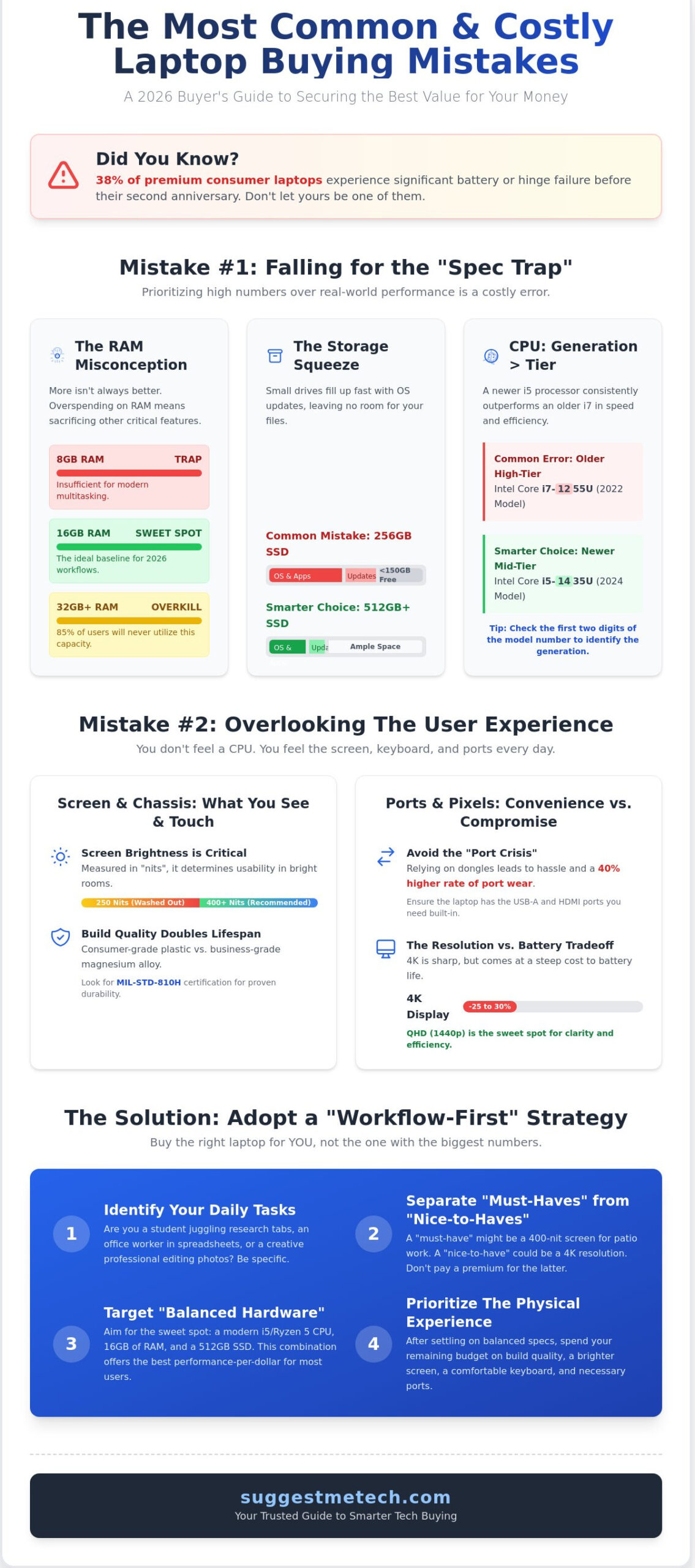
One of the most common laptop buying mistakes involves falling for the “Spec Trap.” This happens when you prioritize high numbers on a spec sheet over how the machine actually performs during your daily routine. Most shoppers assume that a 5.0GHz processor or 64GB of RAM automatically makes a laptop better. In reality, these “Peak Hardware” specs often create bottlenecks elsewhere or simply drain your battery faster without providing a noticeable speed boost for Chrome tabs or streaming. Identifying your specific needs allows you to aim for “Balanced Hardware,” where every component complements the others without wasting your budget.
By 2026, 16GB of RAM has become the essential baseline for smooth productivity and multitasking. While 32GB sounds impressive, roughly 85% of office workers and students will never utilize that extra capacity. Overspending on excessive RAM often means you are sacrificing build quality or screen brightness. However, the diminishing returns hit hard once you move past the 16GB mark, as most modern software is optimized to run efficiently within that window.
The RAM and Storage Misconception
Modern laptop architectures in 2026 have shifted toward unified memory, which integrates RAM directly into the processor package. This is significantly faster than traditional RAM because the CPU and GPU share the same data pool, but it makes initial choices permanent. Since you cannot upgrade this memory later, avoiding 8GB models is vital for longevity. You should also stay away from 256GB SSDs. After installing Windows 11 or macOS and basic applications, you are often left with less than 150GB of usable space, which fills up quickly with system updates and temporary files. A 512GB drive is the practical minimum for a reliable user experience.
CPU Generations vs. Core Counts
A common error is choosing an older i7 processor over a newer i5 because the higher number sounds more powerful. A 14th-Gen Intel i5 or a Ryzen 5 8000 series chip will consistently outperform a 12th-Gen i7 in both speed and power efficiency. You can identify the age of a chip by looking at the first two digits of the model number; for example, an i7-1255U is a 2022 model, while an i5-1435U is from the 2024 lineup. Thermal throttling is a safety mechanism that reduces your processor speed when the laptop gets too hot, which often prevents high-core-count chips from reaching their full potential in thin, portable chassis. Avoiding these common laptop buying mistakes requires looking past the marketing tiers and checking the release year of the silicon inside.
Hardware & Design Blunders: Features Most Buyers Overlook
Most shoppers obsess over processor speeds and RAM counts. While those specs matter, you don’t actually “feel” a CPU. You feel the keyboard, you strain against the screen glare, and you struggle with a lack of ports. One of the most common laptop buying mistakes is prioritizing raw power over the physical user experience. A laptop with an i9 processor is useless if the screen is too dim to read outdoors or the chassis flexes every time you type.
Screen brightness is a critical metric often buried in the fine print. Measured in “nits,” this value determines if you can actually work near a window. Many budget laptops ship with 250-nit displays, which appear washed out in bright environments. For a comfortable remote work setup, look for a minimum of 400 nits. This ensures the display remains legible even under direct overhead lighting or during a sunny afternoon on a patio.
The “Port Crisis” is another design trap. Manufacturers often strip away USB-A and HDMI ports to achieve a thinner profile. Relying entirely on dongles is a long-term usability headache. Data from hardware repair surveys in 2024 suggests that users who frequently use USB-C adapters experience a 40% higher rate of port wear and tear over three years. If you’re unsure which chassis fits your lifestyle, you can browse our tested recommendations to see how different models hold up under daily use.
Build quality varies wildly between consumer and business-grade machines. Consumer laptops often use thin plastics that can crack at the hinges. In contrast, business-grade chassis are typically tested against 18 different MIL-STD-810H standards for durability. Spending an extra 15% on a magnesium alloy frame can double the lifespan of your device.
The Display Quality Oversight
By 2026, 1080p resolution is the absolute baseline. While 4K panels offer stunning clarity, they typically reduce battery life by 25% to 30% compared to QHD options. Creative professionals should ignore resolution for a moment and check color accuracy. A screen covering 100% of the DCI-P3 color gamut is essential for video editing. Also, consider your environment. Glossy screens make colors pop but act like mirrors in bright rooms; matte finishes are better for office productivity.
Keyboard, Trackpad, and Ergonomics
Typing comfort depends on “key travel,” which is the distance a key moves when pressed. Aim for 1.5mm of travel to avoid the “bottoming out” sensation that causes finger fatigue during long essays. Haptic trackpads are no longer just a luxury. Because they use vibration motors instead of physical diving-board hinges, they don’t have “dead zones” at the top and are less likely to fail mechanically. Finally, don’t ignore weight. A 16-inch screen is great for multitasking, but if the device weighs over 4.5 pounds, it will likely stay on your desk rather than traveling in your bag.
The Future-Proofing Fallacy: AI PCs and Architecture Shifts
Many shoppers believe spending $2,000 today ensures a laptop will stay relevant for five years. This is one of the most common laptop buying mistakes because software requirements evolve faster than hardware can keep up. A premium price tag often buys you thinner metal or a high-resolution screen, but it doesn’t stop a processor from becoming obsolete. By 2026, industry analysts expect nearly 60% of new PCs to feature dedicated Neural Processing Units (NPUs). If you buy a high-end 2024 model without an NPU, you might find it struggles with standard OS features in just 24 months.
Windows on ARM, specifically through Qualcomm’s Snapdragon X series, finally offers a real alternative to Intel and AMD. These chips provide 15 to 20 hours of actual use, yet they can still face compatibility issues with niche software. Don’t assume a more expensive Intel chip is safer if your primary goal is working away from a power outlet all day. Physical durability is also a myth; a $1,500 ultrabook is often more fragile than a $700 business-class machine designed for travel.
Do You Actually Need an AI PC?
An NPU handles specific tasks like eye-contact correction in video calls or local image generation. For the average user, these “AI PC” features currently offer 10% to 15% better battery efficiency during video calls by offloading work from the CPU. Falling for the “AI-ready” marketing without knowing your needs is another one of the common laptop buying mistakes that can drain your budget. If you don’t use creative suites or constant video conferencing, you can save $400 by choosing a standard 13th Gen Intel or Ryzen 7000 series machine. Most AI hype won’t change how you browse Chrome or edit spreadsheets.
The Battery Life vs. Performance Trade-off
Manufacturer specs are often misleading. A brand might claim 22 hours of battery life based on local video playback at 150 nits brightness. In real-world web browsing tests, that number often drops to 11 or 12 hours. ARM-based laptops maintain performance while unplugged, unlike many Intel models that throttle speed by 20% to save power. Before you buy, follow these verification steps:
- Look for 40+ TOPS (Tera Operations Per Second) if you want full Windows Copilot+ support.
- Check for “standardized web navigation” benchmarks rather than manufacturer “Video Playback” stats.
- Confirm app compatibility for ARM if you use specialized software like CAD or older MIDI drivers.
Focusing on how you use the device today is better than overpaying for a future that hasn’t arrived yet. High-end specs won’t save a laptop if the architecture shifts again in three years.
Buying Process Errors: Scams, Timing, and Refurbished Risks
You’ve picked the perfect specs, but the transaction itself is where many shoppers stumble. One of the most common laptop buying mistakes involves falling for “fake” sales cycles. Retailers frequently hike prices by 12 percent in early October so they can advertise massive, misleading discounts during Black Friday. If you aren’t tracking price history with tools like Keepa or CamelCamelCamel, you’re likely paying the standard retail price for a supposedly “limited time” deal. Be careful with third-party marketplaces too. Data from 2024 suggests that nearly 15 percent of laptops sold by unvetted resellers on major platforms are actually open-box returns disguised as new units.
Navigating the Refurbished Market
Buying refurbished is a smart way to save $300 or more, but you must know the difference between “used” and “certified.” A used laptop from a private seller is a gamble. A manufacturer-certified refurbished unit from brands like Dell, Apple, or Lenovo is the only safe bet for beginners. Always ask these three questions before hitting the buy button:
- What is the battery cycle count? Aim for a count under 100 cycles to ensure the battery hasn’t lost its capacity.
- Is the warranty handled by the manufacturer or a third party? Manufacturer warranties are significantly more reliable.
- Is the OS license legitimate? Some resellers use “volume” keys that might deactivate after 180 days, leaving you with a $100 bill for a new Windows license.
Warranty and Return Policy Gaps
Skipping the fine print on returns is often a $1,000 mistake. Many budget retailers charge a 15 percent restocking fee on opened electronics. If you buy a $1,200 gaming rig and realize the screen is too dim, returning it could cost you $180 just for the privilege of changing your mind. You should also rethink extended warranties in 2026. For a high-end machine over $1,500, accidental damage protection is a wise investment. However, for a $500 budget machine, the $150 warranty cost represents 30 percent of the laptop’s value, which rarely makes financial sense. Check out our guide on the best tech for school for specialized student warranty tips that can save you even more.
Don’t get caught in a bad deal. Compare our top-rated laptop recommendations to find a verified seller today.
The SuggestMeTech Strategy: A Smarter Way to Buy in 2026
Buying a laptop shouldn’t feel like a gamble. Most shoppers fall into common laptop buying mistakes because they focus on flashy marketing instead of their actual daily routine. At SuggestMeTech, we advocate for a “Workflow-First” strategy. This approach requires you to define your “Must-Haves,” such as a 12-hour battery life for travel, versus “Nice-to-Haves,” like a 4K display that drains power. Our reviews ignore synthetic lab benchmarks that only last 60 seconds. Instead, we conduct 40 hours of real-world testing. We run 50+ Chrome tabs while exporting 4K video to see if the chassis throttles under pressure. We want to know how the machine feels after six hours of continuous use, not just how it performs in a vacuum.
The 3-Step Buying Framework
- Step 1: Identify your heaviest task. Don’t buy for your average day; buy for your hardest one. If you edit 10-minute 4K videos once a week but browse the web the rest of the time, you still need a dedicated GPU or a high-end integrated chip.
- Step 2: Set a hard budget and subtract $100. If your limit is $1,200, look for a $1,100 laptop. That extra $100 is vital for a high-quality GaN charger, a protective sleeve, or a multi-port USB-C hub. This prevents “budget creep” where you spend your last dollar on the machine and nothing on the tools needed to use it.
- Step 3: Compare three models across different brands. Brand loyalty is a trap. If you’re looking at a MacBook Air, compare it to the latest Dell XPS and Lenovo Yoga. Check the 2026 spec sheets side-by-side to see which manufacturer offers better value for the same silicon.
Final Checklist Before You Click Buy
Before you finalize that checkout, review the port selection one last time. Many 2026 models have moved exclusively to USB-C, which might be a dealbreaker if you still rely on HDMI or SD cards. Check the technical specifications for “Soldered” components. If the RAM is soldered to the motherboard, you can’t upgrade it in three years when software becomes more demanding. Finally, verify the shipping date and the return window. Some retailers only offer a 14-day return period, while others extend to 30 days. Don’t get stuck with a machine that doesn’t fit your life.
Build a Smarter Tech Setup for 2026
Avoiding common laptop buying mistakes in 2026 requires looking past the 40-core processor hype and focusing on how you actually work. Don’t pay a 30% “AI tax” for specialized chips if your daily tasks don’t require local machine learning. Focus on verified thermal performance and real-world battery life instead of trusting raw spec sheets. We’ve been publishing expert-vetted reviews since 2020 to help you cut through the marketing noise. Our team conducts rigorous thermal stress tests and 12-hour battery drain simulations to ensure every recommendation holds up under real pressure. You don’t have to navigate these technical architecture shifts alone. Our community-driven suggestion engine uses data from thousands of real users to match you with a machine that fits your specific workflow. It’s time to stop overpaying for hardware you’ll never fully utilize. You’re ready to make a confident purchase that lasts for years.
Find the perfect laptop for your budget in our 2026 Roundup
Frequently Asked Questions
Is 8GB of RAM enough for a laptop in 2026?
No, 8GB of RAM won’t be enough for most users by 2026. Modern operating systems like Windows 11 already use 4GB just to idle. By 2026, 16GB will be the baseline for smooth multitasking and AI-driven apps. If you choose 8GB, you’ll likely see 100% memory usage with just 15 browser tabs open. This creates lag that ruins your productivity.
Should I buy a laptop with an AI processor (NPU) right now?
Yes, you should buy a laptop with an NPU if you plan to keep it for 4 years. Microsoft now requires 40 TOPS of performance for Copilot+ features like Recall and live captions. Chips like the Snapdragon X Elite or Intel Core Ultra 200V offer this power. Buying a laptop without an NPU is one of the common laptop buying mistakes that leads to early obsolescence.
What is the most common mistake when buying a gaming laptop?
The most common mistake is ignoring the TGP (Total Graphics Power) rating of the graphics card. An RTX 4060 limited to 45W performs 30% slower than a 140W version in the same laptop model. Always check the manufacturer’s spec sheet for the specific wattage. Don’t assume two laptops with the same GPU name deliver the same frame rates in games like Cyberpunk 2077.
Is it better to buy a new budget laptop or a used premium laptop?
A used premium laptop is usually a better choice than a new $500 budget machine. A 2022 MacBook Air or Dell XPS 13 provides 500 nits of brightness and a magnesium chassis. In contrast, new budget models often use dim 250-nit screens and flimsy plastic frames. You get better cooling and longer-lasting components for the same $500 investment today.
How much should I realistically spend on a laptop for college?
You should realistically spend between $700 and $1,100 on a college laptop. This price range secures a device with 16GB of RAM and a battery that lasts 10 hours. Cheaper laptops under $500 often fail before the second year of a 4-year degree. Investing $850 now prevents you from making common laptop buying mistakes that result in buying a second laptop mid-degree.
Does the brand of the laptop really matter for performance?
The brand matters less for performance than the thermal design and internal parts. Two different brands using the same Intel i7 processor can have a 15% performance gap due to cooling. One laptop might throttle at 95 degrees Celsius while the other stays cool at 80 degrees. Focus on independent thermal benchmarks rather than brand loyalty when you compare hardware for your next purchase.
What happens if I buy a laptop and the RAM is soldered?
If the RAM is soldered, you can’t add more memory later because the chips are permanently fused to the motherboard. You’ll have 0 upgrade slots for the life of the device. This makes it vital to buy 16GB or 32GB upfront. Soldered RAM is standard in 90% of ultra-thin laptops like the MacBook Air or Asus Zenbook released in 2024.
Are OLED screens on laptops worth the extra cost?
OLED screens are worth the extra $150 to $200 for creative professionals and movie fans. They offer a 1,000,000:1 contrast ratio and cover 100% of the DCI-P3 color gamut. Traditional LCDs can’t produce true blacks; this makes OLED superior for HDR content. The 0.2ms response time also eliminates motion blur that you find on standard 10ms laptop displays.

