

What if the safest fix for a WordPress error is to change nothing until you know where the problem starts? A blank page, a 500 Internal Server Error, or a database connection message can make a site feel one step away from disaster. Common wordpress errors and how to fix them depend on the source of the problem, which could be a plugin, theme, WordPress files, the database, or the hosting environment. Guessing can make things worse.
If your site is unavailable or showing an unfamiliar message, use a clear process to narrow down the cause without risking valuable content. This guide explains what common error screens can indicate and how to troubleshoot with careful, reversible steps. You’ll learn why a backup matters, how to investigate plugin and theme conflicts, and when a hosting issue may need your provider’s help. You’ll also know when to stop and contact a WordPress professional rather than making changes you can’t confidently undo.
- Use the visible symptom to guide your investigation, but confirm the cause before choosing a fix.
- Protect your site with a usable backup and test changes carefully, one at a time.
- Compare clues from plugins, themes, WordPress core, and hosting to identify the likely source.
- Choose a low-risk first check for the error, and avoid database or code changes you can’t safely reverse.
- Know when to stop and contact your host or a qualified WordPress professional.
What Common WordPress Errors Look Like and What They Usually Mean
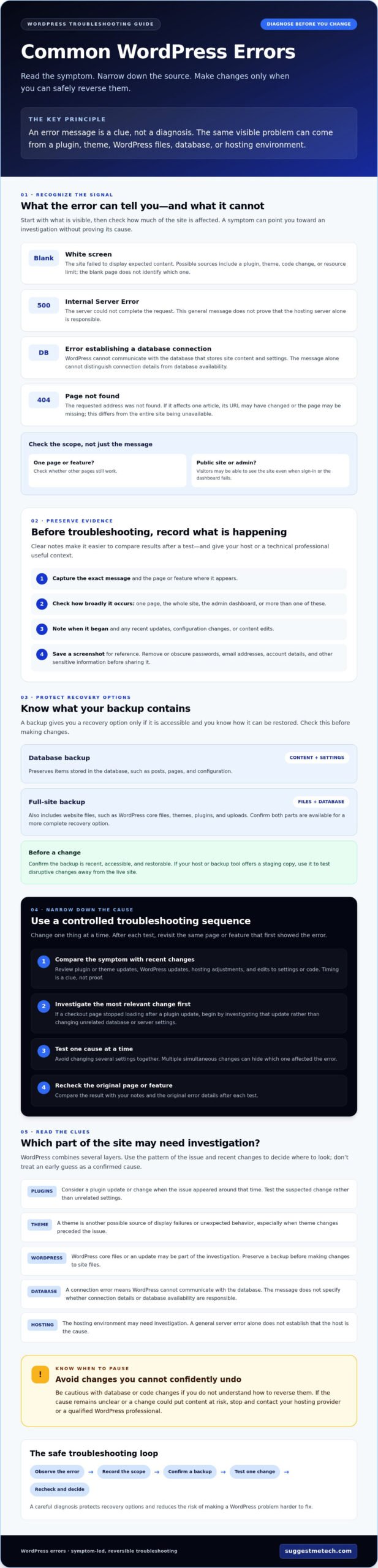
A WordPress error is a visible failure or unexpected behavior that prevents a site, page, or administrative feature from working as intended. The message can point toward a problem, but rarely confirms the cause on its own. A blank screen, for example, may relate to a plugin, theme, WordPress core, or server resource.
Because WordPress brings together website files, a database, themes, plugins, and hosting infrastructure, a problem in one layer can affect another. Start by identifying what’s failing: a visitor-facing page, the admin dashboard, the server response, or the database connection. Check whether the issue affects one URL or several, and note what still works. The same symptom can have multiple causes, so treat early explanations as possibilities, not diagnoses.
Which WordPress error messages should site owners recognize?
These common messages offer clues, but each leaves important questions unanswered:
- White screen: A blank page means the site failed to display expected content. It doesn’t identify whether a plugin, theme, code change, or resource limit is responsible.
- 500 Internal Server Error: The server couldn’t complete the request. The message is general, so it doesn’t prove the hosting server itself is the only cause.
- Error establishing a database connection: WordPress can’t communicate with its database, where site content and settings are stored. The message alone doesn’t show whether the issue is connection details or database availability.
- 404 page: The requested address wasn’t found. A 404 on one article may mean its URL has changed or the page is missing; it’s different from an entire site being unavailable.
Admin access problems are another useful distinction. If visitors can see the site but you can’t sign in, the issue may be limited to the login or dashboard. If both the public site and admin area fail, note that broader scope before attempting a fix. If possible, check a second page or device to see whether the error is consistent.
What should you check before troubleshooting?
Capture the evidence first. It helps you compare symptoms and recent changes without relying on memory, and gives a host or technical professional clearer information if you need help.
- Record the exact error wording and the page or feature where it appears.
- Check whether the problem affects one page, the whole site, the admin dashboard, or more than one of these.
- Note when the issue began and any recent updates, configuration changes, or content edits.
- Take a screenshot, but remove or obscure passwords, email addresses, account details, and other sensitive information before sharing it.
This first check won’t fix the site, but it can prevent a misleading guess from turning into a risky change. Use the pattern you observe to choose the next diagnostic step, and keep the original error details for comparison after each test.
How to Troubleshoot WordPress Errors Safely Before Changing Anything
Safe WordPress troubleshooting is a controlled process: record what’s happening, protect the site with a backup, check how widely the issue affects it, review recent changes, and then test likely causes one at a time. This order preserves evidence and gives you a way to undo changes if a test makes the problem worse.
Work through the steps in sequence. Changing several settings at once can hide the cause, even if the site starts working again. After each test, check the same page or feature that first showed the error.
What backup should you have before troubleshooting?
A database backup preserves content and settings, such as posts, pages, and configuration stored in the database. A full-site backup also includes website files, such as WordPress core files, themes, plugins, and uploads. For a more complete recovery option, confirm that you have both.
Before making changes, check that a recent backup exists and find out how it can be restored. A backup is only useful if you can access it and understand the restoration process. If your host or backup tool offers a staging copy, use it to test disruptive changes away from the live site. WordPress.org’s Common WordPress Errors documentation provides further context on diagnosing familiar problems.
How can you isolate a recent change?
Review what changed shortly before the error appeared: plugin or theme updates, WordPress updates, hosting adjustments, or edits to settings and code. For example, if a checkout page stopped loading after a plugin update, investigate that update first rather than changing unrelated database or server settings. Timing is a useful clue, but it doesn’t confirm that the latest change caused the problem.
Use this workflow to narrow down the cause while protecting recovery options:
- 1. Document the symptoms. Save the exact error, affected URLs, when it began, and whether visitors, administrators, or both are affected.
- 2. Back up the site. Confirm that both files and the database are included, and check how restoration works.
- 3. Test the scope. Check whether the issue happens consistently and whether it affects one page, several pages, or the whole site. If practical, compare access from another browser or user account.
- 4. Review recent changes. List updates and configuration changes made near the time the problem started.
- 5. Isolate causes carefully. Test one change or suspected component at a time, recording the result before moving to the next test.
Don’t delete files, edit code, or adjust multiple settings before preserving evidence. If your checks point to a server or hosting issue, the web hosting guidance can help you understand which hosting factors may be relevant, such as the hosting service and the needs of your site.
How to Tell Whether a Plugin, Theme, WordPress, or Host Caused the Error
Use symptoms to narrow down where to investigate, not to declare a cause. A failure after an update may suggest a plugin or theme conflict; an unsuccessful core update may point to WordPress files; and widespread errors may involve the server. Confirm the source with a cautious check before choosing a fix.
Compare the clues below, then check the relevant layer. An error log, a record of technical events, can add useful detail, but it may contain usernames, paths, or other private information. Don’t post unredacted logs publicly.
| Suspected layer | Clues | Safe check | Who may need to help |
|---|---|---|---|
| Plugin or theme | The problem began after installing or updating one, or affects a feature it controls. | Review the change history; test on a staging copy where possible. | The site administrator or plugin/theme developer. |
| WordPress core | The issue followed a failed update or damaged core files. | Check update status and available logs before attempting file replacement. | A technically experienced administrator or WordPress professional. |
| Hosting or server | Several unrelated pages fail, or the site shows server or connection errors. | Check the host’s status information and support documentation. | The hosting provider, especially if server access is limited. |
What clues point to a plugin or theme conflict?
If an error starts soon after a plugin or theme installation or update, that timing makes a conflict worth checking. It doesn’t prove the update caused the issue; another change or a server condition may have occurred at the same time. The common WordPress errors guide offers additional troubleshooting context.
Testing can affect site behavior. Back up first and use a staging copy when available. If you temporarily deactivate a plugin or switch themes, do so only if you can access the relevant controls or files and understand how to restore the original setup. A change may disrupt features visitors rely on, so record what you alter and return settings to normal after the test. If the dashboard is inaccessible, don’t make file changes unless you know how to reverse them.
When might the issue involve WordPress core or hosting?
A failed or interrupted WordPress update may leave files incomplete, while a server-side availability problem can affect the site independently of its theme or plugins. A database connection error or server response alone doesn’t confirm which one is responsible. Check whether the host reports an incident and review its support documentation before changing core files or database settings.
If the evidence points to hosting, consult a web hosting guide for context on how hosting services and server environments affect a WordPress site. Contact the provider when the issue appears server-side or requires access you don’t have. Logs can help, but share them only after removing credentials and private data.
How to Fix Common WordPress Errors Without Making the Problem Worse
Start with the least disruptive check for the symptom, then escalate only if the evidence points to a deeper problem. Common wordpress errors and how to fix them depend on what has failed, so first confirm whether the issue affects one page, the whole site, or only the admin area. Don’t treat a likely cause as confirmed until a check supports it.
Before changing files, code, database settings, or server configuration, make sure you have a usable backup. Stop if you’re unsure how to reverse a change. A cautious diagnosis is safer than applying several possible fixes at once.
How should you approach a white screen or 500 error?
For a blank screen, check whether it appears across the site or only in one area. Review recent plugin, theme, or WordPress updates, then consider testing the suspected change on a staging copy. Temporary plugin deactivation may help isolate a conflict, but it can disrupt site features and may require dashboard or file access. Record what you change and restore normal settings after the test.
A 500 Internal Server Error is a general server response, not a diagnosis. Check whether other pages and the admin dashboard also fail, then review host status information or available error logs. If the problem persists or requires editing configuration files or code, ask your host or a qualified WordPress professional to investigate.
What should you do about database and 404 errors?
A database connection error means WordPress can’t reach its database, but the message doesn’t identify why. Check whether database or hosting settings changed shortly before the problem began. If you don’t know how to verify the connection safely, contact your host rather than changing credentials in a configuration file.
For a 404, compare the affected address with the page’s intended URL and check whether other pages load. A single missing page may have a changed or mistyped address; multiple broken links may point to a broader issue. Don’t alter rewrite settings, which control how page addresses are handled, without a verified backup and clear instructions.
Which troubleshooting actions require extra care?
- Lower risk: Check the affected pages, confirm the URL, review recent changes, and consult host status information.
- Higher risk: Editing configuration files or code, changing database credentials, and modifying database or rewrite settings.
- Protect private information: Never share passwords or database credentials. Remove sensitive details from diagnostic logs before sending them to anyone.
If hosting appears to be involved, explore our web hosting guidance for general context. It can help you understand hosting factors, but it isn’t a substitute for your provider’s site-specific investigation. When comparing hosting options for future needs, consider your budget, team size, and the type of site you plan to run.
Prevent Recurring WordPress Errors and When to Seek Help
Reducing repeat errors depends on having a reliable recovery plan and making site changes carefully. Keep backups you can restore, review updates before applying them, and record what changes. These habits won’t prevent every failure, but they make it easier to recover and identify what may have triggered a problem.
Which habits help reduce repeat WordPress problems?
Use a simple maintenance checklist to make future troubleshooting more controlled:
- Keep usable backups. Confirm that your backup includes the files and database, and understand how restoration works before you need it.
- Review updates first. Check update notes for relevant compatibility information. Where possible, test significant changes on a staging copy before applying them to the live site.
- Change one component at a time. Avoid updating several plugins, themes, or settings at once. If a problem appears, a focused change history makes the likely cause easier to identify.
- Keep a brief site log. Record update dates, configuration changes, error messages, affected pages, and what you tried. This turns vague recollections into useful diagnostic information.
A short record can make a real difference. If a booking page fails after a plugin update, knowing which update occurred and when helps narrow the investigation without repeating unrelated tests.
When should you contact your host or a WordPress expert?
Choose who to contact based on where the evidence points. Contact your hosting provider if the whole site is down, server errors persist, or the issue may involve account-level settings or server availability. If one plugin or theme appears responsible, its developer may be able to clarify compatibility or known problems. For damaged WordPress files or troubleshooting beyond your experience, seek a qualified WordPress professional—agencies like Marcy Design can help troubleshoot persistent technical issues and keep your site functioning properly.
Stop self-troubleshooting before making database, file, or code changes you can’t confidently reverse. Also pause if you lack recovery access or the site remains unavailable after basic checks. A wrong change can complicate recovery, especially if you aren’t sure what it affects. If recurring technical glitches suggest it may be time for a cleaner web architecture, learn more about Dulyfixed Small Business Solutions to explore reliable, mobile-first website design and landing page development.
Before asking for help, gather the exact error, when it began, affected URLs, recent changes, and steps already attempted. Don’t send passwords, database credentials, or diagnostic logs that expose private information. Clear details help the right person assess the issue without requiring you to keep guessing.
For more practical technology guides and comparisons, explore the SuggestMeTech homepage. Use this guide to understand common wordpress errors and how to fix them, and leave higher-risk changes to someone with the right access and experience.
Make Your Next WordPress Fix a Careful One
WordPress errors can look alarming, but the message on screen is only a clue. Check which parts of the site are affected, review recent changes, and confirm the likely cause before choosing a fix. Most importantly, protect your files and database with a backup before testing changes.
The safest approach to common wordpress errors and how to fix them is measured, not rushed: change one thing at a time, keep a record of what you try, and stop if a repair involves settings or code you can’t confidently reverse. Contact your host for possible server issues, or seek qualified WordPress help when the site remains down or recovery access is uncertain.
SuggestMeTech publishes technology reviews and practical guides, including web hosting guidance for website owners. Explore more practical technology guides to compare technology options and plan your next step. With a backup, clear observations, and the right help when needed, you can approach site problems with greater confidence.

