

Install WordPress manually by downloading its files, uploading them to your web server, connecting them to a MySQL database, and completing setup in a browser. Learning how to install WordPress manually lets you choose where the files are stored and which database they use. You’ll also create the administrator login you’ll use to manage the site.
The process is manageable one step at a time, but prepare your hosting directory and database details first. This guide covers downloading WordPress, choosing a root directory or subdirectory, uploading the files, entering database credentials, and completing setup with a site name, administrator username, password, and email address. You’ll also learn when a manual installation makes sense and which settings to review before your site is ready.
Key Takeaways
Keep these practical checkpoints in mind while preparing and completing the installation.
- Prepare a MySQL database and user before editing the configuration file, so WordPress can connect to the correct database.
- Choose a distinctive administrator username, use a strong password, and provide an email address you can access.
- Decide whether the site belongs at your main domain or in a subdirectory before uploading the extracted files.
- Complete setup in your browser by selecting a language and entering your site and administrator details.
- Use SuggestMeTech’s technology reviews and guides to compare options as you make broader technology decisions.
Configuring wp-config.php with database credentials
Set your domain’s DNS records to the values provided by your hosting account, then enable its SSL certificate before using HTTPS. DNS routes your domain to the server, while SSL secures the browser connection.
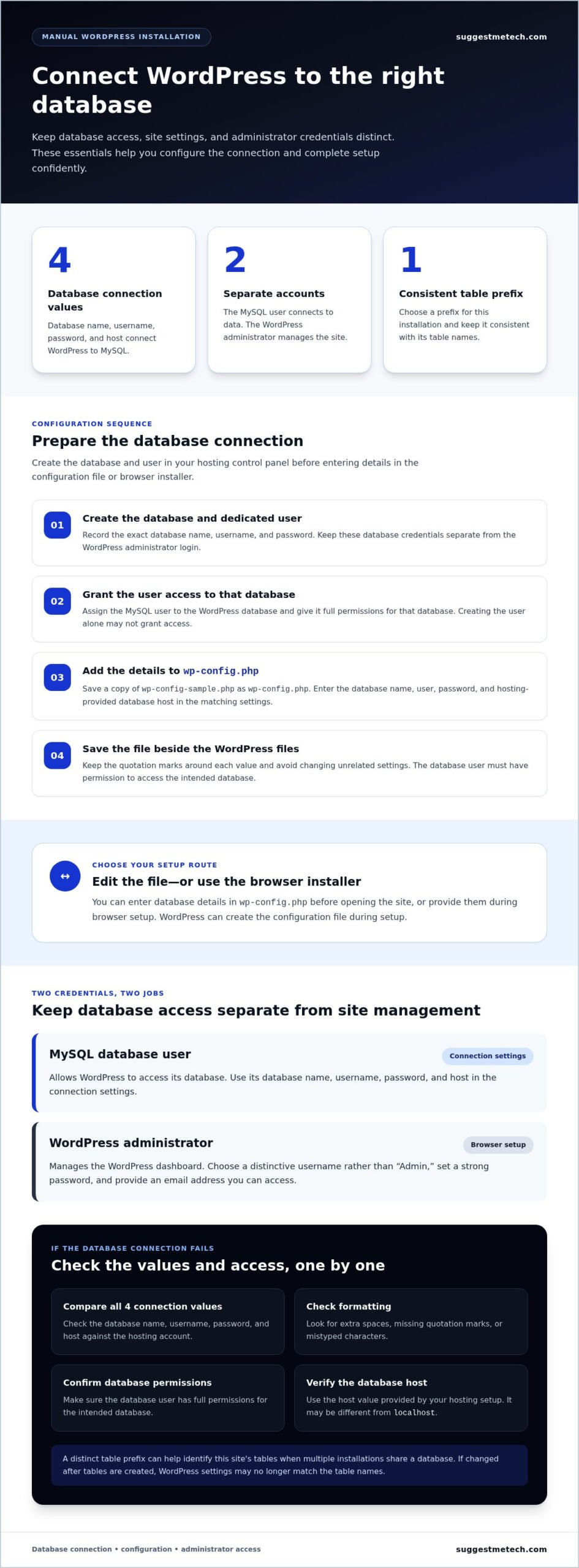
Next, connect WordPress to the database by entering its credentials in wp-config.php. Complete these steps before opening the site in a browser.
-
Enter Database Connection Details
Open
wp-config-sample.phpin a text editor and save a copy aswp-config.phpin the same directory. Replace the sample values forDB_NAME,DB_USER, andDB_PASSWORDwith the database name, username, and password created in your hosting control panel.Set
DB_HOSTto the host value provided for the database. It’s oftenlocalhost, but the correct value depends on your hosting setup. Keep the quotation marks around each value and avoid changing unrelated settings. You can also skip manual editing: WordPress can create this file during browser setup. -
Choose a Database Table Prefix
Find the
$table_prefixsetting inwp-config.phpand choose a short prefix for this installation. The default iswp_. A distinct prefix can make it easier to identify this site’s tables when multiple installations share a database.For example, a site in a
blogsubdirectory could use a prefix that reflects its location. Keep the underscore at the end and use the same prefix consistently. If you change it after WordPress creates tables, its settings may no longer match the table names. -
Connect WordPress to the Database
Save
wp-config.phpbeside the sample file in the WordPress directory. The database user must have permission to access the WordPress database. Without it, even correct-looking credentials can fail when WordPress tries to connect.Open your domain in a browser to start or continue setup. If the WordPress installation screen appears, the files have reached the configuration stage. Instead of editing the file, you can enter the database details in the installer, which can create
wp-config.phpfor you. -
Troubleshoot Database Connection Errors
If you see a database connection error, compare every value in
wp-config.phpwith the database account: name, username, password, and host. Check for extra spaces, missing quotation marks, or mistyped characters. A copied password can fail if even one character is different.Then confirm that the database user has full permissions for the intended database. If
localhostdoesn’t work, use the database host value provided by your hosting setup. Save the corrected file and reload the domain. These checks help distinguish incorrect credentials from an access-permission problem.
Creating WordPress administrator credentials
Create the MySQL database and its user before setup, and keep those details separate from the WordPress administrator login. The database account lets WordPress store site data; the administrator account lets you manage the site.
- Create a database for WordPress. In your hosting control panel, open the database management tool and create a MySQL database. Choose a recognizable name related to the site, such as one based on your domain. Record the exact name, including any prefix added by the hosting panel, so WordPress can connect to it.
- Create a dedicated database user. Add a MySQL username and password for the WordPress database. Keep these credentials separate from your administrator login. The database username goes in the connection settings; the administrator username goes on the browser setup screen.
- Grant the database user access. Assign the new MySQL user to the WordPress database and give it full permissions for that database. WordPress needs this access to create and use its tables. Creating the user alone may not grant access; assigning it to the database is a separate step.
- Keep the database credentials available. Securely record the exact database name, username, and password while completing installation. You’ll enter them in
wp-config.phpor the browser-based installer. Don’t confuse the WordPress folder name with the database name; they identify different parts of the installation. - Choose a WordPress administrator username. On the setup screen, create a distinct login rather than using “Admin.” This username identifies the person managing the WordPress dashboard. Keep it separate from the MySQL username, even if your hosting panel allows similar names.
- Set the administrator password and email. Use a strong password for the WordPress login, not the database password. Enter an email address you can access. WordPress can use it to help recover access if you forget the administrator password.
- Finish the site details on screen. Enter the site name, administrator username, password, and email address. Review each field before completing setup. These details create the account for managing site settings, themes, and plugins; the MySQL user remains responsible for database access.
Downloading and extracting the WordPress package
Download the WordPress installation package, extract its files, and prepare them for upload to your hosting account. Before starting, confirm that your hosting environment supports the requirements for the WordPress version you plan to install.
After installation, keep WordPress, its themes, and plugins updated. Updates keep the software current; review and apply them through the WordPress dashboard.
-
Download the WordPress Package
Download the WordPress package from the official WordPress download page and save the archive somewhere easy to find, such as your computer’s Downloads folder. Use the package itself rather than a third-party bundle, which may contain files you don’t need.
Before extracting the download, make sure your computer can open it as a compressed archive. Keep the original archive until extraction is complete. You’ll need the extracted WordPress files for the next steps.
-
Extract the WordPress Package
Extract the archive with your computer’s built-in utility or an archive application. This creates a folder containing the WordPress installation files. Open it and check for items such as
wp-admin,wp-content, andwp-includes.These folders identify the extracted WordPress package. If your hosting file manager expects individual files, don’t upload only the compressed archive. Keep the folder structure intact so the installation files stay together.
- Review the extracted files. Open the WordPress folder and locate
wp-config-sample.phpalongside the core folders and PHP files. This sample configuration file is part of the package. Don’t rename or remove it while preparing the installation.If extraction creates an extra parent folder, check the folder layout before uploading. For a main-domain installation, you’ll later place the contents of the WordPress folder in the web root. Uploading the parent folder itself can make the site appear at an unintended address.
- Prepare the package for upload. Keep the extracted files together until you’re ready to transfer them to hosting. In an FTP application, select the contents of the WordPress folder for upload. In a hosting file manager, use its upload and extraction tools if available.
Choose the method that fits your workflow: FTP transfers files from your computer, while a file manager works inside your hosting account. With either method, preserve the package’s directory structure.
- Check hosting compatibility. Review your hosting environment’s WordPress requirements before uploading. WordPress needs a compatible web server and supported database environment. The specific requirements depend on the WordPress version, so check the requirements for the version you plan to install.
A server may be able to store the package but lack the software WordPress needs to run. Check compatibility before proceeding, rather than troubleshooting installation errors after uploading the files.
- Plan ongoing updates. After installation, open the WordPress dashboard and review available updates for WordPress, themes, and plugins. Apply updates through the dashboard to keep the software current. This maintenance helps you keep the manually installed site up to date as its software changes.
Before adding a plugin, choose one that serves a clear purpose. Review the dashboard regularly so you don’t miss updates. The extracted package is only the starting point; maintaining the installed software is part of running the site.
Uploading WordPress files to a root directory or subdirectory
Transfer the extracted WordPress files with FTP, your hosting File Manager, or SSH, and place them in the directory for the intended site address. After installation, limit file and directory permissions to the access WordPress needs. Avoid making every file broadly writable.
-
Choose the Upload Method
Choose FTP to transfer files from your computer with an FTP application. Use File Manager if your hosting control panel gives you direct access to server folders. SSH provides a command-line method for users comfortable working in a terminal.
For FTP, connect to the hosting server using the file-access account details. In File Manager, open the target directory before uploading. With SSH, use the server’s available file-transfer tools. Whichever method you choose, confirm that you’re in the right hosting account and destination folder.
-
Upload WordPress Files
For a site at the main domain, upload the extracted WordPress files to
public_html. Select the contents of the WordPress folder, not an extra parent folder. This places files such asindex.phpdirectly in the domain’s web directory.To install WordPress in a subdirectory, create or open a folder such as
public_html/blog, then upload the files there. The site will appear at the subfolder address rather than the main domain. For a subdomain, create it first and open its directory before transferring the files.Upload all the extracted files and folders. Keep the original structure intact, including
wp-admin,wp-content, andwp-includes. Missing or misplaced files can prevent the browser installer from appearing at the expected address. -
Unzip the Uploaded Files
If you upload the compressed WordPress archive, use your hosting File Manager to extract it in the intended directory. Check the resulting folder layout before continuing. The WordPress files must be in the web directory or chosen subdirectory, not one level deeper in an unintended nested folder.
Alternatively, extract the archive on your computer and upload the resulting files through FTP. This transfers individual files while preserving the directory structure. After the archive is uploaded and extracted successfully, delete it from the server so it doesn’t remain as an unnecessary installation file.
Before opening the domain, check the destination directory. For a main-domain installation, WordPress files should be in
public_html; for a subdirectory installation, they should be in the selected folder. After setup, limit write access to the files and directories WordPress needs, in line with the permissions supported by your hosting environment.
Choosing a language and completing setup
Once the files and database are ready, open the WordPress installation screen in a browser. Choose the site language, enter the requested details, and review the visibility setting before finishing.
- Open the installer. Visit the domain or subdirectory where you uploaded WordPress. If the files are in the correct directory, the setup screen should offer a language selection. If it doesn’t appear, confirm that the address matches the folder containing the WordPress files.
- Select the WordPress language. Choose the language you want for the WordPress dashboard and setup interface from the list. For example, select English if you want the dashboard menus and installation prompts in English. Choose before continuing so you can read each setup field clearly.
- Enter the site name. Add a name that identifies the website, such as a business name or publication title. WordPress uses it as the displayed site title, and you can change it later in settings. Check the spelling and capitalization before moving to the account fields.
- Create the administrator login. Enter the username and password you’ll use to sign in to WordPress. Avoid “Admin” as the username and choose a strong password. WordPress can generate one, or you can create your own. Store the credentials securely so you can access the dashboard after setup.
- Add an accessible email address. Enter an email address you can access for the administrator account. WordPress can use it to help recover access if you forget the password. Check the spelling and make sure you can receive messages at that address before submitting the form.
- Choose the search visibility setting. If you’re still building the site, enable the option that discourages search engines from showing it in results. You can change this setting later. Review your choice before completing installation, especially if the site is ready to appear in Google search.
- Submit the form and test your login. Complete the setup screen, then sign in with the administrator username and password you created. Confirm that the dashboard opens and the site title appears as expected. If you’re still comparing technology options for your site, explore technology reviews and guides to inform your next decisions.
SuggestMeTech: Technology Reviews and Guides
SuggestMeTech provides Technology Reviews and Guides under its “Trusted Tech Reviews & Comparisons” mission. The guides help readers compare technology products and services, including hosting options and other choices for their sites. Use them to assess features, practical needs, and budget before deciding what fits.
Use the guides as a starting point for evaluating options, alongside the installation steps above. SuggestMeTech also offers Advertising Space for technology companies looking to reach its audience.
Contact SuggestMeTech or visit suggestmetech.com to explore its guides.
Build Your WordPress Site with a Clear Next Step
Once you know how to install WordPress manually, plan how the site will serve its purpose. Consider what visitors need to find first, which features support that goal, and how your choices may change as the site grows. A clear plan ties each new tool and setting to a real need, instead of adding complexity without direction.
Treat the installation as a starting point, then make choices as your site’s goals become clearer. Compare technology options by how well they fit your needs, not by their features alone. SuggestMeTech’s reviews and guides can help you assess those decisions.
Explore SuggestMeTech’s technology guides as you plan what comes next. Take the next step at a pace that suits your project, and keep building with confidence.
Frequently Asked Questions
Use these answers to clarify setup choices, command-line options, and common installation problems.
How do you create a MySQL or MariaDB database and user for WordPress?
Create a database and a separate database user in your hosting control panel’s database tool. Assign the user to the database and grant the permissions WordPress needs to create and manage its tables. Record the exact database name, username, password, and host value for setup. MySQL and MariaDB use the same basic connection details here, though the hosting panel’s labels may differ.
How do you configure wp-config.php with database credentials and security keys?
Enter the database name, username, password, and host in the corresponding settings in wp-config.php. Replace the sample security-key values with unique, randomly generated keys rather than keeping shared examples. Keep these keys private; they help protect login sessions. Save the file in the WordPress directory, preserving its PHP syntax and quotation marks. A missing quote or incorrect value can prevent WordPress from loading.
How do you run the WordPress installation wizard and create an admin account?
Open the address where the WordPress files are installed and follow the browser-based setup screen. Choose the interface language, then enter the site title, administrator username, password, and an accessible email address. Keep the administrator login separate from the database account. After setup, sign in and confirm the dashboard loads. If the site is still being built, review the search visibility option before finishing.
How do you install WordPress manually using cPanel File Manager or FTP?
In cPanel File Manager, open the website’s target directory, upload the WordPress archive, and extract it there. With FTP, connect to the hosting server and transfer the extracted WordPress files while preserving their folder structure. Use the web root for the main domain or a chosen subdirectory for a separate site area. Check the destination before transferring, since an extra nested folder can change the address where setup appears.
How do you install WordPress manually using SSH and WP-CLI?
Connect through SSH, move to the intended web directory, and use WP-CLI commands to download WordPress, create its configuration, and run the core installation. Provide the site address, title, database details, and administrator credentials when prompted or through command options. Confirm that WP-CLI is available and that the SSH account can write to the target directory. Don’t share commands containing passwords, since shell history may retain them.
What are common manual WordPress installation errors and how do you fix them?
A database connection error usually points to an incorrect database name, username, password, or host, or to missing user permissions. If the installer doesn’t appear, confirm that the files are in the directory matching the address you opened. An incomplete upload or changed file structure can cause a blank or broken page. Check the relevant configuration or directory, correct the problem, then reload the site to test the change.

