

Sharing a document is only the first step. Teams can still lose track of the current version, scatter feedback across email and chat, or give contributors more access than they need. Learning how to collaborate on documents online means setting up a clear workflow around the file, not just sending a link.
Start by matching the process to the task: decide who will edit, who will review, and who will approve the finished document. This guide covers how to set up a shared file, assign permissions, manage feedback, and keep revisions and access under control.
Quick Answer
To collaborate on documents online, keep one working copy in a shared location, define who owns and contributes to it, and give each person the access their role requires. Agree where feedback belongs and who resolves it. Review changes before approval, then label and organise the final version so everyone can find the right file.
Key Takeaways
- Match the workflow to the task, from live co-editing to structured review.
- Set a clear purpose, owner, contributor list, and audience before sharing a document.
- Choose editing, commenting, or viewing permissions based on each contributor’s role.
- Use a repeatable process to gather feedback, resolve comments, and confirm approval.
- Keep documents organised for handoff and review access as the work changes.
How online document collaboration works, and when to use it
Online document collaboration lets people create, edit, discuss, and share a document through a shared digital workspace. Contributors work from one current file, either at the same time or at different times. A useful process combines editing with clear roles, feedback, and decisions about who can view or change the content.
Different collaboration actions serve different purposes. Co-editing means making changes directly in the document. Commenting adds questions or discussion without rewriting the text, while reviewing means assessing proposed changes and deciding whether to accept them. Sharing gives someone access to view, comment on, or edit the file. A collaborative real-time editor supports simultaneous changes, but not every task requires live editing.
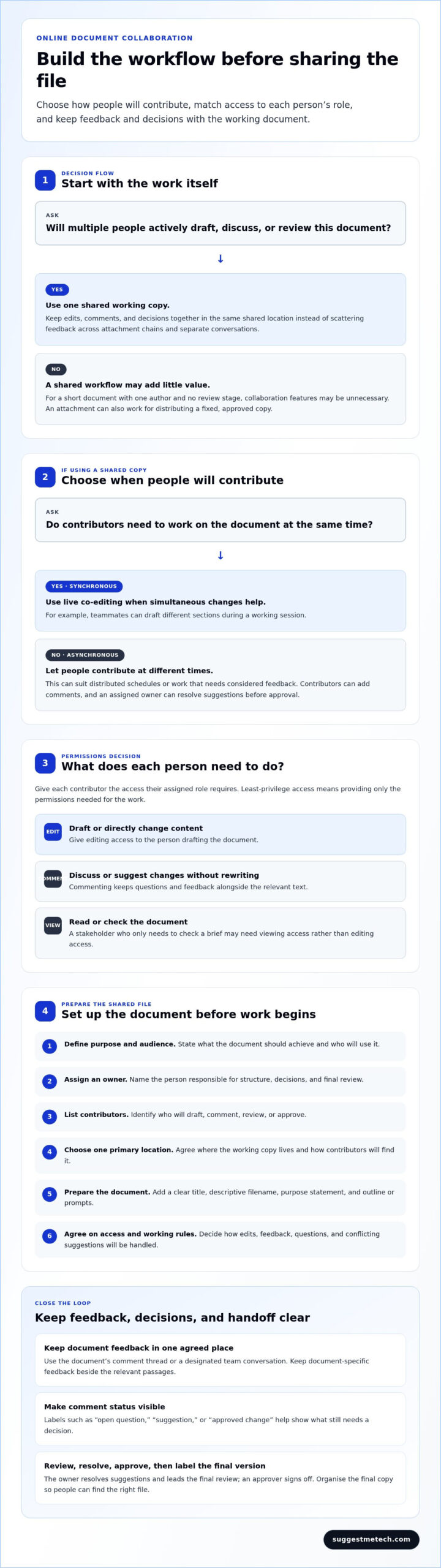
Work is synchronous when people contribute at the same time, such as two teammates drafting different sections during a working session. It’s asynchronous when people contribute at different times, which can suit distributed schedules or work that needs considered feedback. For a project brief, one teammate might draft it, others add comments later, and an assigned owner resolve suggestions before an approver signs off. Choose the type of participation that fits each stage.
When is a shared document better than emailing attachments?
A shared workspace gives contributors one place to find the working copy, instead of a chain of attachments named “final” and “final revised.” It can keep edits and comments together, making it easier to see what changed and which points still need a decision.
Attachments can still be useful for distributing a fixed, approved copy, such as a finished brief. They may also suit a document with one author and no shared review process. Use a shared file for active drafting and review, then distribute a clearly labelled final copy when the work is complete.
Which documents benefit most from online collaboration?
Shared documents are especially useful when several people need to contribute, review details, or understand how a decision was reached. For example, feedback on a proposal can stay beside the relevant passage, while meeting notes can capture decisions and follow-up changes in the same file.
- Proposals and project briefs: Bring together subject expertise, scope details, and approval.
- Meeting notes: Give attendees a place to clarify decisions and action items.
- Lesson plans: Let educators contribute to materials being adapted for a class.
For a short document with one author and no review stage, collaboration features may add little value. Sensitive or tightly controlled files need more careful access decisions: limit access to people who need it, and choose viewing, commenting, or editing permissions according to each person’s role.
Set up a shared document before anyone starts editing
Before anyone adds content, agree on the document’s purpose, owner, contributors, and audience. This short setup helps contributors understand what to write, clarifies who makes final decisions, and gives everyone one agreed place to find the working file.
Use this sequence to prepare a document in a suitable shared workspace:
- Define the purpose and audience. State what the document needs to achieve and who will read or use it.
- Assign an owner. Name the person responsible for structure, decisions, and final review.
- List contributors. Identify who will draft, comment, review, or approve instead of inviting the whole team by default.
- Choose one primary location. Save the working copy where contributors can access it, and agree how to find it, such as through a project folder or team space.
- Prepare the document. Add a clear title, descriptive filename, purpose statement, and outline or prompts.
- Set permissions and working rules. Give each person the access needed for their role and explain how to handle edits and feedback.
Least-privilege access means giving each person only the permissions needed for their assigned work. A stakeholder who needs to check a project brief may only need viewing or commenting access, while the person drafting it needs editing access.
How should you prepare a document for shared work?
Make the document understandable before the first contribution arrives. “Community workshop project brief” is a more useful filename than “Draft 3.” Add a short purpose statement near the top, then use headings or prompts to show where contributors should add information. A brief might include sections for goals, audience, timeline, and open questions. The owner keeps the structure coherent and leads the final review.
What should the team agree on before sharing?
Set expectations for whether contributors should edit directly or suggest changes, where questions belong, when feedback is due, and who resolves conflicting suggestions. Choose one primary channel for questions, such as the document’s comment thread or a designated team conversation. Keep document-specific feedback beside the relevant passages rather than splitting it across several channels.
Simple labels can help track progress. A comment might be marked as an open question, a suggestion, or an approved change. If a reviewer questions a delivery date, for example, label the issue as unresolved until the owner confirms the decision. That makes its status clear without requiring everyone to reconstruct the discussion.
A good setup also depends on the tools a team already uses. SuggestMeTech’s practical technology guides help readers compare digital tools by usability, compatibility, and limitations.
Choose collaboration features and permissions that fit the task
The right setup depends on how people need to contribute and what should happen to the document afterward. Live editing, structured feedback, and file storage address different needs. Choose the mode that supports the work instead of enabling every available feature by default.
Use this comparison to match the collaboration approach to the document’s next task. A team might co-edit a proposal outline, switch to comments for review, then use a shared workspace to distribute the approved file.
| Approach | Best-fit tasks | Collaboration strengths | Practical limitations |
|---|---|---|---|
| Live co-editing | Drafting or revising content together | Contributors can work in one document and see changes as they happen. | Simultaneous edits may distract or conflict if roles and sections aren’t clear. |
| Comments and review | Reviewing a draft with one person responsible for the text | Feedback stays connected to the relevant passage, and the owner can resolve suggestions. | Comments still need a decision-maker and a process for resolving open points. |
| File-sharing workspace | Storing, retrieving, and distributing working or final documents | A central location helps people find the relevant files and manage access. | Storage alone doesn’t provide a clear review process or guarantee that feedback is consolidated. |
Which collaboration mode suits your document?
Choose co-editing when contributors need to build or revise content together, such as assembling sections of a project plan. Use comments or review mode when one person owns the draft and others should suggest changes without rewriting it. A shared file workspace is useful when reliable storage, retrieval, and distribution matter most, especially for a collection of related documents.
Chat and task-management features can support the process, but they don’t replace document editing. A chat message can flag a question, and a task can assign a review, yet neither necessarily records the final change in the document. Keep the source text and passage-specific feedback in the document; use other tools for coordination.
How should you assign viewing, commenting, and editing access?
Give editing access to people expected to change the text. Use comment or review access for contributors who should provide feedback without directly rewriting the draft. Reserve view-only access for people who need to consult the current or approved version. This role-based approach helps limit accidental edits while making the document available to its intended audience.
Permission names and features vary by product, plan, and platform. Some tools offer separate review controls, while others use broader edit or comment settings. Before inviting contributors, match the available options to the task and explain what each role should do. Access and responsibility are related, but they aren’t the same thing.
Collaborate online without losing track of feedback or revisions
A repeatable review process helps turn a changing draft into an approved document. Set clear stages so contributors know when to edit, where to leave feedback, who resolves comments, and how approval will be recorded. The process can stay simple even when several people contribute.
Use this workflow for each review round:
- Share a working draft. The owner checks that the document is ready for input and tells reviewers what kind of feedback is needed.
- Collect comments. Reviewers attach suggestions or questions to relevant passages and respond by the agreed deadline.
- Resolve feedback. The owner addresses each point, asks for clarification if needed, and records decisions that affect the document.
- Review the revised version. Contributors check important changes, then the designated approver confirms the document is ready for use.
A suggestion is a proposed change, not an instruction to rewrite the text. An agreed change is a suggestion the owner or relevant decision-maker has accepted and applied. A final decision settles an issue and establishes what the approved document will say.
Version history can help teams inspect changes, but it can’t prevent every mistake. Depending on the tool, it may show what changed and when or help recover earlier content. Treat it as a review reference, not a replacement for clear ownership and approval.
How can collaborators give feedback that is easy to act on?
Useful feedback identifies the passage, explains the concern, and suggests a next step. For example: “In the timeline section, the launch date conflicts with the delivery date. Can you confirm which date the brief should use?” This is easier to resolve than a general note such as “Timeline unclear.” Mention someone only when they’re responsible for answering or acting on the point. Resolve or label a comment after its issue has been addressed, not simply because it has been read.
What should you do when edits or opinions conflict?
If two people make overlapping changes, pause further edits to that passage and ask the document owner to coordinate a resolution. Keep both alternatives visible in comments while the team compares their implications, rather than replacing disputed wording without explanation. Once a decision is made, update the text and record the rationale in the document or the team’s agreed project channel. This gives absent contributors a clear account of what was decided.
If reviewers propose different deadlines, for example, the owner can note the options, identify who has authority to decide, and document the selected date. That keeps discussion from being mistaken for approval. A consistent feedback loop matters most when a draft passes through several hands.
Use SuggestMeTech’s technology guides to compare digital tools and understand how their collaboration features may fit your workflow.
Keep shared documents secure, organised, and ready for handoff
A document needs attention after it’s shared. Project membership can change, the audience can expand, and an approved file can be mistaken for a working draft. Review permissions as the work progresses, make the final version easy to identify, and leave enough context for the next person to use it correctly.
Use this checklist when access changes or a document is ready to hand off:
- Review who can view, comment on, and edit the file.
- Adjust or remove access for people who no longer need it.
- Keep the approved document in the team’s agreed location.
- Label its status and note the owner and next step.
- Retain earlier versions if they’re useful, using the options available in the chosen platform.
How do you control access as a project changes?
Revisit sharing whenever the project scope or audience shifts. A contributor who helped draft a proposal may not need editing access after approval, while a new reviewer may need permission to comment. Remove or adjust access when someone no longer needs the document, where the tool permits. Sharing controls and permission labels vary by product and platform, so review the settings for the specific file instead of assuming they work the same way everywhere.
If a brief moves from internal planning to external review, check who can open it and what each person can do. Don’t rely on the original invitation list as a permanent access plan.
How should you organise and hand off a completed document?
Keep the approved version in the shared location the team already uses, and distinguish it from drafts with a clear status label or folder convention. No single naming scheme works for every team; the important thing is to make the file’s state obvious. A future reader should be able to tell whether it’s ready to use, still under review, or archived.
Include a brief handoff note with the document owner, completion status, and relevant next step. A completed project brief might identify who will use it to prepare the next phase. Preserve earlier versions when the team needs to compare decisions or refer to past content, but avoid confusing duplicate copies. Use the version and retention options available in your platform, and make the approved copy easiest to find.
These checks turn document collaboration into a repeatable practice, not just a way to share a file. For practical guidance on evaluating digital tools and workflows, explore SuggestMeTech’s technology guides.
Put your collaboration workflow into practice
Choose a low-stakes document for your next shared task and see how the team’s working habits hold up. Notice where people hesitate, where decisions get delayed, and whether contributors can tell which version is ready to use. Those observations can guide small workflow adjustments without adding rules the team doesn’t need.
The right approach can change with the document, its audience, and the people involved. Treat your workflow as something to refine rather than a fixed system. A clear process can make the next project easier to start and simpler to hand off.
SuggestMeTech publishes technology reviews, comparisons, and guides that help readers assess usability, evidence, compatibility, and limitations. Explore more practical technology guides to compare digital tools and make an informed choice for your workflow.
Frequently Asked Questions
Can multiple people edit the same document online?
Yes. Many online document editors let several contributors work in one shared file, although the available options depend on the platform and access settings. Some support simultaneous editing; others are better suited to comments or review. For a planning document, teammates could add their sections at different times and meet later to resolve gaps. Match each person’s role to the task.
How do I share a document so others can edit it?
Open the document in its online workspace, use the sharing controls, and invite contributors or create a link if that option is available. Before sending it, check the access level and consider testing the link from the intended recipient’s account or browser session. This can show whether the person can open the file and make the changes you expect. Include a short note explaining the document’s purpose and where questions should go.
Is it safe to collaborate on documents online?
Online collaboration can be managed responsibly, but safety depends on the tool, account settings, document sensitivity, and sharing choices. Access for the working group may suit a routine team agenda; a confidential draft may call for a smaller audience and more limited permissions. Follow your organisation’s policies and the platform’s security guidance. Don’t assume a link is private simply because it was sent to a specific person.
What happens if two people edit the same document at once?
The result depends on the tool: edits may appear together, be combined, or require someone to resolve overlapping changes. If two contributors rewrite the same paragraph, pause further changes and compare their versions. The document owner can decide which wording to keep, then check version history if the sequence is unclear. Avoid copying the file to create competing drafts, since that can make it harder to identify the working version.
How can I track changes and comments in a shared document?
Use review features such as comments, suggested edits, tracked changes, or version history when the platform provides them. Ask contributors to identify a specific passage and explain the issue they see. The owner can check that each concern has been addressed before marking it resolved. If a decision affects later work, record the outcome in the document so the reasoning isn’t lost in a separate conversation.
Do collaborators need an account to edit an online document?
It depends on the platform and the owner’s sharing settings. Some services may allow guests to contribute through a link, while others require an account or sign-in. Review the tool’s access rules before arranging a review, particularly if contributors are outside your organisation. Requiring sign-in can help identify who made a change, while guest access may reduce setup friction for a one-time external review.

