

An SSH connection can fail before you type a command if the remote computer isn’t running an SSH server that accepts connections. An introduction to SSH for beginners starts with this client-server relationship: your SSH client initiates the connection, and SSH encrypts information sent between your computer and the remote system.
It’s natural to focus first on the command you’ll use to log in, but the server must also be enabled and reachable. This guide explains how SSH works, how to choose a client for Windows, macOS, or Linux, and how to connect to a remote server. You’ll also learn how to generate a key pair, install its public key on the server, and enable the SSH service to accept incoming connections. With these pieces in place, you can choose a connection method and troubleshoot access problems.
Key Takeaways
- Understand how an SSH client and server work together to create an encrypted remote connection.
- Choose a built-in or third-party SSH client based on your operating system and preferred workflow.
- Generate a key pair and keep the private key secure while installing the public key on the server.
- Enable the SSH service on the remote machine so it can accept incoming connection requests.
- Use SuggestMeTech’s technology reviews and guides to compare tools and make informed technology decisions.
Connecting to remote servers
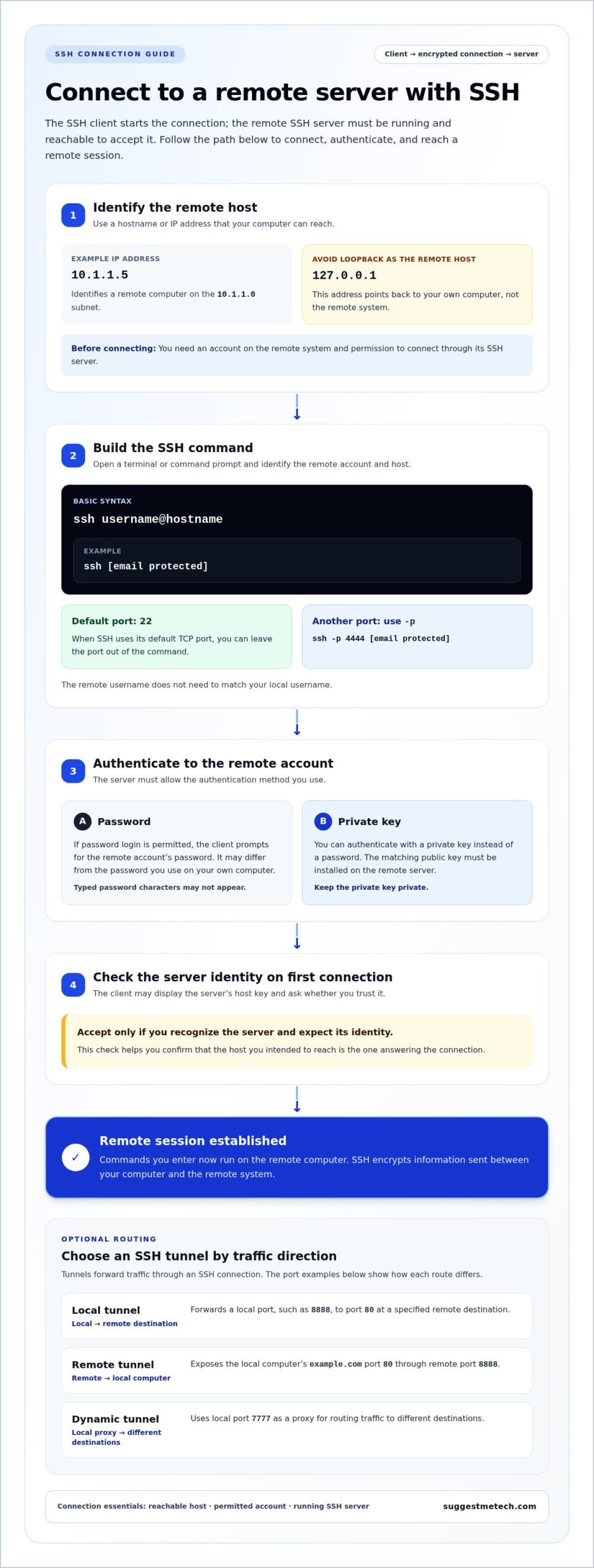
To connect with SSH, identify the remote computer, run an SSH client command, and authenticate with a password or key. Follow these steps to connect directly or route traffic through an SSH tunnel.
-
Find the Remote Host Address
Start by getting the remote computer’s hostname or IP address from its administrator or network settings. For example, 10.1.1.5 identifies a remote computer on a local network using the 10.1.1.0 subnet. A hostname, such as a server’s assigned network name, can be easier to remember, but it must resolve to the correct machine.
Use the address that your computer can reach from its current network. Don’t use 127.0.0.1 as the remote address: that IPv4 loopback address points back to your own computer. You’ll also need an account on the remote system and permission to connect through its SSH server.
-
Learn the Basic SSH Command Syntax
Open a terminal or command prompt and enter ssh username@hostname, replacing username and hostname with the remote account and server address. For example, ssh alex@10.1.1.5 starts a connection as the account named alex. The remote username doesn’t need to match your local username.
When SSH uses its default TCP port, 22, you can omit the port from the command. If the server uses another port, specify it with -p, as in ssh -p 4444 alex@10.1.1.5. The command starts a request; the remote SSH server must be running and reachable to accept it.
-
Log In with a Password
Start password authentication by running the SSH command with your remote account name. If the server permits password login, the client prompts you for that account’s password. Enter the password for the remote account, which may differ from the password you use to sign in to your own computer.
On your first connection to a server, the client may display its host key and ask whether you trust it. Accept only if you recognize the server and expect its identity. Once connected, commands you enter run on the remote computer. Password characters may not appear as you type, so enter the password carefully.
-
Understand SSH Access and Tunnels
SSH is an application-layer network protocol for encrypted remote access. It encrypts information you send and receive during a connection and was created to replace unencrypted Telnet. The client initiates the connection, and the server accepts incoming requests. You can authenticate with a private key instead of a password, but the key must remain private.
Choose a tunnel according to the traffic route you need. A local tunnel forwards a local port, such as 8888, to port 80 at a specified remote destination. A remote tunnel exposes the local computer’s example.com port 80 through remote port 8888. A dynamic tunnel uses local port 7777 as a proxy for routing traffic to different destinations.
Installing a public key on a remote server
For public-key authentication, place your public key on the remote server and keep its matching private key on your computer. Protect the private key, restrict access to its file, and test the new login before changing your existing access.
- Choose an authentication method. Password authentication checks a password each time you log in; public-key authentication checks whether your private key matches a public key installed on the server. The private key stays on your computer, while the public key is copied to the remote server. Keep password access available until key-based login works.
-
Copy a Public Key to the Remote Host
Copy the public-key file to the account you use on the remote host. With an OpenSSH client, run
ssh-copy-id -i ~/.ssh/id_ed25519.pub username@hostname, replacing the account and hostname with your own. The command connects using your current authentication method and adds the selected public key to that account.Check that the filename ends in
.pubbefore copying it. Never transfer or paste the matching private key. A successful example reports that it added 1 key; that confirms one public key was installed, not that every account can use it. -
Add the Public Key to the Server
If
ssh-copy-idisn’t available, sign in to the remote server and add the public-key text to the account’s~/.ssh/authorized_keysfile. Keep each key on a single line, and don’t replace existing entries when adding another authorized computer. Each line represents a key the account can use to authenticate.Set the server’s
.sshdirectory permissions to 700 and itsauthorized_keysfile permissions to 600. These settings limit access to the account owner. Incorrect permissions can prevent the SSH server from accepting public-key authentication, even when the key text is correct. - Test the installed key from your computer in a new terminal session. Run
ssh username@hostnameand confirm that the remote account opens without asking for its account password. If the client still prompts for a password, check that you copied the matching public key, selected the correct account, and preserved the complete key line.Keep your existing session open while testing. If the new connection fails, you can use that session to correct
authorized_keysor its permissions without losing access. A successful login confirms that the remote server recognizes the public key and that your client can access the corresponding private key. - Treat the private key as a credential, not a file to share. Don’t send it to anyone, copy it into
authorized_keys, or store an unencrypted private key on a network share. Only the public key belongs on remote servers. You can revoke access later by deleting its line fromauthorized_keys.For safer administration, install keys only for accounts that need access, and keep track of which public key belongs to each computer. When a key should no longer grant access, remove its entry from the relevant account. This lets you manage access without changing other authorized keys.
SSH clients for Windows, macOS, and Linux
An SSH client runs on your computer and initiates encrypted connections; an SSH server accepts them. OpenSSH provides consistent terminal commands across systems. You can also configure client settings for remote hosts you connect to often.
- Use the SSH client that fits your computer. Windows includes a built-in OpenSSH-based client starting with Windows 10 version 1809. On macOS or Linux, open a terminal and try
ssh; if the command isn’t available, install an OpenSSH client through the operating system’s software tools.A terminal client suits users who want repeatable commands and configuration files. A graphical SSH client may work better if you prefer managing saved connections through an interface. Either way, the client must be able to reach an SSH server on the remote machine.
- Install the SSH server separately on the computer that should accept incoming connections. An OpenSSH client initiates sessions, while an OpenSSH server listens for them; installing one doesn’t automatically install the other. On Linux, use the system’s software manager to install the server package, then enable the service through its service controls.
If you administer the remote host, confirm that its server is running before troubleshooting the client. A working client on your laptop can’t connect if the destination machine has no active SSH server.
- For repeat connections, configure the OpenSSH client’s per-user file, commonly
~/.ssh/configon macOS and Linux. Add a host alias, the remote hostname, the account name, and any non-default port. You can then use the alias in a command instead of retyping the connection details.For example, a named host entry can connect to
example.comon port 4444. Client configuration examples can also setServerAliveInterval 120to send keepalive messages every 120 seconds, andControlPersist 1sto keep a shared connection available for 1 second. - Use an SSH agent when you want to avoid entering your private-key passphrase repeatedly. The agent holds access to unlocked keys for client authentication, while the private-key file remains on your machine. On Unix-like systems, the tutorial recommends removing cached keys after 4 hours.
Agent forwarding passes access to your local agent through a remote connection. Enable it only when needed: according to OpenBSD, users who bypass remote-host file permissions may be able to access the forwarded local agent.
- Test the client on the computer you’ll use. Run
ssh -Vto display the installed SSH client version, then connect using your configured alias or a full hostname. If the command works locally but the connection fails, determine whether the issue is with the client setup, server, or network.Keep the client and server roles clear when setting up a system. Install the client on the computer that initiates connections, and install the server on each remote machine that should accept them.
SSH key-pair generation and passphrases
Generate an SSH key pair on the computer that will initiate the connection. The pair contains a private key for your computer and a public key to install on remote servers.
-
Generate an SSH Key Pair
Open a terminal on macOS or Linux, or PowerShell on Windows, and run
ssh-keygen -t ed25519. The command creates a private key and a matching public key. At the filename prompt, press Enter to accept the default location, or enter a different path you can identify later.Choose the Ed25519 key type for this example; RSA and ECDSA are also SSH key algorithms. The public key usually carries the
.pubextension, while the private key has no such extension. Confirm both files appear in the selected folder, and never copy the private key to a remote host.After generation, display the public-key fingerprint with
ssh-keygen -lf ~/.ssh/id_ed25519.pub. A fingerprint is a short identifier that helps distinguish keys. On Windows, use the matching path under your user profile. Check the filename before sharing or installing anything, because the public and private files serve different purposes. -
Set a Key Passphrase
Enter a passphrase when
ssh-keygenprompts you to protect the private key. According to OpenBSD, good SSH key passphrases are 10-30 characters long and mix uppercase and lowercase letters, numbers, and non-alphanumeric characters. Choose a passphrase you can enter reliably, then type it again when prompted.A passphrase protects the local private-key file if someone gains access to it. The passphrase stays on your computer and isn’t transmitted over the network during SSH authentication. Leaving the prompt empty creates an unencrypted private key, so use a passphrase for an added layer of protection.
Keep the passphrase separate from the key file, and avoid storing them together. If you forget the passphrase, you can’t use it to unlock the protected private key. An SSH agent can hold an unlocked key temporarily, reducing repeated prompts without sending the passphrase to the remote server.
-
Generate RSA Key Pairs
To create an RSA key pair, run
ssh-keygen -t rsa -b 4096. The-t rsaoption selects RSA, while-b 4096sets the key length to 4096 bits. Follow the filename and passphrase prompts as you would with another key type.Use RSA when your setup requires it or when you’re following an RSA-based configuration. The available algorithms include RSA, ECDSA, and Ed25519; select an option compatible with the SSH client and server you use. Avoid generating a new key over an existing file unless you intend to replace that key.
Afterward, inspect the key fingerprint with
ssh-keygen -lf ~/.ssh/id_rsa.pub. Check that the output identifies an RSA key with the expected length, then keep the private file on your computer. Copy only the matching public-key file when configuring access to a remote server.
Enabling the SSH service
Enable the SSH service on the remote machine so its server can accept incoming connections. Install the server component, start the service, and verify access before changing the configuration.
- Install the OpenSSH server on the computer you want to access. On an Ubuntu-based system, run
sudo apt install openssh-server; this package supplies the server process, not just the client. Keep access to the machine’s local terminal while setting it up so you can correct service or network settings if remote access fails.The SSH protocol requires a server process to listen for client requests. Installing OpenSSH alone may not start that process, so check the service status after installation rather than assuming the server is ready.
- Start the service and enable it to launch automatically. On Ubuntu, run
sudo systemctl enable --now ssh. Theenableoption configures startup, while--nowstarts the service immediately. Check its state withsudo systemctl status sshand confirm that the output reports an active service.Some Linux distributions use
sshdinstead ofsshas the service name. Use the name installed on your system when checking, starting, or restarting the service. - Verify the network path from your client machine. SSH uses TCP port 22 by default, so the host firewall and network rules must allow incoming traffic on that port. Then connect using the server’s hostname or IP address and the intended username. A running service alone cannot make a blocked network path reachable.
If the connection fails, check the service status, destination address, username, and firewall rules in that order. This helps distinguish a server startup problem from an address or network-access issue.
- Review the server configuration before exposing access beyond a trusted network. In the SSH server configuration example,
MaxAuthTrieslimits authentication attempts to 3, andLoginGraceTimesets the login grace period to 30 seconds. These settings control repeated attempts and the time allowed to authenticate.The example also changes the daemon’s listening port to 4444 and sets
PasswordAuthentication noto prevent password-based SSH authentication. A port change requires matching network rules and client settings. Disabling password authentication requires working key access first. - Apply configuration changes carefully. Check the SSH configuration for errors before restarting the service, then open a separate client session to test the new settings. Keep the original session available until the new connection succeeds. This helps prevent a typo or mismatched port from locking you out.
Once the test connection works, confirm that the intended username can authenticate and reach the expected remote machine. For more help comparing technology setups and related tools, explore technology reviews and guides.
SuggestMeTech: Technology Reviews and Guides
SuggestMeTech publishes technology reviews and guides to help readers compare options and make informed decisions. After setting up SSH, explore its guides to evaluate related tools or consider how different technology choices fit your needs.
For more technology guidance beyond this SSH walkthrough, explore SuggestMeTech’s practical reviews and guides at suggestmetech.com, or contact SuggestMeTech with your feedback.
Build a Reliable SSH Routine
A practical introduction to SSH for beginners should help you build a repeatable routine, not just achieve a successful first login. As you use SSH, keep a clear record of which computers and accounts need access, which public keys belong to them, and when access should be removed. This habit makes future changes easier to manage.
Start with a remote system you’re authorized to access. Store connection details securely, protect private-key files, and test changes before relying on them for essential work. As your setup grows, review whether each account and key still serves a purpose. These steps help make SSH a considered part of your workflow.
For more technology topics to explore as your needs change, visit SuggestMeTech. Keep learning, take changes one step at a time, and build confidence through careful practice.
Frequently Asked Questions
These answers address common SSH questions, from understanding connection prompts to choosing an authentication method for your workflow.
How does SSH work?
SSH creates a protected session between a client program and a remote machine. The client and server agree on encryption, then the client authenticates an account. Your terminal input travels through the session, and the remote computer returns its output. For example, a command entered locally can list files on a server without transferring those files to your computer.
What are known hosts, and why does it ask me about them?
Known hosts are remote systems whose identifying host keys your SSH client has recorded. On a first connection, the client asks whether to trust the presented key because it has no saved identity to compare against. If a server’s key changes later, SSH may warn you. Treat the warning as a reason to verify the server’s identity before proceeding, especially on a shared or public network.
What is SSH and how does it work?
SSH means Secure Shell, a protocol for securely accessing another computer over a network. It provides remote command-line access and can carry other protected data flows, depending on the configuration. For example, an administrator can use SSH to manage a Linux machine remotely. An introduction to SSH for beginners should also explain that the destination needs an SSH server and the connecting computer needs a compatible client.
What are SSH clients and servers?
An SSH client requests access; an SSH server accepts that request on another machine. A laptop running an SSH client can connect to a server in a data center. The same computer can run both roles: you might connect to another machine while also accepting SSH connections for your own account. Knowing the difference helps identify which system needs troubleshooting.
How do beginners connect to a remote server using SSH?
Open a terminal or PowerShell, then enter the account name and host address for the remote system. For example, run ssh sam@server.example, replacing both details with the correct values. Respond to the first-connection identity prompt only if you recognize the host, then authenticate. To close the remote shell and return to your local prompt, type exit and press Enter.
How do you generate an SSH key pair on Windows, macOS, and Linux?
Run ssh-keygen in Windows PowerShell, macOS Terminal, or a Linux terminal. Follow the prompts to choose where to save the key and whether to protect it with a passphrase. The generated pair contains a private key and a public key, usually marked with .pub. Note the filename and location so you can identify the matching public key when configuring another account.
How do you add an SSH public key to a server?
Add the public key to the authorized_keys file for the remote account you want to access. Keep the complete key on one line, with each additional authorized key on its own line. Check the account name carefully: adding a key to another user’s account won’t authorize your intended login. An introduction to SSH can clarify how the client selects the matching key.
What is the difference between SSH keys and passwords?
A password is a secret you enter for an account, while SSH key authentication uses a related private and public key. The server stores the public key, and your client uses the private key to prove access without sending it to the server. A passphrase can protect the private-key file on your computer. Keys are useful for repeat logins; passwords may be simpler for occasional access.

