

What if your three backup copies all fail for the same reason? That can happen when they share a device, location, or automatic sync connection. If you’ve wondered what counts as a separate copy, whether cloud storage is enough, or how to know a backup will work, getting the 3-2-1 backup strategy explained clearly is a practical place to start.
The rule is easy to remember, but a resilient plan depends on making copies independent and confirming you can restore them. This guide explains each part of the 3-2-1 rule, compares local and off-site storage options, and shows how versioning, offline or immutable copies, and restore tests can strengthen your plan.
Quick Answer
The 3-2-1 backup strategy means keeping three usable copies of your data, using at least two types of storage, and storing one copy off-site. Your working files count as one copy, so you need two additional backups. Separate the copies to reduce shared risks, and test restores to confirm you can recover files.
Key Takeaways
- The 3-2-1 backup strategy counts your working files as one of three copies.
- A practical setup might use your main device, a separate local backup, and an off-site copy.
- External drives, network storage, cloud backup, and sync services have different roles and limitations.
- Prioritize essential files, then choose where and how often to back them up.
- Test a restore with a noncritical file to find recovery problems before you need important data.
What the 3-2-1 Backup Strategy Means, and What It Protects Against
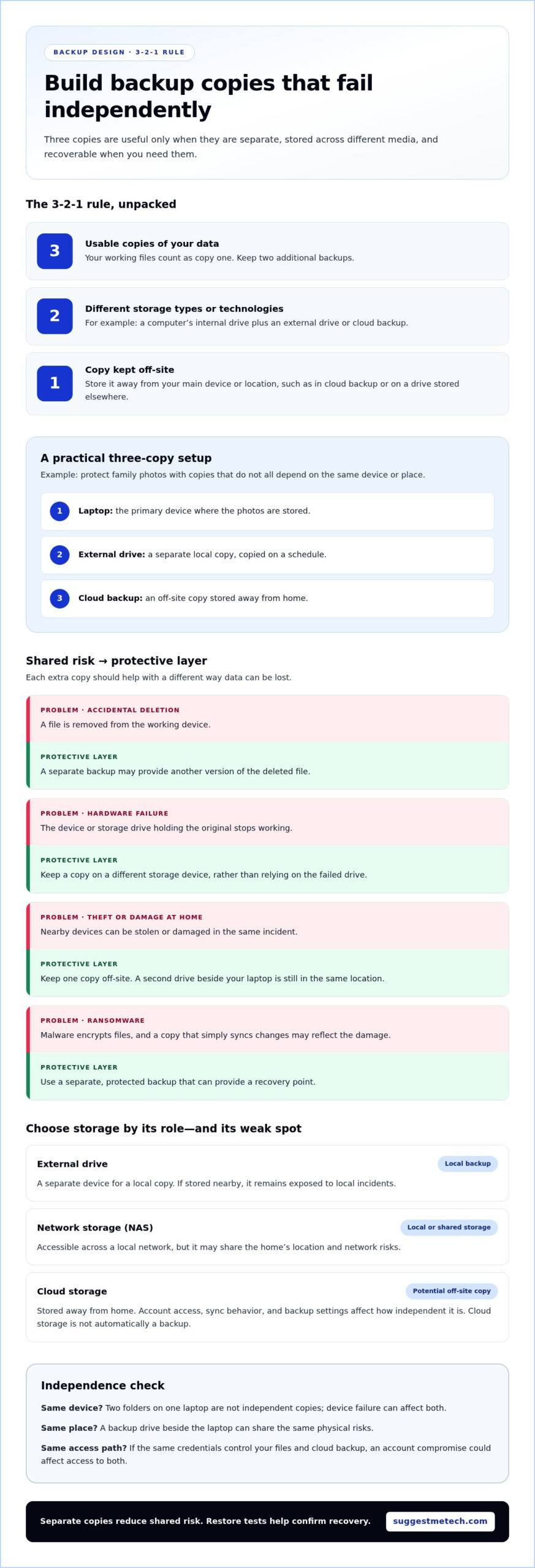
The 3-2-1 backup strategy means keeping three usable copies of important data, storing them on at least two different types of storage, and placing one copy off-site. The original working files count as one copy, so the rule calls for two additional backups. Separating copies reduces the chance that one failure will affect them all.
The goal is to reduce shared risks, not simply make duplicates. A 3-2-1 setup can help protect files from accidental deletion, device breakdown, theft, and ransomware, provided the copies are genuinely separate and can be restored.
What do the three copies, two media, and one off-site copy mean?
A copy is a usable version of your data that you can retrieve if the original is lost or damaged. Renaming a file or creating a shortcut in another folder does not create a backup. The working file is the first copy; two independent backups make up the other two.
“Two media” means using different storage types or technologies, such as a computer’s internal drive and an external drive, or local network storage and cloud backup. The aim is to avoid relying on copies with the same points of failure. If one device type fails, a copy stored another way may remain usable.
An off-site copy is kept physically separate from your main device or location. Cloud backup is one option; a drive stored elsewhere can also serve this role. A second drive beside your laptop may protect against laptop failure, but it is not off-site. If both are stolen or damaged in the same incident at home, both copies could be lost.
Why is one copy not enough?
Imagine your family photos are saved only on a laptop. If its storage drive fails, the photos may disappear with it. A backup on a separate external drive can help with device failure, but keeping the drive beside the laptop leaves both exposed to some of the same events.
Different incidents call for different layers of protection:
- Accidental deletion: A separate backup may provide another version of a file removed from the working device.
- Hardware failure: A copy on a different storage device reduces dependence on the failed drive.
- Theft or a home incident: An off-site copy may remain available if nearby devices are stolen or damaged together.
- Ransomware: A separate, protected backup may provide a recovery point if malware encrypts files. A copy that simply syncs changes could also reflect the damage.
Redundancy lowers risk, but it does not guarantee recovery. Backups can be outdated, incomplete, or inaccessible, so keep copies separate and test whether you can restore them.
How the 3-2-1 Backup Strategy Works in a Real Setup
A practical 3-2-1 setup keeps the same files in three usable places: on the device where they are created, in a separate local backup, and in an off-site backup. The labels matter less than whether a problem affecting one copy can also reach the others.
For example, a family’s vacation photos might be stored on a laptop, copied on a schedule to an external drive, and backed up to a cloud service. The external drive provides a separate local copy, while the cloud copy is stored away from home.
What can count as a copy or storage medium?
An external hard disk drive (HDD) or solid-state drive (SSD) can hold a local backup. Network-attached storage (NAS) is a device that stores files and makes them accessible through a home or office network. Cloud storage keeps data on remotely accessed infrastructure, making it a potential off-site option. It is not automatically a backup: the way files are copied, versioned, and restored matters.
In this example, the laptop is the primary device, while the external drive and cloud backup provide additional copies. A NAS could replace or supplement the local drive, depending on the setup. What matters is how each copy is accessed and which risks it shares, not just what the storage is called.
| Storage option | Role in the setup | Practical advantage and limitation |
|---|---|---|
| External drive | Local backup | Provides a separate device for a local copy; it remains exposed to local incidents if stored nearby. |
| Network storage (NAS) | Local backup or shared storage | Accessible across a local network; it may share the home’s location and network risks. |
| Cloud storage | Potential off-site copy | Physically separate from home; account access, sync behavior, and backup settings affect its independence. |
How should copies be separated?
Two folders on the same laptop are not independent copies. If the laptop is lost or its storage fails, both folders may be affected. An external drive is a separate device, but if it stays beside the laptop, it still shares the same physical location.
Think in layers: separate the files from the primary device, then separate one backup from the primary location. Also consider account access. If the same credentials control both your files and cloud backup, an account compromise could affect access to both. Distinct account protection and a backup that cannot be changed through the same everyday access path can reduce that dependency.
Choose storage based on the files, how often they change, and how quickly you may need them. For practical comparisons across everyday technology choices, explore technology reviews and guides.
Which Backup Options Fit the 3-2-1 Rule, and Where Can They Fall Short?
External drives, network storage, cloud backup, and file-sync services can all help protect data, but they do not provide the same kind of protection. The right choice depends on where a copy is stored, how changes are handled, and whether a problem affecting the original could also affect the backup.
A 3-2-1 setup is not simply a count of storage locations. Three copies can still share risks if they are in the same building, controlled by one account, or automatically receive the same unwanted changes.
| Option | Typical role | Advantage | Limitation | Best suited to |
|---|---|---|---|---|
| External drive | Local backup | Provides a separate device for convenient file recovery. | A connected drive may be affected by malware; a nearby drive shares local risks. | People who want a straightforward local copy and can store or disconnect it appropriately. |
| Network storage | Local backup or shared storage | Makes files accessible across devices on a local network. | It may remain exposed to the same location, network, or account access as the main device. | Households or teams that need shared access and can manage network storage. |
| Cloud backup | Off-site backup | Keeps a copy away from the primary physical location. | Recovery depends on internet access, account access, and the service’s backup and restore features. | People who need geographic separation without storing a drive elsewhere. |
| File-sync service | File access across devices | Keeps files available in multiple places and can make them easy to access. | Changes, including deletions, may propagate instead of preserving an independent recovery point. | People who need convenient file access, especially alongside a separate backup. |
Is cloud sync the same as a backup?
Synchronization keeps files aligned across locations or devices. If you delete a document in a synced folder, that deletion may appear on other devices. If ransomware changes an actively synced file, the changed version may also spread. Some sync services offer version history or deleted-file recovery, but retention and recovery options vary. Treat sync as a backup only if its recovery features provide the separate, usable versions your plan requires.
When does a local or off-site copy help most?
A local copy is useful when one device fails and you need to recover files without relying on a remote connection. An off-site copy can help when an incident affects the primary location, such as theft or damage to equipment stored together. Neither option covers every situation on its own.
Choose a mix based on how important the data is, how quickly you need access, and what you can maintain consistently. A large archive that changes rarely may need a different approach from active work files that must be restored quickly. Also consider shared dependencies: three copies stored in one location or accessible through one compromised account may offer less protection than their number suggests.
How to Build a 3-2-1 Backup Plan for Your Own Files
A practical 3-2-1 backup plan starts with the files you would struggle to replace, then assigns them independent copies, locations, and a repeatable schedule. The aim is not to duplicate every file indiscriminately. It is to make sure your important data has usable backups and a clear recovery path.
Use this sequence for a household or small team, adapting the storage choices to your files and working habits.
- Identify priority files. List irreplaceable personal records, photos, and active work files. Start with information that would be difficult or disruptive to recreate.
- Choose the copies. Keep the working files on the main device, then select a separate local backup and an off-site copy. Make sure each provides a usable version rather than simply mirroring changes.
- Separate the locations. Store the local copy on a different device from the original. Keep the off-site copy in a different physical location, such as remote storage, and consider whether both copies depend on the same account or credentials.
- Set a backup schedule. Match backup frequency to how often important files change and how much recent work you could afford to lose. A file updated daily may need more frequent protection than a reference document that rarely changes.
- Document recovery. Record which files are covered, where each copy is stored, how to access it, and when it last completed successfully. Check backup status instead of assuming a scheduled task worked.
How do you decide what to back up first?
Group files by the effort or impact involved in replacing them. Downloaded installers or entertainment files may be easy to obtain again; family photos, personal records, and current project files may not be. Use recovery priority to guide backup frequency: the harder a file is to replace, or the more disruption its loss would cause, the more often you may want a fresh copy.
For a small team, include shared working documents and records needed to resume essential tasks. Keep the initial inventory manageable, then add lower-priority folders once the important files are covered.
How can you make backups repeatable?
Choose a schedule that reflects how often files change, then automate backups where practical. Automation reduces dependence on remembering each run, but you still need to check the results. Review completion alerts or status logs, and investigate failures before gaps persist.
Keep a brief inventory of file groups, copy locations, access details, and the last successful backup. Review it when devices, accounts, or work routines change. This makes the plan easier to follow and helps others in a household or team find the right copy if you are unavailable.
For practical guidance on evaluating technology choices, explore our technology guides.
How to Test a 3-2-1 Backup and Recover Files When Needed
A backup is useful only if you can restore the files you need, open them, and confirm they contain the expected information. A restore test checks whether the backup captured usable data and whether you can access it. It can also reveal problems while the original files are still available.
Put your backup plan to a practical test with a small, noncritical sample. This lets you check the recovery steps without risking changes to important working files.
How can you test that a backup works?
Restore a sample file to a separate location, not over the original. For example, use a spare document or a copy of a photo, then follow the recovery steps you would use if the original were missing.
- Select a sample. Choose a small, noncritical file that is included in a backup.
- Restore it elsewhere. Retrieve the file to a temporary folder or another device so you can compare it safely.
- Check the result. Open the restored file and confirm it displays or plays as expected, with the information you intended to protect.
- Record the test. Note the date, which backup you used, whether the restore succeeded, and any corrective action needed.
A successful test shows that the sample could be recovered using the process you tried. It does not prove that every file or backup location will work, so test different important file types and copies over time.
What should you review after a failed restore?
A failed test does not prove that every copy is unusable. Identify where the recovery process broke down, then check the other copies separately. A missing file, incorrect access details, a storage problem, or an outdated backup each calls for a different fix.
- Missing files: Check whether the file was included in the backup selection.
- Access problems: Confirm that the account, credentials, or recovery instructions still work.
- Storage issues: Check whether the device or service can be reached and read.
- Outdated copies: Review the schedule and confirm that recent changes are being captured.
After diagnosing the issue, confirm that the remaining copies are accessible and do not all rely on the same device, location, or account. Update your backup schedule or recovery notes to address what the test revealed, then repeat the test after making changes.
Offline or immutable copies can make a backup harder to reach or alter during some attacks. They add another layer to the 3-2-1 foundation, but do not replace multiple copies, different storage media, and an off-site copy.
Set a recurring reminder to review backup completion, test a small restore, and update your notes when files, devices, or access details change. A short, repeatable check helps keep the recovery process familiar.
Make Backup Readiness Part of Your Routine
A dependable backup plan is not a one-time setup. Treat it as a routine that evolves as your files, devices, and access needs change. Set a reminder to review what matters, confirm your copies are reachable, and include a small restore test in regular maintenance.
Assess your setup by asking: if one device or account became unavailable today, what would you need to restore first, and where would you find it? Use the answer to choose a manageable next step, such as organizing files or updating recovery notes.
For balanced technology comparisons and best-fit recommendations, explore SuggestMeTech’s technology guides.

