

What if you could get time back by automating just one small task? If you’re figuring out how to automate repetitive tasks on your computer, you don’t need to start with code or a complicated system. Re-entering the same information, sorting files, or moving details between apps can quietly interrupt your work. A good first step is to identify a task with predictable steps and a result you can check.
Choosing a method can feel confusing, especially if you’re concerned about mistakes or sensitive data. This guide explains how to identify a suitable task, compare built-in computer tools, app connectors, and scripts, then choose an approach that fits your skills and workflow. You’ll also learn how to test an automation on low-risk work, check its results, and keep a manual fallback for important actions. Start small, confirm that it works, and add complexity only when the task calls for it.
Key Takeaways
- Choose a repetitive task with clear steps and predictable results as your first automation candidate.
- Match the method to your needs: built-in features for straightforward tasks, no-code tools for connecting apps, or scripts when you need more control.
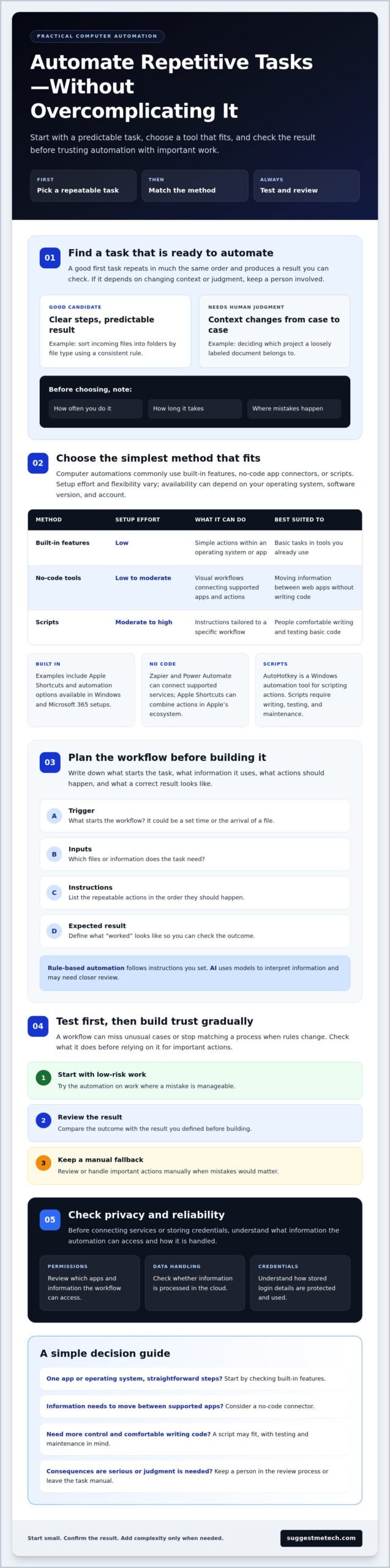
- To learn how to automate repetitive tasks on your computer, document the steps, inputs, and expected result before building a workflow.
- Test your automation with low-risk work first, then check its results before trusting it with important actions.
- Review permissions, cloud processing, and stored credentials to understand how your automation may handle sensitive information.
What Does It Mean to Automate Repetitive Tasks on Your Computer?
Computer task automation uses instructions or triggers to carry out repeatable digital actions. A trigger might be a set time or the arrival of a file; the instructions define what happens next. For example, an automation might rename files according to a pattern or schedule a recurring backup. It can take care of routine steps while leaving a person to review the result.
These workflows are part of a broader approach known as business process automation, which applies technology to repeatable processes. For an individual task, start with two questions: does it follow consistent steps, and can you tell whether it worked?
Which computer tasks are good candidates for automation?
Start with tasks you repeat often, follow in much the same order, and can check against a clear result. Sorting incoming files into folders by file type is easier to automate than deciding which project a loosely labeled document belongs to. The first task has a predictable rule; the second may depend on context.
Before choosing a task, note how often you do it, how long it takes, and where mistakes tend to happen. This helps you judge whether automation is worth setting up and what the workflow needs to handle. Even a task that takes little time may be a good candidate if it often leads to errors.
When should you keep a task manual?
Keep a person involved when an action has serious consequences, depends on sensitive information, or requires judgment that changes from one case to another. For example, a workflow might prepare a draft or organize records, while you check the details before anything is sent, deleted, or changed permanently.
Rules can change, and automated steps may not recognize unusual cases. Test the workflow and keep a manual review or fallback wherever mistakes would matter. If checking and correcting the automation takes longer than doing the task yourself, it may not be a useful fit.
Which Computer Automation Methods Can You Use Without Overcomplicating the Setup?
Most personal computer automations use one of three approaches: features built into your operating system or apps, no-code tools that connect supported services, or scripts that run written instructions. The right fit depends on what the task needs to do and how comfortable you are setting it up.
Availability and capabilities can vary by operating system, software version, and account, so check what your computer and existing apps support. Task automation typically uses defined actions and triggers. One useful distinction is that rule-based automation follows instructions you set, while AI uses models to interpret information and may need closer review.
| Method | Setup effort | Flexibility | Best suited to |
|---|---|---|---|
| Built-in features | Low | Simple actions within an operating system or app | People automating basic tasks in tools they already use |
| No-code tools | Low to moderate | Connects supported apps and actions in visual workflows | People moving information between web apps without writing code |
| Scripts | Moderate to high | Can be tailored to specific instructions and workflows | People comfortable writing and testing basic code |
Can built-in computer features handle everyday automation?
Often, yes, especially when a task stays within one operating system or app. Apple Shortcuts is available across Apple operating systems, and recent macOS updates have added personal automation triggers such as a time of day or a file change. Windows users can check the automation options available in their Windows and Microsoft 365 setup, including Power Automate features. A built-in reminder, for instance, can prompt you to complete a recurring task without connecting an outside service.
Built-in options are a practical starting point for straightforward actions with few external dependencies. Check the current settings and feature availability on your device before relying on a particular trigger.
When should you use no-code tools or scripts?
Scripts provide more control, but you’ll need the technical comfort to write, test, and maintain them. AutoHotkey is a Windows automation tool for scripting actions. A script may suit a specific workflow that visual tools can’t handle easily, but test it on copies or low-risk data first. For more practical technology comparisons and guides, explore computer automation guides.
How Do You Choose the Right Automation Approach for Your Task?
The best approach depends on how predictable the task is, which apps it touches, and what could happen if the automation makes a mistake. When deciding how to automate repetitive tasks on your computer, compare the simplest option that meets your needs with the time and effort required to set it up and check it.
Automation can make a process more consistent, but it still needs to fit the way you work. IBM’s What Is Task Automation? resource provides more context on the concept. For choosing an approach, focus on compatibility, access, and the amount of human review the task requires.
| Approach | Best fit | Check before choosing | When manual may be better |
|---|---|---|---|
| Built-in feature | A consistent action within one operating system or app | That your device and software version support the needed trigger or schedule | The task has changing rules or exceptions you must interpret |
| No-code tool | A repeatable workflow across supported apps | That each app is supported and the required account permissions are acceptable | The workflow handles sensitive information you don’t want to pass between services |
| Script | A specific workflow requiring control beyond simpler options | That you can test, understand, and maintain the instructions | A mistake could cause serious harm and reliable checks aren’t available |
What should you check before choosing an automation tool?
Confirm that the tool works with your operating system and every app the workflow needs. Check whether it requires access to files, accounts, or other data, and review the permissions it requests. Availability can vary by software version and account, so verify the current options rather than assuming a tutorial applies to your setup.
Next, decide how the automation should start: on a schedule, after a specific event, or only when you launch it. A manual launch can be a sensible first choice if you want to inspect each run before making it automatic.
Which approach fits common everyday tasks?
For a simple recurring action in one app, start with a built-in feature if it supports the trigger you need. For a workflow that passes information between apps, check whether a no-code tool supports those exact services and actions. Use a script only when simpler methods lack the control you need and you’re comfortable testing its behavior.
Consider consistency alongside consequences. A predictable, low-risk task is easier to automate than one with frequent exceptions. If an error would be difficult to reverse, keep a person involved or continue manually until you can verify the workflow reliably.
How to Automate a Repetitive Computer Task Step by Step
A reliable automation starts with a clear description of the task, not with clicking through a tool. Before building anything, record the current steps, the information or files they use, and what a correct result looks like. This makes it easier to choose the right actions and spot missing instructions.
To learn the process, use a low-risk example such as sorting copies of sample files into folders. Keep the originals untouched while you build and check the workflow.
Map the task into clear instructions
Write down what starts the task, each action you take, and the expected result. Separate essential steps from optional ones, and flag exceptions that require a person to decide what to do. For file sorting, specify which file types go into which folders and leave unknown types for manual review.
Build, test, and launch in stages
- Select one repeatable task. Choose work with consistent steps and a result you can check, such as sorting copies of sample files.
- Document the current process. List the starting condition, inputs, actions, exceptions, and expected result. Note where you currently pause to make a judgment.
- Choose a suitable method. Use a built-in feature or no-code workflow for a straightforward task if it supports the steps you need. Consider a script only if simpler options can’t provide the necessary control.
- Build the smallest useful workflow. Automate the essential actions first. Add optional steps only after the basic process produces the right outcome.
- Test with sample data. Run the workflow on a small set of copies that contain no sensitive information. Compare the output with your expectations and check for skipped, misplaced, or altered files.
- Make a limited live trial. If the test succeeds, start with a manual launch or a restricted schedule. Review each result before increasing the workflow’s scope or using it with important files.
Testing with sample data can reveal unclear instructions before they affect real files or work. If a result is wrong, revise the steps and repeat the test rather than assuming the automation will handle exceptions on its own.
Check the result before expanding use
Compare the automation’s output with the expected result. Confirm that it processed the right items and left exceptions available for review. If the task changes over time, revisit the instructions and test again after making edits. Expand the workflow only when its results remain understandable and easy to verify.
For more practical guidance on choosing and using technology, explore technology guides.
Reliable, Private, and Easy Computer Automations
An automation can fail if an app changes, an input is missing, or an instruction no longer matches the task. Keep safeguards around actions that affect important files or information, and review early runs instead of assuming the workflow will always behave as expected.
Privacy depends partly on where the automation runs and what access it needs. A local workflow may handle files on your computer, while a cloud-based tool may process information through an online service. Check the tool’s permissions, data handling information, and how it stores credentials used to sign in to connected accounts. Enable logs or notifications only if the tool supports them and they help you monitor results.
How can you reduce the impact of an automation error?
Plan how to recover before automating changes to important files. Keep a backup or a separate copy, and use a confirmation step before the workflow sends, deletes, or publishes anything consequential. These checks let you review an action before it becomes difficult to undo.
During early runs, compare each result with what you expected. Pause the workflow if it skips an item, changes something unexpectedly, or produces an unclear result. Fix the cause and test again before restarting it. Keep human approval for actions that can’t be easily reversed.
When should you review or replace an automation?
Recheck a workflow when its connected operating system, app, or underlying process changes. A renamed folder, changed app setting, or new step in your routine can make old instructions unreliable. Periodically review account and device settings, remove permissions you no longer need, and delete workflows you no longer use.
A practical way to approach how to automate repetitive tasks on your computer is to start with one low-risk task, grant only the access it needs, and check the results before expanding its use. Keep the workflow only if it stays accurate, understandable, and worthwhile to maintain.
Make Your First Automation Simple and Safe
Learning how to automate repetitive tasks on your computer starts with work that follows clear, consistent steps. Match the method to the task: built-in features can handle straightforward actions, no-code tools can connect supported apps, and scripts offer more control when simpler options fall short.
Before putting a workflow into regular use, record its inputs and expected result, test it with low-risk sample data, and review what it does. Keep human checks in place for sensitive information or actions that are difficult to undo. If a process changes, revisit the automation and confirm it still works as intended.
You don’t need to automate everything at once. Start with one manageable task, keep what proves reliable, and adjust or stop if maintenance outweighs the time saved. For practical technology advice, explore more practical technology guides and find another useful way to simplify your everyday workflow.
Frequently Asked Questions
These answers cover common questions about choosing, setting up, and maintaining computer automations. Check your device’s current features and test workflows carefully, since available options can vary by operating system, software version, and account.
What is the easiest way to automate repetitive tasks on a computer?
The easiest way is to start with a task that has consistent steps and use a built-in feature if it supports the action you need. For example, you might set up a recurring reminder or automate a simple file action. First, note the trigger, steps, and expected result, then test the workflow on a small, low-risk sample before relying on it.
Can I automate computer tasks without knowing how to code?
Yes. Built-in features and no-code automation tools let you create workflows by choosing actions and connecting supported apps rather than writing code. You could use a visual workflow to pass information between compatible services. Start with a simple process, confirm that the tool supports the apps involved, and test the result. Scripts are another option, but they require more technical comfort.
How do I automate a task on Windows?
On Windows, first check which automation options are available in your operating system and Microsoft 365 setup. Power Automate can handle supported cloud and desktop workflows, but features and access may depend on your setup. Define the trigger and actions, confirm that the apps are supported, and test with sample data. For a small recurring action, check whether a built-in app feature is enough.
How do I automate a task on a Mac?
On a Mac, check the Shortcuts app and the automation options available in your macOS version. Shortcuts can combine actions, and recent macOS updates have added personal automation triggers such as a time of day or a file change. Availability can vary, so verify that your Mac supports the trigger you need. Test a shortcut with non-sensitive files before using it on important work.
Is it safe to automate tasks that involve personal files?
It can be, but safety depends on what the automation can access and where it processes information. Review permissions before connecting a tool to files or accounts, and check whether a cloud service handles any of the data. Keep recoverable copies before automating changes, and test with non-sensitive samples. For actions such as deleting or sending files, add a confirmation or review step.
What kinds of computer tasks should not be automated?
Avoid fully automating tasks that rely on individual judgment, change frequently, or could cause serious harm if performed incorrectly. Sending sensitive information, deleting important files, or making decisions based on unusual circumstances are examples where human review matters. You may still automate preparation, such as organizing items for review, while keeping the final decision manual. If checking for errors takes longer than doing the task, keep it manual.
Why does a computer automation stop working?
An automation may stop working after an operating system or app update, a change to the task, or a lost permission or account connection. Its trigger may also no longer match the event or schedule you intended. Check the workflow’s settings, permissions, inputs, and recent changes, then test it with sample data. Pause it if the results are unexpected, and update or replace it before using it again.

