

Your expensive 4K webcam won’t save your professional reputation if your lighting setup is stuck in the past. Even in 2026, many experts still struggle with the “tired” appearance caused by harsh overhead shadows or the distraction of a grainy, lagging feed. It’s a common frustration to feel like your digital presence doesn’t match your actual authority during high-stakes meetings. If you’ve ever wondered how to look good on a video call without building a full broadcast studio, you’re in the right place.
We’re here to help you bridge the gap between “just showing up” and commanding the room. You’ll learn how to master your on-camera presence by optimizing your current gear and leveraging the newest AI-driven enhancement software. This guide breaks down everything from achieving a perfect 5000K daylight balance to choosing hardware that keeps you in focus. We’ll provide the practical tips you need to look polished and stay confident every time you hit the join button.
Key Takeaways
- Implement a simplified three-point lighting setup to eliminate unflattering shadows and create a professional, well-lit environment.
- Master the “Golden Angle” and camera height to understand exactly how to look good on a video call while projecting authority and confidence.
- Use color theory to choose wardrobe options that pop on lens while avoiding specific patterns that cause distracting visual interference.
- Leverage 2026 AI tools like eye-contact correction and virtual relighting software to maintain a polished, studio-quality presence in any setting.
- Follow a 5-minute pre-meeting ritual to test your technical stability and framing, ensuring you stay focused on the conversation rather than your gear.
Master Your Lighting: The Foundation of On-Camera Presence
Lighting isn’t just about being visible; it’s about depth, clarity, and professionalism. Since the early history of video conferencing, visual quality has been the primary indicator of authority in digital spaces. If you want to know how to look good on a video call, you must start with your light source. Poor lighting creates digital “noise” that forces your camera to work harder, resulting in a grainy, pixelated image that looks amateur regardless of your webcam’s price tag.
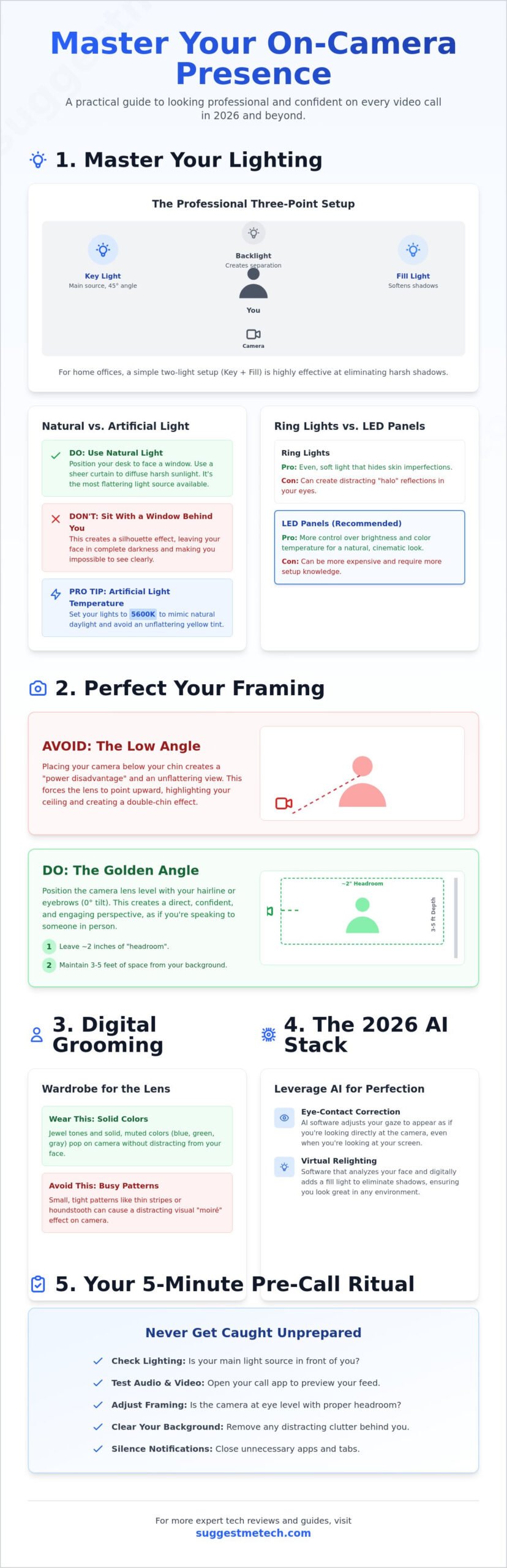
To achieve a studio-quality look at home, you don’t need a massive budget. You just need to understand the three-point lighting concept. This setup uses a “Key Light” as your primary source placed 45 degrees to one side, a “Fill Light” on the opposite side to soften shadows, and a “Backlight” behind you to create separation from your background. For most home offices, a simple two-light setup is enough to eliminate the unflattering shadows that make you look tired or stressed.
When choosing tools, you’ll likely decide between ring lights and LED panels. Ring lights are popular because they provide even, circular illumination that hides skin imperfections, but they can create distracting “halo” reflections in your eyes. Professional LED panels, like the Neewer 660 or Elgato Key Light, offer more control. These panels allow you to adjust brightness and color temperature, providing a more cinematic and natural appearance without the ring-shaped glare.
Natural Light vs. Artificial Light
Natural light is the most flattering source available, provided you use it correctly. Position your desk so you’re facing a window directly. Never sit with a window behind you, as this creates a silhouette effect that leaves your face in total darkness. If the sunlight is too harsh, use a sheer curtain to diffuse the rays. For artificial setups, aim for a color temperature of 5600K. This mimics daylight and prevents the sickly yellow tint caused by standard 2700K home lightbulbs.
The Screen as a Light Source
Your monitor is essentially a giant light panel that can cause a “ghost effect” by casting a cold, blue tint on your skin. To fix this, lower your screen brightness to about 50% and use a white background or a blank document to act as a soft fill light. If you wear glasses, screen glare is a major hurdle. You can solve this with the “tilt trick”: slightly lift the temples of your glasses so the lenses angle downward. This redirects the reflection away from the camera lens while keeping your vision clear.
Camera Positioning and Framing for a Professional Look
Positioning your camera correctly is the silent communicator of your professional authority. While lighting sets the mood, your framing defines how others perceive your confidence and engagement. Many professionals make the mistake of leaving their laptop on the desk, which forces the lens to point upward. This angle creates a “power disadvantage” where you appear to be looming over your colleagues, often highlighting the ceiling or the underside of your chin rather than your face. If you want to master how to look good on a video call, you must treat your camera lens like the eyes of a person standing directly in front of you.
Achieving your “Golden Angle” requires a slight adjustment to the physical height of your device. You want the lens to be level with your hairline or eyebrows, not your chest. This specific height prevents the dreaded double-chin effect and ensures your neck looks elongated and natural. When you frame yourself, follow the basic rules of cinematography: leave about two inches of “headroom” between the top of your head and the top of the frame. If you sit too low, you’ll look like you’re sinking; sit too high, and you’ll appear cut off and cramped.
Background depth is another critical factor for a polished look. Sitting directly against a flat, white wall makes you appear two-dimensional and can cause the camera’s auto-focus to struggle with skin tones. Try to maintain at least three to five feet of space between your chair and the wall behind you. This physical distance creates a natural depth of field, making you the clear focus of the frame. For more tailored advice on hardware that makes these adjustments easier, check out our latest technology reviews and guides.
The Eye-Level Rule
Your goal is a 0-degree tilt. External webcams, such as the Logitech Brio 500 or the Insta360 Link, offer far more flexibility than built-in laptop lenses because they can be mounted on independent tripods. According to Georgetown University’s guide to video calls, maintaining eye-level contact is essential for building trust during digital interactions. If you’re using a laptop, don’t rely on a stack of unstable books. Use a dedicated laptop stand or a monitor mount to keep the lens stable and perfectly aligned with your eyes.
Managing Your Background
Your background should support your professional story, not distract from it. Minimalism is a powerful signal of an organized mind. Remove “visual noise” like laundry piles, cluttered shelves, or high-traffic doorways from the frame. If your physical space isn’t ideal, a high-quality digital blur is often better than a flashy virtual background that “eats” your ears or hair. Strategically placing a single healthy plant or a small, curated shelf of books behind you can create a sense of expertise and warmth without overwhelming the viewer.
Digital Grooming: Wardrobe and Appearance for the Lens
If lighting and framing are the technical foundations of your presence, your wardrobe is the finishing touch that communicates your professional brand. Even with the best equipment, the wrong outfit can sabotage your image. Understanding how to look good on a video call requires a basic grasp of how digital sensors interpret color and texture. Unlike a face-to-face meeting, the camera lens has a limited dynamic range. It often struggles with extreme contrasts and complex patterns that the human eye handles with ease.
One of the most common technical errors is the “Moiré Effect.” This occurs when you wear thin stripes or busy houndstooth patterns. The camera’s sensor can’t resolve the fine detail, creating a shimmering, dizzying vibration on the viewer’s screen. To maintain a stable and professional image, stick to solid colors. Fabric choice is equally important. Shiny materials like silk or satin reflect your light sources, creating “hot spots” on your shoulders or chest. Opt for matte fabrics like cotton, linen, or lightweight wool to ensure the light absorbs evenly rather than bouncing back at the lens.
Selecting the Right Colors
Jewel tones are your best friend on camera. Deep shades of navy, emerald, and burgundy provide a rich contrast that helps you stand out from your background without overwhelming the sensor. Avoid wearing pure white or pure black. Pure white often causes the camera’s auto-exposure to overcompensate, making your skin look dull and underexposed. Conversely, pure black can make you look like a “floating head” if your lighting isn’t perfectly tuned. When choosing your palette, aim for a shade that provides professional separation from your wall color. If you have a light gray background, a navy blazer creates the perfect visual hierarchy.
On-Camera Skincare and Makeup
High-definition 4K webcams are unforgiving with skin texture. Managing “T-zone” shine is the fastest way to look more polished. Even if you don’t typically wear makeup, a quick application of translucent powder or a simple blotting paper can prevent your forehead and nose from reflecting your LED panels. It’s a physiological fact that camera lenses “eat” about 20% of your natural color. To avoid looking washed out, you might need slightly more vibrancy in your appearance than you would for an in-person lunch. Fortunately, by 2026, platforms like Zoom and Microsoft Teams have integrated advanced digital touch-up tools. These AI-powered filters can subtly smooth skin and enhance color saturation in real-time, helping you maintain a healthy, rested appearance throughout long meeting days.
The 2026 Tech Stack: Leveraging AI for Visual Perfection
Technology in 2026 has moved beyond simple resolution. While previous years focused on 1080p versus 4K, today’s standard is defined by how well your hardware and software work together to automate your presence. Understanding how to look good on a video call in 2026 means moving beyond basic hardware into the world of intelligent software that corrects for human error and environmental limitations in real-time.
One of the most significant breakthroughs is AI Eye-Contact Correction. This software subtly adjusts your pupils so you appear to be looking directly at the lens even when you’re reading notes or looking at other participants on your screen. Similarly, Virtual Lighting AI can now “relight” your face digitally. If your physical light is too dim or coming from a bad angle, software like Topaz Video AI or integrated platform features can boost exposure on your face while keeping the background natural. These tools act as a digital safety net for unpredictable environments.
Visual perception is also deeply tied to audio quality. It’s a psychological fact that viewers perceive video as grainier and lower quality if the audio is muffled or echoing. High-quality audio creates a “halo effect” for your video feed; it makes the visual appear sharper and more professional by association. Investing in a dedicated microphone is no longer optional for high-stakes meetings. It’s the final piece of the puzzle that ensures your polished visual isn’t undermined by poor sound.
AI-Enhanced Video Software
Modern software tools like DaVinci Resolve’s Super Scale or the AI-driven features in Insta360 Link’s software suite offer real-time upscaling and skin smoothing. These aren’t just “beauty filters.” They’re sophisticated algorithms that reduce digital noise and sharpen focus. Auto-framing features, often called “Center Stage” or “AI Tracking,” ensure that even if you lean back or shift in your chair, the camera follows you smoothly. This keeps you perfectly centered and prevents you from falling out of your “Golden Angle.”
Hardware Upgrades Worth the Investment
While software is powerful, it needs good data to work with. The best laptops of 2026 now feature 1080p+ sensors as a baseline, but dedicated external webcams still provide better results. For those who want the ultimate setup, 4K PTZ (Pan-Tilt-Zoom) cameras like the Obsbot Tiny 3 offer a massive 1/2-inch sensor that captures detail a laptop lens simply can’t match. If you aren’t ready for a full 4K setup, using your smartphone as a webcam via specialized apps often provides a better image than built-in lenses. For a complete list of recommended hardware, check out our technology reviews and guides to see which gear fits your specific budget.
Putting it into Practice: A Pre-Call Checklist
Knowing how to look good on a video call is only half the battle; the other half is consistent execution. Even the most advanced 2026 tech stack can fail if you forget to verify your settings before the meeting starts. A 5-minute pre-call ritual ensures that your professional image remains intact from the moment you join the room. Start by testing your internet stability. High-resolution 4K feeds and AI-driven background blurs require significant bandwidth. A quick speed test can prevent the “pixelated face” syndrome that undermines your authority.
Next, perform a final background sweep. Look for sensitive documents on shelves or distracting movement in doorways. Verify your lighting and eye-level alignment one last time. If you’re using AI eye-contact correction, make sure the software is tracking correctly in your preview window. This short ritual transforms a stressful tech setup into a reliable professional asset. It allows you to focus on the conversation rather than worrying about a flickering light or a messy shelf.
The Tech Dry Run
Always use the “Preview” window before clicking the join button. This is your final chance to check your framing and ensure your wardrobe isn’t reacting poorly to your lighting. Verify that the correct camera and microphone sources are selected. In 2026, many users have multiple inputs from webcams, smartphones, and AI software. You don’t want to start a high-stakes meeting using your laptop’s internal mic by mistake. Close any background apps that aren’t essential. Video processing, especially with real-time AI enhancement, is resource-heavy. Freeing up processing power ensures your feed stays smooth and lag-free.
Engagement and Body Language
The “Lens is a Person” rule is your most powerful engagement tool. It’s tempting to look at the other person’s face on your screen, but true connection happens when you look directly into the camera. Since we’ve already discussed AI eye-contact correction, use your dry run to ensure this feature is active and natural. This creates the illusion of constant, confident eye contact without the strain of staring at a plastic lens for an hour. Direct your gaze to the lens whenever you are speaking to command the room’s attention.
Posture also dictates your on-camera energy. Sit on the front edge of your chair rather than leaning back into the cushions. This simple shift naturally straightens your spine and prevents the “slouch” that makes you appear disengaged. When you combine this active posture with meaningful hand gestures kept within the bottom third of your frame, you project warmth and expertise. These small physical cues make you appear more approachable and energetic, ensuring you look just as good as your tech allows.
Elevate Your Digital Presence
Mastering your on-camera appearance is no longer a luxury for the tech-savvy; it’s a fundamental professional skill. By prioritizing high-quality lighting and perfecting your camera angle, you’ve already solved the most common visual hurdles. Integrating AI-driven software and maintaining a disciplined pre-call checklist provides the final layer of polish needed for high-stakes environments. You now have the definitive blueprint for how to look good on a video call in any professional setting.
If you’re ready to upgrade your hardware to match your new skills, we’ve done the heavy lifting for you. Our team has completed 2026 hands-on testing and a comprehensive comparison of 50+ webcams to find the best values on the market. We also provide expert AI software analysis to help you navigate the latest digital enhancement tools. Check out our expert reviews of the best laptops and gear for your home office to build a setup that works for your specific needs. You have the knowledge; now it’s time to let your expertise shine through the lens with confidence.
Frequently Asked Questions
How do I stop my glasses from reflecting my screen?
Tilt the temples of your glasses up slightly so the lenses angle downward toward your desk. This simple adjustment redirects the light from your monitor away from the camera lens. You should also try moving your primary light source higher or further to the side to prevent a direct bounce back into the camera. These small changes in geometry can eliminate distracting glare without requiring you to dim your screen.
What is the best color to wear for a video interview?
Solid jewel tones like navy blue, emerald green, or burgundy are the most effective choices for the camera’s sensor. These deep shades provide a rich contrast against most home office backgrounds and help your webcam’s auto-exposure lock onto your face. Avoid wearing pure white or pure black, as these can cause the camera to overcompensate, either washing you out or leaving your features in shadow.
Do I really need a ring light for video calls?
You don’t strictly need a ring light if you have a strong, natural light source or a high-quality LED panel. While ring lights are popular for providing even illumination, many professionals prefer LED panels because they offer better control over color temperature and brightness. The goal is to have consistent, front-facing light that eliminates shadows under your eyes and chin, regardless of the specific tool you use.
How can I hide a messy room on a video call without a green screen?
Use the built-in “Blur Background” feature in your video conferencing software or apply a high-quality virtual background. Minimalism is a key part of how to look good on a video call because it keeps the focus entirely on you. If you want a more natural look, reposition your desk so your back is to a corner or a plain wall, which naturally limits the amount of room visible in the frame.
Why do I look orange or blue on camera and how do I fix it?
This is a white balance issue caused by mismatched color temperatures in your environment. If you look too blue, you likely have too much “cool” daylight hitting your face; if you look orange, your room lights are too “warm.” Use your webcam’s software settings or adjustable LED lights to set your color temperature to 5000K-5600K for a natural, daylight-balanced appearance that looks professional.
Can I use my iPhone as a webcam for my computer?
Yes, you can use your iPhone as a high-end webcam using features like Apple’s Continuity Camera or third-party apps. This is often a superior choice to built-in laptop lenses because the iPhone’s rear camera has a much larger sensor and better low-light performance. It’s an excellent way to upgrade your visual quality immediately without investing in a dedicated external camera.
Does a higher resolution webcam actually make me look better?
A higher resolution, such as 4K, provides more detail, but sensor size and light handling are more important for overall quality. A 1080p webcam with a large sensor will often look better than a cheap 4K camera in low-light conditions. When you research how to look good on a video call, focus on hardware that offers a wide dynamic range and accurate color reproduction rather than just the pixel count.
How do I fix eye contact if I have to look at my notes?
Position your digital notes as close to the camera lens as possible at the top of your screen. This minimizes the distance your eyes have to travel, making your gaze appear more natural to the viewer. By 2026, you can also use AI eye-contact correction software that digitally adjusts your pupils to maintain a direct gaze with the lens even while you are reading from your monitor.