
Did you know that e-waste accounts for nearly 70% of the toxic heavy metals found in U.S. landfills? This staggering statistic from 2026 explains why that dusty device in your closet feels like such a burden. If you’re currently wondering what to do with an old laptop that’s too sluggish for modern Windows or macOS, you’re not alone. It’s common to feel stuck between the frustration of poor performance and the anxiety of leaving sensitive personal data on a discarded hard drive.
We believe your aging tech still has plenty of value, and we’re here to help you unlock it. This guide promises to show you how to transform your hardware into a specialized tool or dispose of it through secure, verified channels. You’ll get a clear look at 15 practical options, such as creating a dedicated retro gaming station or installing a lightweight operating system like Chrome OS Flex version 149.0.7827.153. Whether you’re looking for a fun weekend project or a certified recycling method that meets NIST 800-88 standards, you’ll find the exact steps needed to gain peace of mind and clear your desk.
Key Takeaways
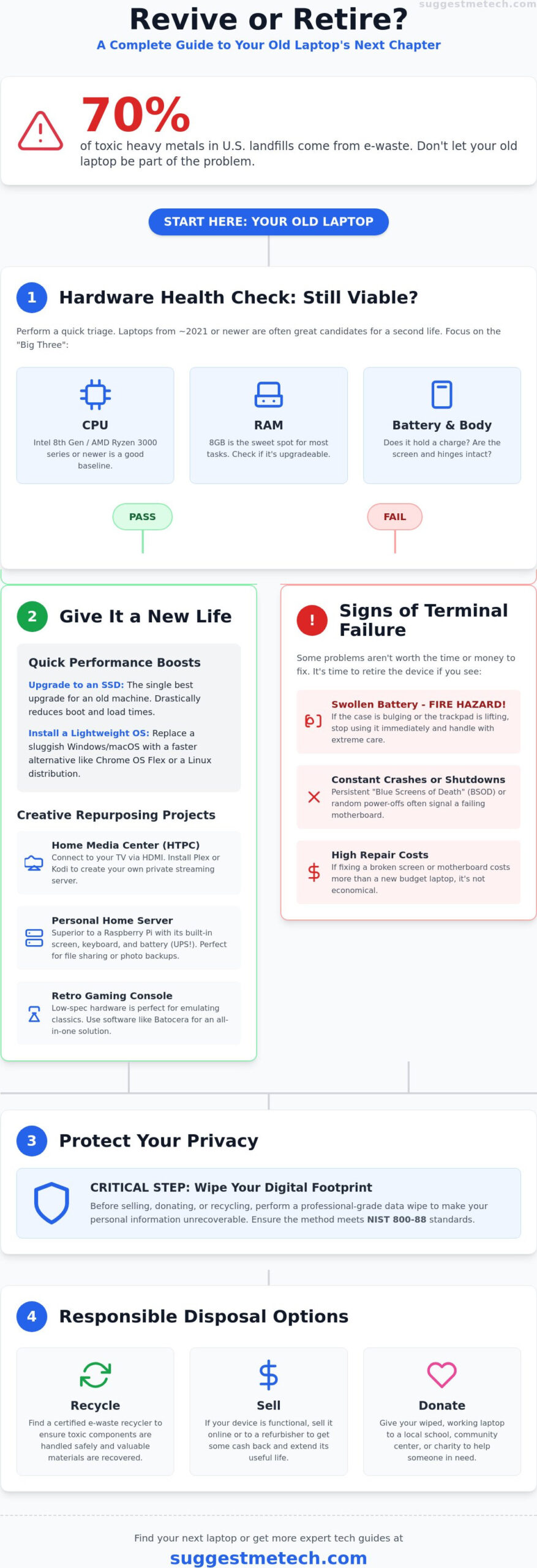
- Evaluate your hardware using the “Big Three” health checks to determine if your device is a candidate for a second life or ready for retirement.
- Learn exactly what to do with an old laptop by converting it into a dedicated media center, home server, or retro gaming console.
- Speed up sluggish performance by swapping in an SSD or switching to a lightweight operating system designed for older hardware.
- Protect your privacy with professional-grade data destruction techniques that ensure your personal information is unrecoverable before the device leaves your hands.
- Navigate the latest 2026 e-waste regulations and tax laws to either sell your tech for cash or donate it responsibly to those in need.
Assessing the Hardware: Is Your Old Laptop Still Viable?
Before you decide what to do with an old laptop, you must perform a quick hardware triage. Not every machine is a candidate for a second life, but many are unfairly discarded too soon. A general “5-year rule” is an excellent starting point. Laptops manufactured around 2021 usually feature quad-core processors and solid-state drives that remain very capable for specialized tasks. If your device is much older than this, it might still function, but the performance per watt starts to drop significantly. You don’t want a repurposing project that spikes your electric bill without delivering results.
Focus your assessment on the “Big Three”: the CPU, RAM, and battery. An Intel 8th Gen or AMD Ryzen 3000 series chip is the baseline for a smooth modern experience. If the laptop has less than 8GB of RAM, you’ll likely need to upgrade it or choose a very lightweight operating system later. Finally, check the battery health. If it only lasts ten minutes, the laptop is essentially a stationary “desktop” now. Don’t forget the physical chassis. A cracked hinge or a flickering screen might make a portable project impossible, but it won’t stop the machine from serving as a tucked-away home server or a hidden media hub.
Distinguishing between software bloat and hardware failure is the most important part of this assessment. Modern versions of Windows are incredibly resource-heavy. If your laptop feels sluggish, it’s often the operating system struggling with background tasks rather than a failing processor. If the fan spins constantly but the air coming out is cool, you have a software bottleneck. However, if the air is scorching and the system throttles, your cooling system is likely clogged with dust. A quick cleaning could be all it takes to restore full performance.
The ‘Repurpose-Ready’ Checklist
Use these criteria to see if your hardware is worth the effort of a new project:
- RAM Capacity: Verify if the motherboard supports at least 8GB of RAM. This is the sweet spot for basic web browsing and media streaming.
- Connectivity: Check for a functional HDMI or DisplayPort. This is vital for monitor-less projects where the laptop stays closed.
- Thermal Stability: Does the laptop stay powered on during a simple boot test without shutting down from heat?
When to Call It Quits: Signs of Terminal Hardware Failure
Some problems aren’t worth fixing. If you see persistent “Blue Screen of Death” loops or random shutdowns, the motherboard or power delivery system is likely failing. Most importantly, look for battery swelling. If the trackpad is lifting or the case is bulging, stop using it immediately. This is a fire hazard and means it’s time to recycle the device to prevent Electronic waste (E-Waste). If the estimated repair costs for a screen or motherboard exceed the price of the best laptops of 2026, it’s better to move on to recycling or professional disposal.
Creative Repurposing: Turning Your Laptop into a Specialized Tool
Once you’ve confirmed your hardware is healthy, it’s time to decide exactly what to do with an old laptop. Instead of letting it sit in a drawer, think of it as a specialized tool that can offload tasks from your primary machine. A popular starting point is turning it into a dedicated Media Center (HTPC). By connecting it to your TV via HDMI and installing software like Plex or Kodi, you create a private streaming box that rivals expensive commercial alternatives. You can also mount the device on a wall to serve as a high-resolution digital photo frame or a live weather station dashboard that updates in real-time.
Building Your Own Home Server
An old laptop is often superior to a Raspberry Pi for a first-time server project. It comes with a built-in screen, keyboard, and a battery that acts as a natural Uninterruptible Power Supply (UPS) during power flickers. You can set up local file sharing to back up family photos or host a basic personal website. While a local server is a great way to learn what to do with an old laptop, larger public-facing projects usually require the reliability and bandwidth of the best web hosting services to ensure 24/7 uptime and professional security.
The Ultimate Retro Gaming Console
Low-spec hardware is actually an advantage for emulating systems like the SNES, Sega Genesis, or PlayStation 1. Using lightweight operating systems like Batocera or RetroArch, you can transform your tech into a dedicated arcade. Connect a few USB controllers to bypass the aging laptop keyboard and enjoy a lag-free experience. If your device is truly beyond repair for these fun projects, consult the EPA’s guide on Electronics Donation and Recycling to ensure it doesn’t end up in a landfill.
A Dedicated Video Conferencing Hub
Meetings can drain the resources of your primary work computer, especially during screen sharing. By repurposing the old laptop as a permanent Zoom or Teams station, you keep your main screen clear for notes and tasks. Optimize the audio settings and use a wired Ethernet connection for a professional feel. Alternatively, you can strip away all software except a simple text editor to create a distraction-free writing station. This setup is perfect for authors who need to escape the constant notifications of modern web browsers. If you find these projects helpful, you can find more expert advice in our Technology Reviews and Guides.
Performance Optimization: How to Speed Up an Aging Machine
Many users assume a slow computer is a dying computer, but the bottleneck is often a single component or bloated software. If you’re deciding what to do with an old laptop that feels stuck in the past, a few targeted upgrades can provide a massive return on investment. The most effective change you can make is swapping a mechanical hard drive for a Solid State Drive (SSD). If your machine is older than five years, it likely relies on spinning platters that can’t keep up with modern data demands. Replacing this with a $30 SATA SSD can turn a two-minute boot sequence into a twenty-second experience.
Memory is the second major hurdle. Modern web browsers are notorious for consuming massive amounts of RAM, and 4GB is no longer enough for a smooth experience. Adding a $20 or $30 stick of memory to reach 8GB or 16GB can save a machine that would otherwise cost $500 to replace. Before you invest in hardware, consult the EPA guidelines on electronics recycling to ensure your specific model isn’t better suited for a professional program if it’s already showing signs of terminal failure.
Don’t ignore the physical health of your tech. Over time, dust clogs the cooling fans and the thermal paste between the processor and the heatsink dries out. This causes the laptop to “thermal throttle,” which means it intentionally slows down to prevent itself from melting. Opening the case to blow out dust with compressed air and applying a pea-sized amount of fresh thermal paste can restore the clock speeds your laptop had on day one.
Switching to Linux or ChromeOS Flex
Windows 11 is a resource-intensive operating system that often overwhelms older CPUs. You can bypass this by installing a lightweight Linux distribution like Linux Mint or Lubuntu, which offer a familiar desktop layout but use a fraction of the system resources. Alternatively, Google’s ChromeOS Flex version 149.0.7827.153 can turn almost any aging hardware into a fast, secure Chromebook. You can test these systems by booting from a USB drive before you commit to a full installation, allowing you to verify hardware compatibility without losing your current files.
Software Maintenance and Bloatware Removal
Manufacturers often pre-install “junkware” that runs in the background and steals precious CPU cycles. Use a tool like Decrapifier to strip these away and manage your startup apps through the Task Manager to ensure only essential services are running. Just like learning how to clear cache on iPhone, cleaning up your laptop’s temporary files and system cache is vital for maintaining speed. These small software adjustments combined with hardware upgrades can extend the life of your device by several years.
Data Security and Preparation: Wiping Your Digital Footprint
Before you finalize your decision on what to do with an old laptop, you must address the invisible digital footprint left behind on your hardware. Many users believe that dragging files to the recycle bin or performing a quick format is enough to protect their privacy. This is a dangerous misconception. These actions only remove the file pointers, while the actual data remains on the disk until it’s overwritten. Forensic recovery tools can easily retrieve your tax returns, saved passwords, and private photos from these “empty” sectors. To truly protect yourself, you need to follow the NIST 800-88 Revision 1 standard, which is the current industry benchmark for data sanitization.
A secure “3-pass wipe” is a reliable method for older mechanical drives; it involves overwriting the entire storage surface with random patterns multiple times. This process ensures your banking and personal info is gone forever. Beyond the data itself, don’t forget to deauthorize software licenses. Services like Adobe Creative Cloud and Microsoft 365 often limit the number of active devices allowed on one account. Failing to sign out before you dispose of the tech can “lock” a license to a machine you no longer own. If your laptop’s hard drive is physically dead and won’t boot, software wiping isn’t an option. In this specific case, physical destruction is the only way to ensure security. Removing the drive and drilling several holes through the internal platters is a definitive way to keep your data out of the wrong hands.
Secure Wiping for Windows and macOS
Modern operating systems have integrated tools that simplify the cleaning process. If you’re running Windows 10 or 11, use the “Reset this PC” feature and select the “Clean Data” option. This performs a more thorough overwrite of the drive than a standard reset. For macOS users, Apple Silicon and Intel Macs with T2 security chips feature an “Erase Assistant” that cryptographically erases all user data in seconds. If you’re working with much older hardware that uses a mechanical HDD, third-party tools like DBAN or BitKiller are excellent for performing a deep, forensic-level wipe before you decide what to do with an old laptop.
The Final Security Checklist
Before the device leaves your possession, you must complete these final steps to ensure a clean break:
- Sign out of cloud accounts: Manually log out of iCloud, Find My, and Google accounts at the system level to remove activation locks.
- Check physical ports: Remove any forgotten SD cards, ExpressCards, or USB dongles tucked into the side of the chassis.
- Clear the BIOS: Reset the BIOS or UEFI to factory defaults to remove any custom boot passwords.
You should also understand that a standard factory reset does not always erase the hardware-encrypted keys found in the motherboard’s security chip. For more expert advice on managing your hardware safely, explore our Technology Reviews and Guides.
Responsible Disposal: Recycling, Selling, or Donating
Deciding what to do with an old laptop often comes down to its residual value and your personal needs. If your device is a business-grade model from 2019 to 2022, it still holds significant resale value. Refurbished Dell Latitude or Lenovo ThinkPad models currently sell for between $170 and $320 in the 2026 market. If you prefer a faster exit, manufacturer trade-in programs offer a convenient way to discount your next purchase. Many major brands now accept non-working units for recycling credit, which simplifies the upgrade process while keeping toxic heavy metals out of landfills.
For hardware that has reached the end of its functional life, certified e-waste recycling is the only responsible option. New regulations in 2026 have made this easier and more regulated. California now collects a 1.5% recycling fee on new battery-embedded products to fund these programs, while Pennsylvania’s Senate Bill 856 mandates free collection sites for residents. Always choose a facility with R2 or e-Stewards certification. This ensures your junk isn’t shipped to developing nations where it could cause environmental harm.
Selling for Parts vs. Selling for Use
If the laptop has a broken screen but a working motherboard, it’s still worth money to hobbyists. List these units on eBay as “For Parts or Not Working” to attract repairers who need specific components. Take high-quality photos of the ports and the keyboard to prove which parts remain viable. When setting your price, research recent marketplace trends and the value of your specific domain or hardware niche. A laptop with a rare high-resolution display or a specific regional keyboard layout can often fetch a premium even if the machine doesn’t boot.
Where to Donate Your Laptop Safely
Donating your tech gives it a second life in schools or non-profits that lack the budget for new hardware. National organizations like “Computers with Causes” or local library programs are excellent choices. For the 2026 tax year, if you take the standard deduction, you can deduct up to $1,000 in cash donations as a single filer or $2,000 for joint filers. Ensure you receive a receipt that confirms the non-profit status of the organization. The “Gift to a Senior” program is another fantastic route; older laptops are perfect for basic Skype and email use. We’d love to hear from you. Have you successfully repurposed an old machine or found a great local recycling spot? Share your experience in the comments below so we can help the rest of the community make the best choice.
Give Your Hardware a New Purpose Today
Your old technology doesn’t have to end up as another statistic in a landfill. By following a clear triage process, you can determine exactly what to do with an old laptop to maximize its remaining life. Whether you decide to swap in a quick SSD to boost performance or install a lightweight operating system like ChromeOS Flex, your aging machine can still serve as a powerful, specialized tool. If the hardware is truly beyond repair, remember that secure data wiping and certified recycling are your best paths for protecting both your privacy and the environment.
Since 2024, we’ve established our brand as an independent tech authority by providing expert hardware testing and community-vetted repurposing projects. We’re here to help you navigate every stage of your tech’s lifecycle, from the initial purchase to final disposal. Once you’ve successfully repurposed your current gear, you might be ready for a modern replacement. Check out our latest reviews to find your next laptop upgrade and see how the latest hardware can transform your daily workflow. You’ve got the tools and the knowledge to make a smart choice; now it’s time to put that plan into action.
Frequently Asked Questions
Is it worth fixing a 10-year-old laptop?
Investing in major repairs for a decade-old machine is rarely cost-effective for modern daily use. Most laptops from 2016 or earlier lack the TPM 2.0 security chips required for Windows 11 and rely on aging DDR3 memory. While you shouldn’t spend $200 on a new motherboard, it’s absolutely worth spending $30 on an SSD to transform it into a specialized tool. These older machines are perfect for retro gaming or serving as a dedicated distraction-free writing station.
How do I wipe my laptop if it won’t turn on?
The only reliable way to wipe a dead laptop is to physically remove the hard drive or SSD. Once the drive is out, you can connect it to another computer using a SATA-to-USB adapter to perform a secure wipe. If the drive itself is non-functional, you must use physical destruction. Drilling several holes through the internal platters ensures that your data meets NIST 800-88 standards for permanent destruction before you decide what to do with an old laptop.
Can I turn my old laptop into a second monitor?
You can use software to turn your laptop into an extra display, but you cannot simply plug an HDMI cable from one PC to another. Most laptop HDMI ports are “Output” only. Instead, use the built-in “Project to this PC” feature in Windows or third-party apps like Spacedesk. This allows your primary computer to send its screen signal over your local Wi-Fi or Ethernet network to the older laptop’s display.
What is the most environmentally friendly way to get rid of a laptop?
Repurposing or donating your device is the most eco-friendly choice because it extends the hardware’s lifecycle. If the machine is truly at the end of its life, take it to an R2 or e-Stewards certified recycler. These facilities are audited to ensure they don’t ship junk overseas. Proper recycling is vital because e-waste currently accounts for nearly 70% of the toxic heavy metals found in U.S. landfills as of June 2026.
Will my old laptop run Windows 11?
Your laptop will only run Windows 11 officially if it has a compatible 8th Gen Intel or AMD Ryzen 3000 series processor and a TPM 2.0 chip. Most devices manufactured before 2018 do not meet these strict requirements. If your machine is unsupported, don’t force the installation. You’ll have a much better experience installing ChromeOS Flex or a lightweight Linux distribution, which are designed to run smoothly on older, less powerful hardware.
Can I sell a laptop with a broken screen?
Yes, you can sell a laptop with a damaged display by listing it in the “For Parts or Not Working” category on marketplaces like eBay. Many hobbyists look for these units to harvest working motherboards, keyboards, or internal cables. To get the best price, connect the laptop to an external monitor and take a photo of the system specifications. This proves the internal components still function even if the primary screen is dead.
How much RAM do I need for a home server project?
A baseline of 8GB of RAM is the sweet spot for most hobbyist home server projects. While 4GB can handle simple file sharing or a basic print server, 8GB provides the overhead needed for media streaming or hosting a private website. For more demanding tasks like hosting a Minecraft server for friends, you might find that professional solutions like zap-hosting.com are more reliable than upgrading aging hardware. If you do stick with your laptop, check if the motherboard supports an upgrade to 16GB to handle the extra load.
What happens to a laptop when it is recycled?
When you take your device to a certified facility, the battery is removed first to prevent fires during processing. The remaining chassis is fed into a high-powered shredder that breaks the tech into small pieces. Magnets, lasers, and water baths then sort these fragments into separate piles of plastic, aluminum, copper, and gold. These raw materials are eventually sold back to manufacturers to create new electronics, completing the circular economy loop.