
Imagine you’re settled into a busy cafe with a deadline looming, only to realize every power outlet is taken and your battery icon is already turning red. It’s a familiar panic that disrupts your workflow and forces you to hunt for a plug instead of finishing your project. Learning how to extend your laptop’s battery life shouldn’t feel like a full-time job or involve deciphering cryptic technical manuals. We know you just want a reliable machine that lasts as long as your workday does without the constant fear of a sudden shutdown.
In this guide, we’ll provide practical, expert-backed strategies to maximize your daily runtime and protect your hardware for the long haul. You’ll discover how to leverage AI-powered power management in Windows 11 version 25H2 and why the 80% charging rule is the secret to protecting your battery’s health. We’re going to identify the biggest energy-vampire apps and provide a clear roadmap to help you get through a full eight-hour shift on a single charge. By the end of this article, you’ll have the tools to stop worrying about outlets and start focusing on your work.
Key Takeaways
- Distinguish between daily runtime and long-term battery health to ensure your laptop stays productive for years.
- Use built-in OS energy tools and conduct an “app vampire” audit to shut down background processes that waste power.
- Discover how to extend your laptop’s battery life by optimizing display brightness and managing wireless connections like Wi-Fi and Bluetooth.
- Protect your hardware from heat damage and understand how modern AI tasks affect your energy usage.
- Learn to spot the signs of a failing battery and decide when a simple repair makes more financial sense than buying a new laptop.
Runtime vs. Health: Understanding the Two Sides of Your Battery
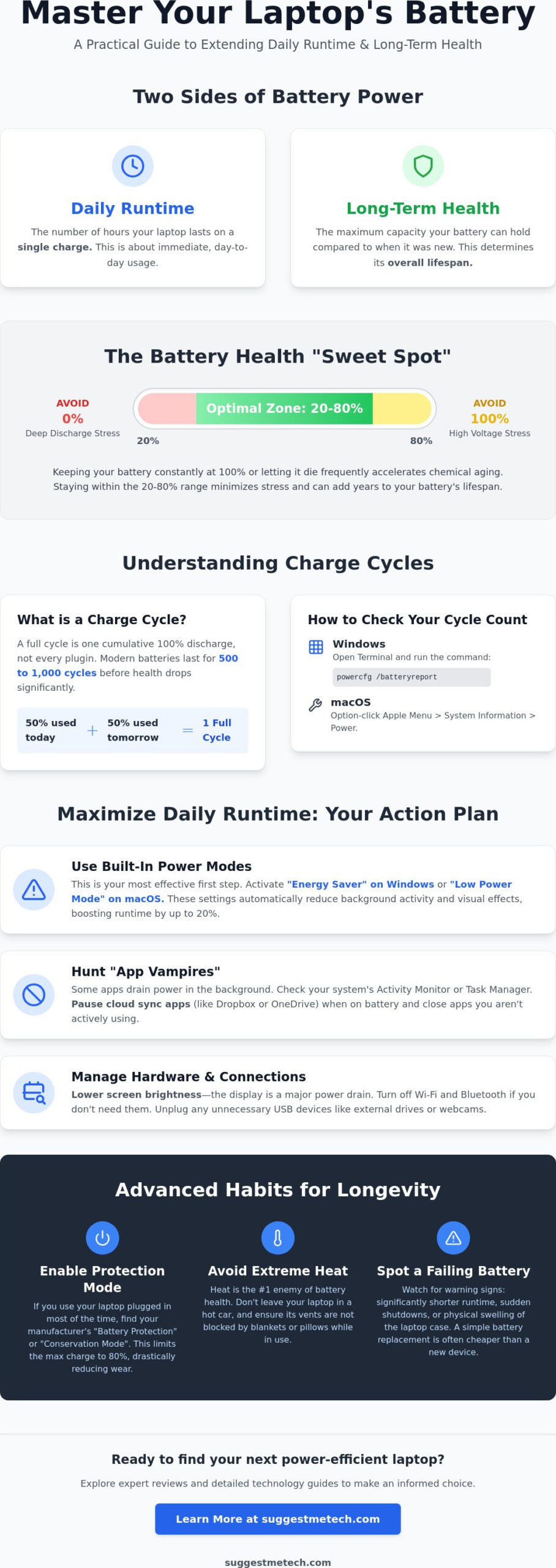
Most users treat their battery like a fuel tank, but it’s actually more like a living organism. Understanding the difference between battery life and battery health is the first step in mastering power management. Battery life refers to the daily runtime you get on a single charge. Battery health describes the total capacity your battery can hold compared to when it was brand new. As your laptop ages, its maximum capacity inevitably shrinks. This is why a laptop that once lasted ten hours might only struggle through five after two years of heavy use.
The core of this issue lies in Lithium-ion battery technology. These cells rely on chemical reactions that degrade every time they’re stressed. Heat and extreme charge levels are the primary culprits. If you’re wondering how to extend your laptop’s battery life, the secret isn’t just dimming the screen. It’s about staying in the “sweet spot” between 20% and 80% charge. Keeping a battery at 100% for weeks on end creates high voltage stress that accelerates chemical aging, making that 100% capacity a temporary luxury.
The Impact of Charge Cycles
Learning how to extend your laptop’s battery life requires a shift in perspective on how you charge your device. A charge cycle isn’t counted every time you plug in your power adapter. Instead, a full cycle is recorded whenever you use a cumulative 100% of your battery’s capacity. If you use 50% today, charge it back up, and use 50% tomorrow, that counts as one cycle. Modern batteries are typically rated for 500 to 1,000 full cycles before they hit 80% of their original health. Shallow discharges, like topping off from 40% to 80%, are far less stressful than deep discharges that let the battery drop to zero. You can monitor this wear by checking your cycle count. On Windows, run the “powercfg /batteryreport” command in your terminal. On a Mac, hold the Option key and click the Apple menu to find “System Information” and look under the Power tab.
The 80% Rule: Why Modern Laptops Stop Charging
By 2026, almost every major laptop manufacturer has integrated “Optimized Battery Charging” features. These tools use AI to learn your schedule. They’ll hold the charge at 80% while you’re at your desk and only top off to 100% right before they expect you to unplug. This is vital because keeping a laptop plugged in 24/7 is one of the fastest ways to kill battery health. The constant high voltage and internal heat generation can cause the battery to swell or lose capacity rapidly. If you primarily use your machine as a desktop replacement, check your manufacturer’s settings app. Look for a “Battery Protection Mode” or “Conservation Mode” that limits the maximum charge to 80% permanently. It’s a small trade-off in daily runtime that adds years to your hardware’s lifespan.
Optimizing Software and OS Settings for Maximum Runtime
Software is often the invisible drain on your machine. While hardware capacity sets your maximum potential, your operating system and background apps determine how quickly you burn through it. If you want to know how to extend your laptop’s battery life, you must start with your software configuration. Modern operating systems, specifically Windows 11 version 25H2 and the latest macOS, now include centralized energy recommendation hubs. Following these automated suggestions, such as adjusting sleep timers and disabling high-energy background tasks, can provide up to a 20% boost in daily runtime.
Effective computer power management also involves auditing your cloud services. Apps like OneDrive, Dropbox, and iCloud are notorious energy vampires because they constantly check for file changes. If you’re working on battery, consider pausing these sync services until you’re back on AC power. Similarly, your app vampire audit should include checking your system’s activity monitor to see which background processes are hogging CPU cycles. Often, a single hung process from a legacy app can cut your runtime in half without you ever realizing it’s running.
Windows and macOS Power Modes
Both major platforms have simplified their power profiles for 2026. On Windows 11, go to Settings > System > Power & battery and activate the Energy saver toggle. This mode now intelligently reduces background activity and limits certain visual effects. For Mac users, navigate to System Settings > Battery and choose Low Power Mode. While Balanced is great for mixed use, switching to these efficiency modes as soon as you unplug is the most effective way to stretch your hours. If you’re looking for more specific hardware comparisons, you can find detailed technology guides on our main site.
The Browser Battle: Chrome vs. Safari vs. Edge
Your browser is likely the most used app on your laptop, making it a primary target for optimization. Chrome’s Memory Saver and Energy Saver modes are now essential features; they freeze inactive tabs to prevent them from drawing power. Native browsers still hold a slight edge in efficiency. Safari is deeply optimized for Apple Silicon, while Microsoft Edge uses a Sleeping Tabs feature that can reduce memory usage by 32% on average. Regardless of your choice, audit your extensions. Each active plugin is a tiny process that slowly siphons away your charge. Disabling just three or four unused extensions can add significant minutes to your day.
Hardware Hacks and Peripheral Management
Hardware components are the physical engines consuming your charge. If you’ve already optimized your software, the next step in learning how to extend your laptop’s battery life is managing the hardware itself. The display remains the single largest power consumer in most modern laptops. Even small adjustments to how your screen operates can save more energy than closing a dozen background apps combined. While software tells the hardware what to do, the hardware actually draws the current.
Don’t ignore the small stuff. Every USB device you plug in draws power from the motherboard to stay active. External SSDs and mice might seem insignificant, but they create a constant trickle of energy loss. Modern SSDs use approximately 80% less power than traditional mechanical hard drives, so you’re already ahead if your external storage is solid-state. However, unplugging it when not in use is still best. Keyboard backlighting is another subtle thief. While it’s helpful in low light, keeping it at maximum brightness throughout an 8-hour shift can shave significant minutes off your total runtime.
- Unplug USB receivers: Even tiny wireless mouse dongles draw power.
- Eject external drives: Stop the constant data polling when you aren’t active.
- Dim the keyboard: Turn off backlighting entirely when working in bright rooms.
Screen Optimization for 2026 Displays
By 2026, OLED screens have become common in professional laptops. Unlike traditional LCDs, OLED panels can turn off individual pixels to display black. This makes “Dark Mode” a literal battery-saving feature rather than just a stylistic choice. Another major factor is your refresh rate. Many modern laptops default to 120Hz for smooth scrolling. Switching this to a static 60Hz in your display settings significantly reduces the workload on your GPU. While adaptive brightness is generally helpful, taking manual control and lowering it to the minimum comfortable level is always more efficient.
Managing Connectivity
Wireless modules are always searching for a signal. This is a high-energy task. If you’re working offline, Airplane Mode is the ultimate emergency tool to stop all wireless drain instantly. For those on the move, 5G and LTE modules are much more taxing than stable Wi-Fi connections. Disable your cellular data if a reliable local network is available. Surprisingly, using internal speakers at a moderate volume is often more energy-efficient than maintaining a constant Bluetooth connection to high-end headphones. If you’re really low on juice, stick to the built-in audio or use a wired connection.
Advanced Habits for 2026: AI, OLED, and Heat
Environmental factors are just as critical as your settings menu when learning how to extend your laptop’s battery life. Most users focus on software but ignore the physical conditions that degrade hardware. Heat is the primary enemy of battery longevity. High temperatures accelerate the chemical breakdown inside your battery cells, leading to permanent capacity loss that no software update can fix. Keeping your machine cool isn’t just about comfort; it’s about preserving the expensive components inside.
Firmware updates in 2026 are more than just security patches. They often include critical power-handling algorithms designed for the latest processors. Manufacturers frequently release BIOS updates that refine how the system manages the power draw of the new NPU (Neural Processing Unit) chips found in Intel Core Ultra Series 3 and AMD Ryzen AI 400 Series laptops. Staying updated ensures you’re using the most efficient code available for your specific hardware. Check out our latest technology reviews to see which 2026 laptops handle thermal management best.
Beating the Heat
Using your laptop on a pillow or blanket might feel cozy, but it chokes the intake vents. This forces the fans to spin at maximum speed, which ironically uses even more battery power while failing to cool the system effectively. Always work on a hard, flat surface to allow for proper airflow. If you notice your fans are constantly loud, it may be time for a quick maintenance check to clear out dust. Thermal throttling is the process where your operating system slows down performance to prevent heat damage. While this protects your laptop, it’s a sign that your environment is hurting your battery health.
AI and Background Processing
Local AI features are the newest drain on your power supply in the 2026 tech landscape. Tools like real-time studio effects, live captions, and predictive text utilize the NPU constantly. While these chips are more efficient than using a standard CPU for AI tasks, running them all day will shorten your runtime. You should also disable “Wake on Voice” and other always-on listening features. These keep the microphone and a portion of the processor active even when the lid is closed. To maximize efficiency, schedule heavy tasks like cloud backups or system updates for when you’re plugged into a wall outlet. This prevents your battery from taking a massive hit during a background sync you didn’t even know was happening.
When It’s Time to Upgrade: Choosing Your Next Powerhouse
Every battery eventually reaches the end of its functional life regardless of how well you’ve maintained it. Recognizing the warning signs can save you from a productivity disaster or even hardware damage. If your laptop experiences rapid percentage drops, such as falling from 40% to 10% in a few minutes, the internal cells can no longer hold a stable charge. Excessive heat during simple tasks and physical swelling, which often causes the touchpad to lift or the case to bulge, are critical red flags. In these cases, even the best tips on how to extend your laptop’s battery life won’t help because the hardware is fundamentally compromised.
The “Repair vs. Replace” dilemma usually comes down to the age of your machine and the cost of the component. A professional battery swap in 2026 typically makes sense if your laptop is less than three or four years old and still meets your performance needs. However, if your processor is struggling with modern AI tasks or lacks the efficiency of newer chips, investing that money toward a new device is often the better financial move. Modern machines now offer significantly better baselines for power consumption than those released just a few years ago.
Evaluating Battery Specs
When shopping for a new machine, look closely at the Watt-hour (Wh) rating. A higher Wh number generally means a larger fuel tank, but efficiency is the real hero. In 2026, ARM-based processors and the latest Intel Core Ultra Series 3 “Panther Lake” chips are redefining expectations, with some rated for up to 27 hours of runtime. We’ve seen a massive shift toward efficiency-first architecture that outperforms older, power-hungry x86 designs. For a detailed breakdown of which machines currently lead the pack, see The Best Laptops of 2026: Our Top Picks for Every Need and Budget for our latest efficiency ratings.
The Final Verdict on Battery Care
Maximizing your mobile productivity is a combination of smart daily habits and knowing when your hardware has reached its limit. By managing your thermal environment, auditing energy-vampire apps, and sticking to the 80% charging rule, you’ve already done more than the average user to protect your investment. We invite you to join the SuggestMeTech community to share your own experiences and get tailored advice for your specific setup. To stay ahead of the curve, explore our full range of technology reviews and guides to ensure your next tech purchase is built for the long haul.
Take Charge of Your Mobile Productivity
Find your next high-endurance device in our Best Laptops of 2026 guide. You have the knowledge to make your battery last; now it’s time to put these strategies into action and stay productive wherever you work.
Frequently Asked Questions
Is it bad to leave my laptop plugged in all the time?
Yes, keeping your laptop plugged in 24/7 can eventually reduce its total capacity. Constant high voltage stresses the chemical components inside the battery. To protect your hardware, use your manufacturer’s settings to limit the maximum charge to 80%. This prevents the battery from sitting at a high-stress state, which is a key strategy when learning how to extend your laptop’s battery life over several years.
Does Dark Mode actually save battery life on a laptop?
Dark Mode only provides energy savings if your laptop features an OLED display. Because OLED panels turn off individual pixels to show black, they draw significantly less power when using dark themes. If you have a traditional LCD or IPS screen, the backlight stays on regardless of the colors on the screen. In that case, Dark Mode is a stylistic choice rather than a functional battery-saving hack.
How many years should a laptop battery typically last?
A typical laptop battery lasts between three and five years under normal usage conditions. Most manufacturers design these cells to retain about 80% of their original capacity after 500 to 1,000 full charge cycles. Once you pass this threshold, you’ll notice the daily runtime begins to shrink significantly. Following expert advice on how to extend your laptop’s battery life can help you reach the upper end of that lifespan.
Should I drain my laptop battery to 0% before charging it?
You should never intentionally drain a modern Lithium-ion battery to 0%. This practice was useful for older Nickel-cadmium batteries but actually harms modern hardware. Deep discharges put unnecessary strain on the cells and can lead to premature failure. Aim to plug in your charger when you hit 20% to keep the battery chemistry stable and healthy for as long as possible.
Why does my battery drain so fast when I am using Google Chrome?
Google Chrome is notoriously power-hungry because it treats every tab and extension as a separate background process. This consumes a high amount of RAM and forces your CPU to work harder, which siphons away your charge. To fix this, enable the “Memory Saver” feature in Chrome’s settings or switch to a native browser like Safari or Microsoft Edge, which are better optimized for your specific operating system.
What is the “Energy Saver” mode and when should I use it?
Energy Saver is a built-in OS mode that reduces background activity and dims your screen to conserve power. You should activate this feature as soon as you unplug from a wall outlet if you have a long day of work ahead. It’s particularly effective on Windows 11 version 25H2, where the system intelligently throttles non-essential processes to give you a significant boost in usable hours.
Can a software update improve my laptop’s battery life?
Software updates frequently include critical efficiency improvements and power-management patches. Developers often find ways to optimize how the OS handles background tasks or how the processor scales its power draw during idle moments. Keeping your firmware and operating system up to date ensures your machine is running the most efficient code available, which directly impacts your total daily runtime.
How do I know if my laptop battery needs to be replaced?
Your laptop likely needs a new battery if you experience sudden shutdowns or if the charge drops by more than 10% in just a few minutes. You can verify this by running a battery health report on Windows or checking the “Battery Health” section in macOS System Settings. If your maximum capacity has fallen below 80% of its original design, a replacement will provide a noticeable boost in performance.