

In 2026, the most expensive way to fix a lagging PC is to simply buy a new one. With DDR5 memory prices more than doubling over the last year, learning how to speed up a slow computer through optimization is a much smarter financial move. We’ve all been there. You click an app icon and wait minutes for a response. You watch the spinning wheel of death while your fan sounds like a jet engine taking off. It’s frustrating when a tool that should boost your productivity starts holding you back and causing unnecessary stress.
This guide shows you the exact steps to reclaim your performance, from 30-second quick fixes to deep system optimizations that make your machine feel brand new again. We’ve curated these recommendations to help you avoid the 20% price hike currently hitting the new computer market due to global component shortages. Our goal is to provide a clear path to snappy app response times and faster boot speeds without requiring a computer science degree.
We’ll walk through everything from managing Windows 11 26H2 background processes to determining if your hardware is truly reaching its end of life. You’ll gain a clear understanding of when to invest in a simple fix and when it’s finally time to browse our latest laptop reviews for an upgrade. Let’s get your system back up to speed.
Key Takeaways
- Identify the specific “resource hogs” using Task Manager or Activity Monitor to stop guessing why your performance is lagging.
- Master how to speed up a slow computer by pruning startup apps and managing the background AI processes common in 2026 systems.
- Automate your digital cleanup with features like Storage Sense to remove factory bloatware and hidden system junk.
- Learn how to combat thermal throttling by keeping your hardware cool and preventing your fans from overworking.
- Determine if your PC needs a software tune-up or a strategic hardware upgrade, such as an SSD or a RAM boost to 16GB.
Diagnosing the Lag: Identifying Your PC’s Bottlenecks
Guessing is the enemy of a fast computer. If you’re trying to figure out how to speed up a slow computer, you need hard data rather than assumptions. Shooting in the dark leads to wasted time and unnecessary hardware purchases that might not even fix the root cause. Instead, you should adopt a process of systematic performance tuning to isolate the exact component holding you back. This diagnostic phase ensures that your efforts are targeted and effective.
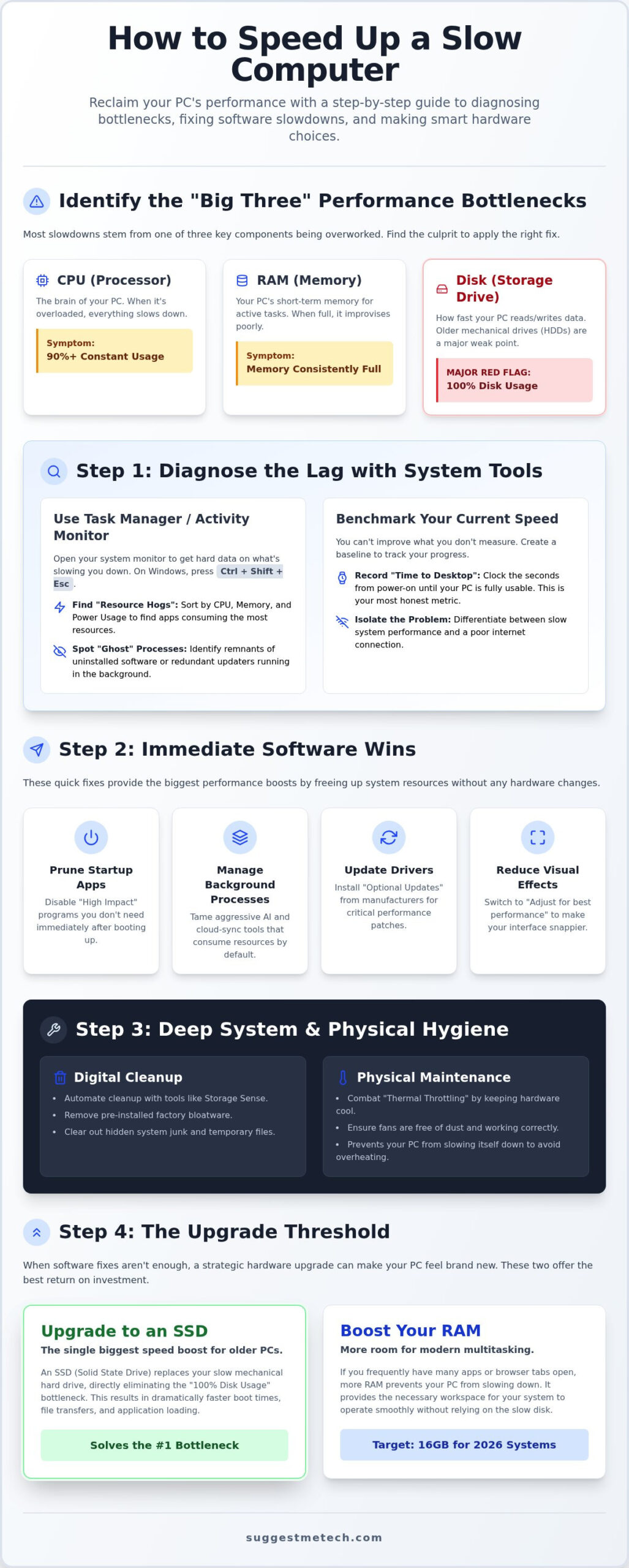
Most slowdowns stem from what we call the “Big Three”: CPU, RAM, and Disk usage. The CPU is your computer’s brain; if it’s constantly pegged at 90% or higher, your system will feel sluggish. RAM acts as short-term memory. When it’s full, your PC starts using your much slower hard drive to store temporary data, causing massive delays. Finally, disk usage refers to how hard your storage drive is working. In 2026, a mechanical hard drive (HDD) simply cannot keep up with the data demands of modern operating systems, often resulting in a permanent performance ceiling.
Reading the Task Manager Like a Pro
On Windows, press Ctrl + Shift + Esc to open the Task Manager. Mac users should open Activity Monitor via Spotlight. Look for the “Processes” tab and sort by CPU or Memory. Identify any apps labeled with “High Power Usage” or those consuming a disproportionate amount of RAM. These are your primary resource hogs.
Pay close attention to the “Disk” column. Seeing “100% Disk Usage” on an older HDD is a major red flag. It means your drive is overwhelmed by background tasks, making even simple clicks feel like they take an eternity. Also, look for “Ghost” processes. These are often remnants of uninstalled software or redundant updater services that shouldn’t be running. If you don’t recognize a process, a quick search will tell you if it’s essential or safe to terminate.
Benchmarking Your Current Speed
You can’t improve what you don’t measure. Before you start tweaking settings, record your “Time to Desktop.” This is the number of seconds from the moment you hit the power button until your desktop icons stop loading and the system is ready to use. This baseline is your most honest metric of success.
Use free, reputable benchmarking tools to get a baseline performance score. This gives you a concrete number to compare against after you’ve completed the optimization steps. It’s also vital to differentiate between internet lag and system lag. If your web browser feels slow but your local folders open instantly, the issue likely lies with your network connection rather than your hardware. Isolating these variables early saves you hours of frustration.
Immediate Software Wins: Pruning Your System Resources
Pruning your system resources is the fastest way to see results without opening your PC case. If you’re wondering how to speed up a slow computer, start with the software that’s already running. By 2026, background processes have become more aggressive, particularly with the rise of integrated AI tools and cloud syncing services. These features provide convenience but often eat through your RAM and CPU cycles before you even open a browser. Clearing this digital clutter provides immediate breathing room for your hardware.
Modern systems like Windows 11 26H2 are packed with background tasks. Tools like Microsoft Copilot and OneDrive are often configured to run at full speed by default. While these are useful, they can cripple older hardware. You should also check your drivers. Manufacturers frequently release “Optional Updates” that aren’t pushed automatically but contain critical performance patches. Following proven performance boosting tips like these can significantly reduce system latency and input lag.
Visual effects are another hidden drain. Translucent windows and animations look great, but they require GPU power. Switching to “Adjust for best performance” in the System Properties menu can make your interface feel much more responsive. If your hardware is still struggling after these tweaks, it might be worth checking our latest tech guides to see if your components are simply too outdated for modern software requirements.
Streamlining Your Startup Routine
To manage your boot speed, open Task Manager and click the Startup apps tab. You’ll see a list of applications with an “Impact” rating. High impact apps like game launchers or communication suites should be your first targets. Right click and select “Disable” for anything you don’t need the moment you log in. This doesn’t delete the app; it just prevents it from stealing resources at boot. If you need an app but don’t want the initial lag, see if the app settings allow for a “delayed start” to spread out the resource load.
Optimizing Power and Performance Modes
Your power plan dictates how much energy your CPU can use. On a laptop, Windows often defaults to “Balanced” to save battery, which causes CPU throttling. Switch this to “Best Performance” in your settings to unlock your processor’s full speed. For desktop users, there is a hidden “Ultimate Performance” plan. You can enable it via Command Prompt to eliminate micro-latencies and ensure your hardware never enters a low-power state during intensive tasks. This is especially helpful if you’re dealing with loud fan noise caused by constant power state switching.
Deep System Hygiene: Clearing Bloatware and Junk
Many people wonder how to speed up a slow computer only to realize their machine was never actually fast to begin with. This is often due to bloatware. These are pre-installed trial versions, manufacturer utilities, and redundant cloud tools that ship with new PCs. They occupy valuable disk space and run background services that compete for your CPU’s attention. Unlike standard system files, these aren’t necessary for your computer to function and often serve as a revenue stream for manufacturers rather than a benefit for you.
Automation is your best friend for maintaining system health. Windows includes a feature called Storage Sense that automatically deletes temporary files and empties your recycle bin when space gets low. It’s a “set and forget” solution for digital clutter. However, you also need to be wary of Potentially Unwanted Programs (PUPs). Unlike aggressive malware, PUPs often look like legitimate software but bundle toolbars or fake “system optimizers” that actually slow you down. These silent speed killers are often the reason a PC feels sluggish even after a reboot.
The Ultimate Uninstallation Checklist
Start by auditing your apps list in the system settings. Safe-to-remove items include trial antivirus software, manufacturer “support” assistants, and games you never play. Avoid touching anything labeled “Redistributable,” “Driver,” or “Framework,” as these are system-critical components. For a truly clean slate, specialized “Decrapifier” scripts can automate the removal of built-in OS bloat. This logic applies to all your tech; for instance, learning how to clear cache on iPhone follows a similar principle of removing temporary junk to maintain peak performance across your entire ecosystem.
Browser Optimization for 2026
Your browser is likely the most resource-intensive app on your system. In 2026, web pages are heavier than ever, and keeping 50 open tabs can easily consume 8GB of RAM. Enable “Memory Saver” or “Efficiency Mode” in Chrome and Edge to hibernate inactive tabs and free up resources for the page you’re actually reading. You should also audit your extensions. Use a “one-in, one-out” rule: if you add a new extension, delete an old one. While clearing your cache can fix specific site errors, it’s only a temporary fix for speed. A cluttered browser with 20 extensions will remain slow regardless of how often you clear the cache history.
Physical Maintenance: Fighting Thermal Throttling
Even the most optimized software can’t overcome a hardware-level heat issue. If your fans sound like they’re struggling to keep up, your PC is likely suffering from thermal throttling. This is a safety mechanism where your processor intentionally slows down to prevent permanent damage from high temperatures. Understanding thermal health is a critical part of learning how to speed up a slow computer, especially as modern 2026 processors generate significant heat during intensive AI tasks. When your CPU hits its thermal limit, it drops its clock speed, making every action feel like it’s happening in slow motion.
The “Dust Bunny” effect is the most common culprit for these performance drops. Dust acts as insulation, trapping heat inside your components and clogging the fine fins of your heat sinks. For laptop users, the problem is often exacerbated by surface selection. Using your device on soft surfaces like a bed or couch blocks the intake vents, forcing the system to throttle within minutes. Desktop users should check for “Dead Zones” where messy cable management or poorly placed fans prevent cool air from reaching the GPU or CPU. Proper airflow is just as important as a clean operating system.
Safe Cleaning Practices
Cleaning your hardware doesn’t require a professional, but it does require caution. Use short bursts of compressed air to dislodge dust from vents and fans. If you’re cleaning a desktop, hold the fan blades steady with a finger to prevent them from spinning too fast, as this can generate static electricity and damage the motherboard. Laptop owners can often clear significant debris just by blowing air through the side exhaust vents without opening the chassis. Advanced users might consider reapplying thermal paste every few years, as factory material can dry out and lose its effectiveness. If your laptop continues to overheat after a thorough cleaning, it might be time for a hardware refresh; browse our latest laptop reviews for models with superior cooling designs.
Monitoring Your Temperatures
You can’t fix what you can’t see. Use free software like HWMonitor or Core Temp to see exactly how hot your components are running in real-time. In general, your CPU should stay below 80°C under heavy load. If you see temperatures hitting 95°C or higher, your system is definitely throttling to save itself. Interestingly, a silent fan isn’t always a good sign. If your computer is incredibly slow and the fan isn’t spinning at all, the fan motor might have failed. This leads to immediate overheating and massive performance drops that no amount of software tweaking can fix.
The Upgrade Threshold: When Software Fixes Aren’t Enough
Sometimes, software tweaks and dust removal aren’t enough to overcome aging hardware. If you’ve followed every optimization step and your PC still lags, you’ve likely hit a hardware bottleneck. In 2026, the gap between modern software requirements and old hardware is wider than ever. This is the moment you must decide if you’re going to invest in a component swap or a total replacement. Given that new PC prices have jumped about 20% this year due to AI-driven component shortages, a targeted upgrade is often the most logical way how to speed up a slow computer without breaking the bank.
The most impactful change you can make is the move from a mechanical hard drive (HDD) to a Solid State Drive (SSD). Even a decade-old laptop can feel modern with an SSD because it eliminates the physical seek time of a spinning platter. Additionally, RAM requirements have shifted. In 2026, 8GB is the absolute minimum for basic tasks. If you’re multitasking or using AI-enhanced apps, 16GB is the new standard. However, consider the “5-Year Rule.” If your motherboard and processor are more than five years old, they likely lack the architecture to support modern security features or high-speed data lanes, making them a permanent bottleneck regardless of how much RAM you add.
Low-Cost Hardware Upgrades
Before buying a new machine, check if your RAM is upgradable. Many modern laptops now solder RAM directly to the motherboard, but most desktops and older laptops still allow for a simple “plug and play” boost. If your storage is the issue, you don’t have to lose your files. You can clone your existing drive to a new SSD using free software, which mirrors your entire system exactly as it is. A $50 SSD or a stick of RAM can often provide a 50% performance boost, saving you $500 or more on a new machine during this period of high hardware inflation.
Choosing Your Next Machine
Your processor is officially obsolete when it can no longer run the latest security updates or operating system versions like macOS 27 Golden Gate. If your current CPU lacks an NPU (Neural Processing Unit), you’ll find modern AI features in 2026 software practically unusable. When you reach this point, it’s better to stop repairing and start shopping. Check out our guide to The Best Laptops of 2026 to find a future-proof replacement. Look for at least 16GB of RAM and a dedicated AI processor to ensure your next machine remains snappy for years to come.
Your Path to a Snappier Computer
Restoring your PC performance doesn’t always require a trip to the repair shop. By diagnosing your bottlenecks and pruning startup processes, you can reclaim significant speed. Remember that physical health is just as important as software hygiene. Clearing dust and managing thermal levels ensures your hardware can actually reach its potential. Learning how to speed up a slow computer is an ongoing process of maintenance rather than a one-time fix.
Sometimes, however, the hardware simply can’t keep up with 2026 software demands. If your motherboard has become a permanent bottleneck, it’s time to consider a fresh start. We’ve used our expert guidance since 2020 and real-world performance benchmarks to help you choose wisely. Found your computer is beyond repair? Check out our Top Laptop Picks for 2026. We’ve conducted independent testing of 50+ laptops to ensure you get the best value for your needs. With these steps, you’re ready to enjoy a faster, more productive digital experience.
Frequently Asked Questions
Does clearing my browser cache actually speed up my whole computer?
No, clearing your cache only affects your web browser’s performance. While it can resolve specific website loading errors or free up a small amount of disk space, it won’t fix system-wide lag. If your goal is learning how to speed up a slow computer, you should focus on managing background processes and startup apps rather than just browser history. Cache files actually help pages load faster by storing data locally.
Why is my computer slow even though I have plenty of free disk space?
Disk space and system speed are two different metrics. You might have a nearly empty drive, but if your RAM is full or your CPU is overwhelmed by background AI tasks, the system will still crawl. Slowdowns often occur because of resource-heavy applications or thermal throttling rather than a lack of storage. Think of it like a large warehouse with a very small, overworked staff trying to move boxes.
Can a virus make my computer run slow, and how do I check?
Yes, malware and Potentially Unwanted Programs (PUPs) often run invisible background tasks that steal your CPU and RAM. These “resource hogs” are a common reason users search for how to speed up a slow computer. You can check for these by using the Processes tab in Task Manager or Activity Monitor. For a deeper dive, we recommend reading our latest security software reviews to find a reputable scanner that can identify hidden threats.
Is it safe to disable all startup programs?
It is generally safe to disable most third-party startup applications like game launchers, chat apps, and cloud sync tools. However, you shouldn’t disable system-critical services, such as your antivirus software or audio and touchpad drivers. Disabling non-essential apps is one of the most effective ways to improve your “Time to Desktop” speed. If you’re unsure about a specific process, it’s best to leave it enabled until you can verify its purpose.
Why does my laptop get so loud and hot when I’m just browsing the web?
Modern web pages in 2026 are highly complex and often run heavy scripts or integrated AI features in the background. This puts a significant load on your processor, generating heat. If your vents are clogged with dust or you’re using the laptop on a soft surface, the fans must spin at maximum speed to prevent damage. This heat causes the CPU to throttle its speed, resulting in the lag you’re experiencing.
Should I use a ‘Registry Cleaner’ to speed up my PC?
No, you should avoid registry cleaners entirely. Modern operating systems like Windows 11 26H2 manage the registry very efficiently. These tools often promise a massive speed boost but usually deliver no measurable improvement. In many cases, they accidentally delete essential system keys, leading to crashes or boot errors. Your time is better spent on practical optimizations like pruning startup apps or upgrading your RAM to meet 2026 requirements.
How much RAM do I really need for Windows in 2026?
In 2026, 16GB of RAM is the recommended standard for a smooth, productive experience. While 8GB is the bare minimum for basic tasks, it often forces the operating system to use “virtual memory” on your hard drive, which significantly slows down performance. If you frequently use creative software or keep dozens of browser tabs open, moving to 32GB is a smart way to future-proof your machine against increasingly demanding background AI processes.
Will upgrading from an HDD to an SSD really make a noticeable difference?
Yes, swapping a mechanical hard drive for an SSD is the single most impactful hardware upgrade you can perform. Even with the rising component prices in 2026, the performance gap remains massive. An SSD eliminates the physical latency of a spinning platter, allowing your computer to access data almost instantly. This change alone can make a decade-old laptop feel faster than a brand-new machine that is still using an outdated HDD.

