

Did you know that 82% of consumers recently walked away from a brand specifically because of data privacy concerns? It’s a staggering figure that highlights why staying on top of your digital footprint is more important than ever in 2026. You likely feel that same pressure every time a site feels sluggish or an ad seems a little too personal. It’s common to worry that your MacBook is being bogged down by years of tracking data, yet many users hesitate because they don’t want to lose their saved logins or break their favorite sites.
We understand that frustration and want to help you find the right balance between performance and protection. This guide teaches you exactly how to clear cookies on mac across every major browser, ensuring your system runs at peak efficiency. Whether you’re using Safari 26.6 on macOS Tahoe, Chrome 151, or the latest Firefox build, we’ve mapped out the direct paths to a cleaner machine. You’ll learn how to resolve site-loading errors and boost your privacy without the usual technical headaches. We’ll show you how to target specific site data so you can keep the passwords you need while ditching the trackers you don’t. Let’s get your Mac back up to speed.
Key Takeaways
- Learn to distinguish between essential functional cookies and invasive third-party trackers to balance site convenience with your digital privacy.
- Navigate Safari’s privacy settings to selectively remove data, allowing you to boost browsing speed without losing your saved passwords.
- Follow our updated 2026 guide on how to clear cookies on mac for Chrome and Firefox to resolve persistent site-loading errors instantly.
- Discover how to use the macOS Shortcuts app and Terminal commands for a faster, automated approach to browser maintenance.
- Build a consistent digital hygiene routine that combines cookie clearing with system audits to keep your Mac secure and responsive.
Understanding Cookies: Why and When to Clear Them on Your Mac
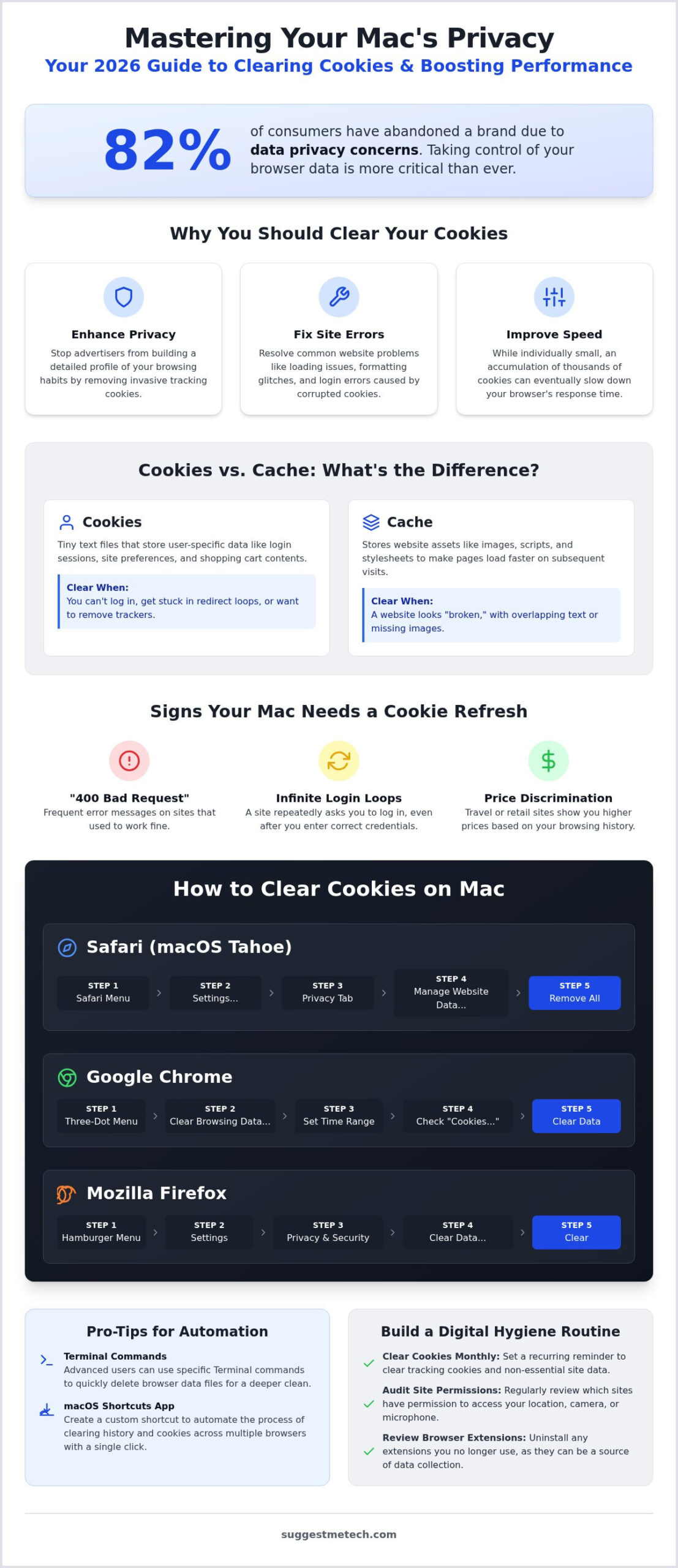
To truly master how to clear cookies on mac, you first need to understand what an HTTP cookie is and why your browser collects them. At its simplest, a cookie is a tiny text file that a website places on your Mac. These files act like digital ID cards. They remember who you are, what you’ve put in your shopping cart, and which settings you prefer. Without them, you’d have to log in to every site every time you clicked a new link. They provide the “session persistence” that makes the modern web usable.
However, not all cookies are created equal. First-party cookies are generated by the site you’re actually visiting. These are usually functional and helpful. Third-party cookies are different. They’re often placed by advertisers or tracking services to follow your activity across multiple websites. In 2026, even though Google has kept third-party cookies in Chrome, the sheer volume of tracking data can still feel invasive. Managing these files is a key part of maintaining your digital privacy.
You should consider clearing your cookies for three primary reasons:
- Privacy: Removing tracking cookies stops advertisers from building a detailed profile of your browsing habits.
- Troubleshooting: Corrupted cookies are a leading cause of site errors and formatting issues.
- Performance: While individual files are small, thousands of them can eventually slow down your browser’s response time.
Before you proceed, keep in mind the main side effect. Clearing cookies will log you out of almost every active account. You’ll need to have your passwords ready to sign back in. While this is a minor inconvenience, it’s a necessary step to ensure your browser is truly refreshed.
Cookies vs. Cache: What is the Difference?
It’s easy to confuse these two, but they serve different purposes. Cookies store user-specific data like login states and preferences. The cache, on the other hand, stores site assets like images, scripts, and video files to help pages load faster on your next visit. If a website looks “broken” with overlapping text, it’s likely a cache issue. If you can’t log in or keep getting redirected, it’s a cookie problem. Understanding this distinction helps you troubleshoot effectively, much like knowing how to clear cache on iphone to fix mobile performance issues.
Signs Your Mac Needs a Cookie Refresh
Your Mac will often tell you when it’s time for a cleanup. Common symptoms include “400 Bad Request” errors or infinite login loops where a site refuses to recognize your credentials. You might also notice price discrimination. Travel sites and online retailers sometimes use old cookies to show you higher prices based on your previous searches. If you see a flight price jump after refreshing the page, an outdated cookie is likely the culprit. Clearing these files ensures you’re seeing the most accurate, up-to-date information every time you browse. For travelers planning a journey to Japan, you can learn more about making better decisions for your stay to ensure a stress-free experience once your browser is clean.
How to Clear Cookies in Safari: The Native macOS Method
Safari remains the most efficient browser for Mac users because of its deep integration with macOS Tahoe. In 2026, Apple has made privacy even more central to the user experience, but you still need to know the manual steps for a deep clean. To start, open Safari and click Safari in the top menu bar, then select Settings. Navigate to the Privacy tab and click the Manage Website Data button. This window is the control center for your browser’s local storage.
From here, you have two choices. You can click Remove All for a complete reset, which is the fastest way to handle how to clear cookies on mac when your browser feels sluggish. However, this will log you out of every site. If you prefer a surgical approach, you can scroll through the list and delete data from specific domains you don’t recognize or trust. This keeps your essential logins intact while removing unwanted trackers.
For beginners who want a faster solution, Safari offers a “Quick Clear” method. Simply click History in the menu bar and select Clear History. Choose a timeframe, such as “the last hour” or “all history,” and click the button. This action clears your cookies, cache, and browsing history in one go. If you find yourself doing this often to save storage, you might also want to see our guide on how to clear cache on iphone to keep your mobile browsing just as fast.
Managing Individual Website Data
The Manage Website Data window includes a powerful search bar in the upper right corner. You can use this to find specific companies or ad networks that are tracking you. Safari also displays how much space each site occupies on your SSD. If you see a site using several megabytes of “Cookies and Cache” that you haven’t visited in months, it’s a prime candidate for removal. This granular control allows you to protect your privacy without sacrificing the convenience of staying logged into your primary work tools.
Automating Privacy with Safari Profiles
Safari 26.6 uses Profiles to help you isolate your digital footprint. By creating separate profiles for “Work” and “Personal,” you ensure that cookies from your professional accounts never mix with your casual browsing data. If you want to avoid storing cookies entirely for a specific session, use Private Browsing (Command+Shift+N). It’s also helpful to know that Safari 19 and later versions block all cross-site tracking by default, which significantly reduces the number of “garbage” cookies your Mac accumulates over time.
Clearing Cookies in Chrome and Firefox on Mac
While Safari is the default for many, a large portion of Mac users rely on Google Chrome or Mozilla Firefox for specific professional web apps or cross-platform syncing. Chrome currently holds over 65% of the global market share, and many users prefer it for its seamless integration with Google Workspace. It’s vital to remember that each browser operates in its own isolated environment. Clearing your Safari data won’t touch the files stored by Chrome or Firefox. If you use multiple browsers, you must learn how to clear cookies on mac for each one to maintain a truly private and fast system.
These browsers also handle data syncing differently than Safari. If you’re signed into a sync profile, clearing cookies on your Mac might also sign you out of your browser on an iPhone or a Windows PC. This unified approach makes maintenance easier but requires you to be certain before you hit the delete button. Let’s look at the specific steps for the two most popular third-party browsers in 2026.
Google Chrome: Fast Clearing and Privacy Sandbox
To manage your data in Chrome 151, click the three dots in the top right corner and select Settings. From there, navigate to Privacy and Security and click Delete Browsing Data. Chrome offers two distinct ways to handle this:
- Basic Tab: This is the quickest option. It allows you to clear cookies, cached images, and your browsing history within a specific timeframe, such as the last 24 hours or “All time.”
- Advanced Tab: Use this for more precise control. It lets you preserve your “Autofill form data” and “Passwords” while nuking the tracking files that actually slow down your browsing.
In 2026, Google’s Privacy Sandbox initiative has changed how data is handled, but third-party cookies haven’t been fully deprecated as originally planned. This means manual clearing remains a critical task for anyone concerned about cross-site tracking. Taking 30 seconds to run an “Advanced” clear once a month can prevent your browser from becoming bloated with unneeded data.
Mozilla Firefox: Enhanced Tracking Protection
Firefox users often choose the browser for its aggressive stance on privacy. To clear your data, go to Settings > Privacy & Security and find the Cookies and Site Data section. Firefox is unique because of its “Total Cookie Protection” feature. This technology essentially puts every website’s cookies into a separate “jar,” preventing them from talking to each other. While this makes manual clearing less urgent, it doesn’t eliminate the need for it entirely.
If you want to automate your digital hygiene, Firefox offers an excellent feature. You can check the box for “Delete cookies and site data when Firefox is closed.” This ensures that your Mac stays clean without you ever having to remember a menu path. It’s the ultimate solution for users who want the benefits of a fresh browser every morning without the manual labor.
Advanced Methods: Terminal Commands and Automation
Manually navigating through browser menus is fine for occasional maintenance, but power users often require more efficiency. If you’re managing multiple browsers or simply want a one-click solution, macOS Tahoe offers sophisticated ways to streamline your digital cleanup. Automating how to clear cookies on mac not only saves time but ensures your privacy routine is consistent and thorough. These advanced techniques bypass the standard graphical interface to interact directly with your Mac’s file system and automation layers.
Third-party “Cleaner” apps are a popular alternative for this task. These tools are useful because they centralize maintenance for Safari, Chrome, and Firefox in one dashboard. However, you should use them with caution. Many free versions collect their own tracking data, which defeats the purpose of clearing cookies in the first place. Always verify that a cleaner app is from a reputable developer before granting it full disk access. For most users, the built-in macOS tools provide more than enough power without the extra cost or privacy risks.
Creating a “Clear Cookies” Shortcut
The Shortcuts app has become a cornerstone of macOS maintenance in 2026. With the release of macOS Tahoe, Apple introduced deeper integration hooks that allow Shortcuts to interact with Safari’s internal data management more effectively than ever before. You can build a custom maintenance button by following these steps:
- Open the Shortcuts app and click the plus (+) icon to create a new shortcut.
- Add the Quit App action and set it to Safari. This ensures the database files aren’t in use.
- Search for the Clear Browsing Data action, which is now a native Tahoe feature.
- Select “Cookies” and “Cache” from the options and set the timeframe to “All Time.”
- Pin the shortcut to your Menu Bar for instant, one-click access.
This automation ensures you never have to remember a menu path again. It’s a perfect solution for a quick refresh after a heavy session of research or shopping. If you’re looking to optimize other parts of your Apple ecosystem, you can explore more pro-level Mac guides at SuggestMeTech to keep your hardware running like new.
Using Terminal for Deep Cleaning
For those who prefer the command line, how to clear cookies on mac becomes a single-line task. Safari stores its cookie data in a specific database file located at ~/Library/Cookies/Cookies.binarycookies. While the browser’s UI sometimes leaves behind residual data, the Terminal allows for a complete purge of these underlying files. To clear this database, open Terminal and enter the following string: rm -rf ~/Library/Cookies/Cookies.binarycookies.
Terminal commands circumvent the standard user interface and execute instantly. This method is incredibly powerful but requires absolute precision. Deleting the wrong file in the Library folder can cause application instability or data loss. Always ensure you have a current Time Machine backup before performing deep system cleanups. If you aren’t comfortable with the command line, stick to the Shortcuts method or the native browser settings we discussed in previous sections.
Maintaining Your Mac: Beyond Clearing Cookies
Learning how to clear cookies on mac is a vital skill, but it’s only one part of a healthy digital hygiene routine. Think of your browser as a digital workspace. If you only wipe the desk surface but leave the drawers overflowing with old files, the room still won’t feel functional. A monthly “System Audit” is the best way to ensure your Mac stays responsive. During this audit, you should review your browser extensions. Many extensions collect data in the background, often more than the cookies they claim to manage, and can significantly drain your system resources.
Performance isn’t just about software; it’s often tied to your hardware’s physical state. While you’re cleaning up your digital footprint, it’s the perfect time to check your laptop battery health and available storage. If your SSD is more than 80% full, your Mac will struggle to swap files efficiently, making even a clean browser feel sluggish. Keeping at least 15% of your storage free allows macOS Tahoe to perform its background maintenance tasks without bottlenecking your workflow.
Setting Up a Privacy-First Browsing Environment
Preventing problems is always more efficient than fixing them. In 2026, many power users have moved toward DNS-level blocking to stop trackers before they ever reach their Mac. Services like NextDNS or AdGuard can filter out tracking domains at the network level. This means you won’t have to worry as much about how to clear cookies on mac because fewer invasive files are saved to your drive in the first place. Combine this with a few key settings for a more secure experience:
- Disable “Allow apps to request to track” in your System Settings under Privacy & Security.
- Use a lightweight, manifest V3-compliant extension like uBlock Origin Lite to filter ad scripts.
- Regularly review which websites have permission to access your Mac’s camera, microphone, and location.
Syncing Privacy Across Devices
Your digital privacy should be consistent across your entire Apple ecosystem. If you use iCloud Keychain or Chrome Sync, your login credentials remain safe even when you purge your browser data. However, you should ensure your iPhone and Mac have matching privacy configurations. If your Mac blocks cross-site tracking but your mobile browser allows it, your data is still being aggregated by advertisers. Matching these settings creates a seamless, secure experience that protects you regardless of which device you’re using.
If you find these optimization tips helpful and want to share your own technical discoveries with others, learning how to start a blog in 2026 is a great way to join the conversation. SuggestMeTech is built on this spirit of community and practical knowledge. We invite you to join our network for more tailored tech advice that helps you make the most of your hardware and software every day.
Take Control of Your Digital Footprint Today
You’ve now mastered the exact steps to optimize your browser performance. Whether you prefer the native simplicity of Safari 26.6 or the advanced control of Terminal commands, you have the tools to keep your system running smoothly. Regular maintenance prevents the tracking bloat and site errors that often slow down your daily workflow. It’s about more than just speed; it’s about making your Mac work for you.
Mastering how to clear cookies on mac is more than just a troubleshooting trick. It’s a fundamental part of modern digital hygiene. By separating your work and personal profiles and setting up automated shortcuts, you can maintain a privacy-first environment without the manual effort. Consistency is key to a faster, more secure machine.
We’re here to help you navigate every technical hurdle with confidence. For 2026 updated tech guides, practical solutions for everyday users, and authoritative technology comparisons, explore more expert Mac tips and tech reviews on SuggestMeTech. Your Mac is a powerful tool. With these small habits, you’ll keep it performing at its absolute best for years to come.
Frequently Asked Questions
Will clearing cookies on my Mac delete my saved passwords?
No, clearing cookies won’t delete your saved passwords. These credentials are stored separately in iCloud Keychain or your browser’s built-in password manager. However, it will sign you out of most active accounts. You’ll need to log back in manually the next time you visit. This happens because cookies act as the digital keys that keep your session active, while password managers store the data needed to start a new session.
How often should I clear the cookies on my MacBook?
You should aim for a monthly cleanup to maintain optimal performance and privacy. While you don’t need to do it daily, a monthly audit helps remove unneeded trackers and frees up small amounts of SSD storage. If you notice specific site errors or feel your browsing has become sluggish, you should learn how to clear cookies on mac immediately as a primary troubleshooting step.
Is it better to clear all cookies or just some of them?
It depends on your specific goal. If you’re trying to fix a broken website or boost overall browser speed, clearing all cookies is the most effective approach. If your primary concern is privacy, you might prefer to selectively remove third-party trackers while keeping functional cookies for sites you visit daily. This prevents the annoyance of being logged out of your essential work tools or losing custom site settings.
Why do websites ask for cookie permission every time I clear them?
Websites ask for permission because the specific file that remembers your previous choice has been deleted. When you clear your data, the site treats you as a brand-new visitor with no established preferences. This is a common side effect of modern privacy regulations like the GDPR. You’ll have to re-accept or customize your preferences until a new cookie is established on your Mac.
Can clearing cookies fix a website that is not loading correctly?
Yes, clearing cookies is one of the most effective ways to fix site-loading errors. Corrupted or outdated cookie files often cause “400 Bad Request” errors or infinite redirect loops. By purging this data, you force the website to establish a fresh, clean connection with your browser. If a site looks visually broken with overlapping text, remember to clear your cache along with your cookies for the best results.
Does clearing cookies on Mac also clear them on my iPhone?
Clearing cookies on your Mac usually doesn’t affect your iPhone unless you’re using Safari’s “Clear History” feature with iCloud syncing enabled. In that specific case, the action can sync across all devices signed into the same Apple ID. For Chrome or Firefox, the cleanup is generally limited to the local device unless you’ve specifically configured your sync profile to purge browsing data across your entire ecosystem.
Is there a way to automatically clear cookies every time I close Safari?
Safari doesn’t have a native “clear on exit” toggle like Firefox, but you can achieve a similar result using other tools. Using Private Browsing mode ensures that no cookies are stored after you close the window. Alternatively, you can use the macOS Shortcuts app to create a custom “Quit and Clear” button. This automation provides a fast way to handle how to clear cookies on mac without manually digging through settings menus every day.
What happens if I never clear the cookies on my Mac?
If you never clear your cookies, your Mac will accumulate thousands of tracking files over time. This buildup can lead to minor performance lags and increased privacy risks as advertisers build a massive profile of your habits. You may also experience “price discrimination” on travel or retail sites. These platforms sometimes use old cookies to trigger higher prices based on your repeated interest in specific products or flights.

