
Did you know that clicking “empty trash” doesn’t actually remove your files from your computer? Most people believe their personal photos and bank statements are gone forever after a quick format, but tech-savvy strangers can often recover that data in minutes. If you’re planning to sell your old laptop or donate a desktop, learning how to securely wipe a hard drive is the only way to guarantee your privacy stays intact. It’s a common worry, and you’re right to be cautious. Nobody wants their digital life falling into the wrong hands just because they relied on an outdated delete button.
At SuggestMeTech, we’ve analyzed the latest 2026 standards, including the NIST SP 800-88 Revision 2 guidelines, to bring you a foolproof destruction plan. We’ll show you exactly how to permanently erase your data so it’s unrecoverable by any software. This guide provides clear, step-by-step instructions for both Windows and Mac users. We’ll also explain why your modern SSD requires a completely different approach than an old-school HDD. By the end of this article, you’ll have a clean drive and the total confidence that your private information is gone for good.
Key Takeaways
- Learn why standard file deletion leaves your data vulnerable and how recovery software can easily restore “deleted” files.
- Discover how to securely wipe a hard drive by matching the right professional method to your hardware, whether it’s an HDD or a modern SSD.
- Follow our updated walkthrough for Windows 11 and macOS to use built-in tools that ensure your data is permanently unrecoverable.
- Understand when software isn’t enough and why physical destruction is the safest choice for failing drives or maximum security.
- Stay compliant with the latest NIST standards to guarantee your privacy is protected before reselling or recycling your hardware.
The Science of Data Destruction: Why Deleting Is Not Enough
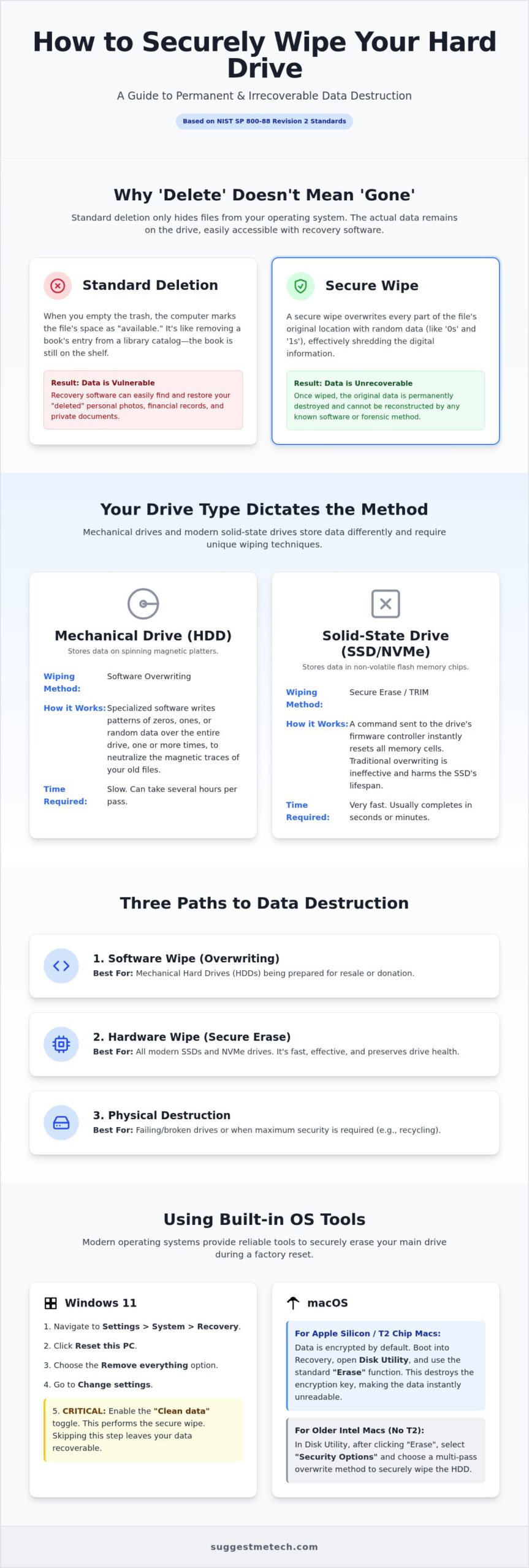
Think of your hard drive as a massive library. When you delete a file, your computer doesn’t burn the book; it just rips the entry out of the card catalog. The actual pages stay on the shelf until a new book is written over them. This is the fundamental reason why simple formatting or emptying the trash bin isn’t enough to protect your privacy. The information is still there, just hidden from the operating system’s view.
To understand how to securely wipe a hard drive, you have to look at the binary level. Data is stored as physical magnetic charges on HDDs or electrical charges on SSDs. Secure destruction requires “overwriting,” which means filling those storage sectors with random data or zeros. Without this process, your sensitive information remains physically present on the disk platters or flash memory chips. If you sell that drive without a proper wipe, you’re essentially handing over a key to your digital life.
How Data Recovery Software Works
Recovery tools are designed to be digital detectives. They ignore the file index and scan the drive’s “free” space for specific file headers, like the unique signatures of a JPEG or a PDF. Much like learning how to clear cache on iphone to remove temporary footprints, knowing how to securely wipe a hard drive requires a deep clean that goes beyond the surface. Even a drive that looks empty after a quick format can be reconstructed in minutes by anyone with basic recovery software. These tools can piece together fragmented data, turning what you thought was “deleted” back into readable files.
The Legal and Security Risks of Improper Disposal
Leaving data behind isn’t just a technical oversight; it’s a massive security liability. Discarded drives are gold mines for identity thieves who look for cached browser passwords, old tax returns, or medical records. For businesses, the stakes are even higher. Failing to follow standards like NIST SP 800-88 Revision 2 can lead to heavy fines and legal action. Real-world leaks happen often. In one case, a major corporation was fined millions after decommissioned servers were sold online with client data still accessible. Protecting your hardware before resale is a non-negotiable step in modern digital hygiene.
Quick Answer
To securely wipe a hard drive, you must replace your personal data with random bits or trigger a hardware-level reset. Mechanical HDDs require multiple overwriting passes to be safe. Modern SSDs need a “Secure Erase” or TRIM command because traditional overwriting doesn’t work on flash memory. Windows and macOS both include built-in tools to handle this during a factory reset.
In 2026, the most effective tool for most users is built-in device encryption like BitLocker or FileVault. By encrypting the drive and then destroying the key, you make the data instantly unrecoverable. For those with older mechanical drives, legacy tools like DBAN (version 2.3.0) still exist, but modern hardware often requires BIOS-level wiping utilities provided by the manufacturer. If you are preparing a device for a new owner, you’ll find our technology reviews and guides helpful for choosing the right security software to maintain your privacy.
The 60-Second Summary of Secure Wiping
A secure wipe is the permanent destruction of digital information so it cannot be reconstructed by any recovery software. It’s different from “deleting,” which only hides the file from your view. When you learn how to securely wipe a hard drive, you’re choosing one of three paths:
- Software Overwriting: Replacing data with zeros or random characters (best for HDDs).
- Hardware Secure Erase: Using the drive’s own firmware to clear all cells (best for SSDs and NVMe).
- Physical Destruction: Shredding or crushing the drive (best for recycling or broken hardware).
If you’re selling your device, software or hardware erasure is the way to go. If the drive is dead or destined for the scrap heap, physical destruction is your only guarantee that data won’t be recovered later.
Choosing Your Method at a Glance
Choosing the right path depends entirely on your hardware type. Mechanical hard drives are durable but slow to wipe, often taking hours for a single pass. Solid-state drives are much faster but require specific commands to clear the “over-provisioned” space that standard software can’t usually reach.
- HDD (Mechanical): Use multi-pass overwriting or DBAN for older systems.
- SSD (SATA/NVMe): Use manufacturer tools or BIOS Secure Erase.
- Windows 11: Use “Reset this PC” with the “Clean Data” option enabled.
- Apple Silicon Mac: Use “Erase All Content and Settings” in System Settings.
Many modern laptops now include a “Secure Erase” option directly in the BIOS or UEFI menu. This is often the most reliable method for NVMe drives as it bypasses the operating system entirely. Always check your motherboard manual to see if this shortcut is available before downloading third-party tools.
Choosing the Right Method: SSD vs. HDD Requirements
The physics of storage determines your destruction strategy. Hard Disk Drives (HDDs) store data magnetically on spinning platters, while Solid State Drives (SSDs) use electrical charges on flash memory cells. Because these technologies function differently at a molecular level, the process for how to securely wipe a hard drive depends entirely on which one you’re holding. Using an HDD method on an SSD won’t just fail to erase your data; it’ll actually reduce the lifespan of your hardware by causing unnecessary wear.
For a traditional HDD, the goal is to scramble the magnetic signature of your files. For an SSD, the goal is to flush the electrical charge from every cell, including those hidden from the operating system. Understanding these hardware nuances is the first step toward a truly unrecoverable drive. If you’re unsure which type you have, Windows Task Manager or macOS System Information will list your drive type under the “Storage” or “Performance” tabs.
HDD: The Multi-Pass Overwrite Strategy
Magnetic storage is remarkably persistent. Even after you write new data over an old file, specialized laboratory equipment can sometimes detect the underlying magnetic residue. To combat this, legacy standards like the Gutmann method or the 3-pass DoD 5220.22-M were developed. These methods write random patterns over the disk multiple times to “scramble” the signal beyond recognition.
Modern drive density has changed the game. For most home users in 2026, a single-pass overwrite (filling the drive with zeros) is sufficient to stop all software-based recovery. The NIST SP 800-88 Revision 2 guidelines, published in late 2025, confirm that one thorough pass is enough for modern high-capacity HDDs. Unless you’re protecting high-level state secrets, you don’t need to spend 20 hours running a 7-pass wipe.
SSD: TRIM and Firmware-Based Sanitization
SSDs are more complex because they use wear leveling to ensure no single flash cell wears out too quickly. When you tell the drive to overwrite a specific file, the controller might write that new data to a completely different physical location. This leaves the original data intact in a hidden “over-provisioned” area that standard software can’t reach. This is why traditional overwriting tools are ineffective and potentially damaging to flash memory.
To handle this, you should trigger the drive’s internal “Secure Erase” or “Sanitize” command. This firmware-level instruction tells the controller to apply a voltage spike to all cells or destroy the internal encryption key (Cryptographic Erasure). This is the gold standard for how to securely wipe a hard drive when dealing with NVMe or SATA SSDs. It’s faster, safer, and ensures that data in hidden sectors is truly gone. Most modern laptops allow you to trigger this directly from the BIOS or UEFI menu before the operating system even loads.
Step-by-Step Guide to Wiping Windows and Mac Drives
Executing a secure wipe requires more than just a few clicks. Before you begin, ensure your laptop is plugged into a reliable power source. The process for how to securely wipe a hard drive can take several hours depending on the drive’s capacity and speed. If the power cuts out mid-way, you risk corrupting the drive firmware or leaving the data in a partially erased, recoverable state. For external USB drives, you can perform these steps within the operating system, but for your main boot drive, you’ll need to use built-in recovery tools.
Whether you are preparing a device for a new owner or just cleaning up your tech drawer, following a systematic approach is vital. If you are looking for more advice on preparing your gear for sale, check out our latest technology reviews and guides for expert recommendations on the best security software and hardware tools.
Wiping a Windows 11 Boot Drive
Windows 11 has made the data destruction process significantly easier with its integrated recovery settings. To start, navigate to Settings > System > Recovery and select Reset this PC. Choose the Remove everything option to ensure none of your personal files remain. The most critical step follows: click on Change settings and toggle the Clean data switch to Yes.
This “Clean data” option is what performs the actual secure overwrite. Without it, Windows simply performs a quick format that leaves your data vulnerable to recovery software. Be prepared to wait; a thorough wipe of a 1TB HDD can take three to five hours, while a modern NVMe SSD might finish in under thirty minutes.
Wiping a macOS Drive with Disk Utility
For Mac users, the process depends on your processor type. On Apple Silicon Macs (M1, M2, M3), navigate to System Settings > General > Transfer or Reset and select Erase All Content and Settings. This triggers a cryptographic erase, which is the fastest and most secure method for modern flash storage. It destroys the encryption keys, making the data instantly unreadable.
On older Intel Macs, you must restart and hold Command+R to enter Recovery Mode. Open Disk Utility, select your internal drive, and click Erase. If you are wiping an older mechanical hard drive, click Security Options. This slider allows you to choose between a single pass and a more rigorous 7-pass wipe. For SSDs, these security options are typically grayed out because the system defaults to a more appropriate secure erase command.
Recommended Third-Party Software for 2026
If your built-in tools fail or you’re dealing with a legacy system, third-party software is a reliable backup. For older mechanical HDDs, DBAN (Darik’s Boot and Nuke) remains the community standard, though it must be run from a bootable USB drive created with a tool like Rufus. It bypasses the operating system entirely to scramble every sector on the disk.
For modern SSDs, manufacturer-specific utilities are often the best choice. Tools like Samsung Magician or the Western Digital Dashboard include dedicated “Secure Erase” functions designed specifically for their hardware’s controller. These tools can often clear the hidden over-provisioned sectors that standard OS tools might miss, providing the highest level of privacy protection available in 2026.
Beyond Software: Physical Destruction and Verification
Software solutions work perfectly when a drive is functional, but they aren’t a universal fix. If your hard drive has suffered a mechanical failure or won’t mount, software tools can’t reach the sectors to perform an overwrite. In these cases, physical destruction is the only way to ensure your privacy. Understanding how to securely wipe a hard drive also means knowing when it’s time to pick up a drill instead of a mouse.
Safety is the first priority. Never toss a laptop or an external drive containing a lithium-ion battery into the trash. This creates a significant fire risk at waste facilities. Always remove the storage media from the chassis before attempting physical destruction. If the device is intact, take the entire unit to a certified e-waste recycler who can handle both the battery and the data destruction safely.
How to Safely Destroy a Dead Hard Drive
For a traditional HDD, the goal is to physically deform the internal magnetic platters. The most effective DIY method is to use a power drill. Drill at least three holes completely through the drive casing and the platters inside. This ensures the disks can never spin again and makes data recovery impossible even for specialized labs.
- Don’t use fire: Burning a drive releases toxic fumes and rarely gets hot enough to destroy the magnetic data.
- Avoid acid: Chemical destruction is dangerous, messy, and unnecessary for home users.
- Use professional shredding: If you have dozens of drives or highly sensitive business data, professional shredding services usually cost between $7 and $20 per unit.
Verifying the Wipe was Successful
Most users assume the process worked without checking the results. Verification is the final, essential step in learning how to securely wipe a hard drive. Once the process is complete, try to “recover” your own data using a free tool like Recuva or PhotoRec. These tools scan the drive for file headers that the operating system can’t see.
A successful secure wipe should result in zero recoverable file headers when scanned by forensic-grade software. If the recovery tool finds old photos or documents, the wipe failed or you used the wrong method for your drive type. Re-run the process using the hardware-specific steps mentioned in the previous sections of this guide.
Next Steps: Upgrading Your Setup
Once your old data is safely destroyed, you can focus on your next machine. If you’re in the market for a replacement, browse our curated list of the best laptops of 2026 to find a device that fits your workflow. Consider recycling your old hardware at certified e-waste centers rather than letting it sit in a drawer.
When you set up your new drive, enable BitLocker on Windows or FileVault on macOS from day one. This ensures that when it’s time to retire that machine years from now, a simple cryptographic erase will be all you need to stay protected. Taking these proactive steps now saves you hours of work during your next upgrade.
Secure Your Digital Legacy Today
Protecting your personal information doesn’t have to be a mystery. By understanding the difference between simple deletion and a true secure wipe, you’ve taken the most important step in digital privacy. Whether you chose a multi-pass overwrite for an old HDD or a firmware-level Secure Erase for a modern NVMe drive, you now have the professional tools to ensure your data is unrecoverable. Our expert-vetted security methods and step-by-step Windows and Mac instructions provide the clarity you need to handle hardware transitions safely.
Remember that verification is your final safety net. Running a quick scan with recovery software confirms that your photos, passwords, and documents are gone for good. Now that you know how to securely wipe a hard drive, you can confidently sell, donate, or recycle your old hardware without fear. Privacy-first tech guidance is about more than just software; it’s about taking control of your hardware lifecycle from start to finish.
Ready to replace your old machine with something faster and more secure? Explore the Best Laptops of 2026 for Your Next Upgrade and find a device that features modern encryption right out of the box. Your privacy is a priority, and we’re here to help you navigate every technical choice with ease.
Frequently Asked Questions
Is formatting a hard drive the same as wiping it?
No, formatting and wiping are completely different processes. Formatting simply hides your files by clearing the drive’s address index, but the actual binary data remains on the disk platters or flash cells. A secure wipe physically overwrites every sector with random data or zeros. If you only format your drive before selling it, a buyer can use free recovery tools to restore your private photos and documents in minutes.
How many passes are needed to securely wipe an HDD in 2026?
One pass is sufficient for almost everyone in 2026. While legacy standards like the DoD 5220.22-M recommended three or seven passes, modern high-density hard drives don’t require that much repetition. The NIST SP 800-88 Revision 2 guidelines state that a single-pass overwrite makes data unrecoverable even with laboratory equipment. This saves you hours of time while still providing a high level of security for your personal information.
Can data be recovered from an SSD after a Secure Erase command?
Data cannot be recovered from an SSD after a successful Secure Erase command. This hardware-level instruction tells the drive controller to apply a voltage spike to all NAND flash cells, effectively flushing the electrical charges that represent your data. Alternatively, it might use cryptographic erasure to destroy the internal encryption key. Once this process finishes, the information is gone forever and cannot be reconstructed by software or forensic experts.
What is the best free software for wiping a hard drive?
The best free software depends on your hardware type. For legacy mechanical drives, DBAN (Darik’s Boot and Nuke) remains the gold standard for a total wipe. If you’re using an SSD, the best free option is usually the official utility from your drive’s manufacturer, such as Samsung Magician or the Western Digital Dashboard. These tools are specifically designed to trigger the internal secure erase features that generic software often misses.
How long does it take to securely wipe a 1TB hard drive?
Wiping a 1TB hard drive typically takes between three and five hours for a standard mechanical HDD. This time varies based on the drive’s rotation speed and the number of passes you select. If you are learning how to securely wipe a hard drive that uses SSD technology, the process is much faster. A 1TB NVMe SSD can often be completely sanitized in less than thirty minutes because it uses electrical clearing instead of physical overwriting.
Do I need to wipe my hard drive before recycling my computer?
Yes, you must wipe your drive before recycling any computer. Recycling centers often batch hardware for resale or bulk processing, and your data could be exposed during this transition. Even if the recycler promises data destruction, performing the wipe yourself is the only way to guarantee your privacy. It prevents identity thieves from accessing cached passwords or tax documents that might still be sitting on the drive’s platters.
Can I wipe a hard drive that won’t boot into Windows?
You can definitely wipe a drive that won’t boot into Windows by using a bootable USB tool. Software like DBAN or specialized manufacturer utilities can be loaded onto a flash drive using a different computer. You then plug that USB into the broken PC and boot directly from it. This allows you to bypass the corrupted operating system and perform a full sanitization of the internal hardware before you dispose of the machine.
What happens if I interrupt the wiping process?
Interrupting the process usually results in an incomplete wipe and can potentially corrupt the drive’s firmware. Some sectors will be erased while others remain untouched, leaving your data vulnerable to partial recovery. If the power cuts out, you should restart the process from the beginning to ensure every sector is covered. This is why we recommend always plugging your laptop into a wall outlet before starting a long overwriting session.

